

How to Use the Whiteboard Widget (Excalidraw)
The Whiteboard widget puts an Excalidraw board on your scene: freehand drawing, shapes, arrows, text and sticky-note style diagrams, in the familiar hand-drawn look. Viewers see the board update as you draw. It is the tool for teaching, explaining a process, sketching a play or working through a problem live.
When to Use
- Lessons and tutorials where you explain by drawing
- Brainstorms with a guest, building a diagram together on air
- Sports and game analysis with arrows and marks
Steps
Step 1: Add the Whiteboard Widget
- Open the Layers tab. Apps work on both scene types:
- Dynamic Scene: expand Apps & Widgets -> Add from marketplace
- Pro scene: click Add New Layer -> Apps & Widgets
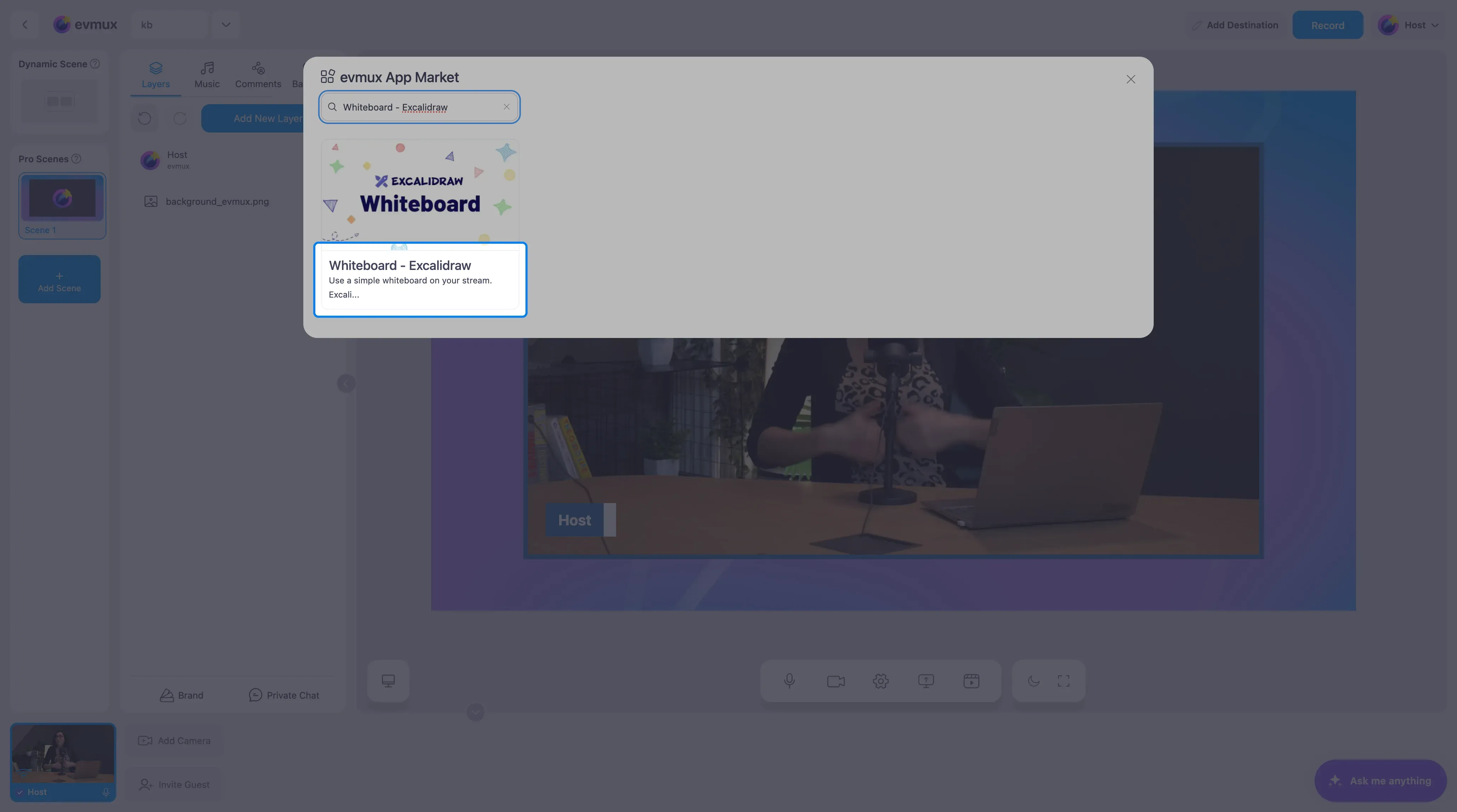
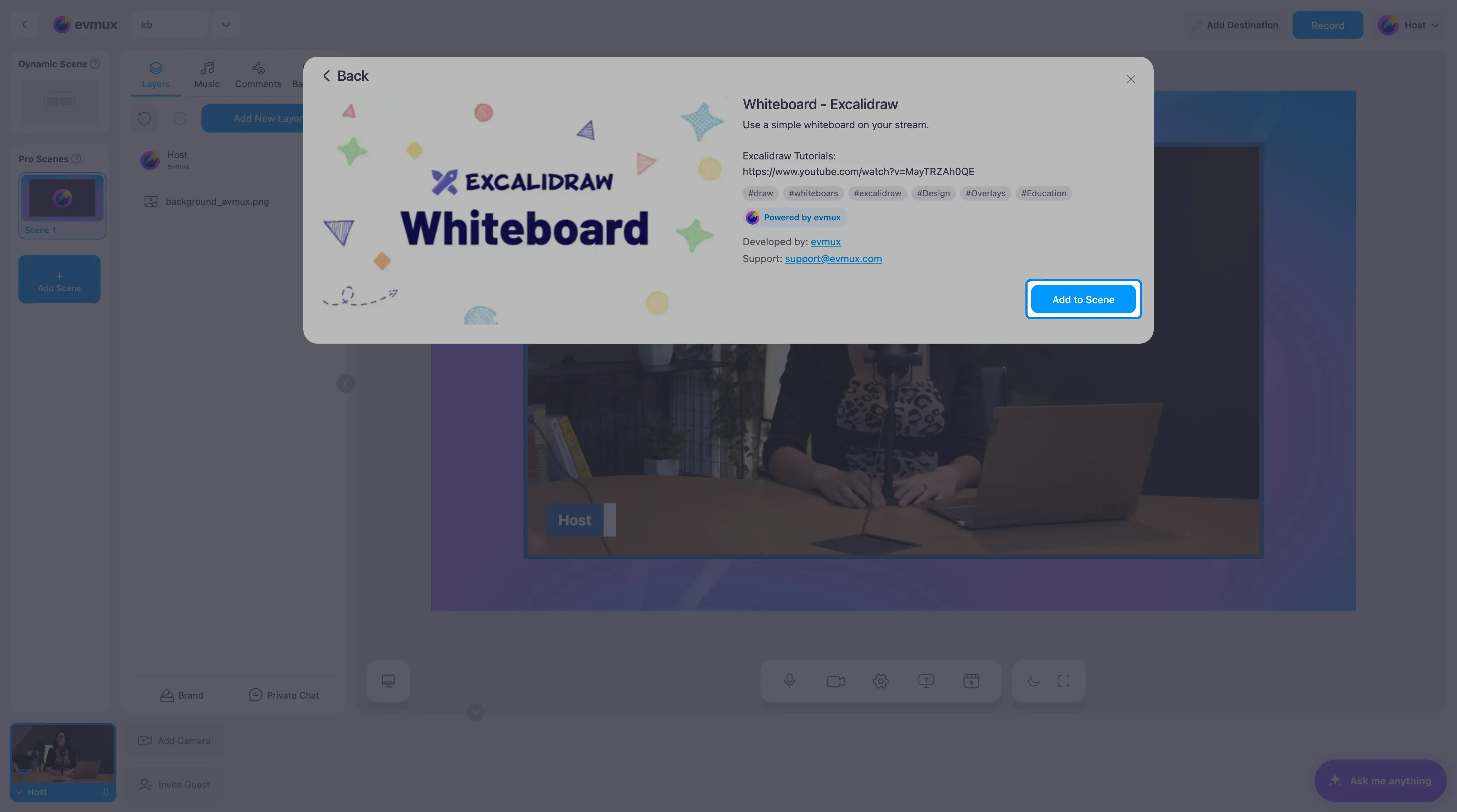
- Search for Whiteboard - Excalidraw and click the card, then click Add to Scene
Step 2: Start Drawing
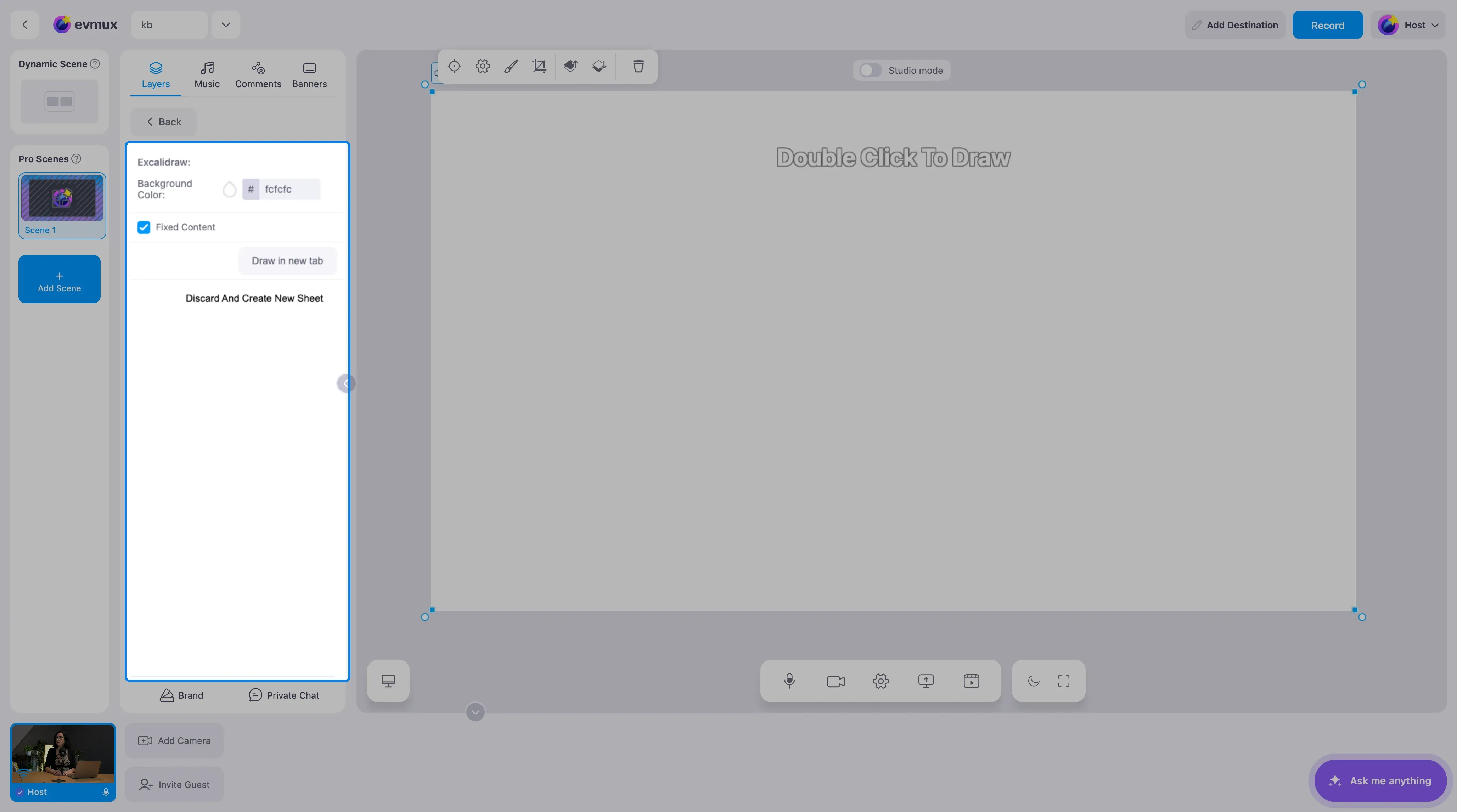
The board fills the scene as a white sheet that says Double Click To Draw.
There are two ways to draw:
- Double-click the board to draw directly on the scene with the Excalidraw tools.
- Click Draw in new tab in the settings panel. The same board opens in a separate browser tab with the full Excalidraw toolbar, which is more comfortable for longer sessions. Everything you draw there shows on the scene at once. Put the tab on a second screen and you can draw while keeping an eye on the studio.
Step 3: Settings
| Setting | What it does |
|---|---|
| Background Color | The color of the sheet. Pick a dark one for a chalkboard look |
| Fixed Content | Keeps the drawing from panning and zooming on the scene, so viewers always see the same framing as you |
| Draw in new tab | Opens the board in its own tab for drawing |
| Discard And Create New Sheet | Wipes the board and starts a blank one |
Step 4: Place the Board
Resize the layer if you want the board beside your camera rather than full screen. The drawing scales with the layer.
Tips
- Draw from a separate tab on a tablet or a second monitor. It keeps your camera framing steady while you draw.
- Use the text tool for labels rather than handwriting them. It stays readable on phones.
- The board is saved with the scene, so a diagram you built in one show is still there in the next unless you clear it.