

How to Use the Voice Changer
The voice changer puts a sound effect on your microphone. Everyone who hears you gets the changed voice: your guests in the studio, your live stream and your recordings. There are 14 voices, from a deep monster to a chipmunk, a robot or a voice in a cathedral, and you can switch between them at any moment, even while you are live.
Quick Steps
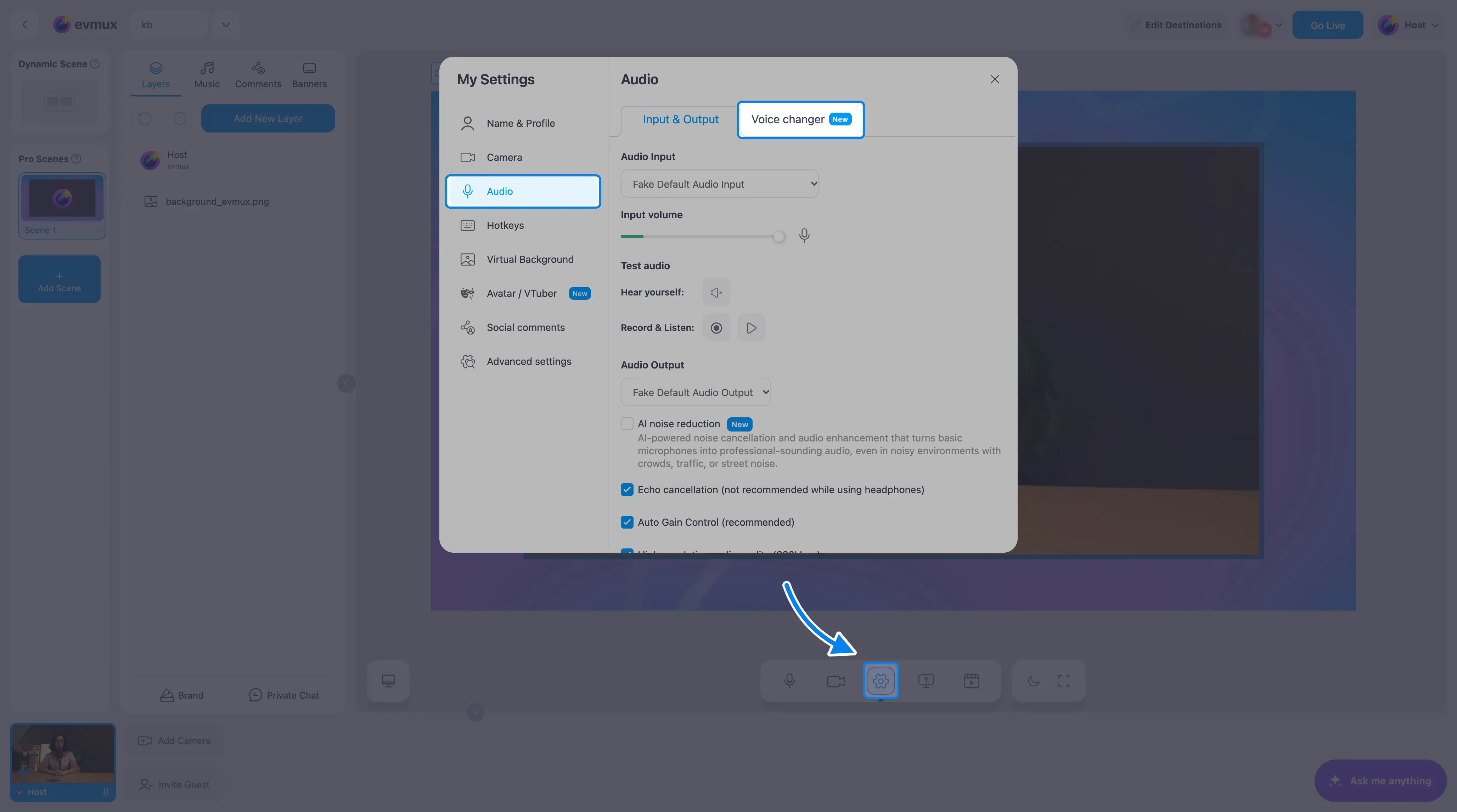
- Click the Settings gear in the bottom toolbar
- Choose Audio, then the Voice changer tab
- Click a voice: it applies right away
- Click Off to get your normal voice back
Step 1: Open the voice changer
- Click the Settings gear in the bottom toolbar.
- Click Audio in the list on the left.
- Click the Voice changer tab at the top (it carries a blue New label). The other tab, Input & Output, holds your usual microphone and speaker settings.
Step 2: Pick a voice
Click any voice in the grid. The change is instant and there is no Apply button. The voice you are using is shown in blue with a check mark.
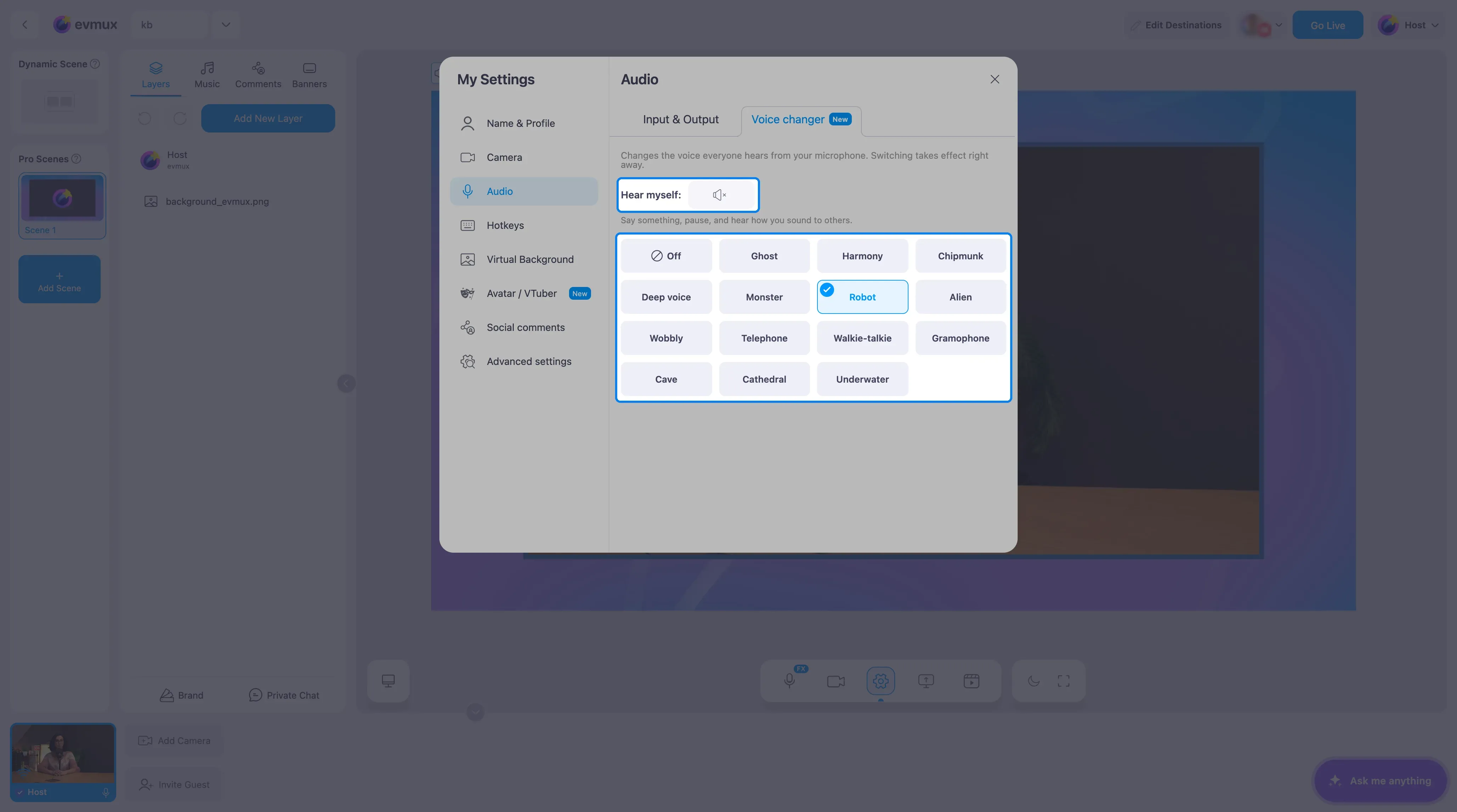
| Voice | What it sounds like |
|---|---|
| Ghost | A lower, trembling voice with a big, haunted echo |
| Harmony | Your voice with two more voices singing along, one lower and one higher |
| Chipmunk | Much higher, like a cartoon chipmunk |
| Deep voice | Noticeably lower |
| Monster | Very low and rough, like a creature |
| Robot | Metallic and buzzing, like a classic sci-fi robot |
| Alien | Higher, with a strange sweeping tone |
| Wobbly | The pitch keeps sliding up and down |
| Telephone | Thin, like a phone call |
| Walkie-talkie | Crackly and narrow, like a two-way radio |
| Gramophone | An old record, with a warble and crackle |
| Cave | Your words echo back |
| Cathedral | A long, ringing reverb |
| Underwater | Muffled, as if heard under water |
There are no extra sliders: each voice is ready to use as it is.
Step 3: Hear how you sound
You never hear the changed voice in your own headphones while you talk, so use the Hear myself button above the voices:
- Click Hear myself.
- Say something, then pause. The studio records what you said (up to 5 seconds) and plays it back, so you hear exactly what everyone else hears.
- Keep talking and pausing to try other voices. Click the button again (Stop) when you are done.
Use headphones, otherwise the playback can be picked up by your microphone.
How to tell a voice is on
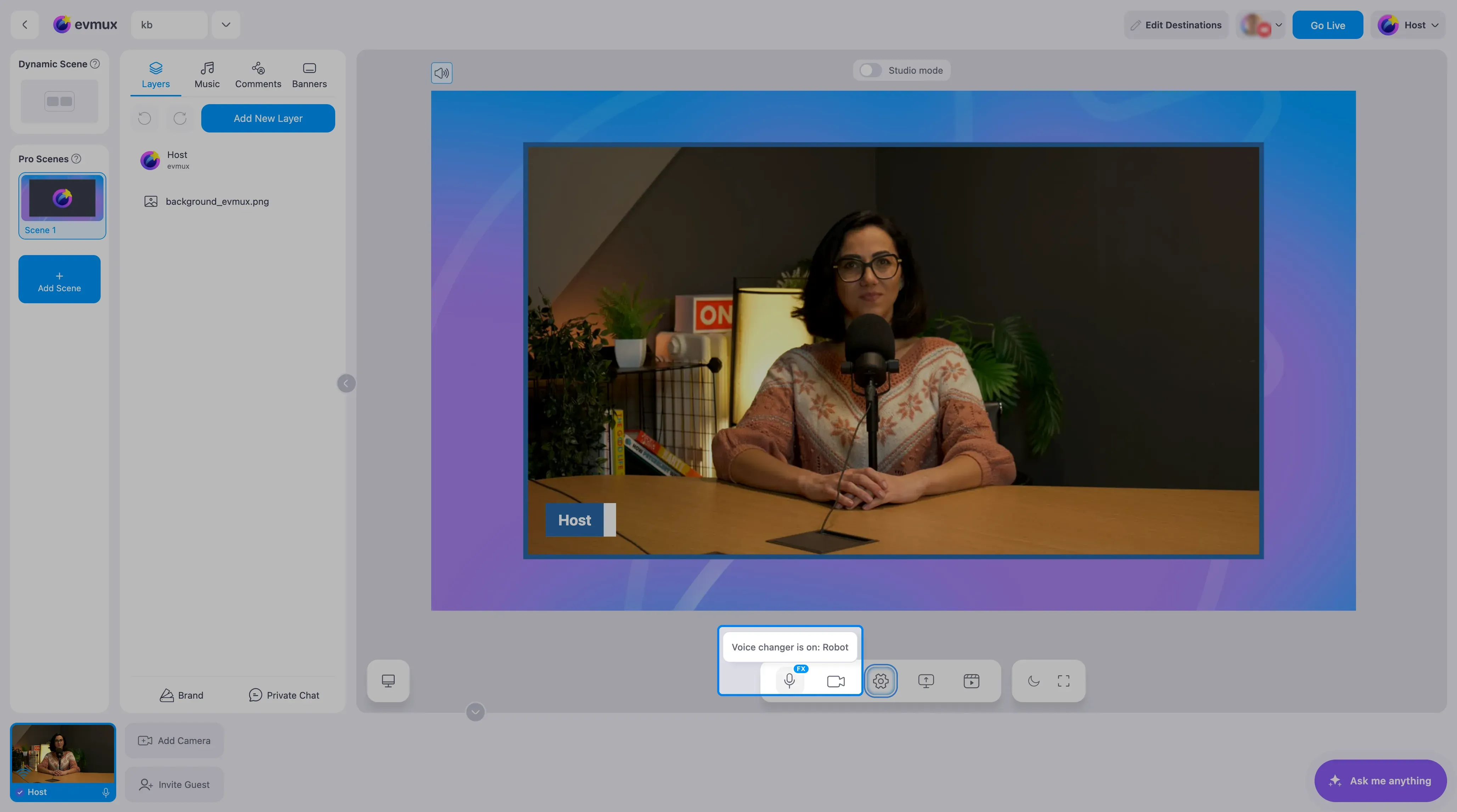
While a voice is on, a small blue FX tag sits on the microphone button in the bottom toolbar. Point at it to see which voice it is, for example “Voice changer is on: Robot”. Click the tag to jump straight to the voice changer.
Turn it off
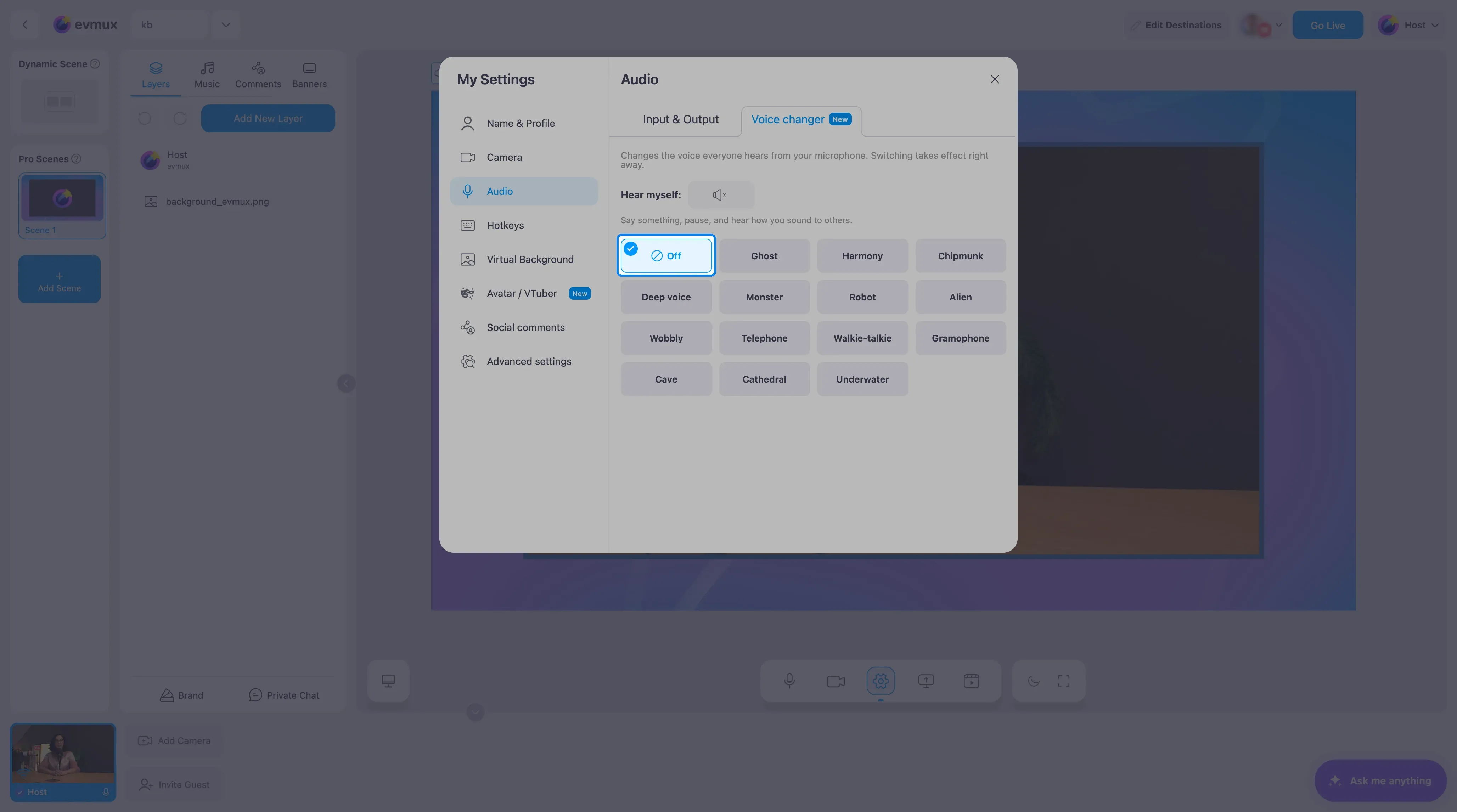
Open the Voice changer tab (or click the FX tag) and click Off, the first tile with the crossed-out circle. Your normal voice comes back instantly.
The voice you pick is remembered on your computer. It stays on after you reload the page and in your next studios and shows, until you switch it Off.
What the voice changer affects
- Changed: your microphone, for everyone: guests in the studio, the live stream, cloud recordings and local recordings.
- Not changed: music, sound effects, videos and other people’s voices. Each person picks their own voice in their own settings, and a host cannot change a guest’s voice.
- AI noise reduction works together with it: noise is removed first, then the voice is changed.
- Avatars: you can use a voice together with an avatar. The first time you pick a voice while a character is on, the character restarts and your picture is blank for a few seconds. Switching voices after that is instant.
- Voices that change the pitch (Ghost, Harmony, Chipmunk, Deep voice, Monster, Alien and Wobbly) add a tiny delay to your audio, under a tenth of a second.
Who can use it
- Hosts and guests, on every plan. Each person sets their own voice.
- Desktop computers only. The tab is not offered on phones and tablets.
Troubleshooting
My voice sounds strange, deep or robotic
A voice is probably still on from an earlier session, since the choice is remembered on your computer. Look for the FX tag on the microphone button, click it, and choose Off.
I picked a voice but people hear my normal voice
This can happen right after a page reload. Open the Voice changer tab, click Off, then click your voice again. Use Hear myself to check.
I cannot find the Voice changer tab
It is only shown on desktop computers. If you are on a computer and still do not see it under Settings > Audio, the feature is not enabled on your account yet.