

How to Use Chat
This guide shows you how to communicate with participants using the built-in chat system.
Quick Steps
- Open the Chat panel from the side tabs
- Select Group chat or a specific participant
- Type your message and send
- Use Push-to-Talk for voice communication
Chat Types
| Chat Type | Description |
|---|---|
| Group | Message all participants at once |
| Direct | Private message to a specific person |
Detailed Steps
Step 1: Open Chat Panel
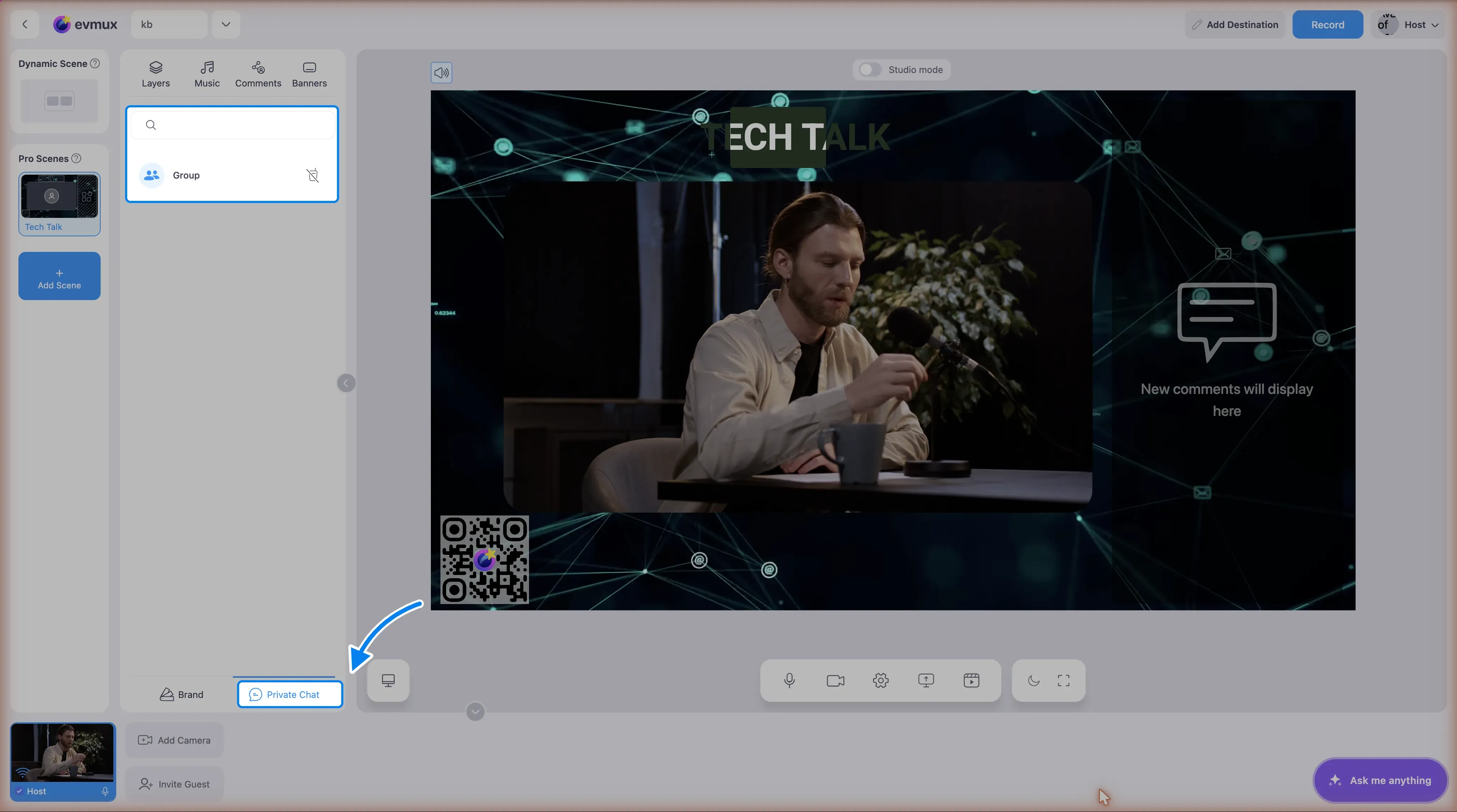
- Click Private Chat at the bottom of the tabs panel on the left
- The chat list shows available conversations
- Group chat is always available
- Individual participants appear when online
Step 2: Select a Conversation
Group Chat:
- Click Group to message all participants
- Shows a group icon (multiple people)
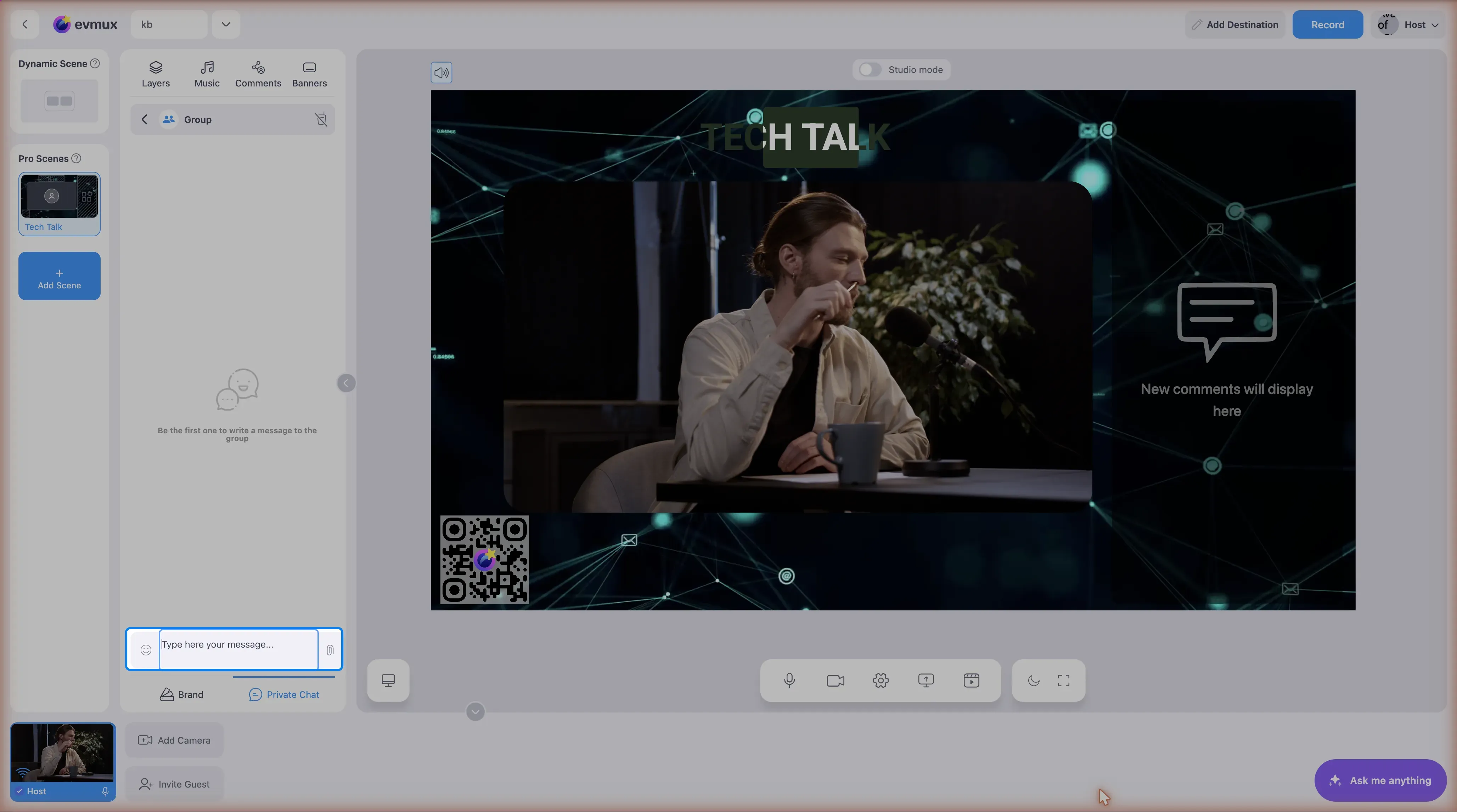
- Empty group shows: “Be the first one to write a message to the group”
Direct Message:
- Click on a participant’s name
- Shows their avatar and online status
- “Online” indicator appears when connected
Step 3: Send Messages
- Click on a conversation to open it
- Type your message in the input field
- Press Enter or click Send
- Messages appear in the chat timeline
Step 4: Navigate Back
- Click the back arrow (left angle icon) in the chat header
- Returns to the conversation list
Push-to-Talk (PTT)
Editors can use Push-to-Talk to speak directly to participants.
Using Push-to-Talk
- Open a direct chat with a participant
- Look for the PTT button (microphone icon) in the header
- Press and hold the button to speak
- Release to stop speaking
PTT Requirements
- Participant must be online
- Microphone access must be enabled
- Only available for editor → participant communication
PTT Unavailable?
If the PTT button shows disabled (i_ptt_disabled):
- Tooltip: “Push-To-Talk is unavailable because guest is offline”
- Wait for the participant to reconnect
No Microphone?
If microphone isn’t available:
- Dialog appears: “Microphone access disabled. Enable it and reload page to be able to use PTT”
Message Features
Message Types
- Text messages - Regular typed messages
- File attachments - Images, videos, documents
- Links - Auto-detected and made clickable
Message Information
Each message shows:
- Sender name (first message in a sequence)
- Avatar (first message in a sequence)
- Time (e.g., “2:30 PM”)
- Read indicator (checkmark with “Read” for direct messages)
Date Separators
Messages are grouped by date with separators showing:
- Format: “December 17, 2025”
- Appears between days
File Sharing
Sending Files
- Click the attachment icon
- Select a file to upload
- Progress bar shows upload status
- Cancel button available during upload
Viewing Attachments
- Images/Videos - Click to view full size
- Documents - Shows filename and size
- Download - Click to download any attachment
Unread Messages
Indicators
- Unread count badge - Shows number of new messages
- Scroll to bottom - Blue button appears with count
- Click the badge to scroll and mark as read
Marking as Read
Messages are marked as read when:
- You scroll to the bottom of the conversation
- You click the unread message indicator
Tips
Effective Communication
- Use group chat for announcements
- Use direct chat for private instructions
- PTT is great for quick voice directions
During Live Broadcast
- Chat remains available during live
- Use to coordinate with team silently
- PTT lets you give voice instructions off-air
Organization
- Chat history persists during the session
- Offline participants keep their chat history
- Messages sync across multiple editors
Troubleshooting
Messages not sending?
- Check internet connection
- Verify participant is still in session
- Try refreshing the page
Can’t see participant in chat?
- They may have disconnected
- Check the Fast Access Bar (bottom bar) for connected participants
- Offline participants stay in list with history
PTT not working?
- Ensure microphone permissions are granted
- Check that participant is online
- Reload page if microphone was recently enabled
Files not uploading?
- Check file size limits
- Verify internet connection
- Cancel and retry if stuck