

How to Add a Dynamic Grid Layer
This guide shows you how to add a Dynamic Grid layer to a Pro Scene, enabling auto-arranging participant functionality within a custom scene.
Quick Steps
- Select a Pro Scene (not the Dynamic Scene)
- Click Add New Layer in the Layers panel
- Select Dynamic Grid from the menu
- Adjust alignment and fill settings in the toolbar
- Add participants via the Fast Access Bar
What is a Dynamic Grid?
A Dynamic Grid is a special layer type that brings Dynamic Scene functionality into a Pro Scene:
- Creates an auto-arranging area within your Pro Scene
- Syncs with the Dynamic Scene participants
- Allows custom positioning of the grid within your layout
- Supports up to 12 feeds with intelligent layouts — feeds, not people: each camera, extra camera, screen share and media share takes one of the 12 slots, so one person can use several
- Only one Dynamic Grid per scene is allowed
Prerequisites
- You must be in a Pro Scene (not the Dynamic Scene)
- The current scene must not already have a Dynamic Grid
- Participants who should appear in the grid must not be on the scene as their own speaker layers. A person is either placed by hand or placed by the grid, not both, so remove their speaker layer first (Step 2 below)
Detailed Steps
Step 1: Select a Pro Scene
- In the Scenes panel, click on a Pro Scene
- Pro Scenes are any scene except the first one (Dynamic Scene)
- Or create a new Pro Scene if needed
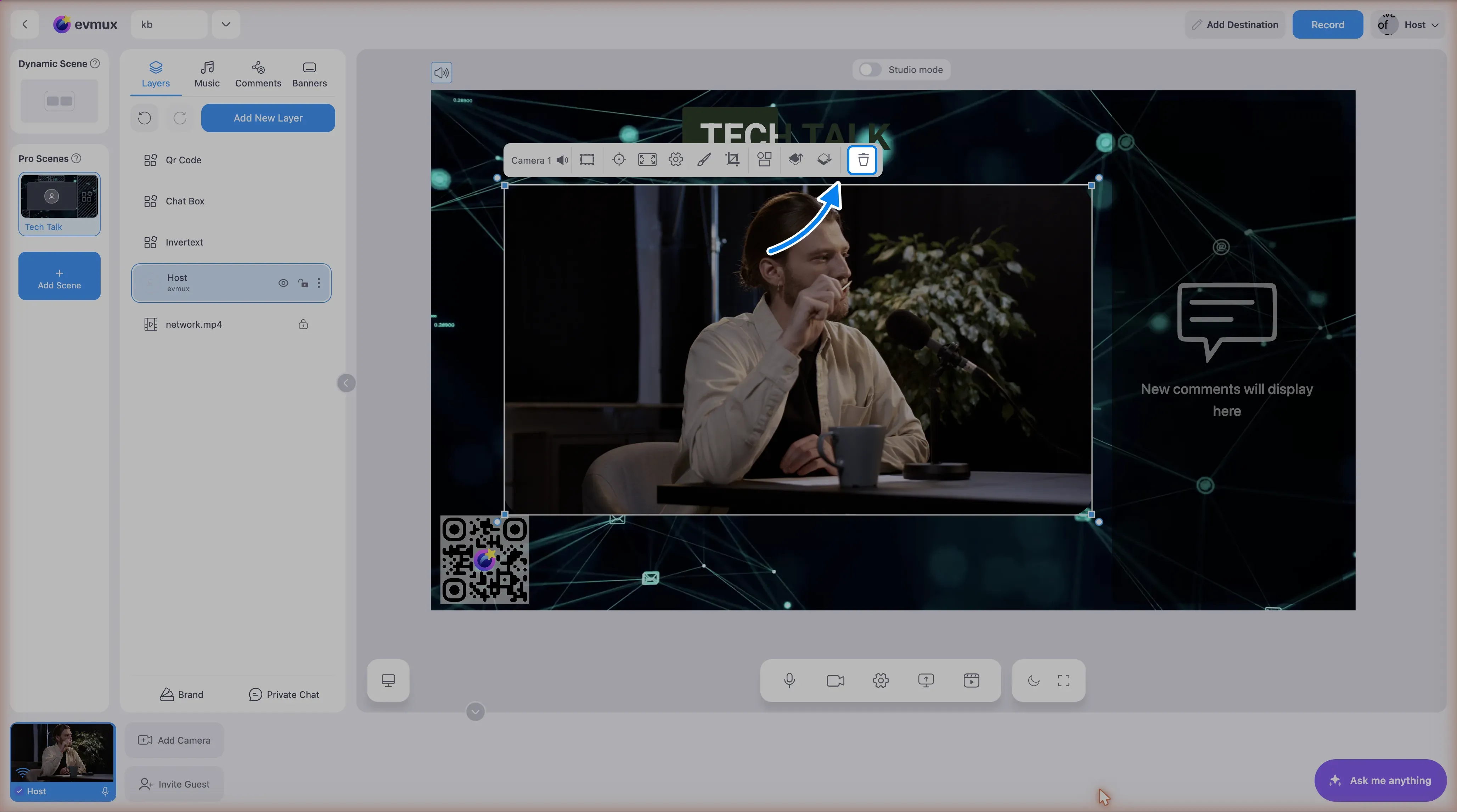
Step 2: Take the speaker off the stage
If the person is already on the scene as a speaker layer, select that layer on the scene and click the delete icon at the right end of its toolbar. The scene is empty of participants for a moment. That is expected: the grid will bring them back.
Step 3: Open Add New Layer Menu
- In the Layers panel (left side)
- Click the Add New Layer button
- A menu appears with layer type options
Step 4: Select Dynamic Grid
- Click Dynamic Grid in the menu
- Has icon and tooltip: “Mimicking the dynamic scene by allowing the addition of feeds, such as guests, to designated areas.”
- Shows a New badge (newer feature)
Error: If the scene already has a Dynamic Grid:
“You can only place one layer of ‘Dynamic grid’ in a scene.”
Step 5: Dynamic Grid is Added
- A new Dynamic Grid layer appears in the layer list
- The layer name is “Dynamic Grid”
- It’s added at the top of the layer stack
- The toolbar opens automatically
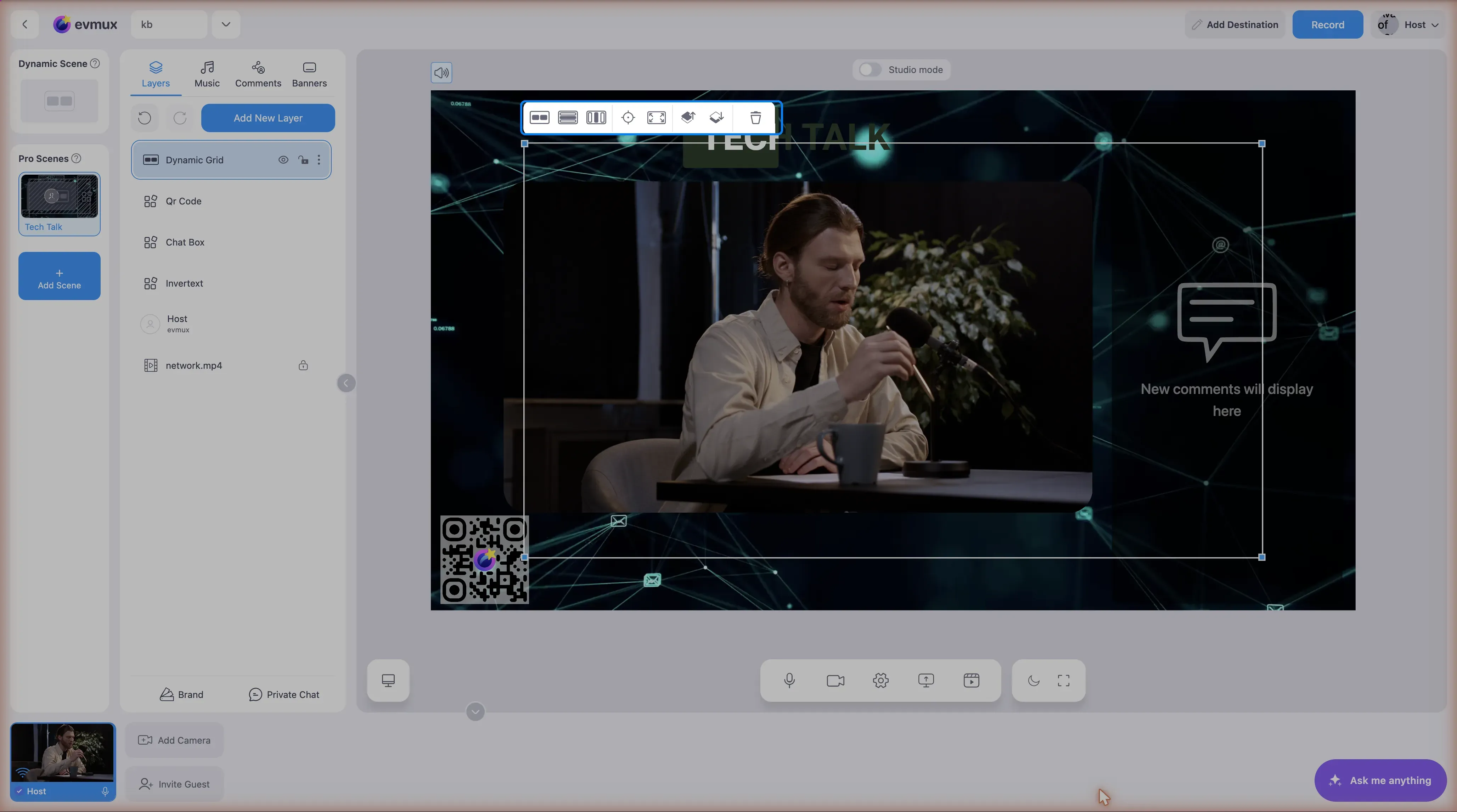
Step 6: Adjust Grid Settings
Click on the Dynamic Grid layer to open its toolbar with these controls:
Fit/Fill Mode
| Option | Icon | Description |
|---|---|---|
| Fit | Grid icon | Participants maintain 16:9 aspect ratio with gaps |
| Fill | Stretch icon | Participants stretch to fill the available space |
Click the Fit/Fill dropdown to switch between modes.
Vertical Alignment
| Option | Icon | Alignment |
|---|---|---|
| Top | Align start | Participants align to top |
| Center | Align center | Participants centered vertically |
| Bottom | Align end | Participants align to bottom |
Horizontal Alignment
| Option | Icon | Alignment |
|---|---|---|
| Left | Justify start | Participants align to left |
| Center | Justify center | Participants centered horizontally |
| Right | Justify end | Participants align to right |
Step 7: Position and Resize the Grid
- Drag the Dynamic Grid layer on the scene to position it
- Resize by dragging the corners/edges
- Use Position controls in toolbar for precise positioning
- The grid auto-arranges participants within its bounds
Step 8: Add Participants to the Grid
Once a Dynamic Grid exists in the current scene, the participants bar works like on the Dynamic Scene:
- Hover over a participant’s tile in the participants bar at the bottom
- Click Add to Scene. The person lands inside the grid, not as a separate layer
- Repeat for everyone who should be in the grid; the layout rearranges by itself
- To take someone out, hover their tile again and click the same control
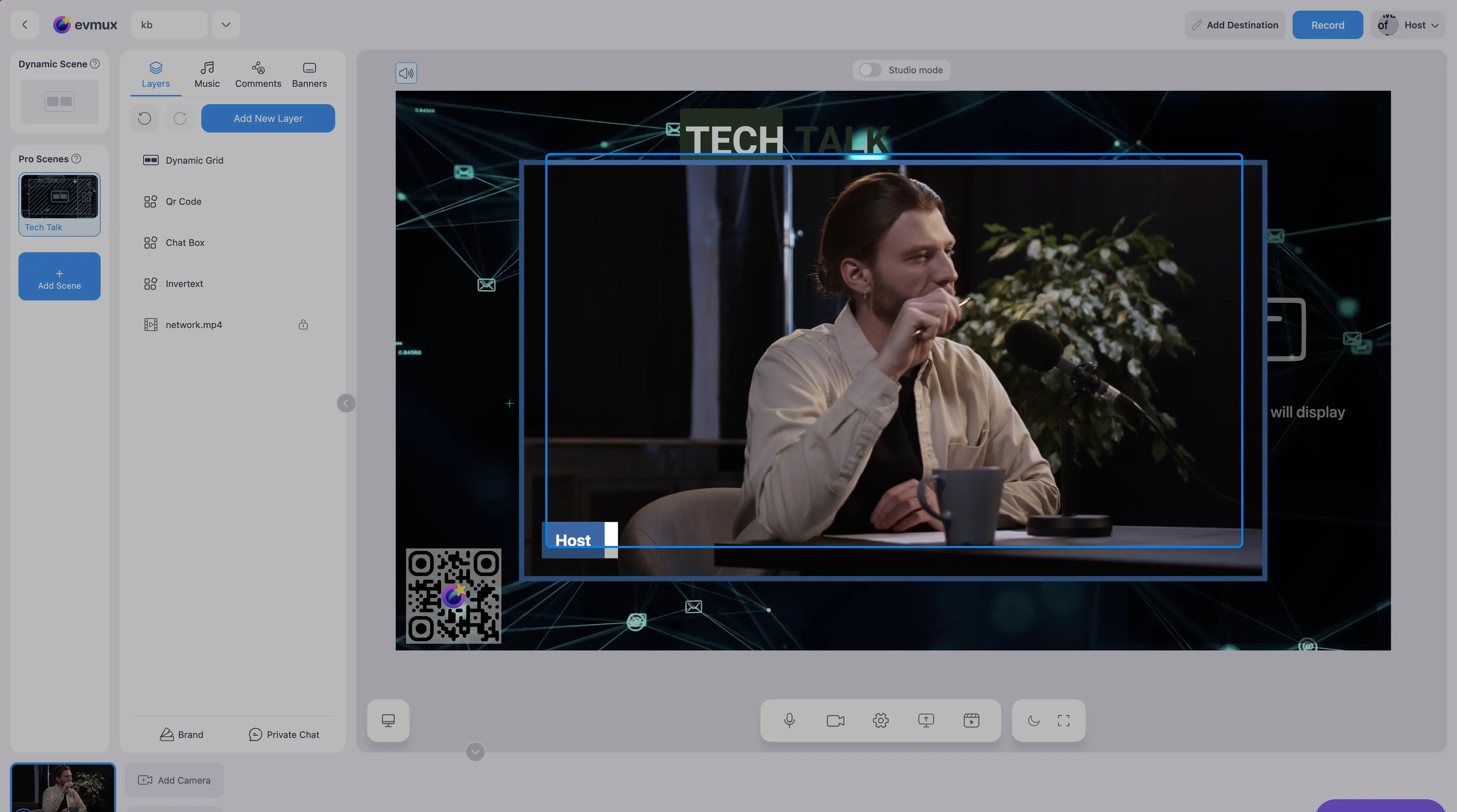
Note: Participants added to the Dynamic Grid also appear in the main Dynamic Scene.
Dynamic Grid Behavior
Auto-Arrangement
The Dynamic Grid automatically arranges participants based on:
- Number of participants (1-12)
- Grid dimensions (width/height ratio)
- Fit/Fill mode selection
- Alignment settings
Intelligent Layouts
| Participants | Layout Examples |
|---|---|
| 1 | Full grid (maintains aspect ratio in Fit mode) |
| 2 | Side-by-side or stacked (based on grid shape) |
| 3-4 | 2x2 grid or row/column |
| 5-6 | 2 rows or 3x2 grid |
| 7-12 | Multi-row arrangements |
Sync with Dynamic Scene
- Adding to Dynamic Grid adds to
sceneList.simple.layers - Removing from Dynamic Grid removes from Dynamic Scene
- Participants already added as Pro layers are excluded from the grid
- Spotlight functionality works within the grid
Dynamic Grid Layer Properties
| Property | Default | Description |
|---|---|---|
type | dynamicGrid | Layer type identifier |
fitStretch | fit | Fit (aspect preserved) or stretch (fill) |
alignContent | center | Vertical alignment |
justifyContent | center | Horizontal alignment |
dynamicScene.layers | [] | Array of participants in the grid |
Fast Access Bar Behavior
When the current scene contains a Dynamic Grid:
| Feature | Available |
|---|---|
| Add button | Yes - adds to Dynamic Grid |
| Remove button | Yes - removes from Dynamic Grid |
| Spotlight button | Yes - spotlights participant |
| Options flyout | Yes - full options available |
This behavior matches the Dynamic Scene, enabling quick participant management.
Use Cases
Custom Background with Auto-Arranging Participants
- Create a Pro Scene with branded background
- Add overlay graphics, logos
- Add Dynamic Grid layer
- Position grid where participants should appear
- Participants auto-arrange within that area
Picture-in-Picture with Grid
- Add a main speaker as individual layer
- Add Dynamic Grid for secondary participants
- Position and size the grid as needed
- Grid shows remaining participants
Combining Manual and Dynamic Layouts
- Add specific participants as individual layers (precise control)
- Add Dynamic Grid for remaining participants
- The Dynamic Grid automatically excludes participants already added as layers
Troubleshooting
Can’t add Dynamic Grid?
- Ensure you’re in a Pro Scene, not the Dynamic Scene
- Check if scene already has a Dynamic Grid (only one allowed)
- Look for error message
Add/Remove buttons not showing?
- Verify a Dynamic Grid exists in the current scene
- Make sure you’re in the correct scene
- Check that you’re hovering over participant thumbnail
Participants not appearing in grid?
- Check if they’re already added as individual Pro layers
- Verify they’re connected to the session
- Ensure you clicked Add in Fast Access Bar
Grid layout looks wrong?
- Try switching between Fit and Fill modes
- Adjust alignment settings
- Resize the grid layer
- Check participant count
Participants duplicated?
- A participant can only appear once per scene
- If added as Pro layer, they won’t appear in Dynamic Grid
- The grid automatically excludes duplicates
Related
- Scene Types: Dynamic Scene vs Pro Scene
- How to Use the Dynamic Scene
- How to Use the Fast Access Bar
- How to Create a New Scene