

How to Run a Trivia Quiz on Your Stream
The Trivia widget turns your stream into a quiz show. You prepare questions with several answers, show them one at a time, and both the guests on screen and the viewers in chat can answer. When you reveal the right answer the widget scores everyone, and a leaderboard shows who answered first.
When to Use
- A quiz segment with your guests as contestants
- Audience games where viewers answer in the comments
- Training or education streams that check what viewers remember
Steps
Step 1: Add the Trivia Widget
- Open the Layers tab. Apps work on both scene types:
- Dynamic Scene: expand Apps & Widgets -> Add from marketplace
- Pro scene: click Add New Layer -> Apps & Widgets
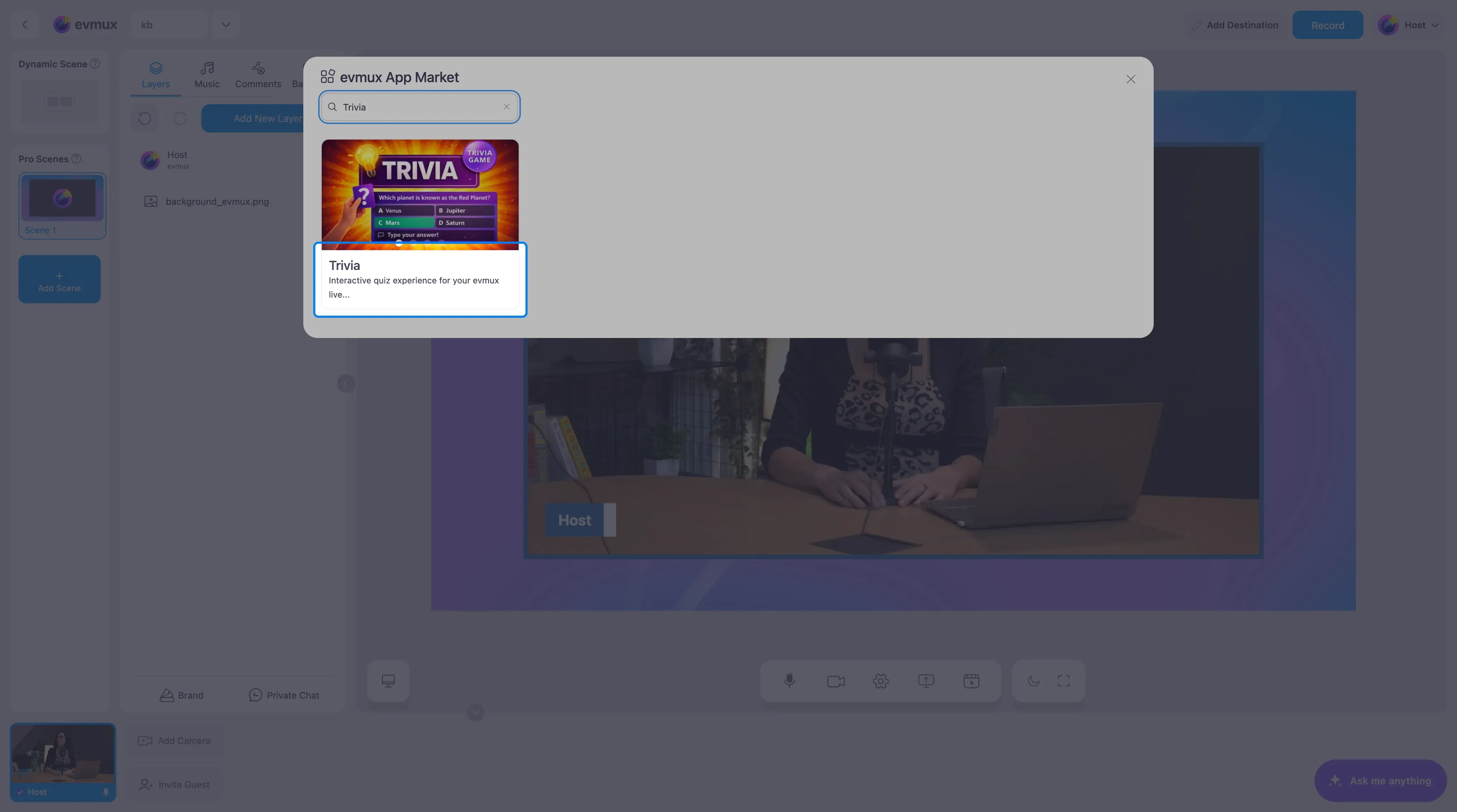
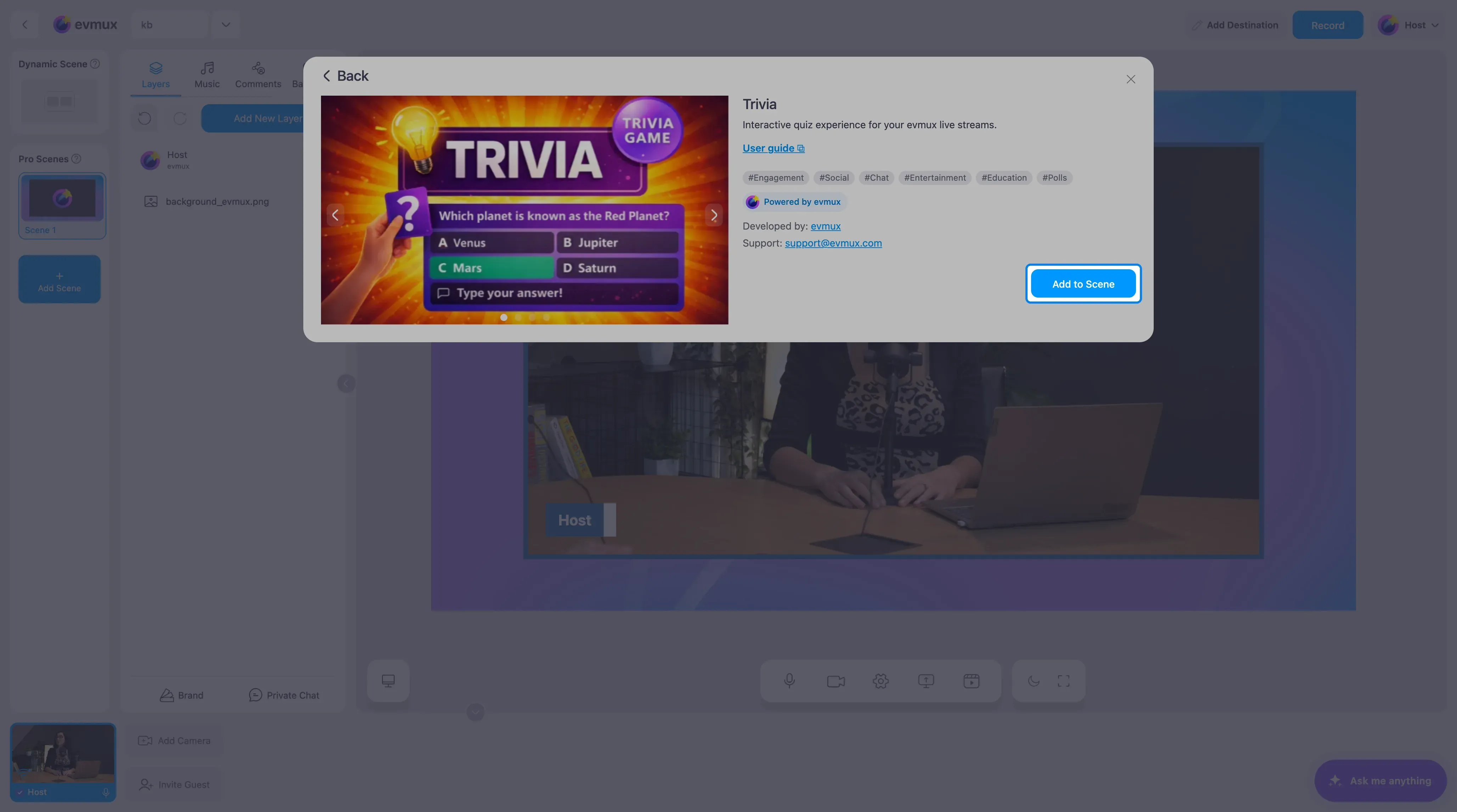
- Search for Trivia and click the card, then click Add to Scene
Step 2: Write Your Questions
The widget fills the scene, with a Participants board along the bottom that lists everyone on screen. The settings panel has two tabs, Settings and Questions.
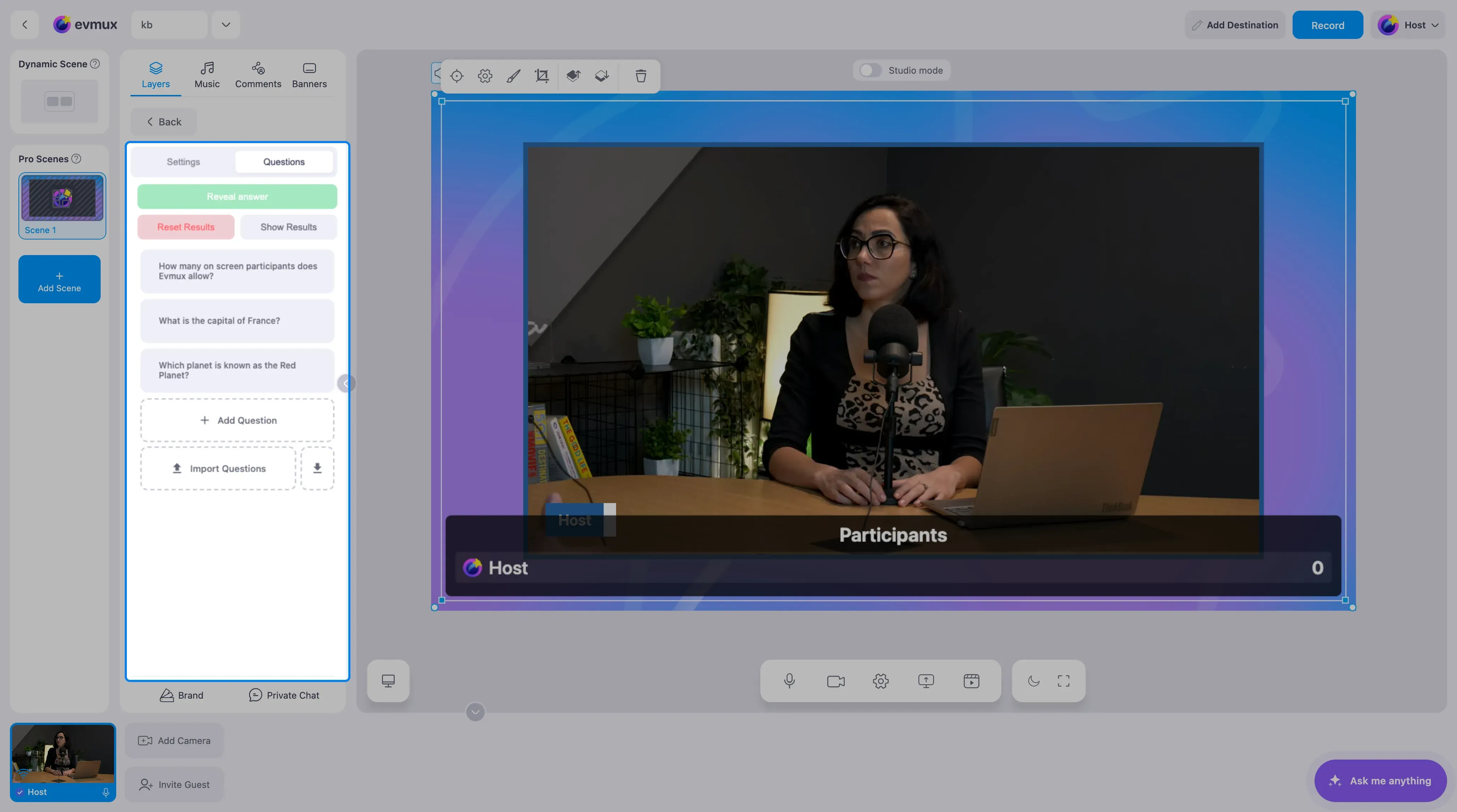
On the Questions tab:
- Three sample questions are included. Click one to edit its text, its answer options and which option is correct, or delete it.
- Add Question creates a new one.
- Import Questions loads a list you prepared in a file, and the download icon next to it saves your current questions so you can reuse them in another show.
Write the questions before you go live. Editing them mid-show is possible but slow.
Step 3: Settings
On the Settings tab you decide how the round runs:
- Reveal: manual, so you reveal the answer when you choose, or automatic with a timer of 10 to 180 seconds per question.
- Chat answers: viewers answer by typing a prefix and their choice in the comments,
#answer Bby default. You can change the prefix.
Step 4: Play
- Show the first question. Guests on screen pick an answer; viewers type theirs in chat.
- Click Reveal answer when time is up. The correct option is highlighted and points are awarded, with the fastest correct answer first.
- Move to the next question. Show Results puts the leaderboard on screen whenever you want; Reset Results clears the scores for a new round.
The host controls (next and previous question, reveal, show and hide results) can be placed on your fast action buttons so you never have to open the panel while presenting.
Tips
- Read each question out loud and give chat a moment. Comments arrive a few seconds behind the stream.
- Keep answer options short so they fit on phone screens.
- Show the leaderboard between rounds, not after every question, to keep the pace up.