

How to Play Sound Effects
This guide shows you how to set up and trigger sound effects during your broadcast using the soundboard.
Quick Steps
- Click the Music tab in the left-side tabs panel (speaker/sound icon)
- In the Sound FX section, click a button to configure it
- During broadcast, click the button to play the sound
- Or use configured keyboard shortcuts
Detailed Steps
Step 1: Open the Music Panel
- Look at the left-side tabs panel
- Click the Music tab (speaker/sound icon)
- The panel has two sections:
- Sound FX at the top - for sound effect buttons (caster buttons)
- Music below - for background music
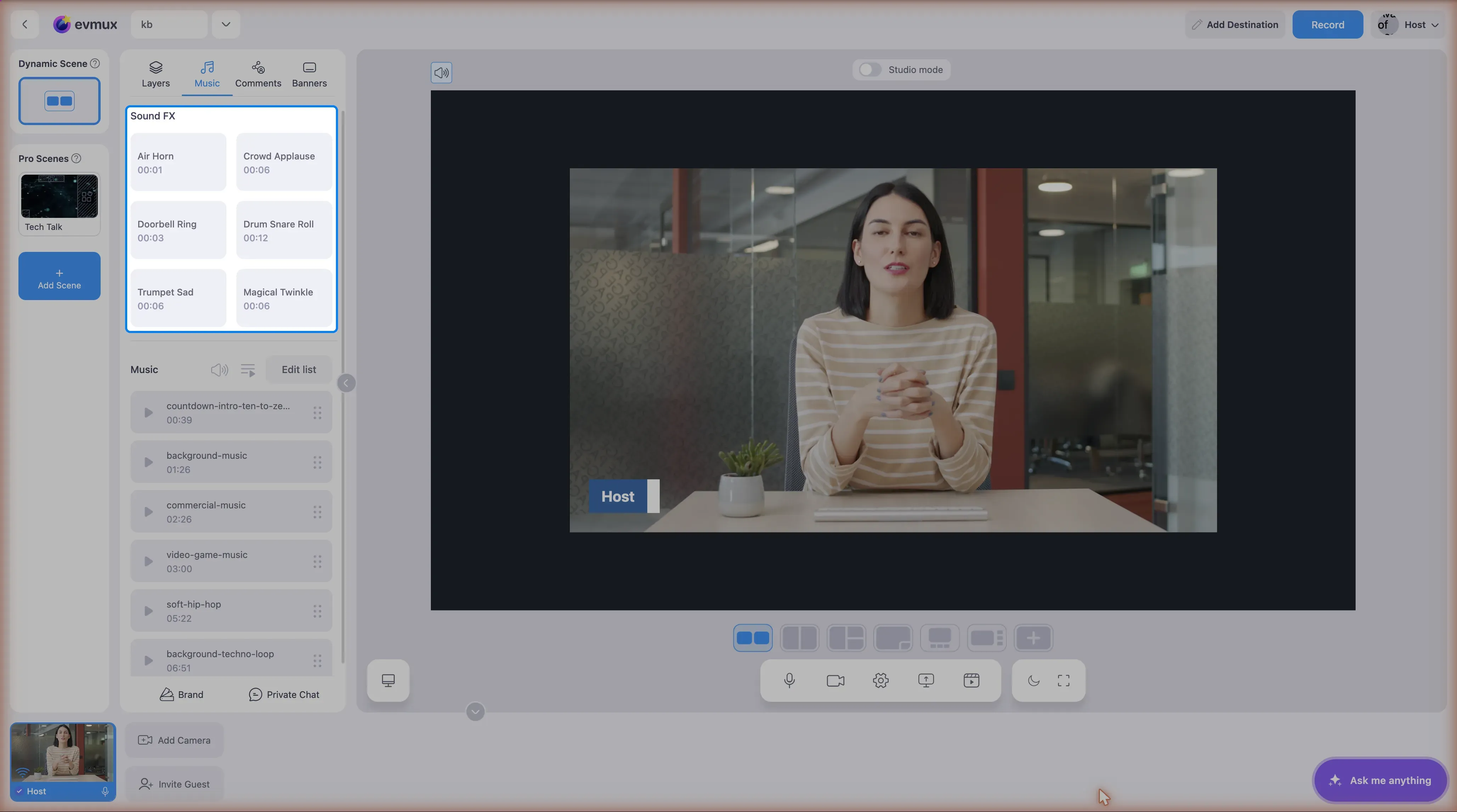
Step 2: Assign Sounds to Pads
- Click on an empty pad
- Select an audio file from:
- Your computer
- Media library
- The sound is now assigned to that pad
- The pad shows the sound name
Supported formats: MP3, WAV, OGG
Sound length limit: Maximum 10 seconds per sound effect
Step 3: Play Sound Effects
Click to Play:
- Simply click any pad to play its sound
- The sound plays immediately
- Click again to stop (if still playing)
Keyboard Shortcuts:
| Key | Pad |
|---|---|
| Ctrl+Shift+1 | Pad 1 |
| Ctrl+Shift+2 | Pad 2 |
| Ctrl+Shift+3 | Pad 3 |
| Ctrl+Shift+4 | Pad 4 |
| Ctrl+Shift+5 | Pad 5 |
| Ctrl+Shift+6 | Pad 6 |
Pressing a bare number key does nothing. The shortcuts can be reassigned in Settings > Hotkeys.
Step 4: Adjust Sound Effect Volume
- Use the volume slider in the SFX panel
- This controls all sound effect volume
- Adjust relative to your other audio sources
Replace a Sound Effect
- Right-click on the pad (or click the menu icon)
- Select Replace
- Choose a new audio file
- The new sound replaces the old one
Remove a Sound Effect
- Right-click on the pad (or click the menu icon)
- Select Remove or Clear
- The pad becomes empty
Best Practices
Sound Selection
- Keep sounds short (1-3 seconds ideal)
- Use high-quality audio files
- Avoid sounds that are too loud or jarring
When to Use Sound Effects
- Transitions between segments
- Celebrating achievements/wins
- Emphasizing points
- Adding humor or energy
- Intro/outro moments
Volume Balance
- Test sound effects before going live
- Sound effects should be audible but not overwhelming
- Typical level: 50-70% relative to speech
Popular Sound Effect Ideas
| Type | Examples |
|---|---|
| Transitions | Whoosh, swoosh, ding |
| Celebrations | Applause, cheering, airhorn |
| Alerts | Bell, notification, chime |
| Comedy | Rimshot, sad trombone, boing |
| Gaming | Level up, coin, power-up |
Troubleshooting
Sound not playing?
- Check if a sound is assigned to the pad
- Verify browser audio permissions
- Check the SFX volume isn’t at zero
- Try re-assigning the sound
Sound too quiet/loud?
- Adjust the SFX volume slider
- Check if your source audio file is properly normalized
- Use audio editing software to adjust the file
Wrong sound plays?
- Verify which pad you clicked
- Check keyboard shortcut assignments
- Re-assign the correct sound to the pad
Tips for Streamers
- Pre-load your sounds - Set up all pads before going live
- Test levels - Do a sound check before streaming
- Don’t overuse - Too many sound effects can be distracting
- Match your brand - Choose sounds that fit your show’s style