

How to Show Stock and Crypto Charts with the TradingView Widgets
evmux includes five widgets powered by TradingView, the charting platform traders use. Each one is a layer you add from the App Market, pick symbols for in the settings panel, and place on the scene. The data is live, so the widgets suit finance shows, crypto streams and any broadcast that talks about the markets.
| Widget | What it shows | Best for |
|---|---|---|
| Realtime Chart | A full candlestick chart of one symbol, with optional indicators | The main chart of a market show |
| Ticker Tape | A scrolling strip of symbols with price and change | A permanent strip along the bottom |
| Mini Chart | A small line chart of one symbol over a chosen range | A corner widget for one stock or coin |
| Stock HeatMap | A tree map of an index, tiles sized and colored by your choice | The market at a glance |
| Crypto HeatMap | The same for crypto coins | Crypto overviews |
Adding Any of Them
- Open the Layers tab. Apps work on both scene types:
- Dynamic Scene: expand Apps & Widgets -> Add from marketplace
- Pro scene: click Add New Layer -> Apps & Widgets
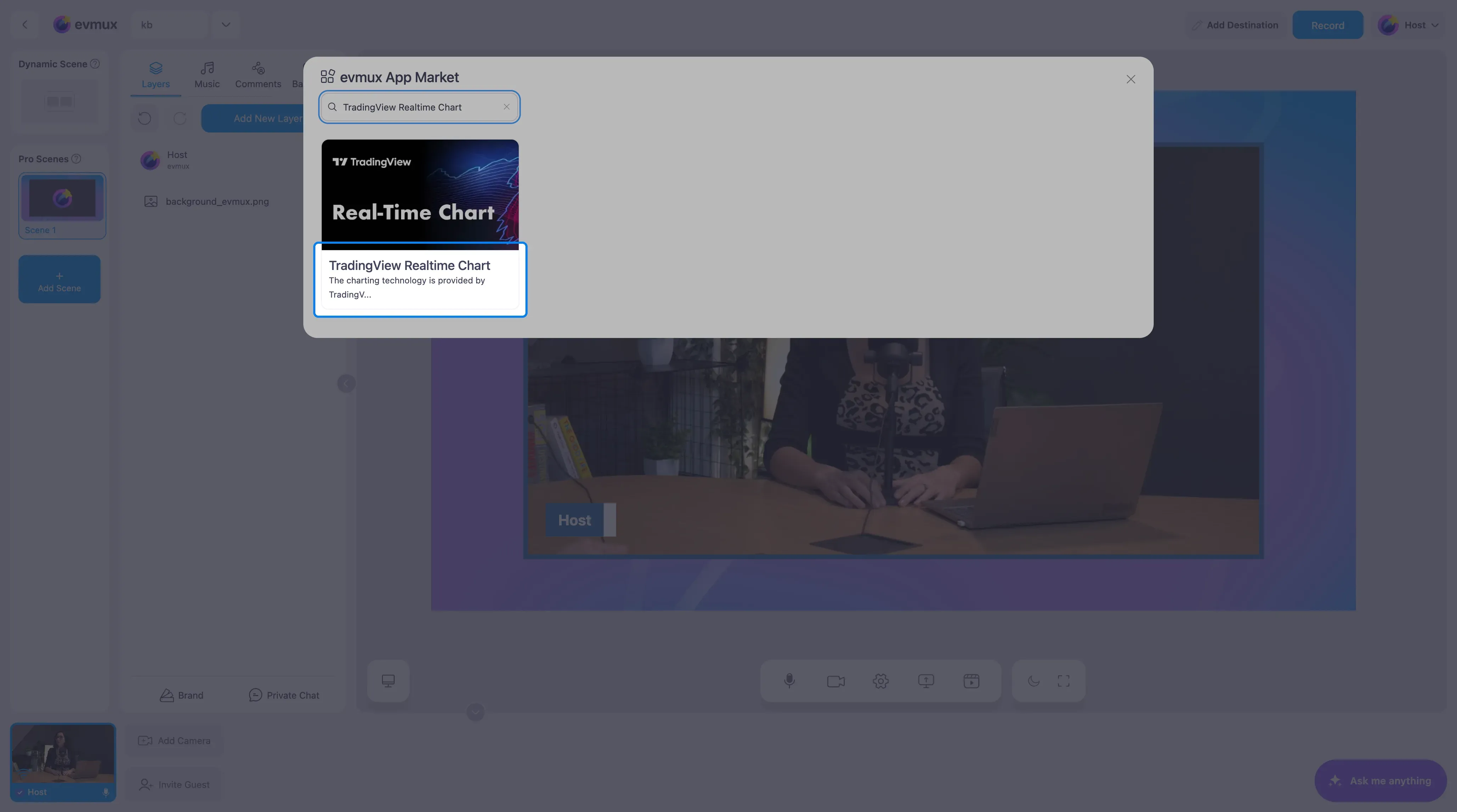
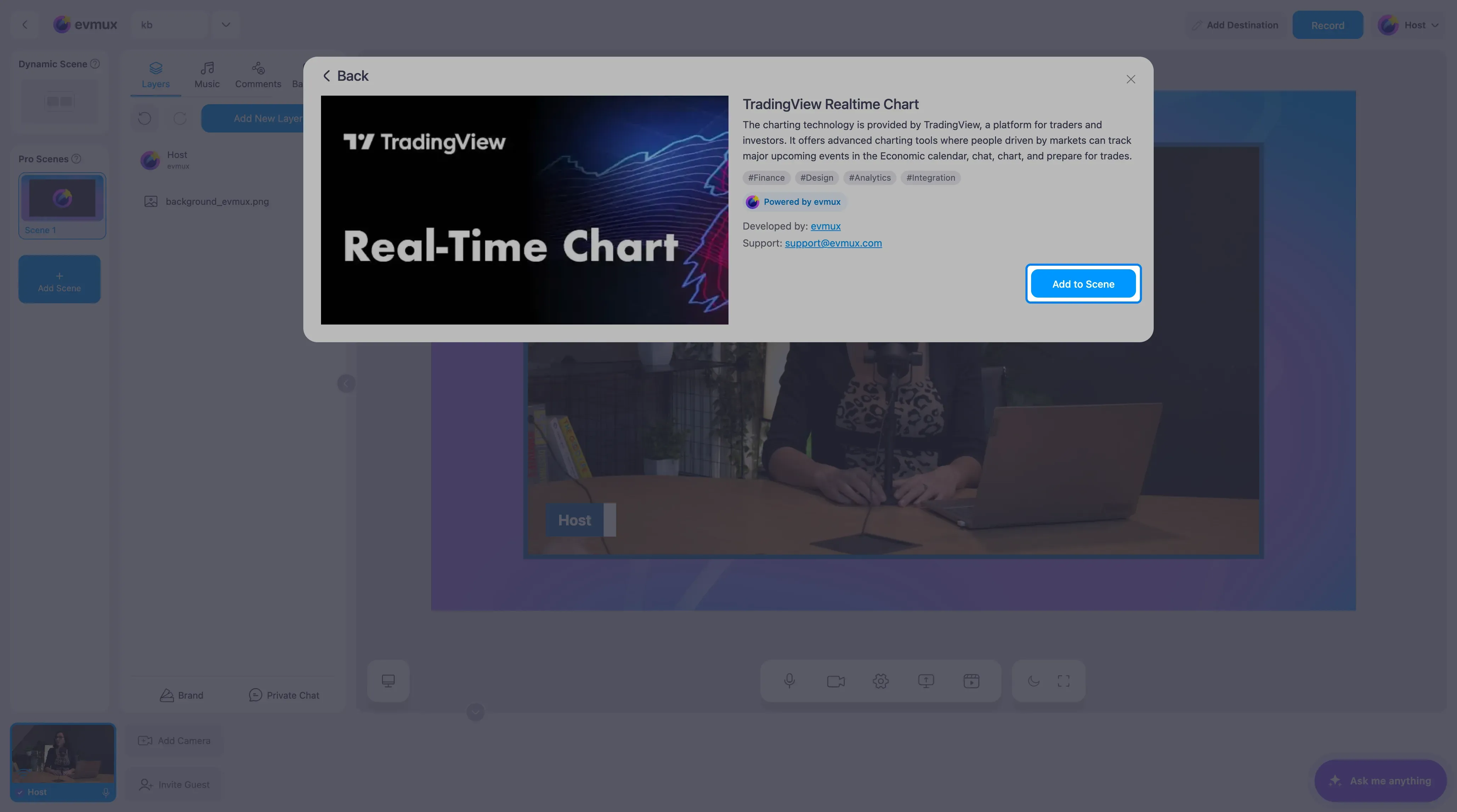
- Search for TradingView and click the card of the widget you want, then click Add to Scene
Every TradingView widget opens the same kind of settings panel on the left: a list of symbols at the top, and the widget’s own settings under it.
Realtime Chart
The chart lands on the scene showing the first symbol in its list.
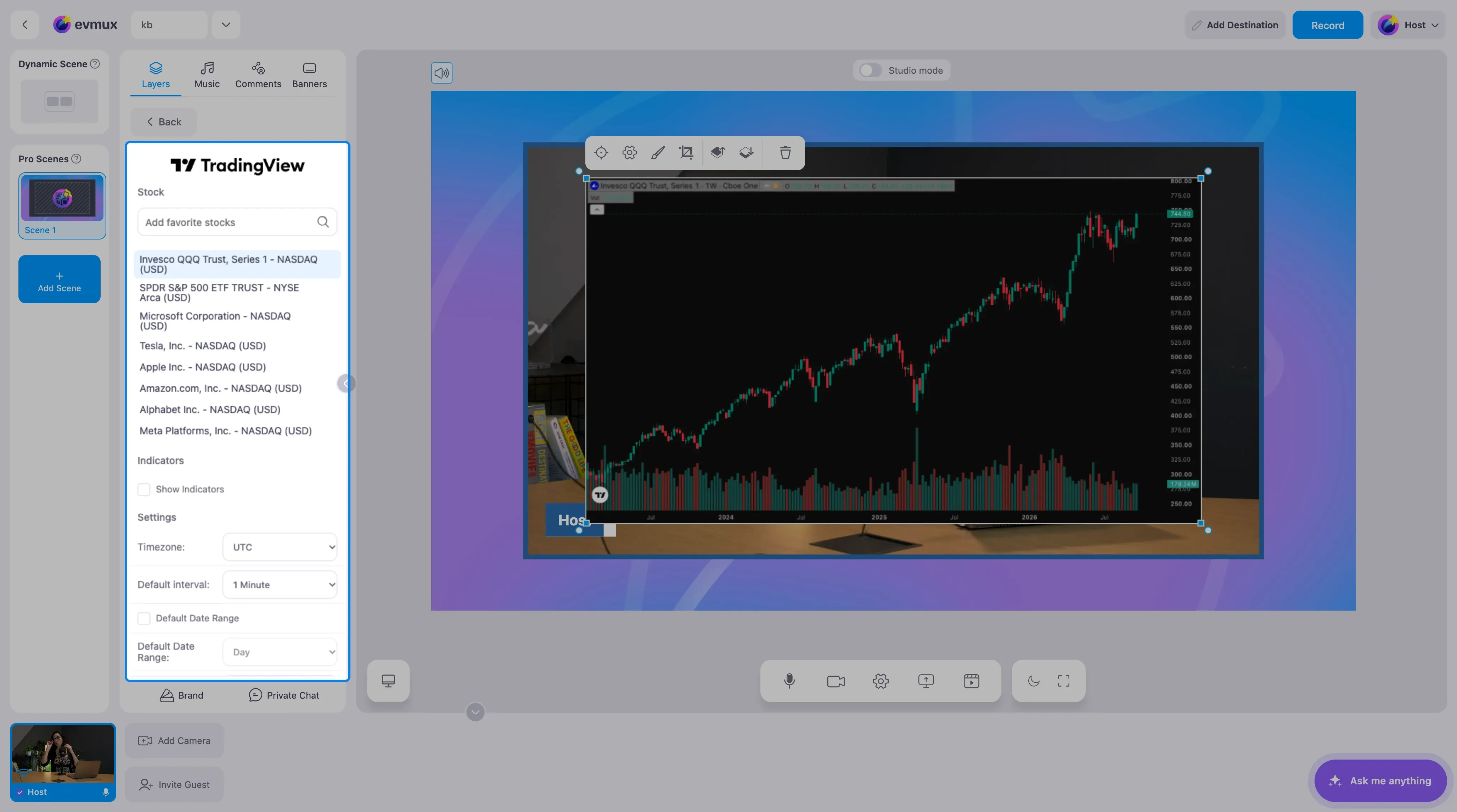
- Stock: the list starts with QQQ, SPY, Microsoft, Tesla, Apple, Amazon, Alphabet and Meta. Click one to chart it. Type in Add favorite stocks to search for any symbol TradingView knows and add it to the list.
- Show Indicators adds technical indicators to the chart.
- Timezone, Default interval (from one minute upwards) and Default Date Range set how the chart opens.
Ticker Tape
A thin strip that scrolls through your symbols with the last price and the change.
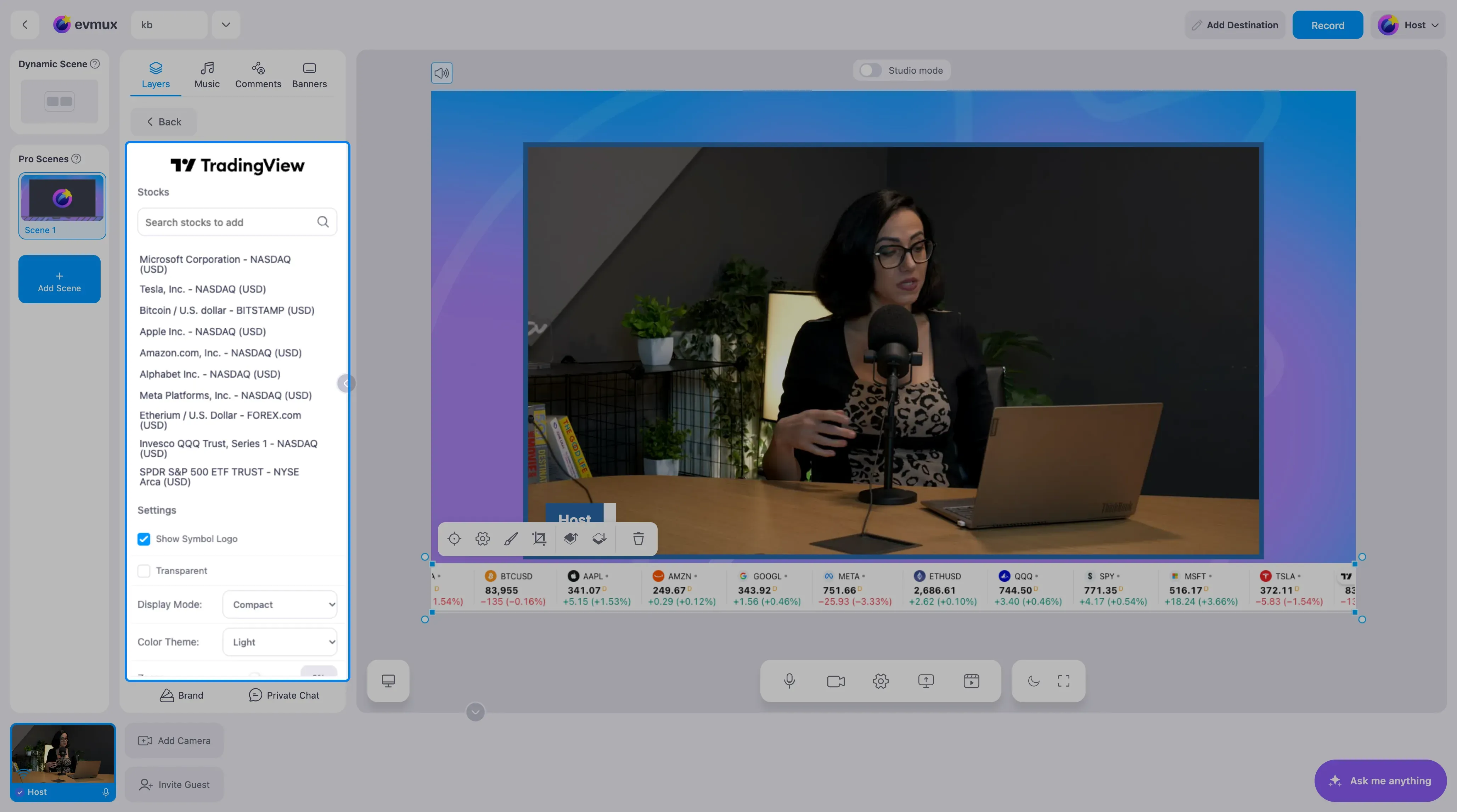
- Stocks: the strip shows every symbol in the list. Search to add more; the defaults include Bitcoin and Ethereum alongside the big tech stocks.
- Show Symbol Logo and Transparent control the look.
- Display Mode is Compact or Regular, Color Theme is Light or Dark, and Zoom scales the strip.
Mini Chart
One symbol as a small line chart with its price, meant for a corner of the scene.
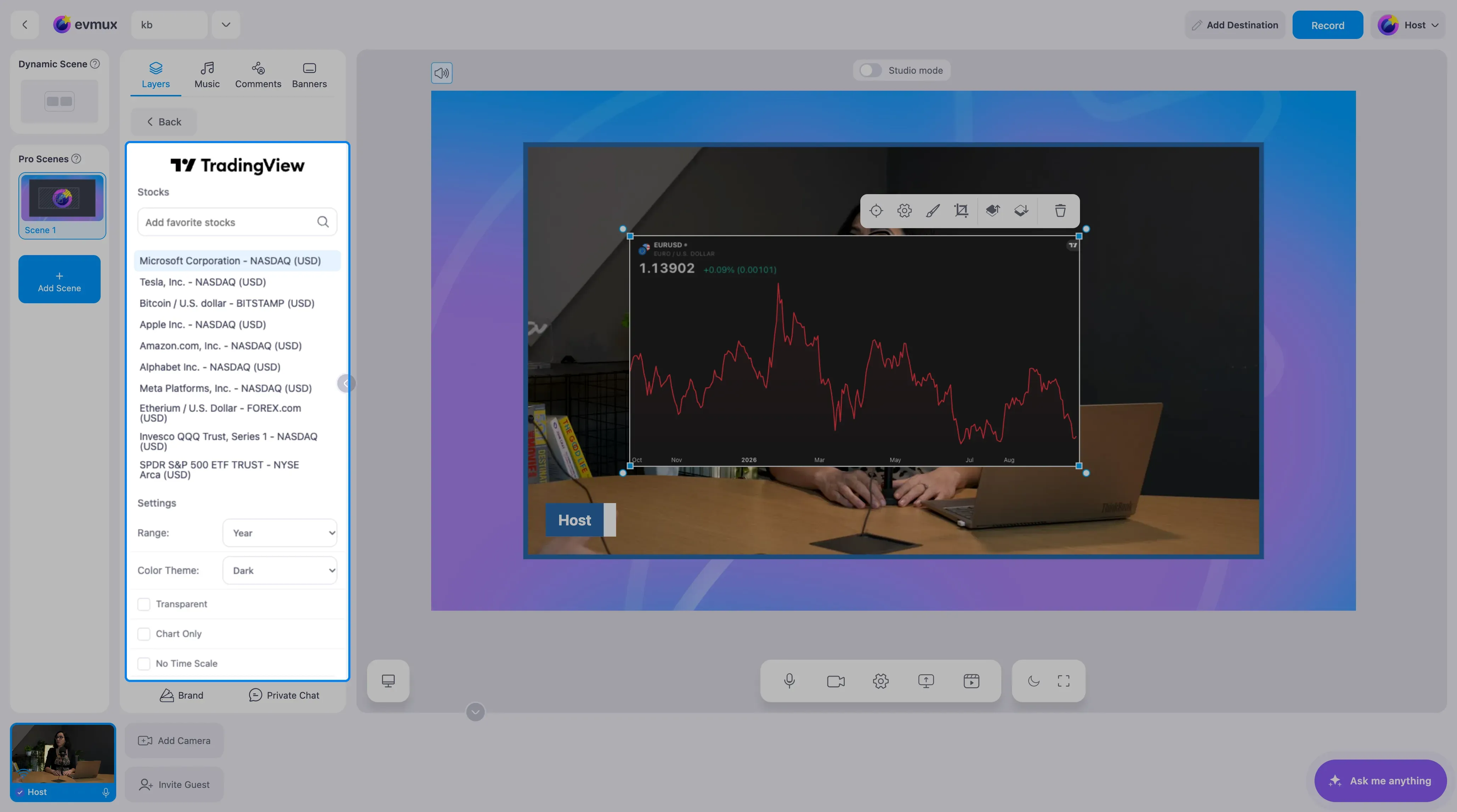
- Stocks: pick the symbol from the list or search for it.
- Range: Day, Month, 3 Months, Year, 5 Years or All times.
- Color Theme: Light, Dark, Transparent, Chart Only or No Time Scale.
- Price Line and the two Under Line Area colors tint the chart to your brand.
Stock HeatMap
A tree map of an index. Each company is a tile; size and color mean whatever you choose.
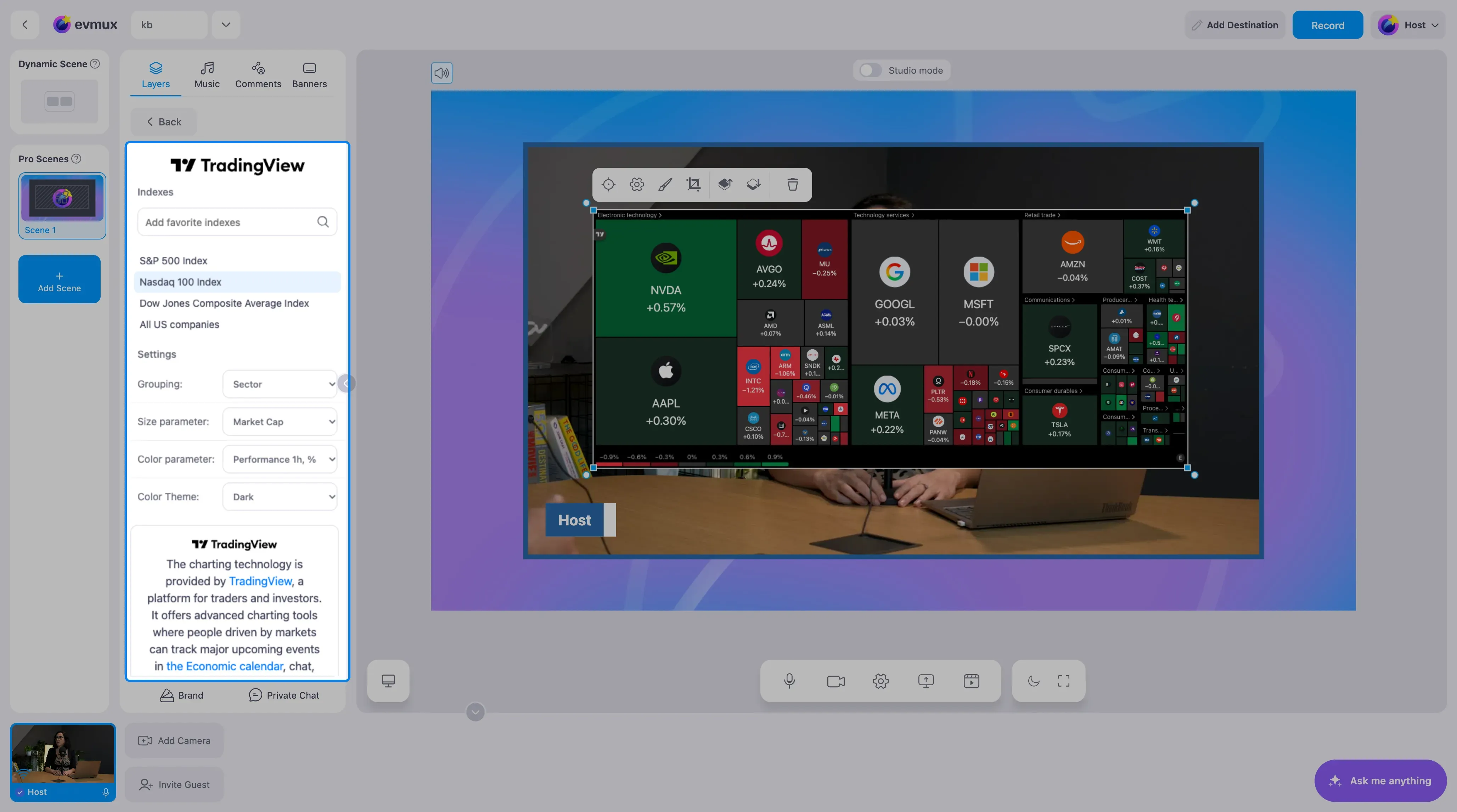
- Indexes: S&P 500, Nasdaq 100, Dow Jones Composite Average, or All US companies. Search to add other indexes.
- Grouping: by Sector or No Group.
- Size parameter: market cap by default; also employees, dividend yield, price ratios and volume measures.
- Color parameter: performance over one hour to one year, pre- and post-market change, relative volume, volatility or gap.
- Color Theme: Light or Dark.
Crypto HeatMap
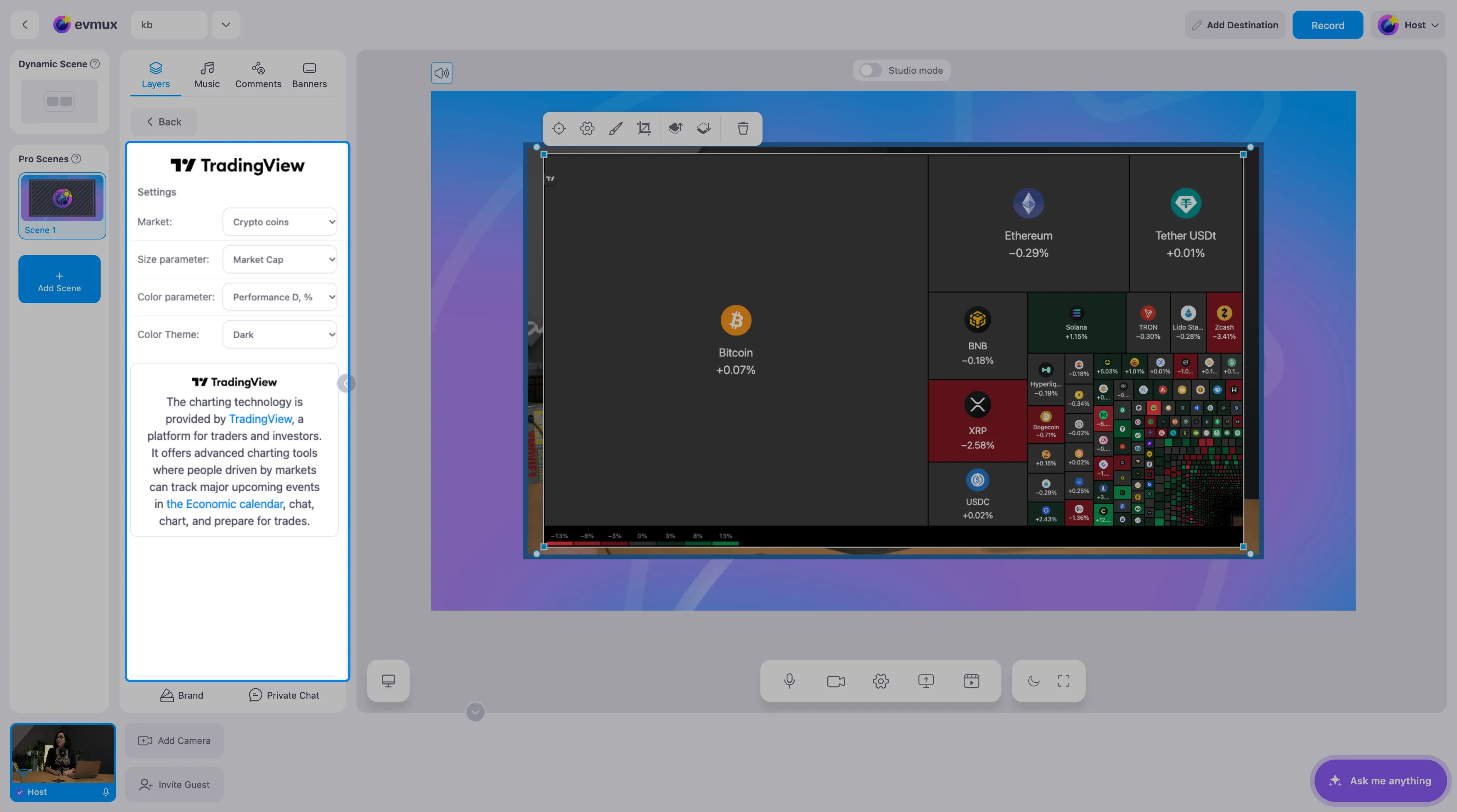
The same tree map for cryptocurrencies, with the coins sized and colored by the measures you pick in its settings.
Placing the Widgets
Resize and move each widget like any layer. A typical finance layout is the Realtime Chart taking most of the scene, the camera in a corner and the Ticker Tape along the bottom. Widgets keep updating while the scene is live.
Tips
- Set the Timezone on the Realtime Chart to your audience’s, so the times on the chart match what you say.
- Dark themes sit better over video; light themes work on bright scene backgrounds.
- Data comes from TradingView and follows its market data rules. Some exchanges show delayed prices.