

How to Use the Overlay Animations Widget
The Overlay Animations widget covers the whole scene with a transparent layer and plays a short celebration over it when you click a button: balloons, falling hearts, fireworks, confetti, stage lights, or any emoji from a big picker. Each effect runs for a few seconds and disappears on its own, so the scene underneath is never in the way.
When to Use
- Celebrating a milestone, a winner or a new subscriber live
- Reacting to a guest’s answer with a burst of emoji
- Opening or closing a show with fireworks or stage lights
Steps
Step 1: Add the Overlay Animations Widget
- Open the Layers tab. Apps work on both scene types:
- Dynamic Scene: expand Apps & Widgets -> Add from marketplace
- Pro scene: click Add New Layer -> Apps & Widgets
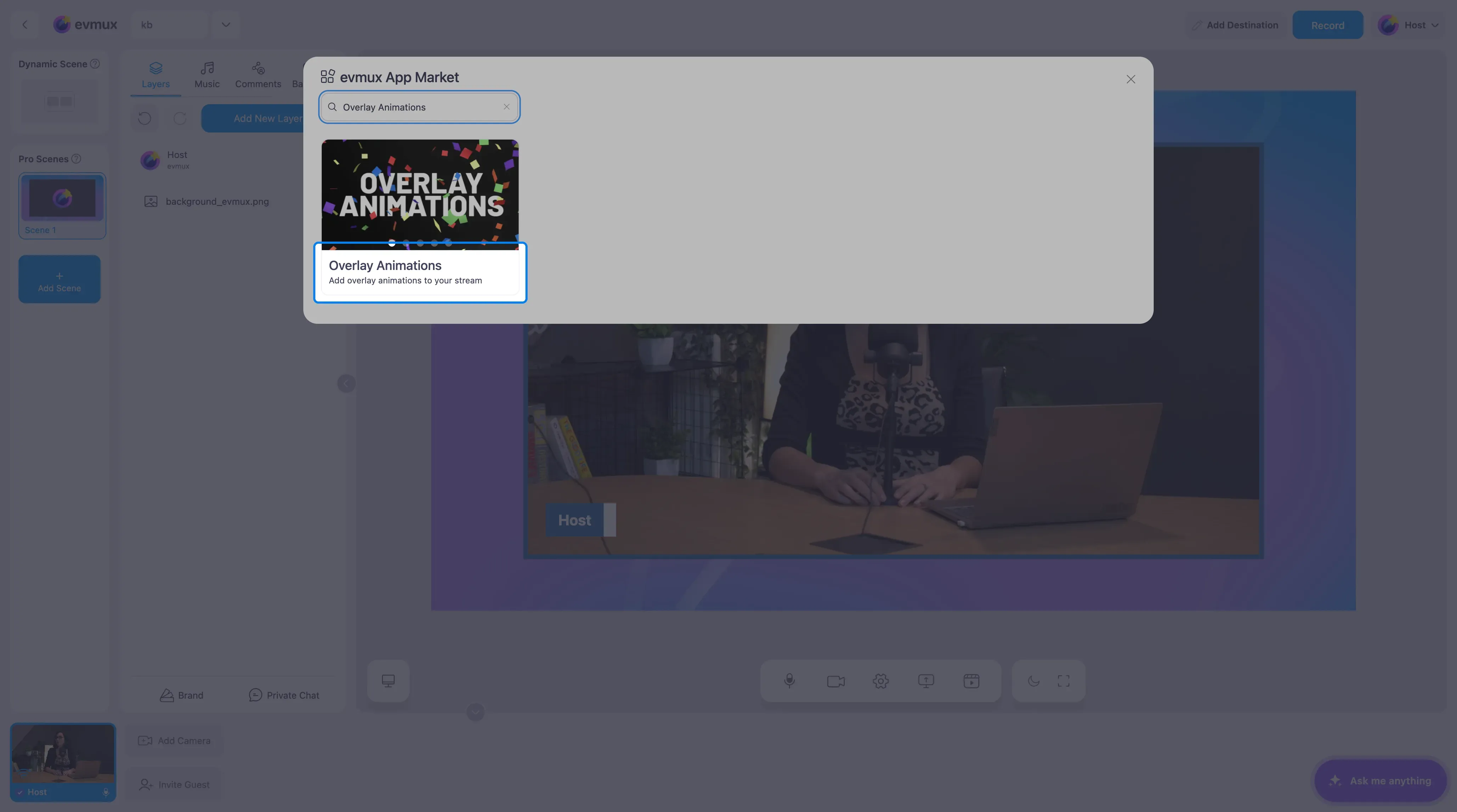
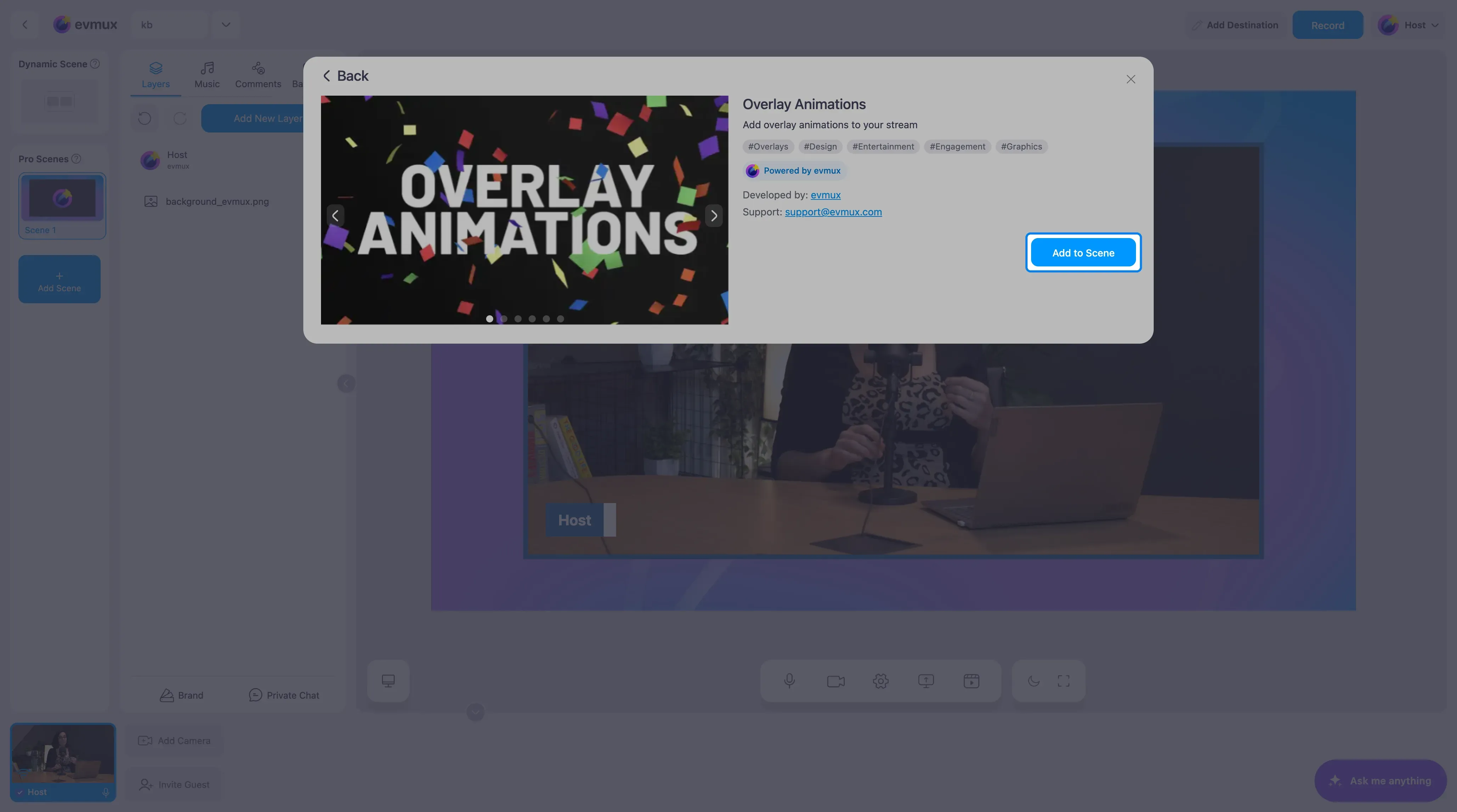
- Search for Overlay Animations and click the card, then click Add to Scene
Step 2: Know the Panel
The widget is invisible until you trigger an effect. It fills the scene, and its settings panel on the left holds all the triggers.
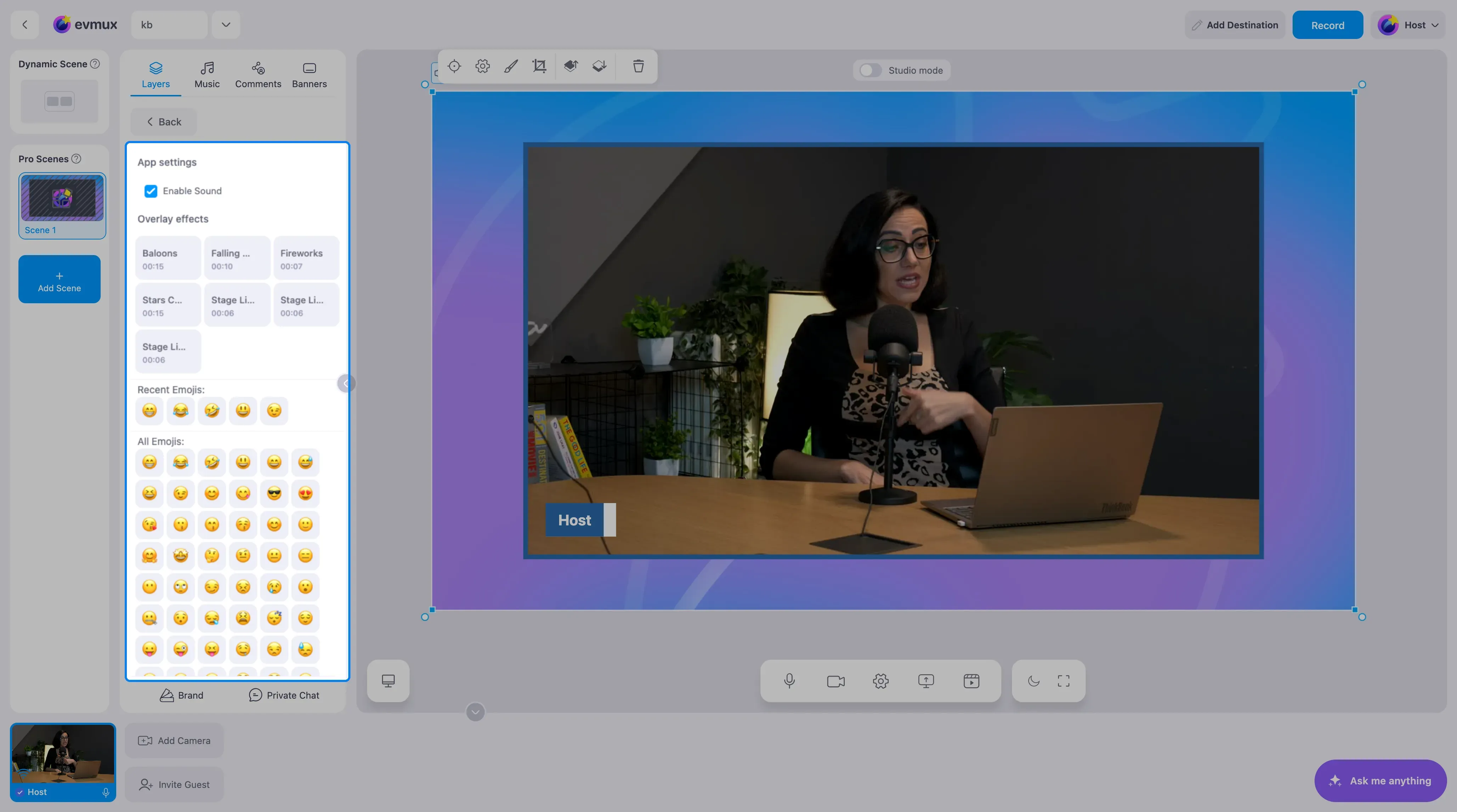
| Section | What it does |
|---|---|
| Enable Sound | Plays a sound with the effect. Untick it for silent animations |
| Overlay effects | One button per effect, with its length: Balloons (15 s), Falling Hearts (10 s), Fireworks (7 s), Stars Confetti (15 s), Stage Lights 1, 2 and 3 (6 s each) |
| Recent Emojis | The emojis you used last, for quick access |
| All Emojis | The full picker: faces, hearts, hands and more |
Step 3: Trigger Effects Live
- Click an effect button or an emoji. It plays over the scene straight away and stops on its own.
- Click another effect at any time. There is nothing to reset.
Tips
- Leave the widget on every scene where you might celebrate something. It costs nothing while idle.
- Assign your favourite effects to fast action buttons so you, a co-host or a guest can fire them without opening the panel.
- Keep Enable Sound on for fireworks and confetti, and off for stage lights if music is playing.