

How to Use the News Block Widget
The News Block widget puts a television news banner on your scene: a red BREAKING NEWS tag, the current time, a big headline and a scrolling ticker underneath. You prepare several presets before the show and switch between them, or hide the banner, with one click while you are live.
When to Use
- News, commentary and talk shows that want a broadcast look
- Sports shows: scores and updates as a headline while you talk
- Any stream where a headline should change during the show without editing layers
Steps
Step 1: Add the News Block Widget
- Open the Layers tab. Apps work on both scene types:
- Dynamic Scene: expand Apps & Widgets -> Add from marketplace
- Pro scene: click Add New Layer -> Apps & Widgets
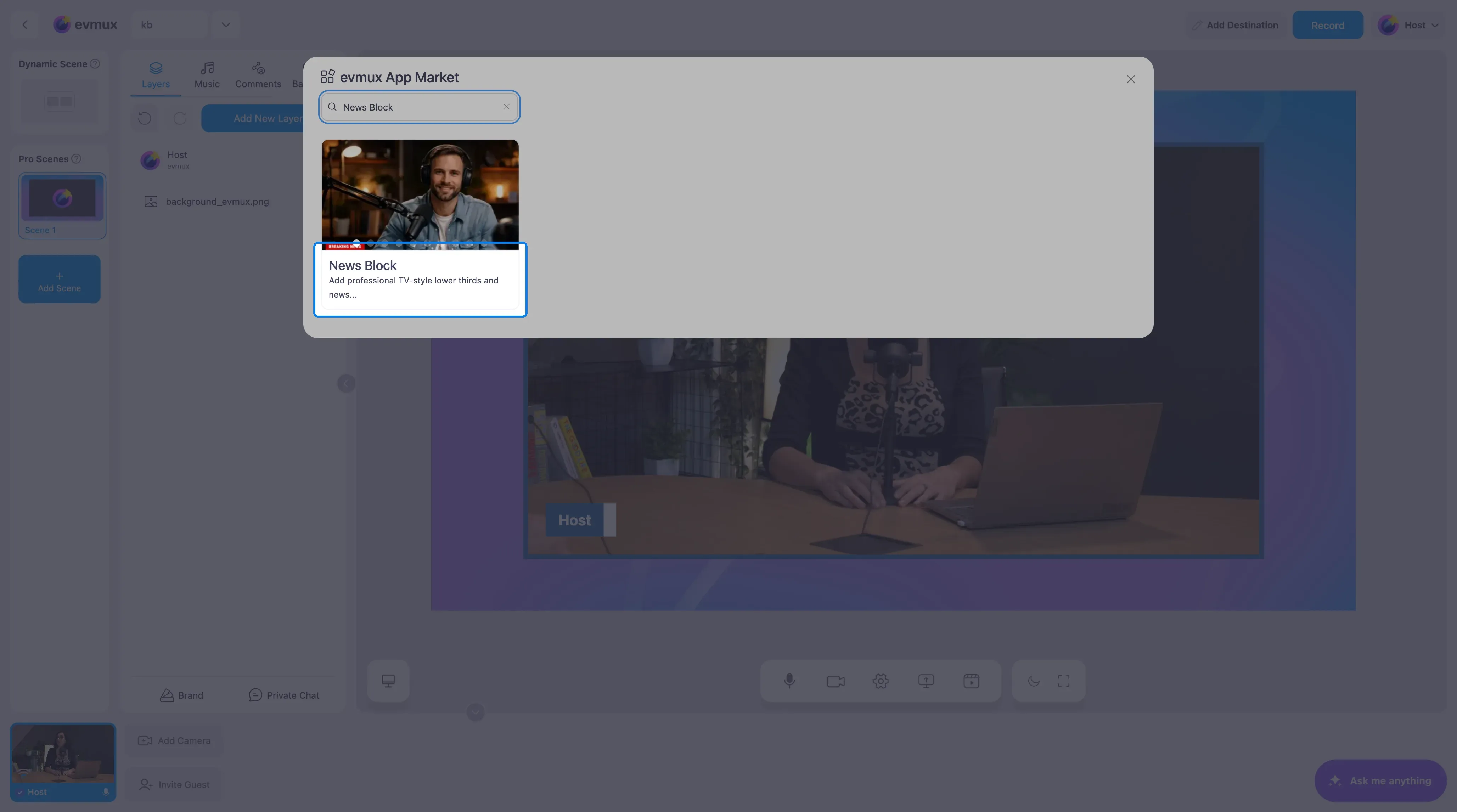
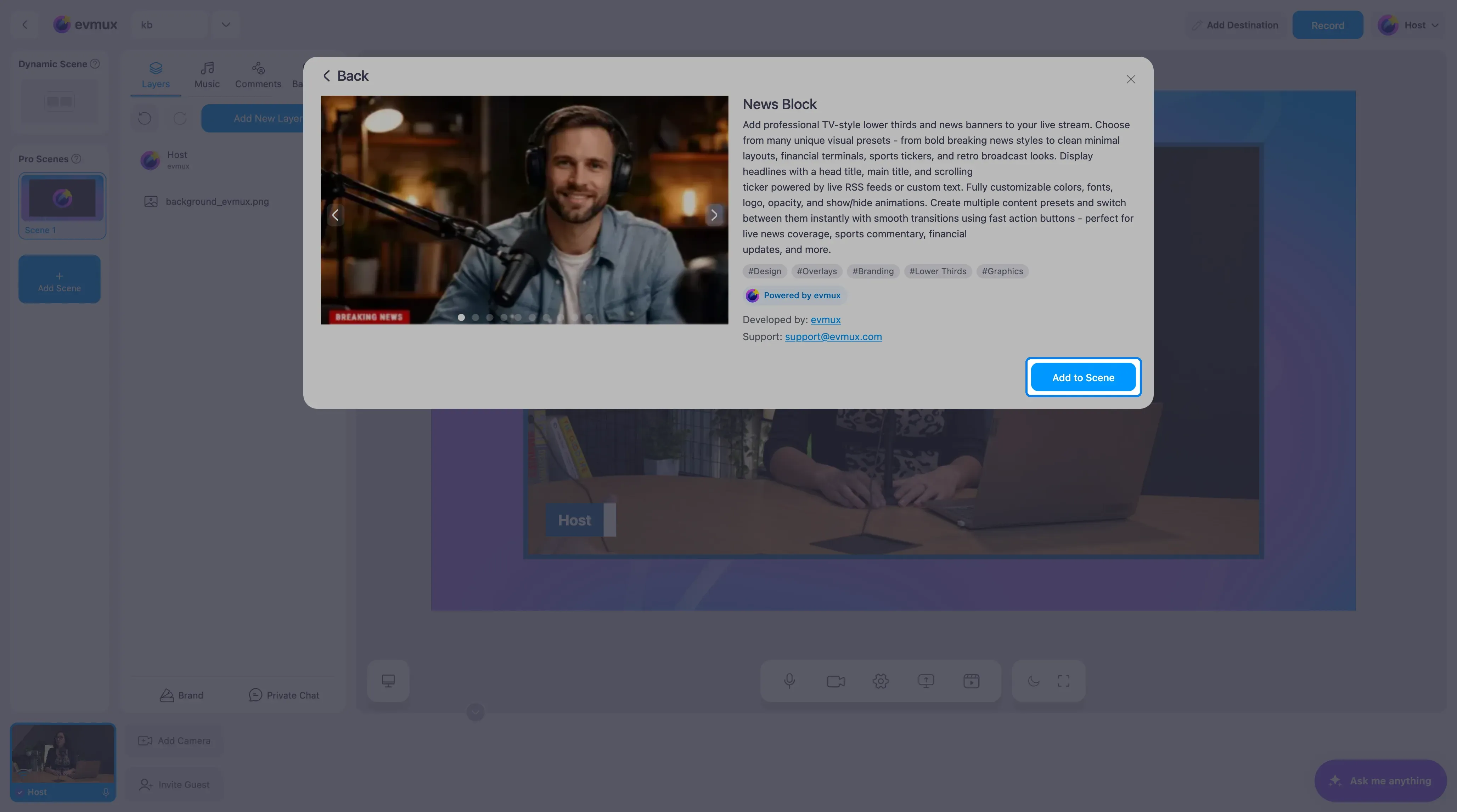
- Search for News Block and click the card, then click Add to Scene
Step 2: Pick or Edit a Preset
The banner appears across the bottom of the scene with the first preset, and the settings panel opens on the left with two tabs, Content and Style.
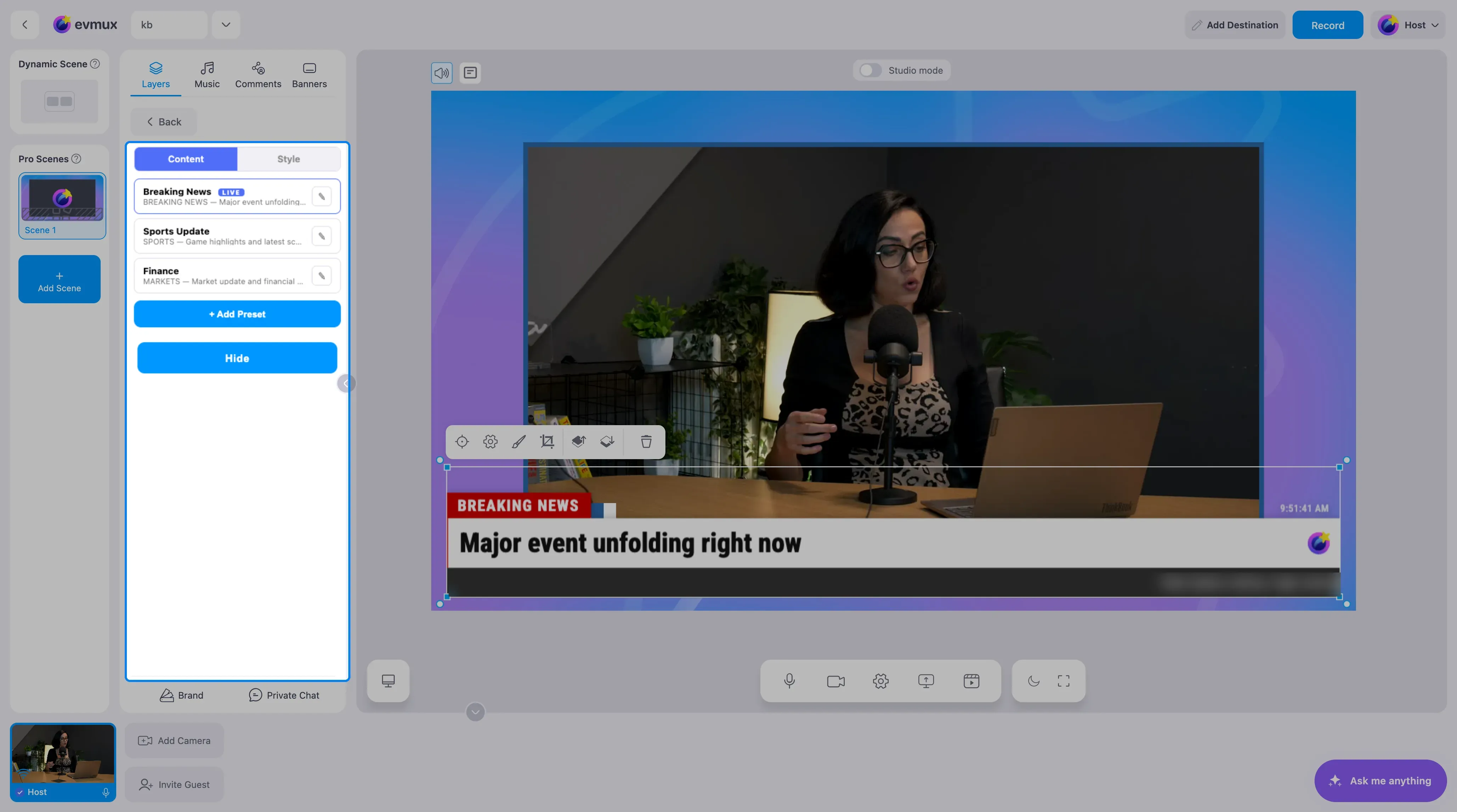
The Content tab lists your presets. Three come ready:
| Preset | Headline |
|---|---|
| Breaking News (marked LIVE) | Major event unfolding right now |
| Sports Update | Game highlights and latest scores |
| Finance | Market update and financial news |
- Click a preset to show it on the banner.
- Click the pencil next to a preset to change its tag, headline and ticker text.
- Click + Add Preset to prepare another headline for later in the show.
Step 3: Style the Banner
Open the Style tab to change the colors, fonts and layout of the banner so it matches your brand. Changes apply to every preset.
Step 4: Use It Live
- Click Hide to take the banner off the scene, and Show to bring it back. The layer stays on the scene either way, so the banner returns exactly as it was.
- Switch presets as the show moves from topic to topic.
- Resize and move the layer like any other layer if the banner should sit higher or narrower.
Tips
- Keep headlines short. The banner is wide, but long headlines get small fast.
- Prepare one preset per segment before you go live so switching is a single click.
- The widget is a layer of one scene. Duplicate the scene if you want the same banner elsewhere, or add the widget to the other scene too.