

How to Add Background Music
This guide shows you how to add background music to your broadcast and control playback.
Quick Steps
- Click the Music tab in the left-side tabs panel
- In the Music section, click Edit list to add tracks
- Click on a track’s play button to start playing
- Adjust volume using the volume icon
Panel Structure
The Music tab has two sections:
- Sound FX - Sound effect buttons at the top
- Music - Background music tracks below
Detailed Steps
Step 1: Open the Music Tab
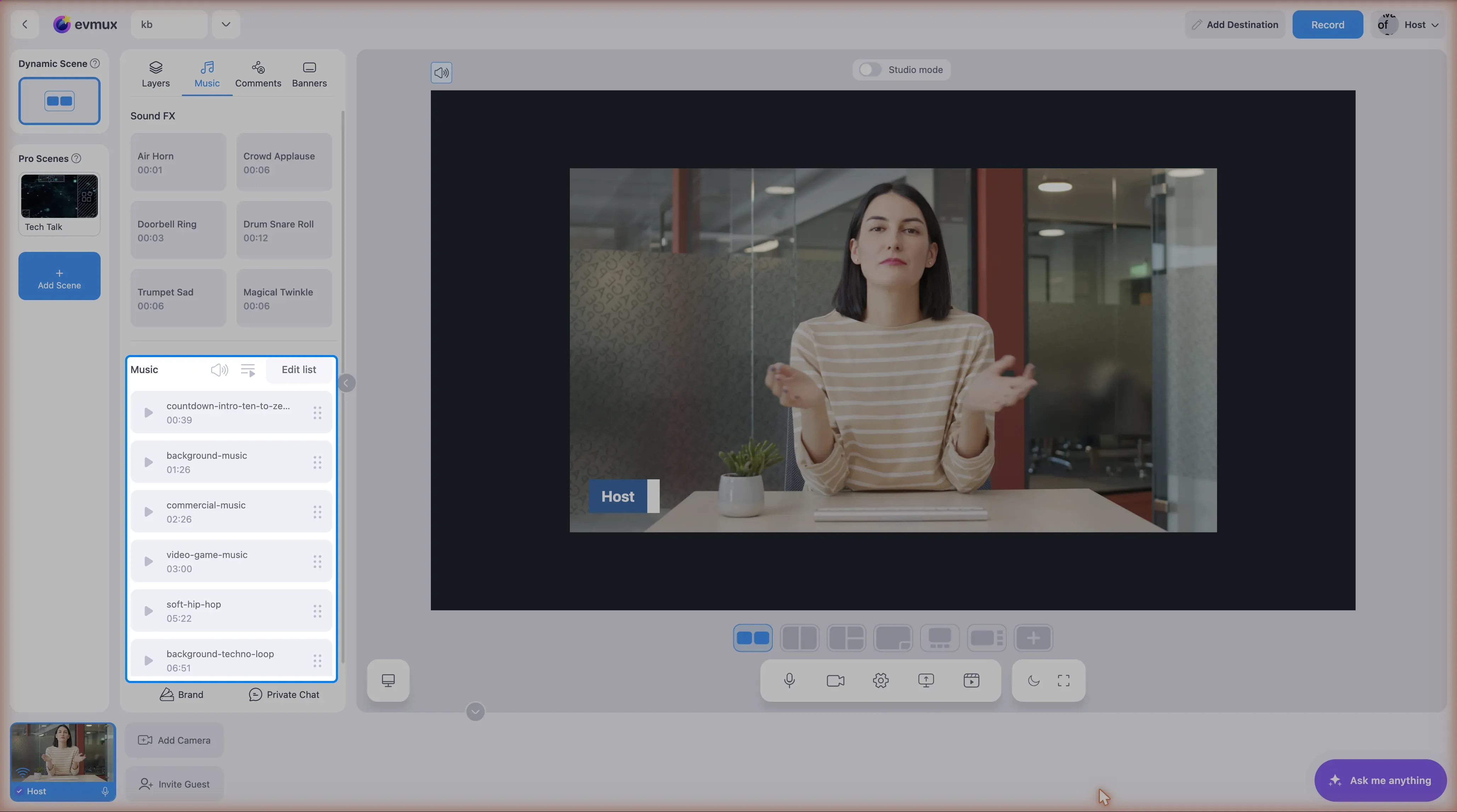
- In the left-side tabs panel, click the Music tab
- The panel shows Sound FX buttons and Music tracks
Step 2: Add Music to the List
- In the Music section header, click the Edit list button
- The Media Chooser opens filtered to Audio files
- Select audio files from your media library
- Selected files are added to the music list
Step 3: Play a Track
- Find your track in the music list
- Click the play button (triangle icon) on the left side
- The track starts playing
- Button changes to pause icon while playing
- A progress bar appears at the bottom of the track
Step 4: Control Playback
Play/Pause:
- Click the play/pause button on any track
- Playing a different track stops the current one
Progress Seeking:
- When a track is playing, drag the progress bar to seek
- Current time and total duration are displayed
Loop a Track:
- Click the Loop icon (appears on hover, tooltip: “Loop”)
- When active, icon turns blue
- Track repeats when it ends
- Note: Enabling loop disables Playlist mode
Step 5: Adjust Volume
- Click the volume icon next to the Music header
- A volume slider appears (0-100)
- Drag to adjust the global music volume
- Volume affects all music tracks
Volume indicator:
- Full icon = volume above 66%
- Medium icon = volume 34-66%
- Low icon = volume 1-33%
- Muted icon with red line = volume 0%
Step 6: Enable Playlist Mode (Optional)
- Click the playlist mode icon (next to volume)
- Tooltip shows: “Playlist mode: On/Off”
- When enabled, tracks play sequentially
- Note: Enabling playlist mode disables individual track looping
Step 7: Rename a Track
- Hover over a track name
- Click the edit icon (pencil, tooltip: “Edit Name”)
- Dialog appears: “Rename audio track”
- Enter new name and confirm
Step 8: Reorder Tracks
- Hover over a track
- Grab the drag handle on the right (six dots icon)
- Drag up or down to reorder
- Release to set new position
Music Track Item Elements
| Element | Description |
|---|---|
| Play/Pause button | Left side - start/stop playback |
| Track name | Center - with edit icon on hover |
| Duration | Shows current time / total time |
| Loop icon | Appears on hover - toggle loop for track |
| Drag handle | Right side - reorder tracks |
| Progress bar | Bottom - shows playback progress (active track only) |
Best Practices
- Use royalty-free music - Avoid copyright issues
- Keep it subtle - Music should enhance, not overpower
- Match the mood - Upbeat for energy, calm for serious topics
- Test audio levels - Check balance with other audio
Troubleshooting
Music not playing?
- Verify audio files uploaded correctly
- Check browser audio permissions
- Try clicking play again
Music too loud/quiet?
- Click the volume icon and adjust slider
- Lower values (10-30%) work best for background
Track not looping?
- Click the loop icon on the track
- Check that playlist mode is OFF (loop and playlist are mutually exclusive)