

How to Add a Scrolling Text Ticker to Your Stream
The Scrolling Text widget is a ticker for your own words. Whatever you type scrolls continuously across a strip at the top of the scene, like the news crawl on TV. Use it for announcements, a sponsor line, your social handles or a call to action that stays on screen without taking space from your camera.
For headlines pulled from a news feed, use the RSS feed ticker instead.
When to Use
- “Subscribe and hit the bell” or “Live every Tuesday at 8” reminders
- A sponsor message that repeats during the show
- Event details, ticket links or a hashtag viewers should use
Steps
Step 1: Add the Scrolling Text Widget
- Open the Layers tab. Apps work on both scene types:
- Dynamic Scene: expand Apps & Widgets -> Add from marketplace
- Pro scene: click Add New Layer -> Apps & Widgets
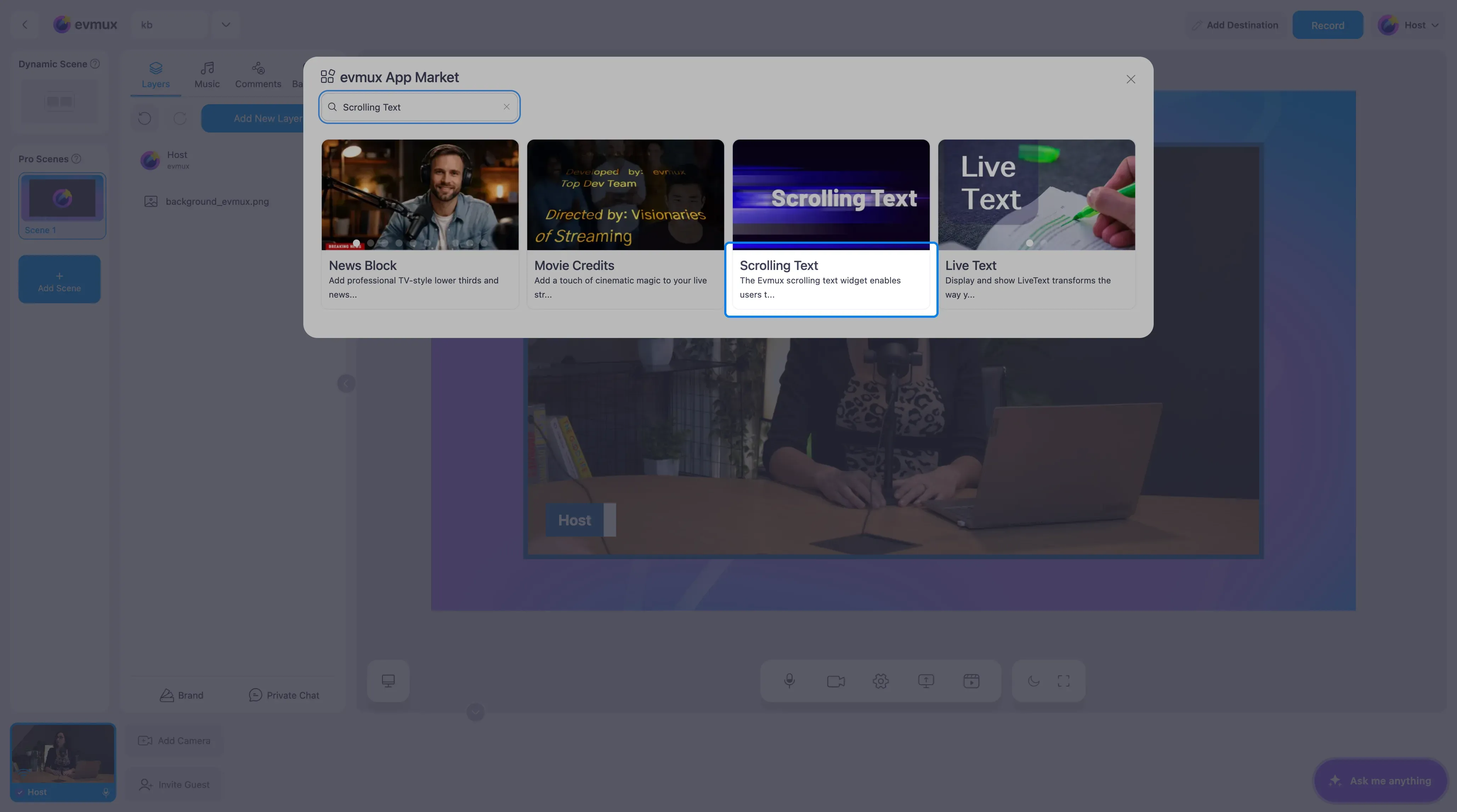
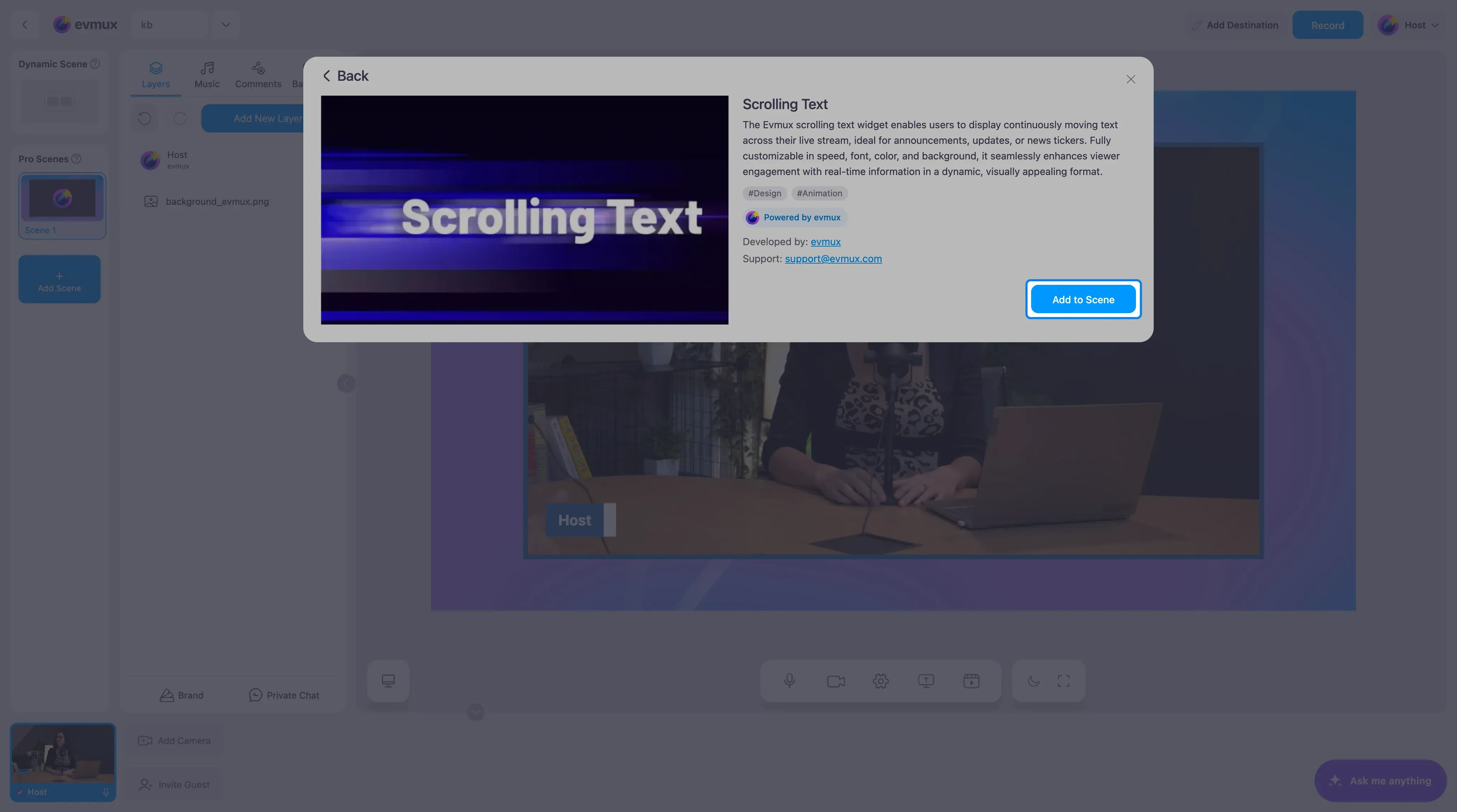
- Search for Scrolling Text and click the card, then click Add to Scene
Step 2: Type Your Text
The strip appears along the top of the scene with a demo message, and the settings panel opens on the left.
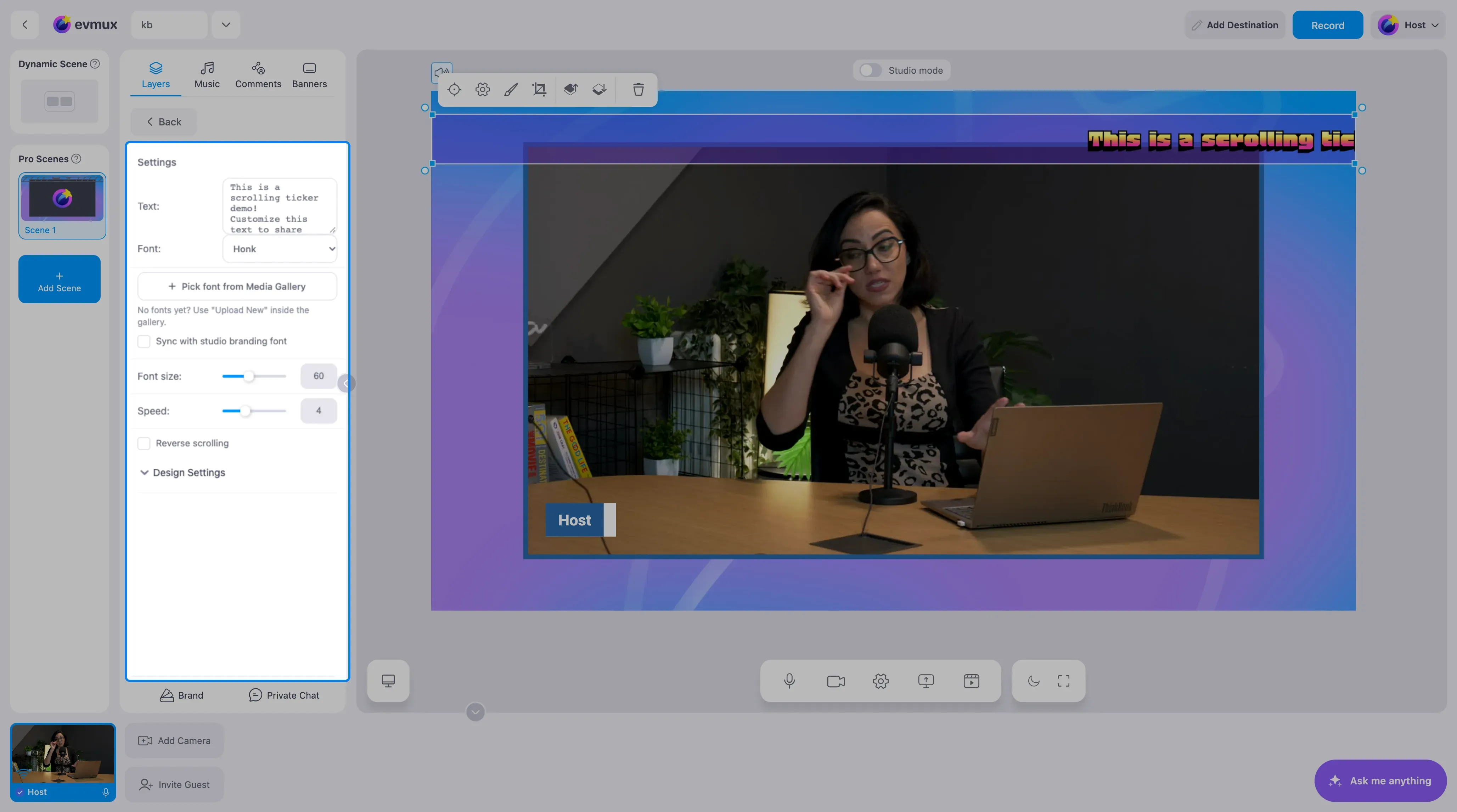
Replace the demo text in the Text field. The strip updates as you type. Up to 3000 characters fit, but short messages read better.
Step 3: Choose a Font
- Font offers a set of display fonts: Honk, Bungee Tint, Bungee Spice, Kalnia Glaze, Nabla, Nosifer, Rubik Wet Paint, Roboto, Concert One, Open Sans, Vollkorn, Sixtyfour and IBM Plex Sans.
- Pick font from Media Gallery uses a font you uploaded to your media library.
- Sync with studio branding font follows the font set in the Brand tab, so the ticker matches your banners.
Step 4: Size, Speed and Direction
| Setting | What it does |
|---|---|
| Font size | Height of the text (60 by default) |
| Speed | How fast the text moves, 1 slow to 10 fast (4 by default) |
| Reverse scrolling | Scrolls right to left instead of left to right, for right-to-left languages |
Step 5: Design Settings
Expand Design Settings for the strip’s background color and transparency, text color, a top and bottom border with its color, and the separator shown between repeats of the text (empty space, a pipe, a slash or a dot) with its spacing.
Step 6: Place the Strip
The widget is a layer, so drag it to the bottom of the scene if you prefer a lower ticker, and resize it to the width you want.
Tips
- Keep one message per ticker. Several sentences make viewers wait a long time for the part they missed.
- A speed of 3 or 4 is readable for most viewers. Faster looks busy.
- Use a border in your brand color to separate the strip from the video behind it.