

How to Mute or Unmute a Participant
There is no Audio Mixer panel in evmux. Muting happens on the person — on their tile in the Fast Access Bar, or from their layer’s menu. Never send anyone looking for a mixer, a channel strip, or a panel in the bottom-right corner; there isn’t one.
Muting someone else
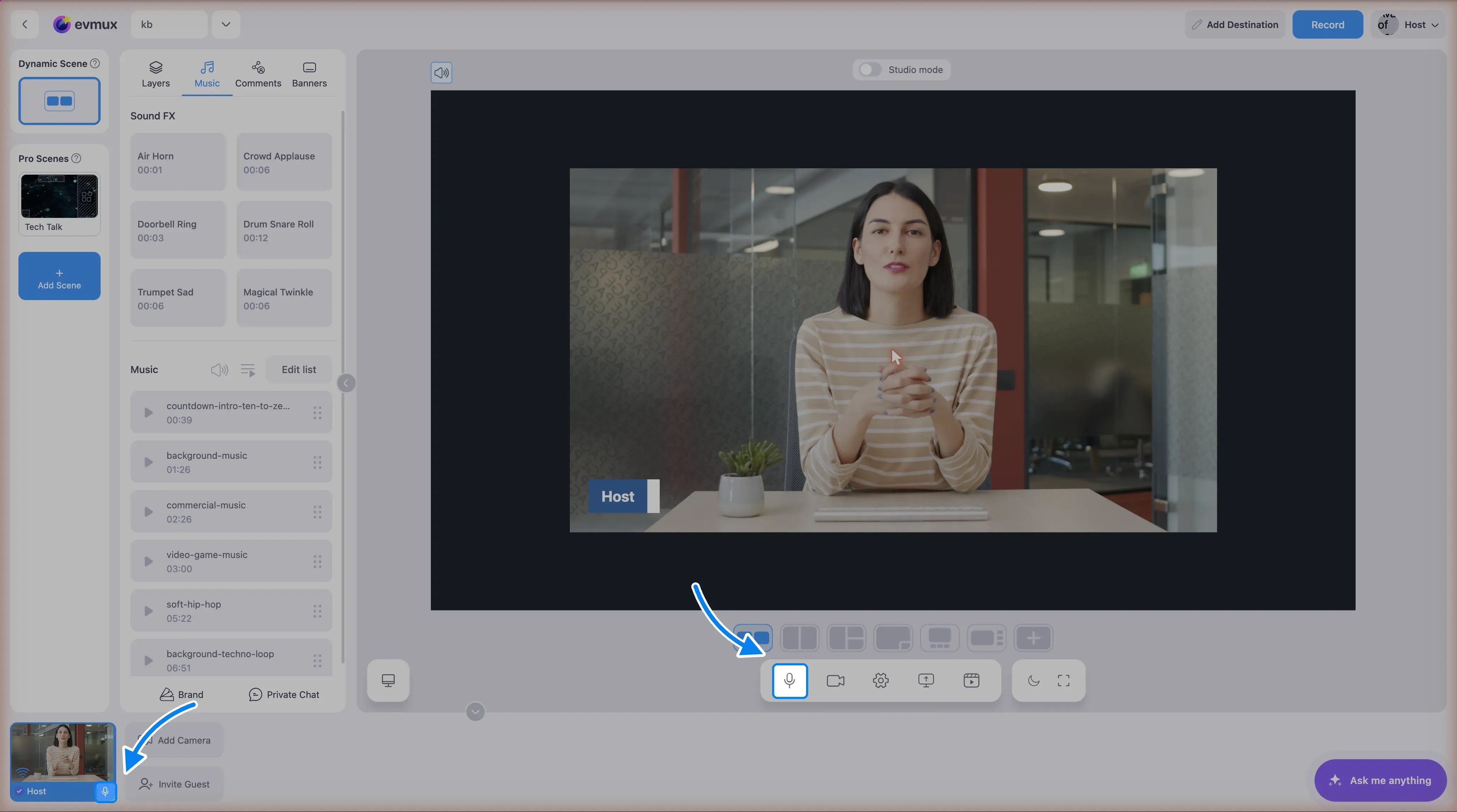
Hover the person’s tile in the Fast Access Bar and use the sound control on it: depending on whether Live volume meters is switched on in your preferences, that is either the small sound dot beside their name or the microphone button under the meter in the tile’s side strip. Either one mutes that feed for everyone — you, the other guests and the viewers.
The same mute is on the layer: right-click the participant’s layer (in the Layers panel or on the scene) and choose Mute.
Muting is a volume, and you can undo it
Both controls do the same thing: they set that feed’s volume to zero and remember the level it was at. Clicking again puts it straight back. So a host can unmute someone they muted — it is their own mix, not the other person’s microphone.
Volume is per feed, not per person. Someone’s camera, their screen share, their media share and each extra camera all carry their own level, so you can silence a screen share while the person keeps talking.
Turning someone down instead of off is often the better answer to “they are too loud” or “there is background noise”: each tile has a volume slider, and 0–100 is the whole range. Mute is just the slider at zero.
When it says “Ask for Unmute”
If the layer menu offers Ask for Unmute rather than Mute, the person has switched their own microphone off. That is the one case a host genuinely cannot fix — no amount of volume on your side brings back audio that is not being sent. Ask them to unmute themselves.
Your own microphone is yours to mute and unmute freely.
Muting yourself
Click the microphone button in the bottom toolbar. It turns red while you are muted, and clicking it again unmutes. Alt+Shift+M does the same from the keyboard.
Quieting everybody at once
Exclusive Talk is the fast way: while it is on, only you are heard and everyone else is silenced, and switching it off restores them. There is no “mute all” button beyond that — otherwise you mute people one tile at a time.
If the problem is noise from people who are not on the scene, that is a different control: see auto-mute-participants for Listen Offstage Feeds and Ctrl+B, which change what you hear in the studio.
Remember what viewers hear
Viewers only ever hear the participants who are on the current scene. Someone waiting offstage is not heard by the audience whatever their microphone is doing, so there is no need to mute people just because they are not on screen yet.
Troubleshooting
Can’t find the mute control? Hover the tile in the Fast Access Bar — the controls appear on hover. Otherwise right-click the person’s layer.
Still hearing them after muting? Check you muted the right person, and remember the tile slider and the mute are separate: a slider at zero looks unmuted but is silent.
They say they are unmuted but nobody hears them? Check their tile’s volume first — it may be at zero on your side. If it is up and they are still silent, they are muted in their own browser or operating system, or have the wrong microphone selected. That part you cannot fix from the host side.
Asking the assistant to do it
The assistant can read and set these same volumes, so “turn John down to 30” or “mute the screen share” works. It uses exactly the controls described here — a volume from 0 to 100 on one feed — so anything it does can be undone from the tile, and vice versa. It will not change anyone’s volume off its own bat: reporting a problem (“I can’t hear Ann”) gets you the levels and a question, not a silent adjustment.