

How to Use the Weather and Clock Widget
The Weather - Clock widget is a small panel with the time, the date and the live weather for a city of your choice: conditions, temperature, humidity and wind. Morning shows, travel streams and local news formats use it as a permanent corner overlay.
If you only need the time, the Digital Clock widget is simpler.
When to Use
- A morning or evening show that mentions the weather
- Streams from a location viewers care about, like an event or a travel stream
- Any broadcast that wants a live clock in a corner
Steps
Step 1: Add the Widget
- Open the Layers tab. Apps work on both scene types:
- Dynamic Scene: expand Apps & Widgets -> Add from marketplace
- Pro scene: click Add New Layer -> Apps & Widgets
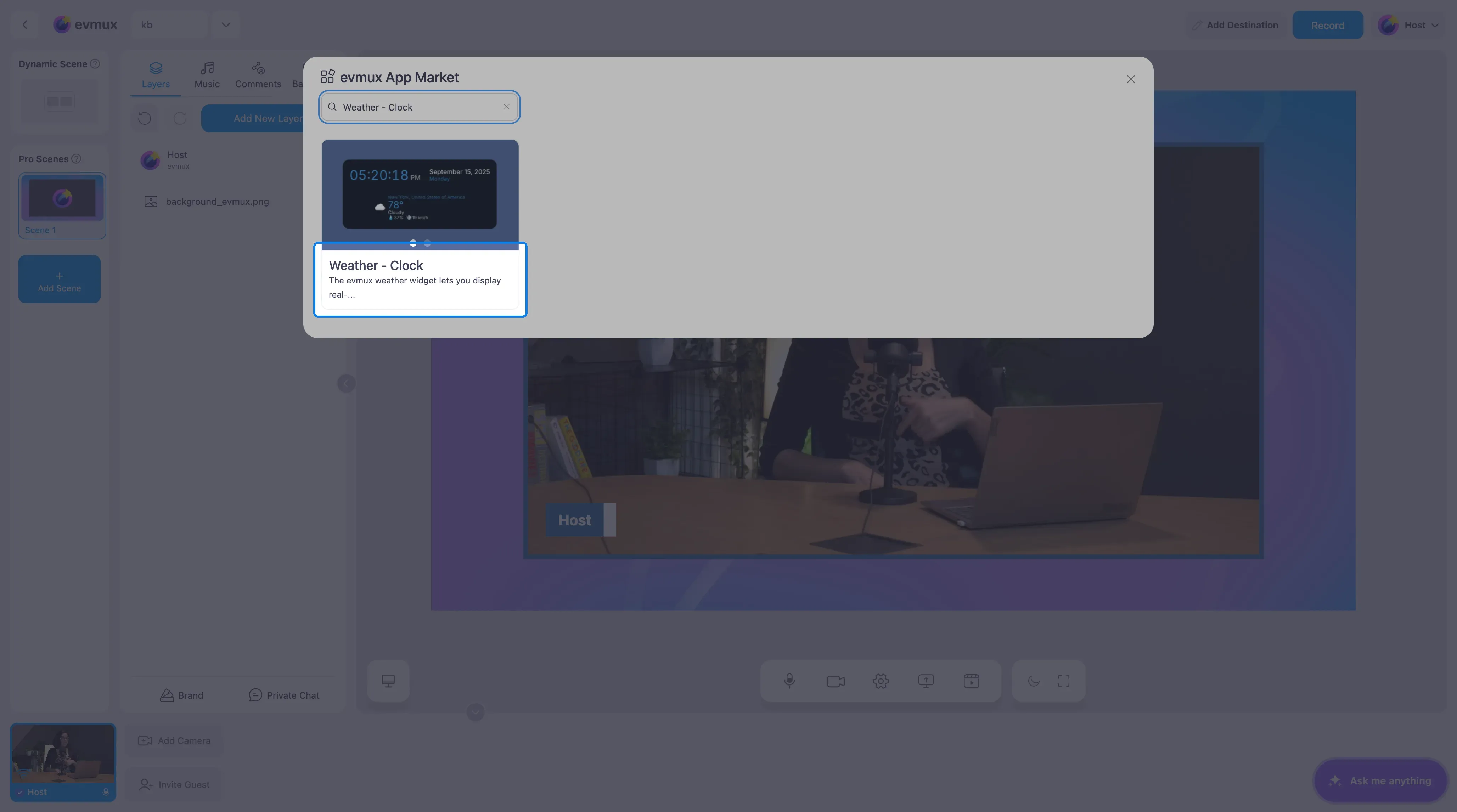
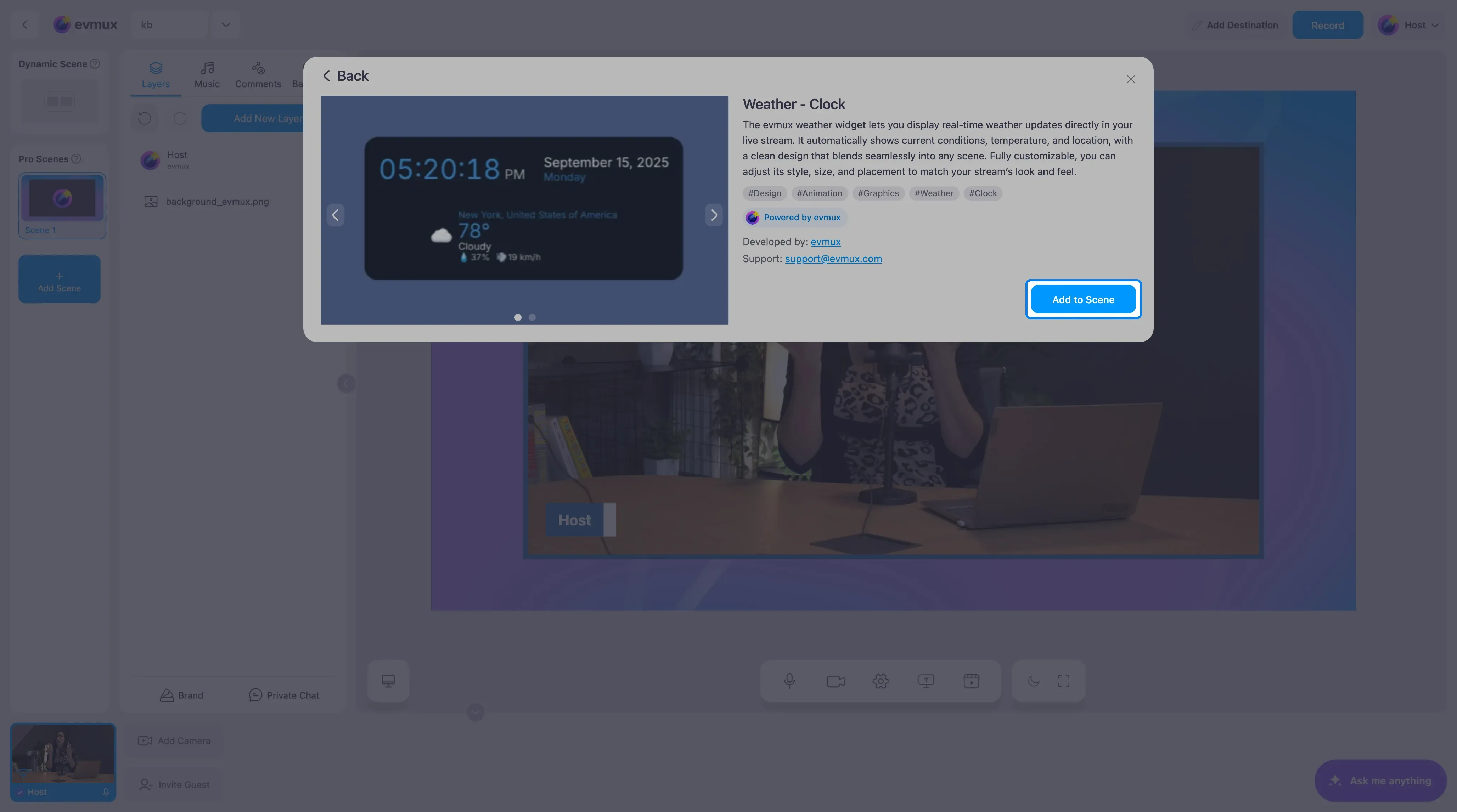
- Search for Weather - Clock and click the card, then click Add to Scene
Step 2: Set the City and Units
The widget appears in the bottom right corner with New York’s weather. The settings panel on the left is grouped into sections.
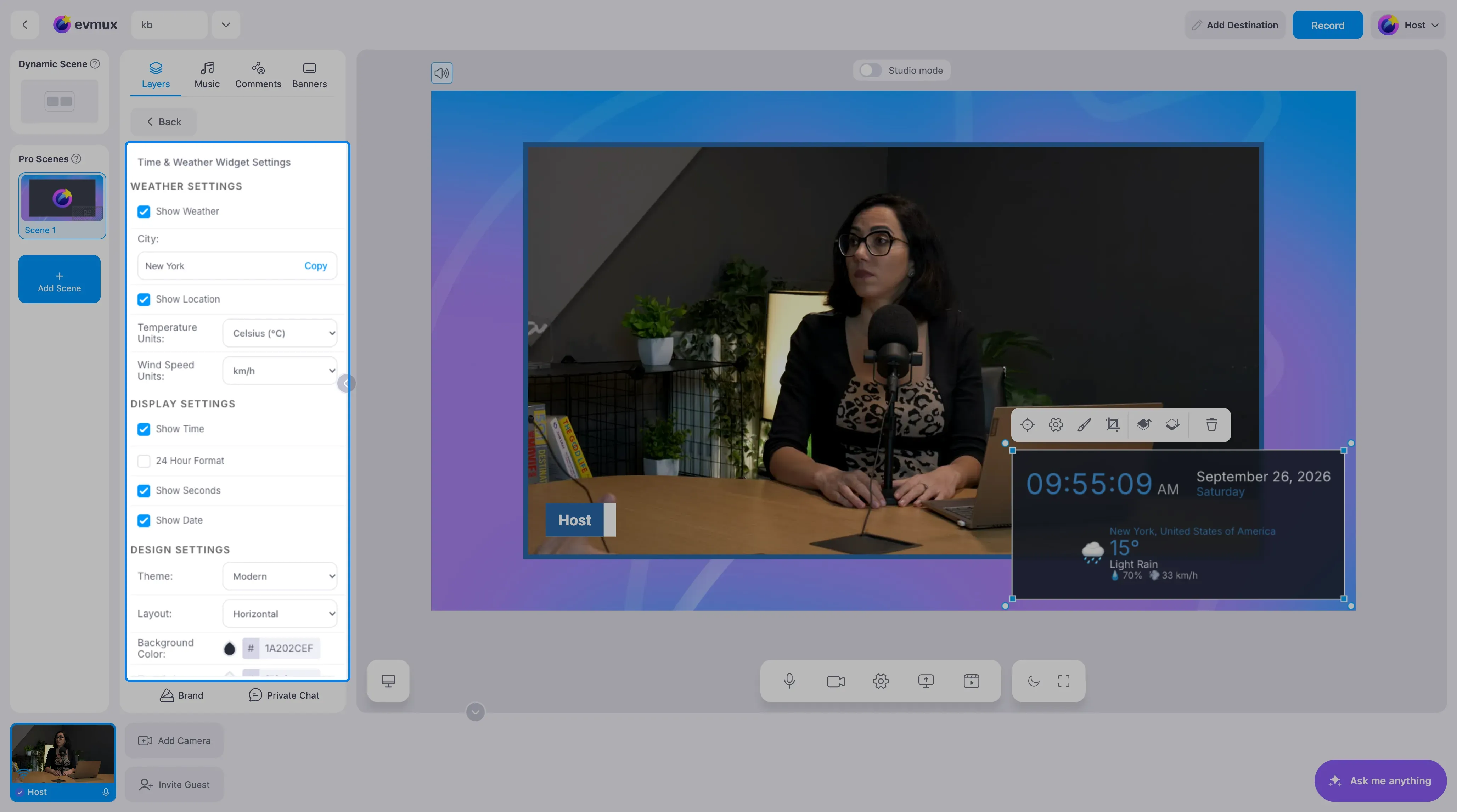
Under Weather settings:
- Type your City and the weather updates for it. Copy copies the city name.
- Show Weather and Show Location toggle the weather block and the city name.
- Choose Temperature Units (Celsius or Fahrenheit) and Wind Speed Units (km/h or mph).
Step 3: Choose What to Show
Under Display settings, tick or untick Show Time, 24 Hour Format, Show Seconds and Show Date.
Step 4: Match Your Design
| Section | Options |
|---|---|
| Design settings | Theme (Modern, Minimal, Neon, Classic, Gradient), Layout (Horizontal, Vertical, Compact, Card), background, text and accent colors |
| Typography settings | Font family (Inter, Roboto, Montserrat, Poppins and more), weight and size |
| Layout and style | Border radius, padding, opacity |
| Animation settings | Pulse on Update, a small pulse each time the time or weather changes |
Reset to Defaults at the bottom returns everything to the starting look.
Step 5: Place It
Drag the widget to the corner you want and resize it. The Compact layout fits neatly above a lower third.
Tips
- Set the city to where your audience is, not where you are, if that is what the show is about.
- Turn off seconds for a calmer look. The moving digits draw the eye.
- Use the Neon theme on dark scenes and Minimal on bright ones.