

Add a Camera Layer
On the Dynamic Scene, participants are placed for you. In a Pro Scene you decide where each camera goes by adding a Speaker layer for that person.
Easiest way
Hover the person’s tile in the participants bar at the bottom and click Add to Scene. On a Pro Scene that creates a speaker layer for them in a default spot, which you can then move and resize. The steps below do the same from the Layers panel, which also lets you pick someone who is not on screen yet.
Steps
Step 1: Select the scene
Click the Pro Scene in the scenes column on the left.
Step 2: Open the layer menu
Click Add New Layer at the top of the Layers panel.
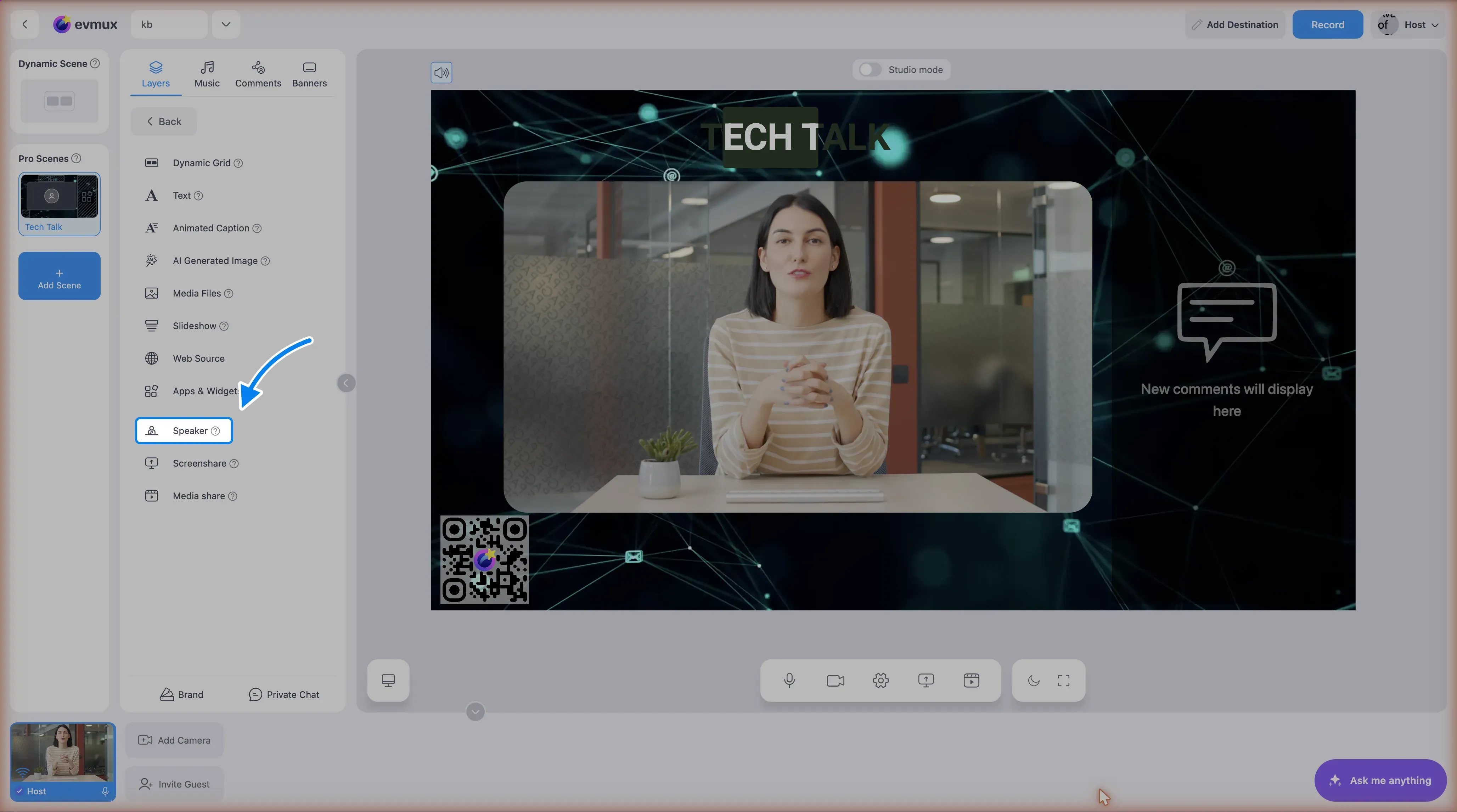
Step 3: Choose Speaker
Pick Speaker from the layer types.
Step 4: Pick the participant
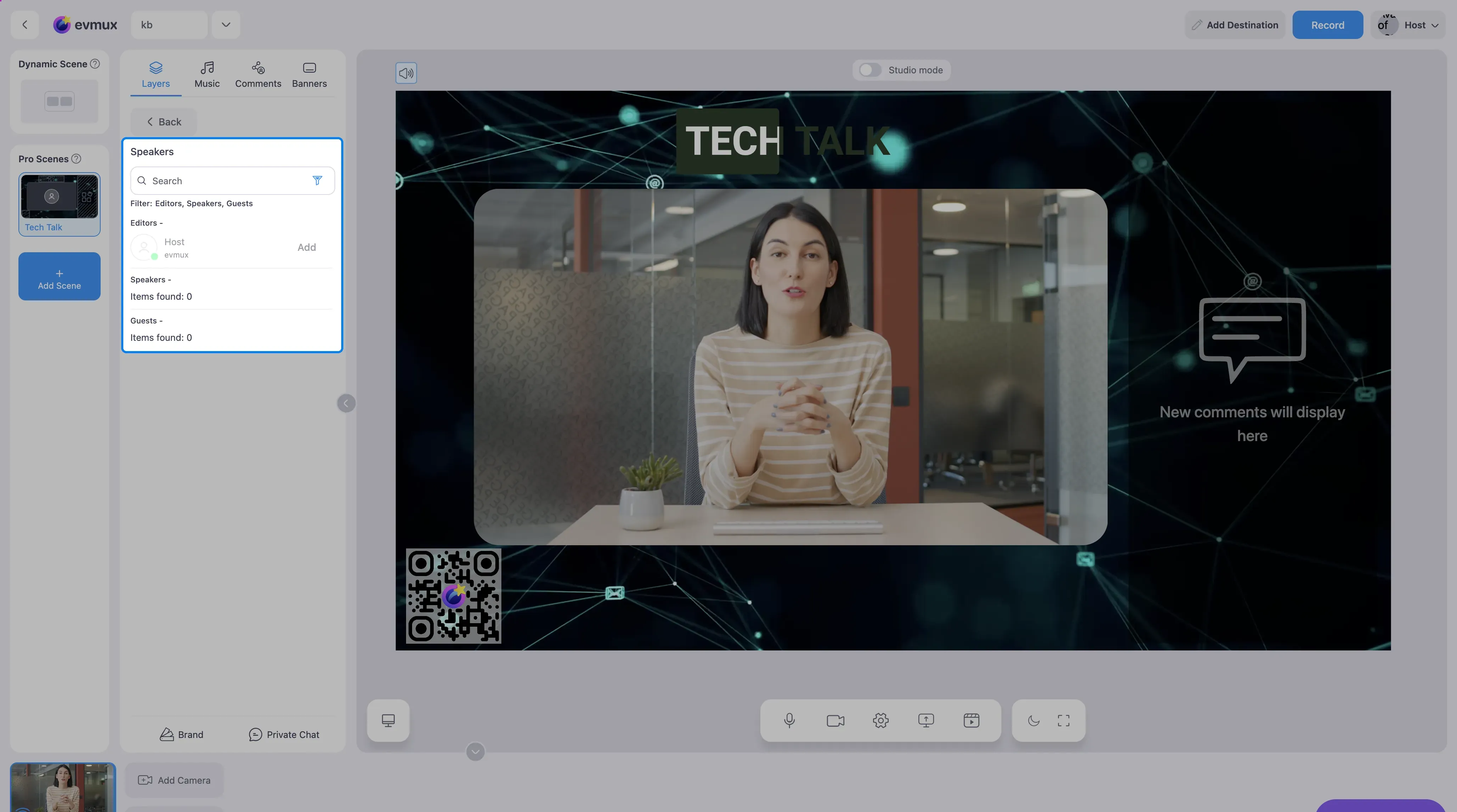
The Speaker chooser lists everyone in the studio in three groups: Editors (you and your co-hosts), Speakers (people added from the dashboard) and Guests (people who joined with the invite link). Type in the search box to filter by name, or use the filter icon to show only some groups or only people who are online. Click Add next to the person.
Step 5: Position and resize
The camera appears on the scene as a layer. Drag it to move it, and drag a corner to resize. See Resize and move layers for the details, including exact numbers and rotation.
Tips
- A person who has not joined yet can still get a layer. It shows their name until they arrive, and their video fills it as soon as they connect.
- One person can be in several scenes. Add a speaker layer for them in each scene you need.
- To show everyone at once without placing each camera, add a Dynamic Grid layer instead.