

How to Use the Holy Bible Widget
The Holy Bible widget puts a verse on your scene in large, readable text. You choose the translation, navigate by book, chapter and verse or type a reference, and step through verses with Prev and Next while you talk. It is made for church services, Bible studies and worship streams.
When to Use
- Showing the verse being read during a service
- A Bible study where the group walks through a chapter verse by verse
- A verse of the day at the start of a stream
Steps
Step 1: Add the Holy Bible Widget
- Open the Layers tab. Apps work on both scene types:
- Dynamic Scene: expand Apps & Widgets -> Add from marketplace
- Pro scene: click Add New Layer -> Apps & Widgets
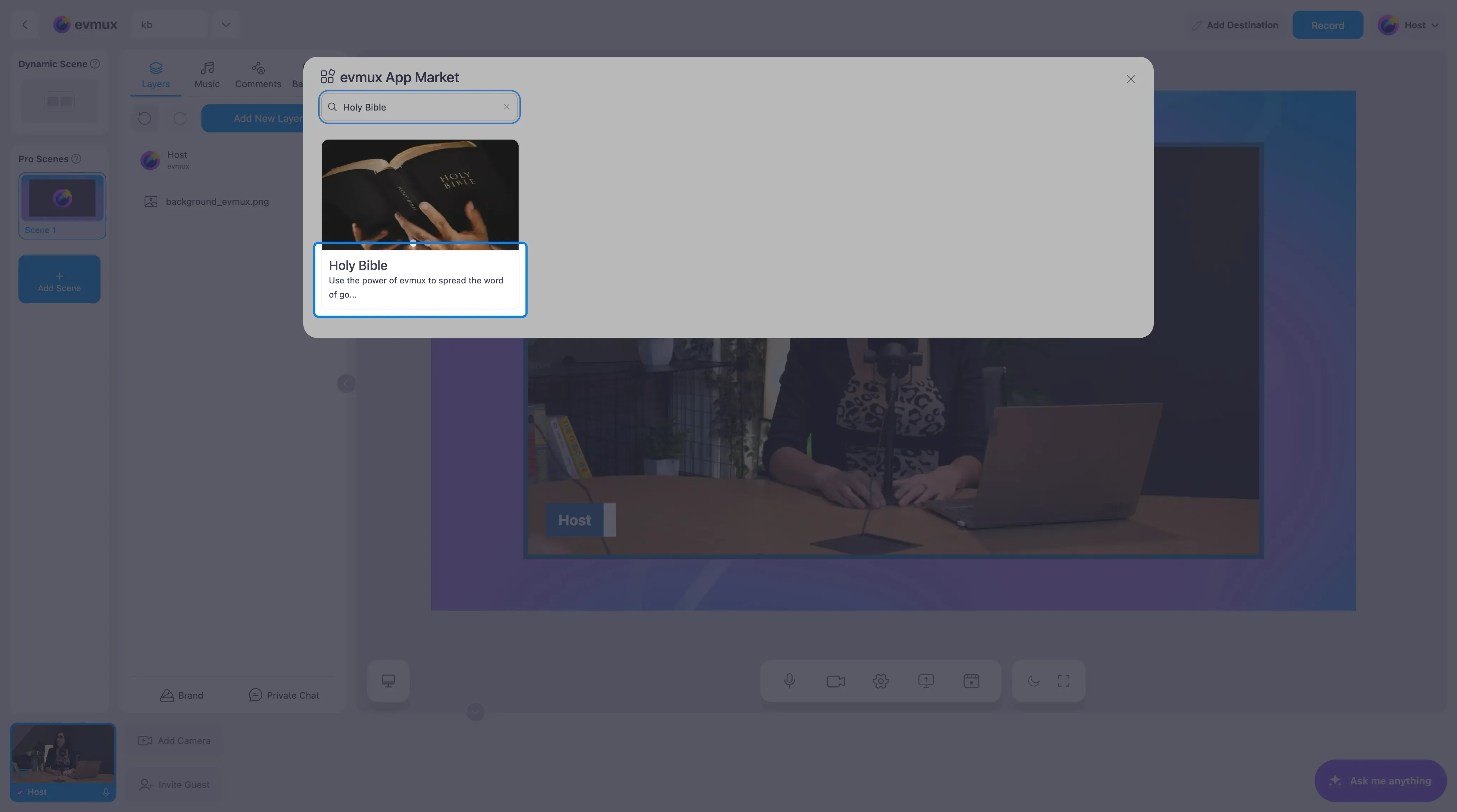
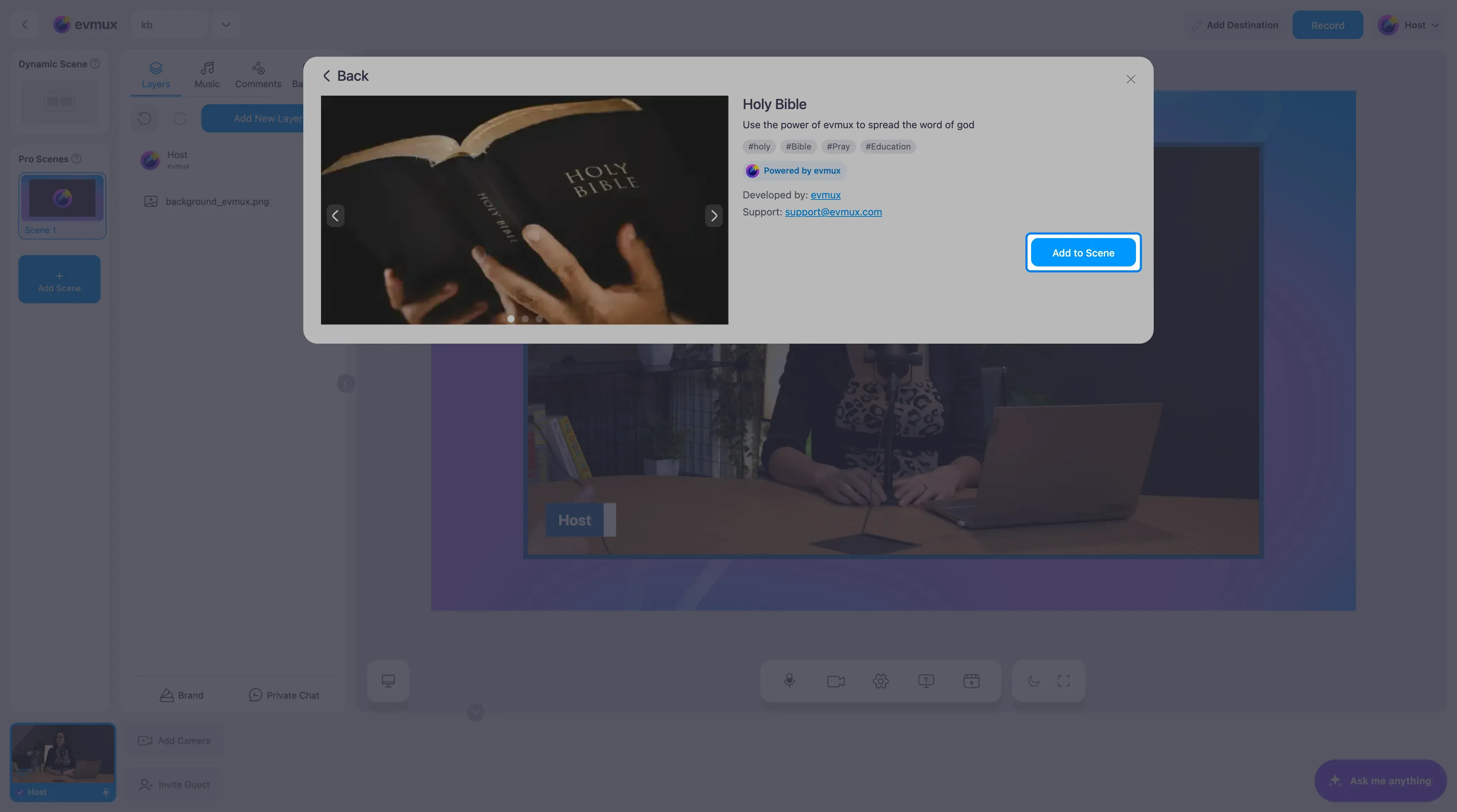
- Search for Holy Bible and click the card, then click Add to Scene
Step 2: Pick a Verse
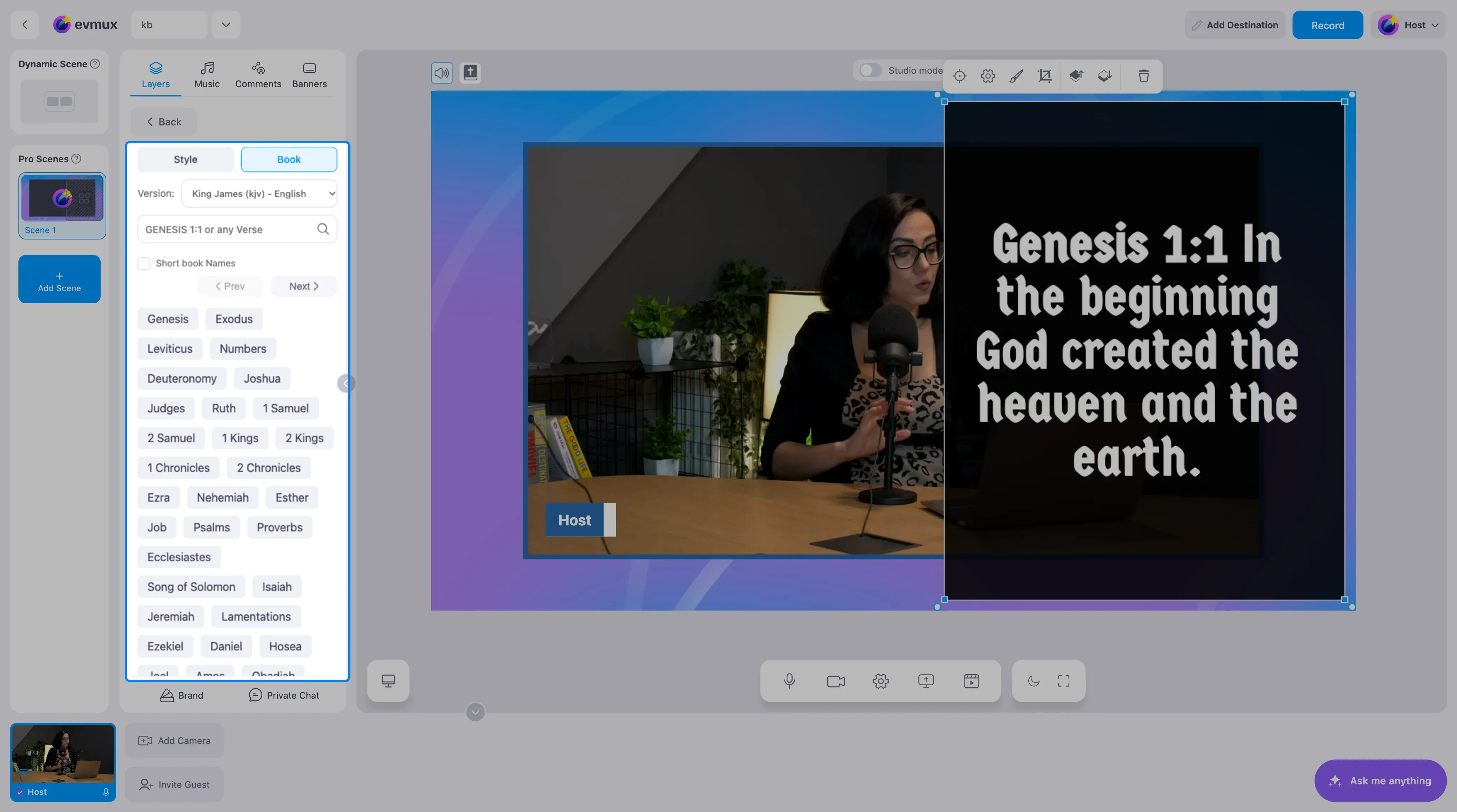
The widget starts with Genesis 1:1 on the right half of the scene. Its settings panel has two tabs: Book for navigation and Style for the look.
On the Book tab:
- Choose a Version. Ten translations are included: King James and American Standard (English), Versión Biblia Libre and Reina-Valera (Spanish), Schlachter (German), La Bible de l’Épée and Louis Segond (French), Almeida Revisada, Almeida Corrigida e Fiel and Nova Versão Internacional (Portuguese).
- Type a reference such as
John 3:16in the search field, or click a book in the list, then the chapter and verse. - Use Prev and Next to move one verse at a time during the reading.
- Tick Short book Names if you prefer abbreviated names in the list.
Step 3: Style the Text
Open the Style tab to set the font, size, colors and background so the verse matches your scene. Long verses are sized down automatically so they always fit the layer.
Step 4: Place It
Resize and move the widget layer like any other layer. A common layout is the speaker on one side and the verse on the other, as in the screenshot above.
Tips
- Prepare the reference before the reading so the verse appears the moment you click.
- Add Next to your fast action buttons to step through verses without opening the panel.
- Keep the widget on its own scene for readings, and switch back to the camera scene between them.