

How to Stream Vertically (Portrait / 9:16)
Vertical (portrait, 9:16) streaming is ideal for TikTok, Instagram Reels and Stories, and YouTube Shorts. You turn it on with the Streaming mode switcher. Single vertical streaming is available on every plan — no upgrade needed.
Quick Steps
- Make sure you are not live yet — you can’t change orientation during a broadcast.
- Open the Streaming mode switcher in the menu bar at the bottom of the editor.
- Click Portrait. Your scene and preview switch to a tall 9:16 frame.
- Arrange your scene layers to fit the vertical frame.
- Add your destination and click Go Live.
Switching to Portrait
The Streaming mode switcher is the monitor icon at the left end of the toolbar under the scene preview. It has three choices: Landscape (the default 16:9), Portrait (9:16 vertical), and Dual Streaming Mode.
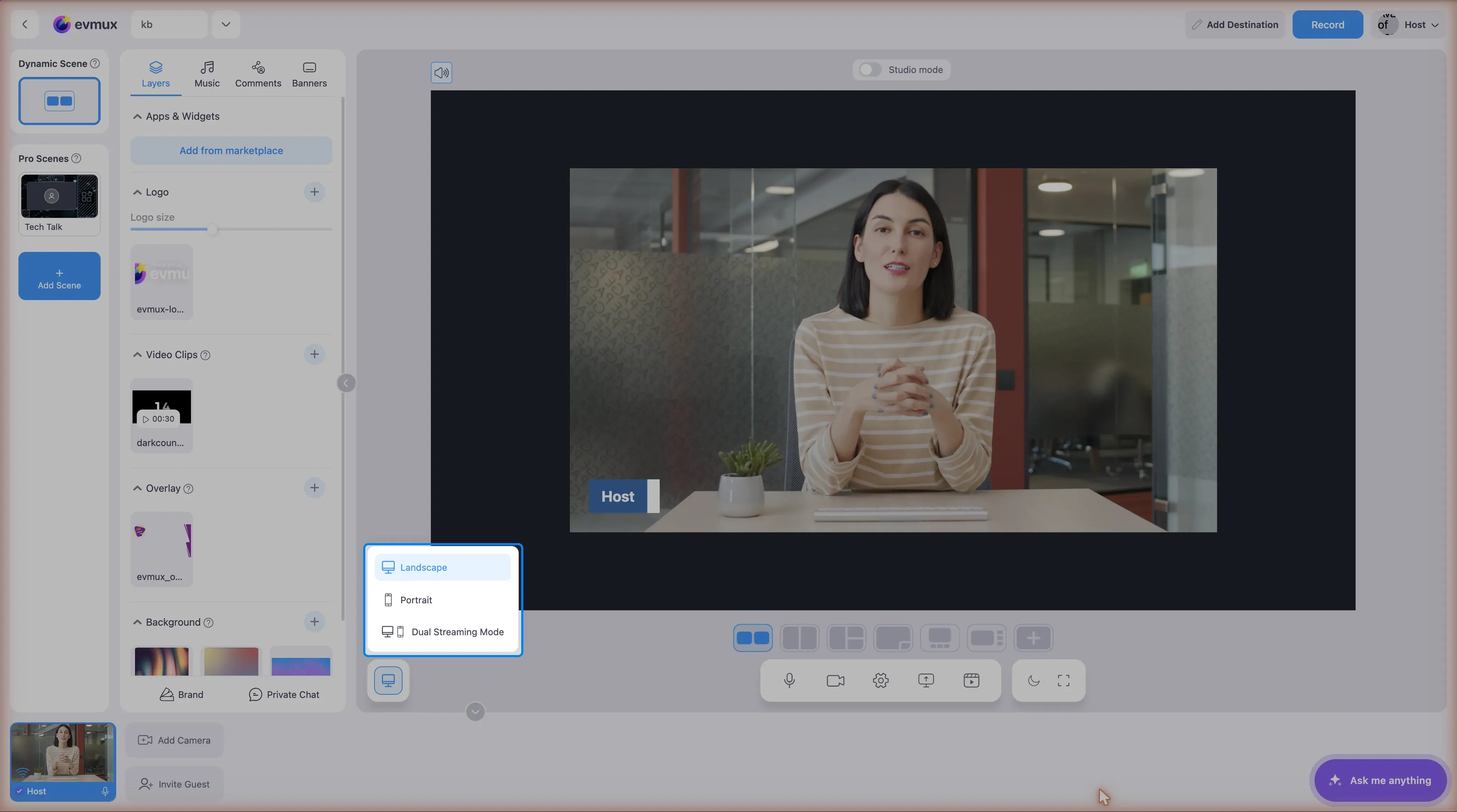 Click Portrait to broadcast a single vertical feed. You can switch back to Landscape the same way at any time before you go live — the switcher is locked while a broadcast is running, so set your orientation first.
Designing for the vertical frame
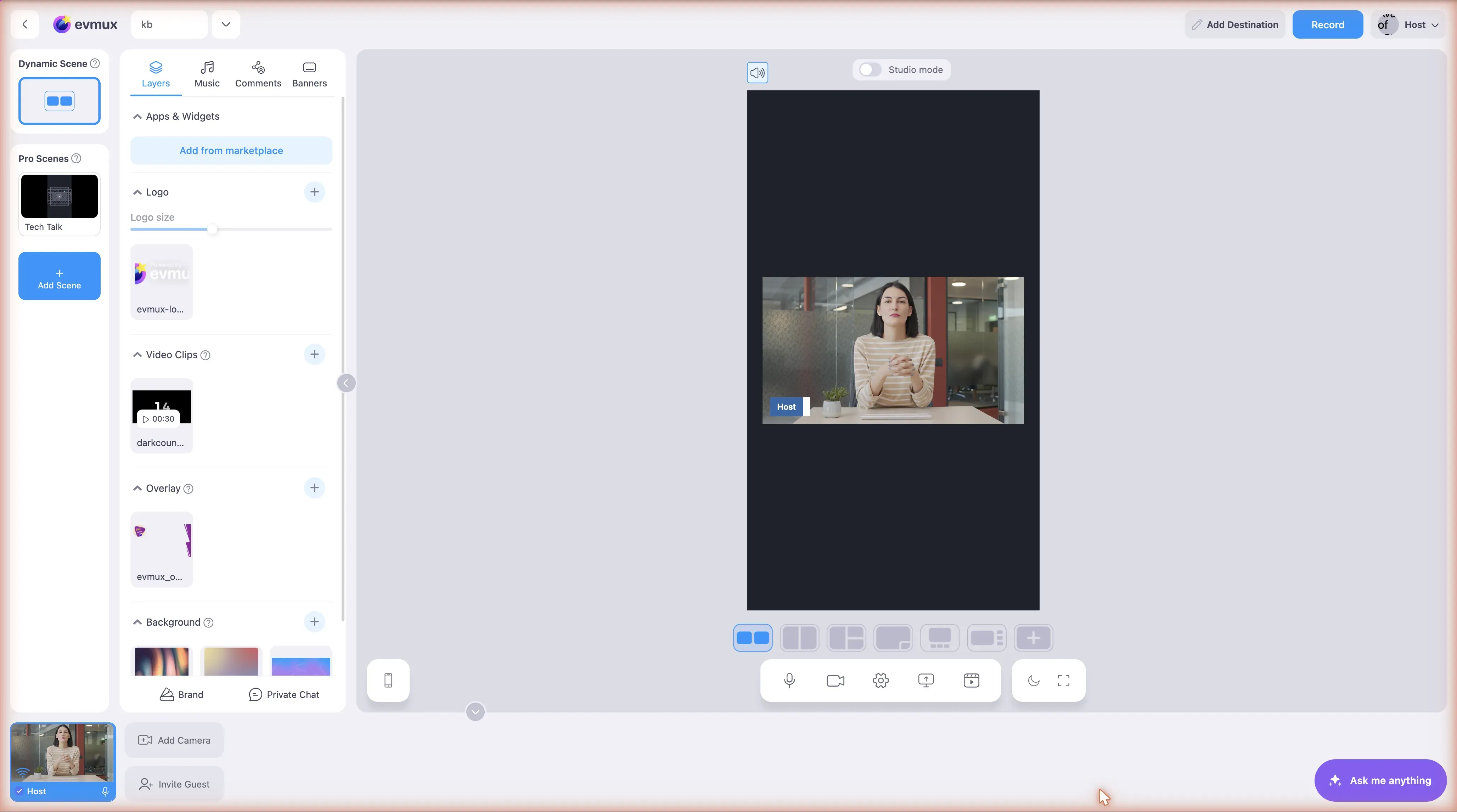
- The scene becomes tall (9:16), so layer positions from a landscape layout usually need adjusting.
- Reposition and resize participant tiles, backgrounds, text, and banners to fit the narrow vertical frame.
- The preview shows exactly what your audience will see, so check the framing before going live.
Going live vertically
Add the destination you want to stream to (for example TikTok, Instagram, or YouTube) and go live as usual. In Portrait mode the whole broadcast is 9:16, so your destination receives the vertical feed automatically.
Want landscape and vertical at the same time?
If you need to reach both horizontal platforms (YouTube, Twitch) and vertical platforms (TikTok, Reels, Shorts) from a single show, use Dual Streaming Mode, which broadcasts 16:9 and 9:16 at once. Going live in dual mode requires the Pro plan or higher and may need to be enabled for your account. See enable-dual-streaming for the full setup.