

How to Use the Video Effects Widget
The Video Effects widget is a soundboard for video. Each clip in its panel is a button. Click one and the clip plays over the whole scene, then disappears. It ships with two clips, an animated evmux logo and fireworks, and you can add your own from the media gallery, for example a transparent WebM with your logo sting or a reaction clip.
When to Use
- A branded sting between segments
- A reaction clip when something happens on the show
- A short animated transition without switching scenes
Steps
Step 1: Add the Video Effects Widget
- Open the Layers tab. Apps work on both scene types:
- Dynamic Scene: expand Apps & Widgets -> Add from marketplace
- Pro scene: click Add New Layer -> Apps & Widgets
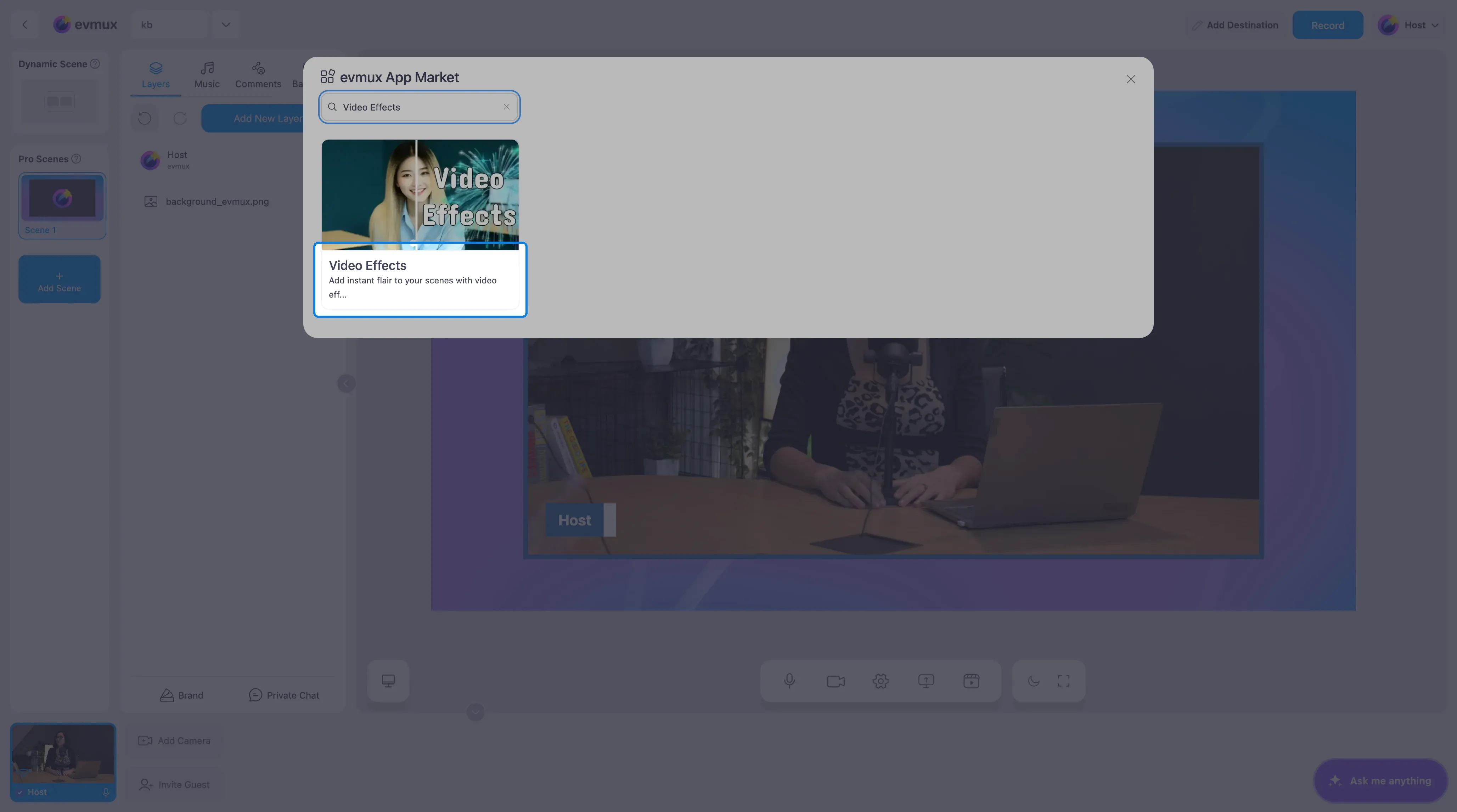
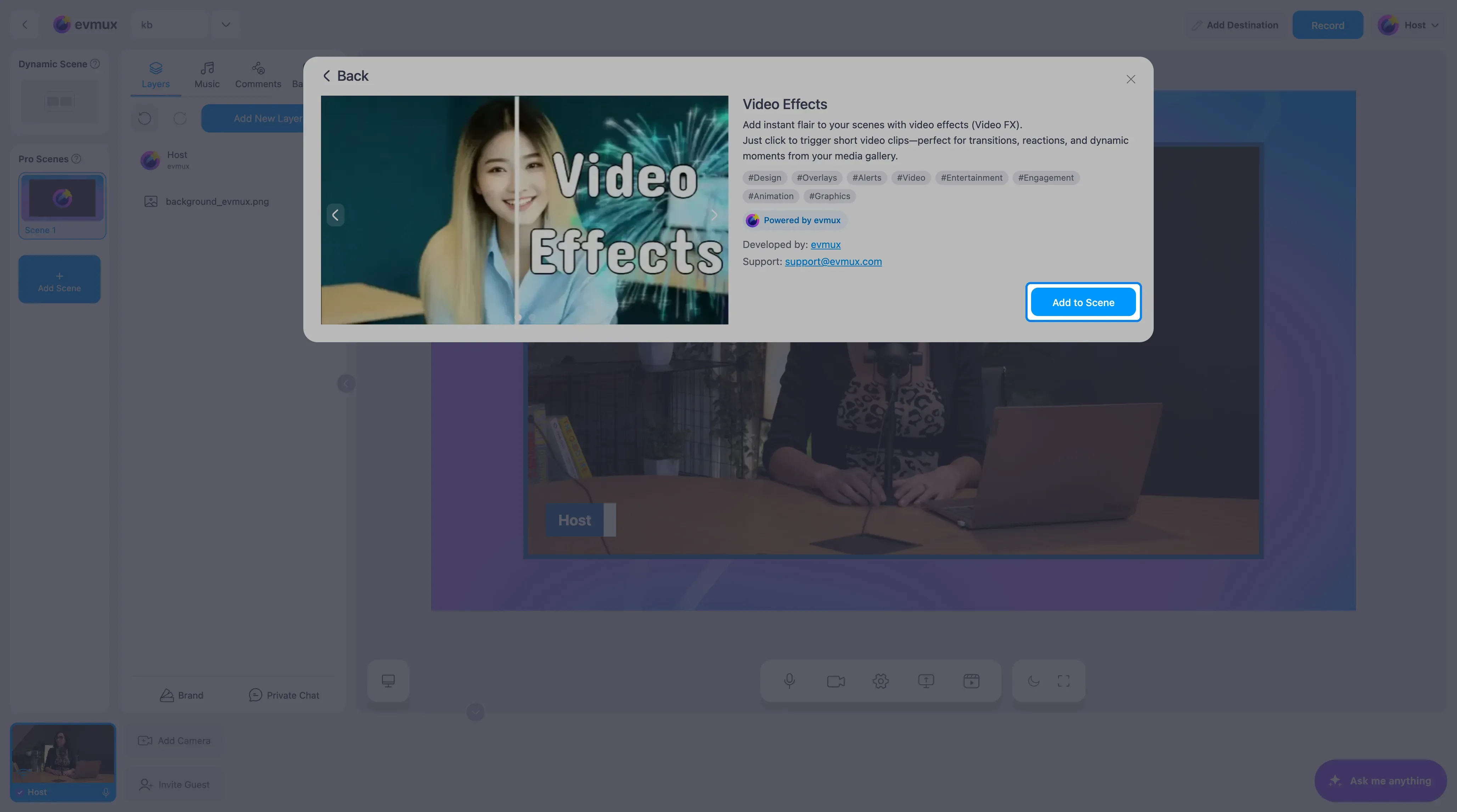
- Search for Video Effects and click the card, then click Add to Scene
Step 2: Build Your Clip List
The widget fills the scene and stays invisible until a clip plays. Its panel lists the clips with their length.
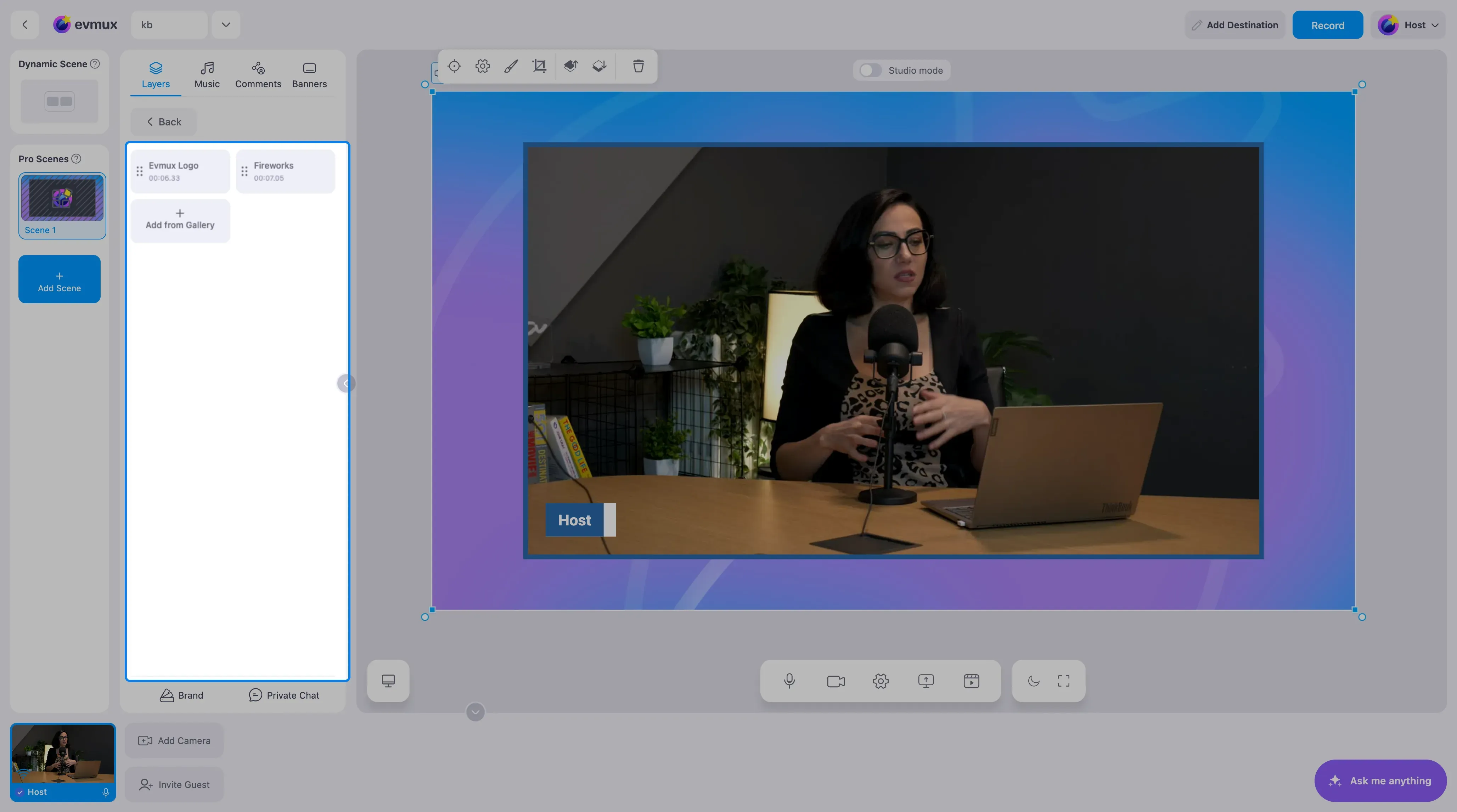
- Evmux Logo (about 6 seconds) and Fireworks (about 7 seconds) are included.
- Click Add from Gallery to pick a video from your media library. Upload it there first if it is not in the library yet.
- Drag the handle at the left of a clip to reorder the list.
Clips with a transparent background (WebM with alpha) look best, because only the effect shows and the scene stays visible around it.
Step 3: Play Clips Live
Click a clip to play it over the scene. It plays once and clears itself. Click another clip whenever you want.
Tips
- Keep clips short, under ten seconds. Longer clips cover your scene for too long.
- Put the widget on every scene where you want the same clips available.
- Add your most used clips to fast action buttons so they can be fired without opening the panel, by you or by a guest.
- For confetti, emoji and other built-in celebrations without uploading anything, use the Overlay Animations widget.