

How to Show Comments Automatically on Stream (Chat Box Widget + Auto-Hide)
Two Approaches
There are two ways to display comments on your livestream:
| Approach | Auto-Show? | Moderation | Best For |
|---|---|---|---|
| Chat Box Widget (App) | ✅ Yes - shows all comments automatically | ❌ No moderation - all comments appear | Casual streams, trusted audiences |
| Built-in Comment Highlighting | ❌ Manual click to show | ✅ Full moderation control | Professional broadcasts, large audiences |
Option 1: Chat Box Widget (Automatic Comment Display)
If you want comments to appear automatically without clicking each one, use the Chat Box app widget. It displays a live scrolling feed of all incoming comments on your stream.
How to Add the Chat Box Widget:
- In the Layers panel, click Add Layer
- Select Apps & Widgets
- Find and select Chat Box
- The widget appears as a layer on your scene
- Resize and position it where you want comments to appear
- Customize the widget styling to match your stream design
What the Chat Box Does:
- Shows all incoming comments automatically as they arrive
- Displays as a scrolling chat feed on your stream
- Shows comments from all connected platforms (YouTube, Facebook, Twitch, Twitter/X, LinkedIn, Kick, Rumble, Evmux Player)
- Customizable styling and appearance
- No need to click individual comments
- Staggered animation as comments enter
- Automatic duplicate comment detection
Chat Box Widget Settings:
| Setting | Default | Description |
|---|---|---|
| Background Color | Semi-transparent black | Comment box background |
| Comment Background | Semi-transparent dark | Individual comment background |
| Comment Text Color | White | Text color for comments |
| Round Corners | 15px | Border radius (0-50px) |
| Distance From Edges | 10px | Padding around box (0-50px) |
| Amount of Comments | 15 | How many comments visible (1-50) |
| Size of Comment | 1x | Scale of comment elements (1-10x) |
| Show Avatar | On | Show commenter profile pictures |
| Inline Avatar | Off | Avatar next to text (compact) |
| Separate Avatar | Off | Avatar outside comment box |
| Avatar Size | 1x | Scale of avatars (0-5x) |
| Show Social Network Logo | On | Platform icon (YouTube, Twitch, etc.) |
| Blur Background | On | Glass-morphism blur effect |
| Show Only Super Chat | Off | Filter to only donations/Super Chats |
Super Chat Filter: When enabled, only shows Super Chat donations, new sponsors, gifted memberships, and membership donations.
For a detailed guide on setting up the Chat Box widget, see How to Display Live Comments with the Chat Box Widget
Important Considerations:
- No moderation filter - ALL comments appear on stream (unless Super Chat filter is enabled), including potentially inappropriate ones
- Best for smaller, trusted communities where moderation isn’t a concern
- You can still moderate from the Comments tab (block users, etc.) but comments show before you can review them
- Enable Show Only Super Chat to filter out non-donation messages for a safer experience
Option 2: Built-in Comment Highlighting (Manual with Auto-Hide)
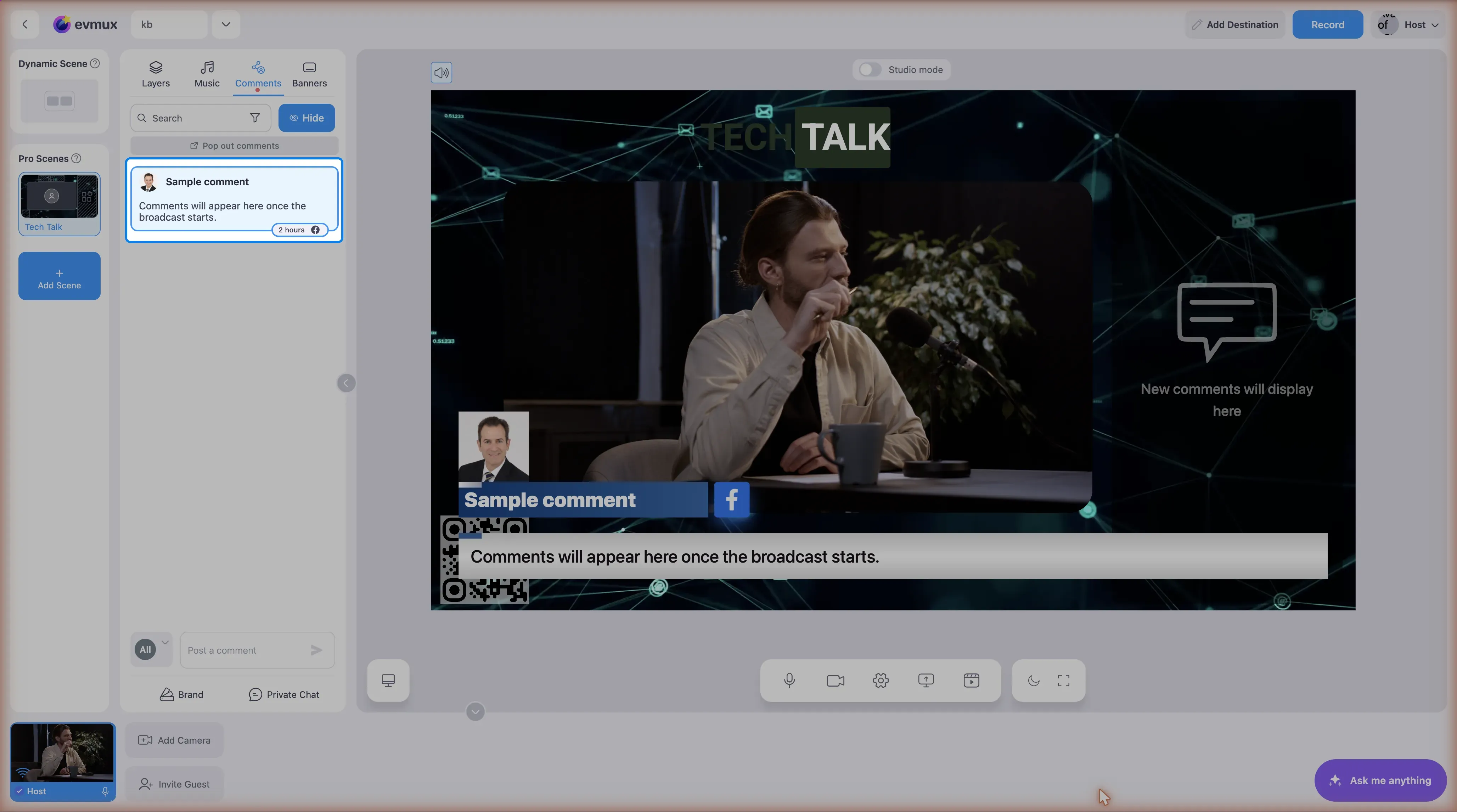
The built-in social comments system requires you to click each comment to show it on screen. This is intentional for content moderation - you review each comment before your audience sees it.
Best Workflow: Click to Show + Auto-Hide
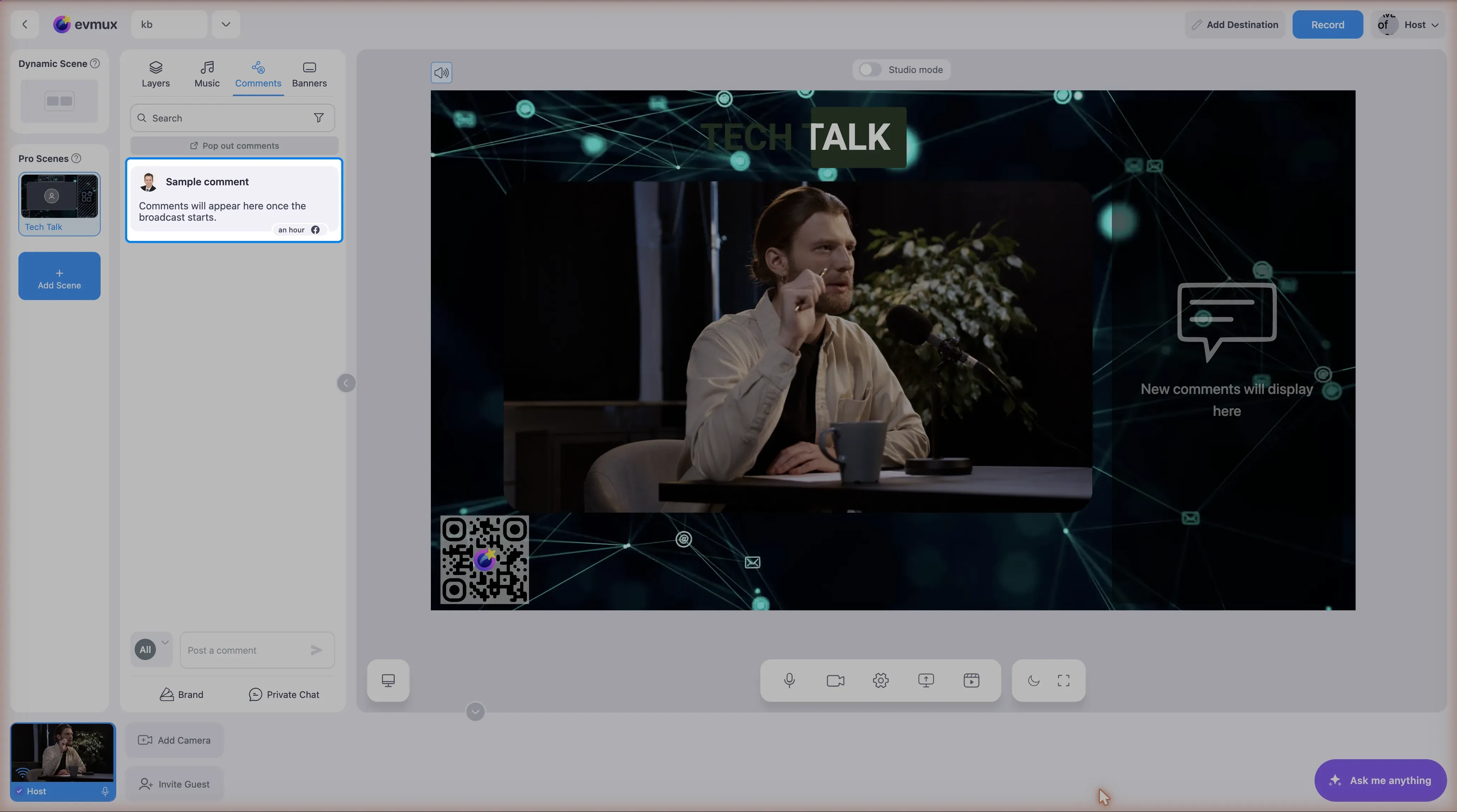
For an efficient semi-automatic workflow:
Step 1: Enable Auto-Hide
- Go to Settings (gear icon in header)
- Click Social Comments
- Enable “Set a time to automatically hide a comment after it is highlighted”
- Set the timeout (5-100 seconds) - how long comments stay on screen
Step 2: Show Comments with One Click
- Open the Comments tab in the left sidebar
- See incoming comments from your connected platforms
- Click on a comment to show it on screen
- The comment appears immediately
- After your set timeout, it automatically disappears
Step 3: Repeat
- Click the next comment you want to show
- It replaces the previous one (or appears after it hides)
- Keep clicking good comments as they come in
Auto-Hide Settings
| Setting | Description |
|---|---|
| Enable auto-hide | Toggle on to auto-remove comments |
| Timeout | 5-100 seconds - how long comment stays visible |
| Show previous banner | Optionally show a banner after comment hides |
How to Access:
Settings → Social Comments
Tips for Faster Comment Management (Built-in System)
The Semi-Automatic Workflow
For a nearly-automatic feel with built-in comments:
- Set auto-hide to 10-15 seconds
- Click comments rapidly as they come in
- Each appears, then disappears automatically
- You control WHAT shows, timing is automatic
- No need to manually hide each comment
Use Keyboard Shortcuts
- Set up hotkeys for showing/hiding comments
- Check Settings → Keyboard Shortcuts for options
Star Important Comments
- Star/favorite good comments as they come in
- Filter to show only starred comments
- Click through your curated list
Filter Comments
Use the filter options in the Comments tab:
- All - See everything
- Super Chat - Only paid/donation comments
- Starred - Only comments you marked
- Shown - Comments you’ve already displayed
- Not Shown - Comments not yet displayed
For High-Volume Comment Streams
If you have many comments:
- Use the Chat Box widget - If moderation isn’t a major concern
- Assign a moderator - Have someone manage comments while you broadcast
- Use filtering - Focus on Super Chats or starred comments
- Shorter auto-hide - 5-8 seconds keeps things moving
- Pre-star comments - Star good ones during slower moments, show later
Which Should You Choose?
| Scenario | Recommended |
|---|---|
| Small community, trusted audience | Chat Box Widget - automatic, no effort |
| Large audience, public stream | Built-in Highlighting - moderation is essential |
| Professional broadcast / brand stream | Built-in Highlighting - curate what viewers see |
| Casual chat with friends | Chat Box Widget - fun, interactive feel |
| High-volume comments | Chat Box Widget + moderator blocking inappropriate users |
Related
- How to Display Live Comments with the Chat Box Widget
- Comments and Chat Overview
- How to Use Chat
- Apps & Widgets Reference