

Going Live — starting and ending a broadcast
The button, and why it sometimes says Record
The button sits at the top right of the header and its label tells you the state of the session:
| It says | When | Clicking it |
|---|---|---|
| Go Live | at least one destination is switched on | opens the panel |
| Record | no destination is active | opens the same panel for a recording-only session |
| Initializing… | the broadcast is starting | cancels the attempt |
| End Broadcast (or End Recording with nothing streaming) | it is running, with the elapsed time beside it | asks to confirm, then stops |
They are the same slot in the header — only one exists at a time.
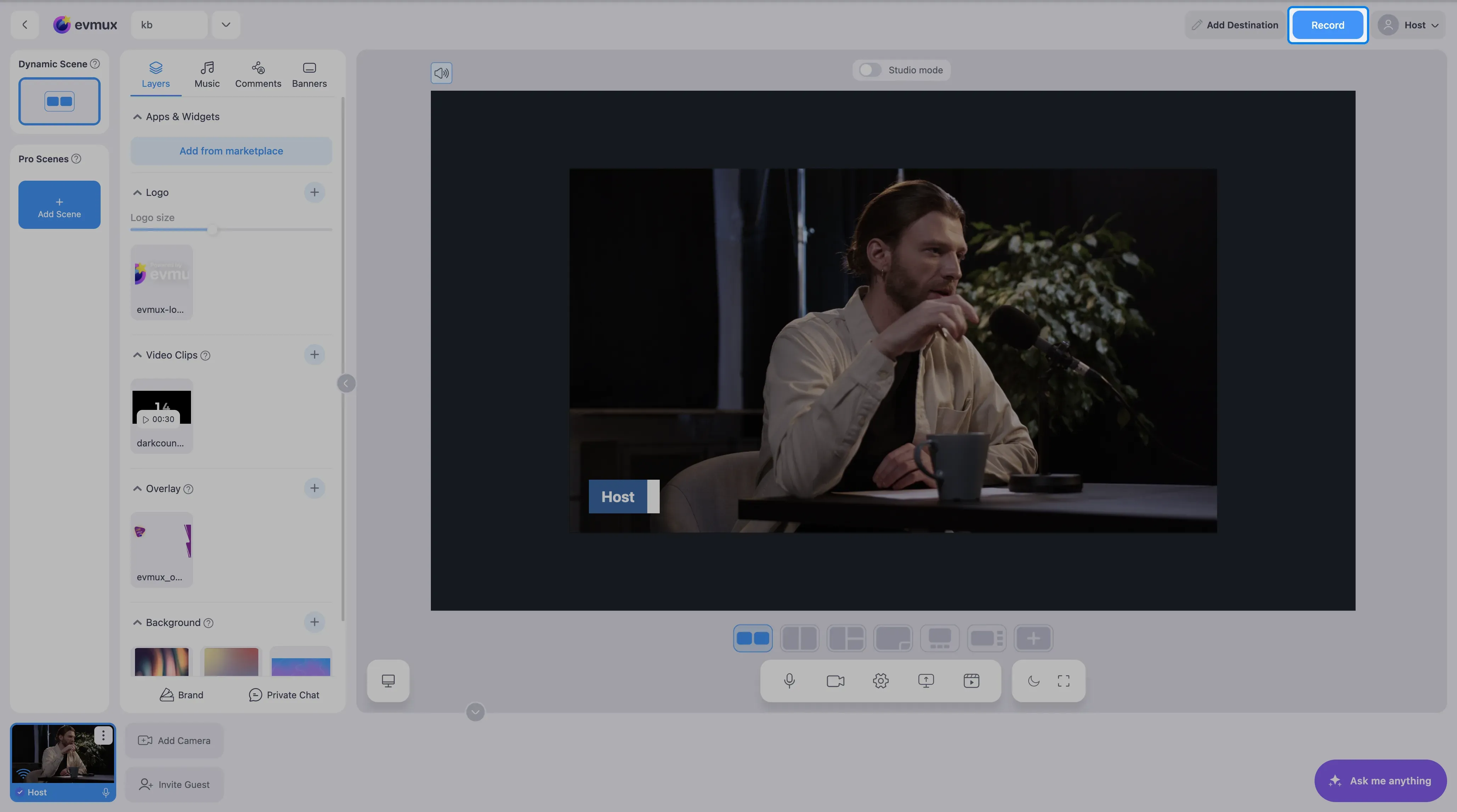
“My button says Record, not Go Live” is the most common confusion here, and it is not a fault: evmux cannot go live with nowhere to send the stream, so with no active destination it offers a recording-only session instead. Switch a destination on and the button changes.
Before you start
- a scene with something in it
- at least one destination connected and switched on (see add-destination)
- your microphone and camera working — check the level on your own tile
The panel
Clicking the button opens a drop-down under it. Escape, the ✕, or a click outside closes it.
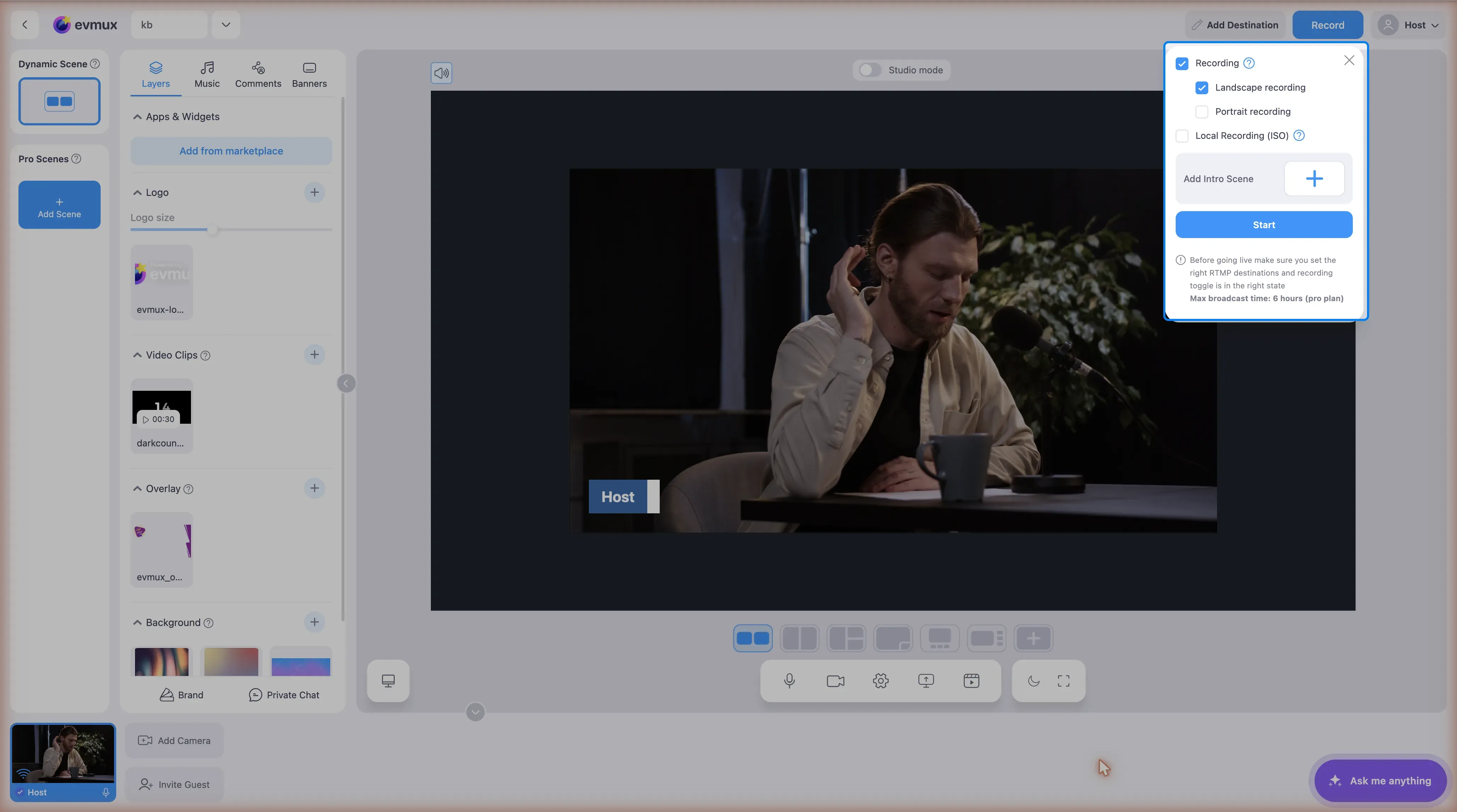
- Recording — records the session for download afterwards. In a recording-only session it is on and cannot be switched off, because that is the whole session. On the Free plan a note reads “(Max: 7 minutes on the free plan)” — the livestream keeps running, only the recording stops at 7 minutes
- Landscape recording / Portrait recording — which orientations get recorded, when dual streaming is in play. Needing both requires Pro or higher, and until that is resolved a yellow notice blocks Start
- Local Recording (ISO) — each participant’s own video and audio recorded on their own machine in up to 4K, independent of internet quality. Pro plan and up; on a lower plan clicking it shows the upgrade message. With it on you also get Check participants storage and a Video + Audio / Audio only choice for those local files
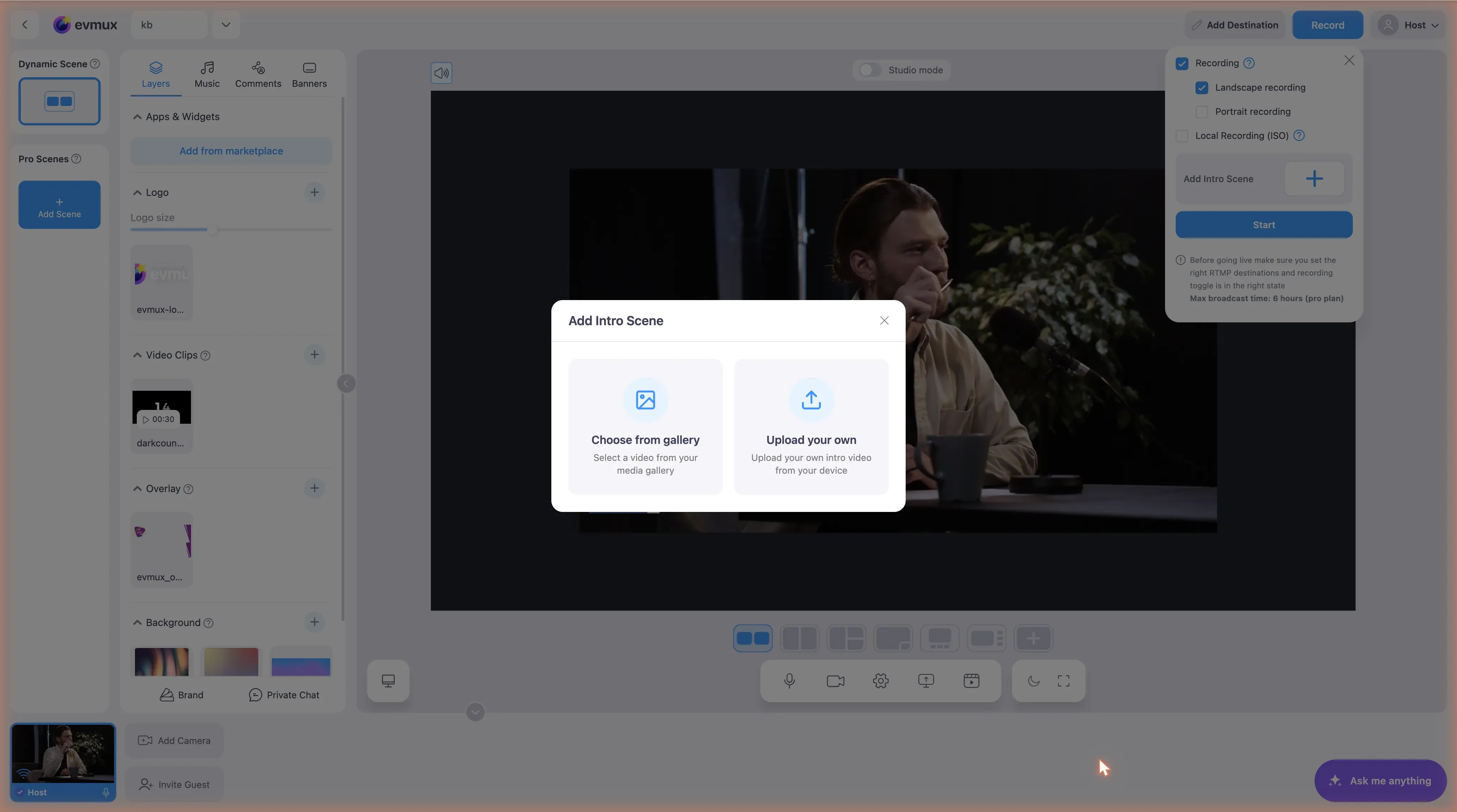
- Starting scene — the scene the broadcast opens with. With no Pro scenes yet, this tile reads Add Intro Scene instead
- Start — begins the broadcast, the recording, or both
Destinations are not chosen in this panel — switch them on beforehand. There is no quality or resolution setting in this panel: the output is a fixed 1920x1080 (1080x1920 in portrait). The single exception lives elsewhere — a Custom RTMP destination has its own Resolution choice of 1920x1080 or 1280x720, in that destination’s settings.
If something blocks the session — a destination that needs reconnecting, or a schedule conflict — the panel shows those warnings instead of the settings, and nothing can start until they are cleared.
Choosing the starting scene
Clicking the starting-scene tile opens “Choose which scene will be playing first after going live”: Create New Intro Scene With auto switch, the Dynamic Scene, and every Pro scene with its thumbnail.
If you press Start while a different scene is on screen, a “Choose The Starting Scene” dialog offers the current scene beside the selected one, so nothing goes out by accident.
Starting
Press Start. The button reads Initializing… while the destinations are prepared — this takes a moment, and clicking it during that time cancels going live.
If it stays on Initializing: evmux gives up after about three minutes and reports that it could not go live. That usually means a destination could not be reached — an authorization that needs reconnecting, or a platform-side problem. Check the destination that failed rather than retrying blindly.
While you are live
Switch scenes, show comments, watch your levels. The elapsed time runs beside End Broadcast.
Ten seconds before your plan’s maximum broadcast length, a bubble counts down — the broadcast is then stopped automatically, and that limit cannot be overridden from the studio.
In a recording-only session there is also a pause button, on accounts where it is enabled. Pausing keeps everything as one continuous file, but it does not stop the session timer: paused time still counts toward the recording limit.
Ending
Click End Broadcast (or End Recording) and confirm — it always asks first. Recordings then appear in the dashboard. With ISO recording on, participants must leave their tab open until their upload finishes.
Messages people ask about
| Message | What it means |
|---|---|
| “If you want to disable recording you must have at least one destination.” | A session must either stream or record — one of the two has to stay on. |
| “Please add at least one broadcast-channel before going live” | No destination is active and recording is off. |
| “Seems that you are already in live state.” | The session is already running. |
| A concurrent-lives message | The plan’s number of simultaneous live sessions is already in use. |
| A storage message | The account is out of storage — delete recordings, turn recording off, or upgrade. |
| “You’ve exceeded your N hours stream limit for the month.” | The monthly streaming allowance is used up. |
| “Dual Streaming Mode requires the Pro plan” | Streaming landscape and portrait at once needs Pro or higher. |