

How to Add Animated Text Effects to Your Stream
A plain text layer is static. These five widgets animate a headline instead, each with its own look. All of them work the same way: add the widget, type your text in the settings panel, set colors and size, and place the layer.
| Widget | The look |
|---|---|
| Invertext | A block of color slides across one line of text and inverts the letters it passes |
| Squiggly Text | Hand-drawn, wobbling letters, like a marker sketch that never sits still |
| Swinging 3D Text | Bold layered 3D letters that swing gently |
| Ants Text | Outlined letters drawn by marching multicolor dashes |
| luminance Text | Glowing letters with a pulsing light effect |
Adding a Text Effect
- Open the Layers tab. Apps work on both scene types:
- Dynamic Scene: expand Apps & Widgets -> Add from marketplace
- Pro scene: click Add New Layer -> Apps & Widgets
- Search for the widget by name and click its card, then click Add to Scene
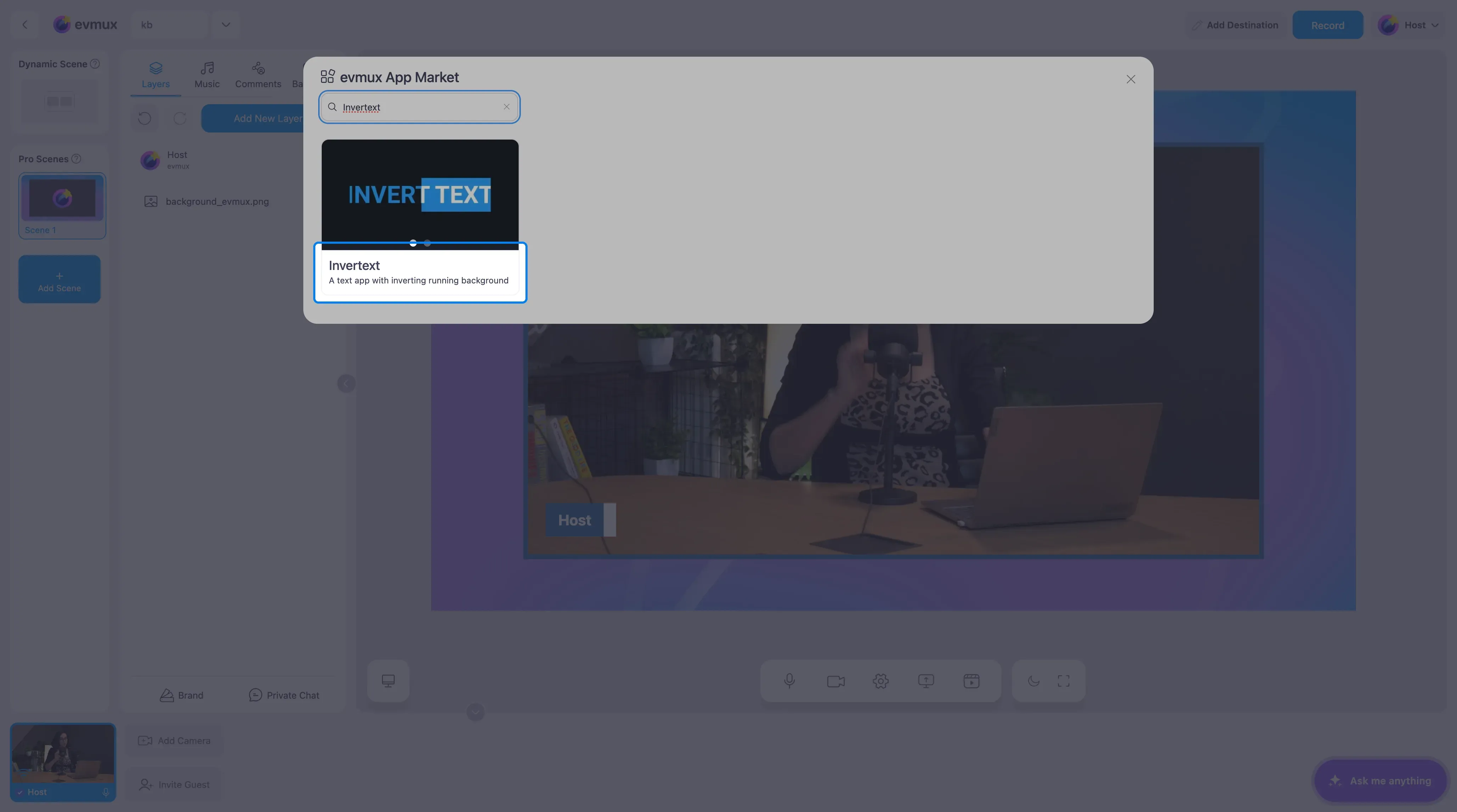
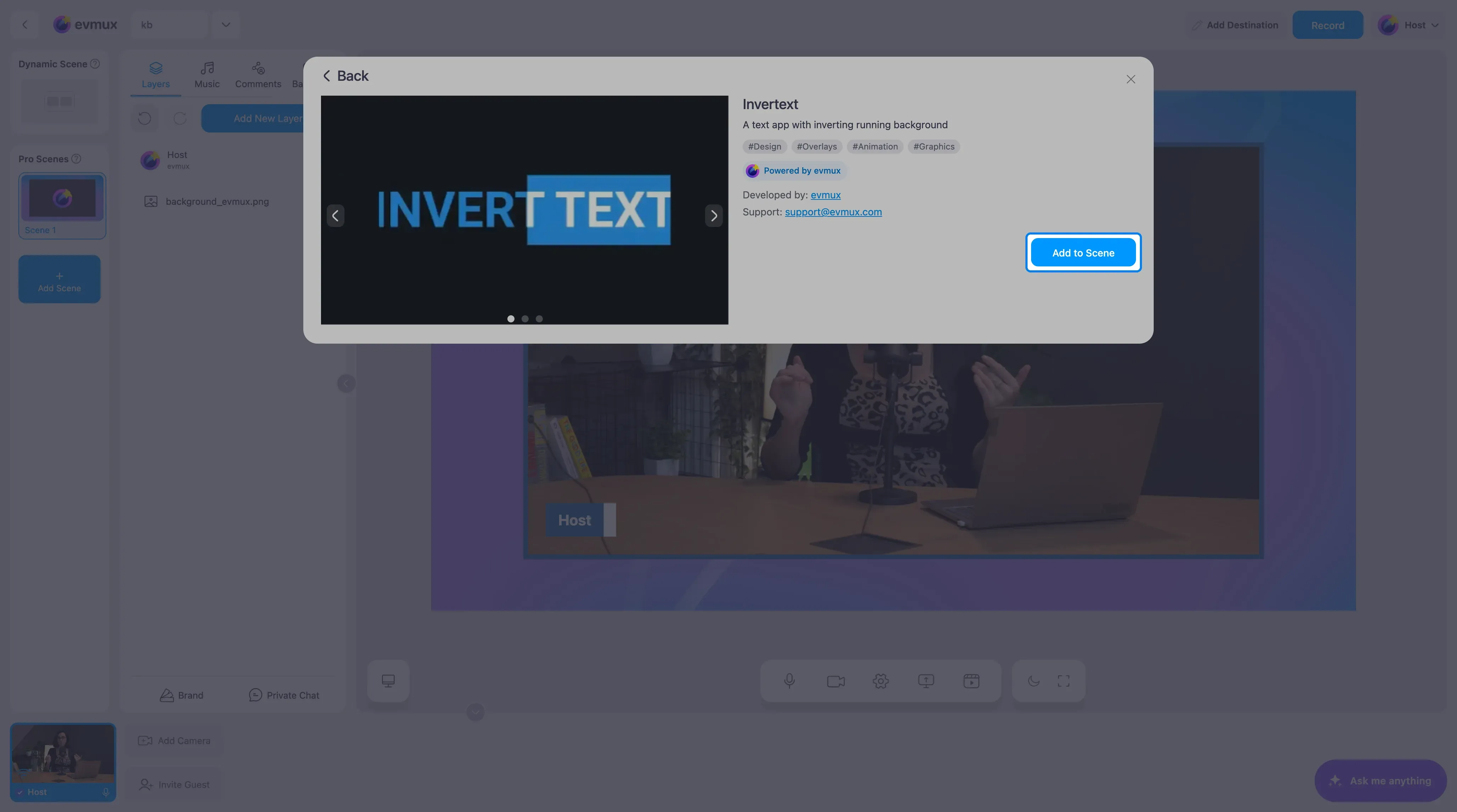
The widget lands on the scene with sample text, and its settings open on the left. Replace the sample with your own text, then resize and move the layer like any other.
Invertext
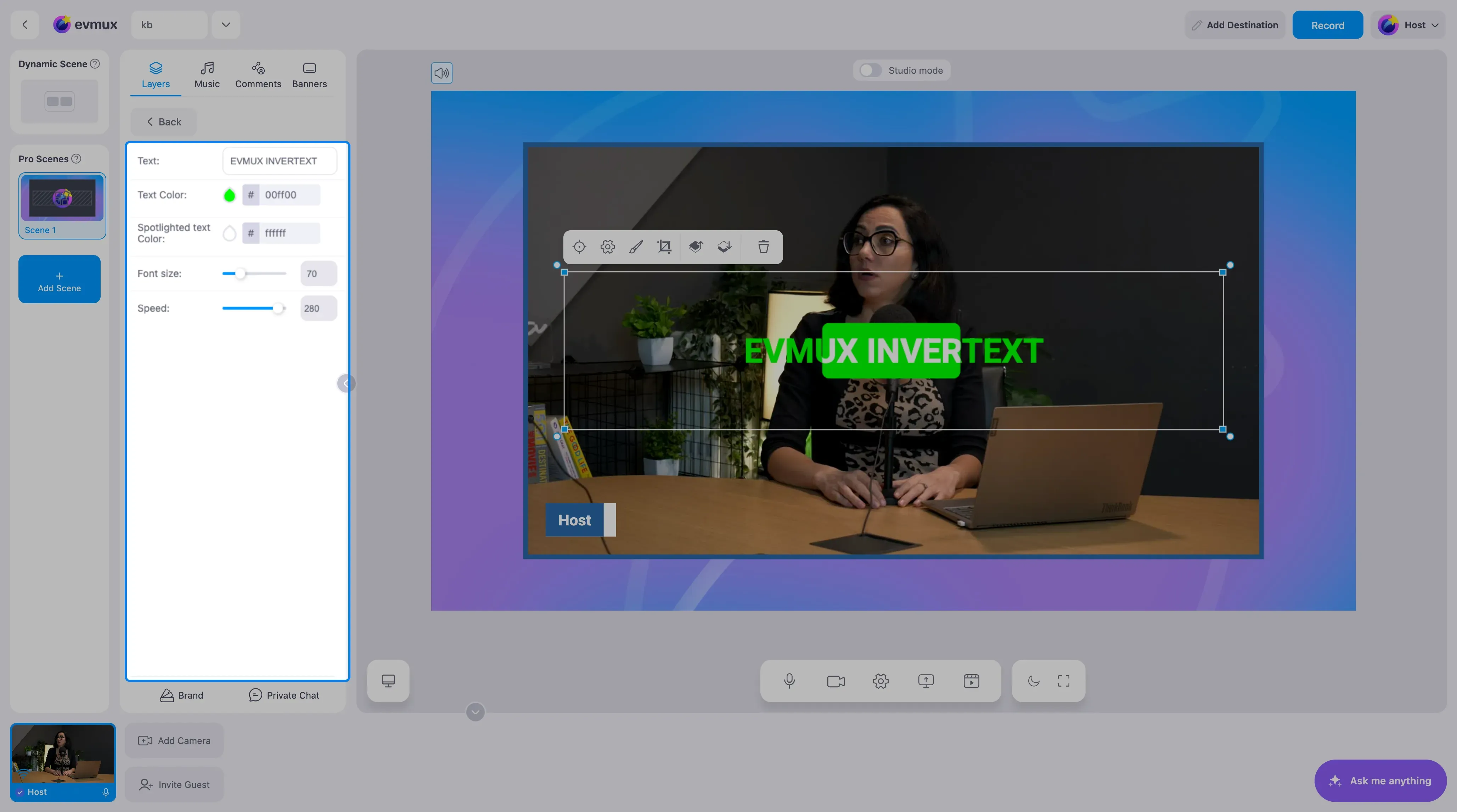
| Setting | What it does |
|---|---|
| Text | One line. Long text does not wrap, so keep it short |
| Text Color | The color of the letters and of the sliding block |
| Spotlighted text Color | The color of the letters while the block covers them |
| Font size | Size of the line |
| Speed | How fast the block travels |
Squiggly Text
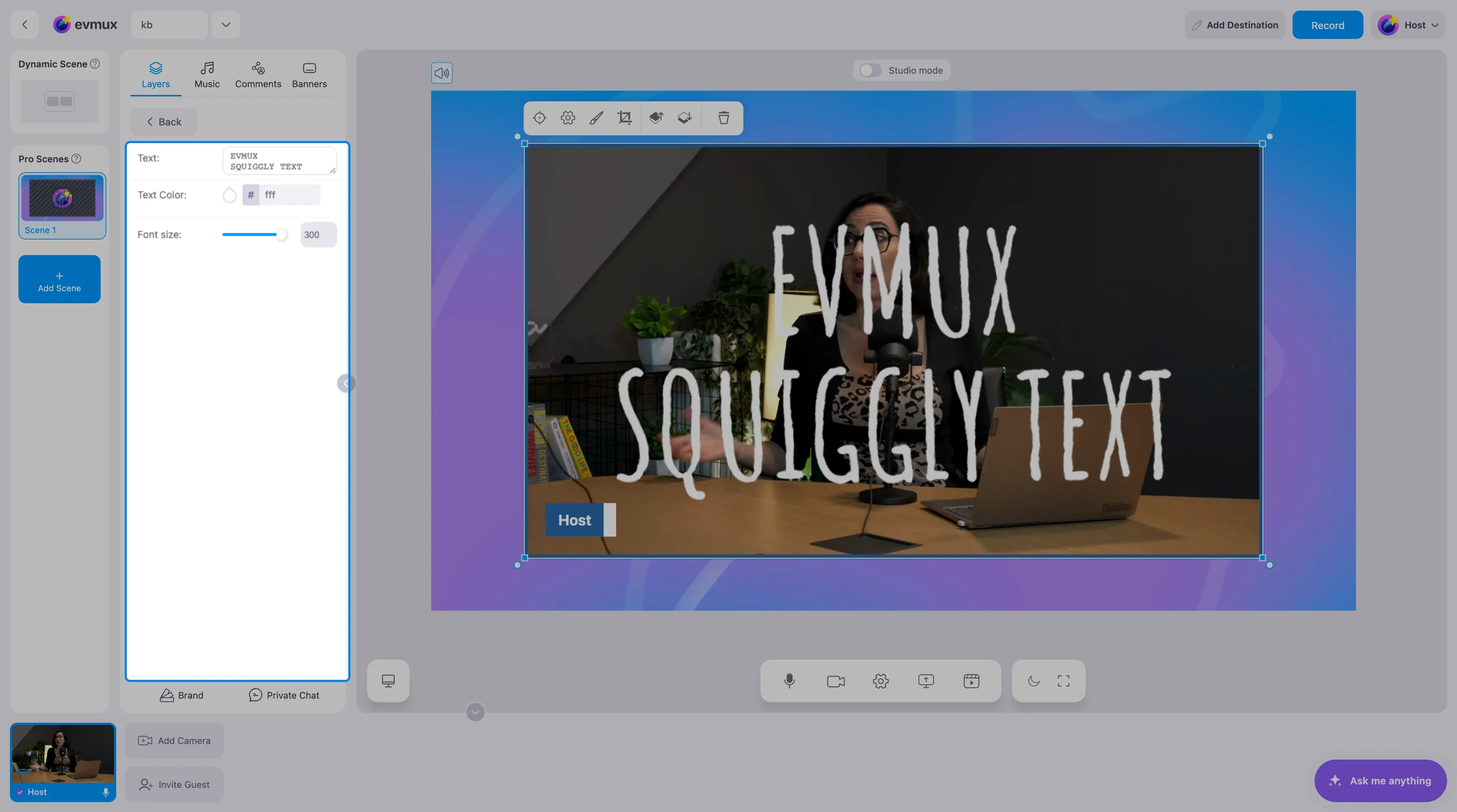
| Setting | What it does |
|---|---|
| Text | Several lines are fine; each line wobbles on its own |
| Text Color | The color of the letters |
| Font size | Size of the letters |
Swinging 3D Text
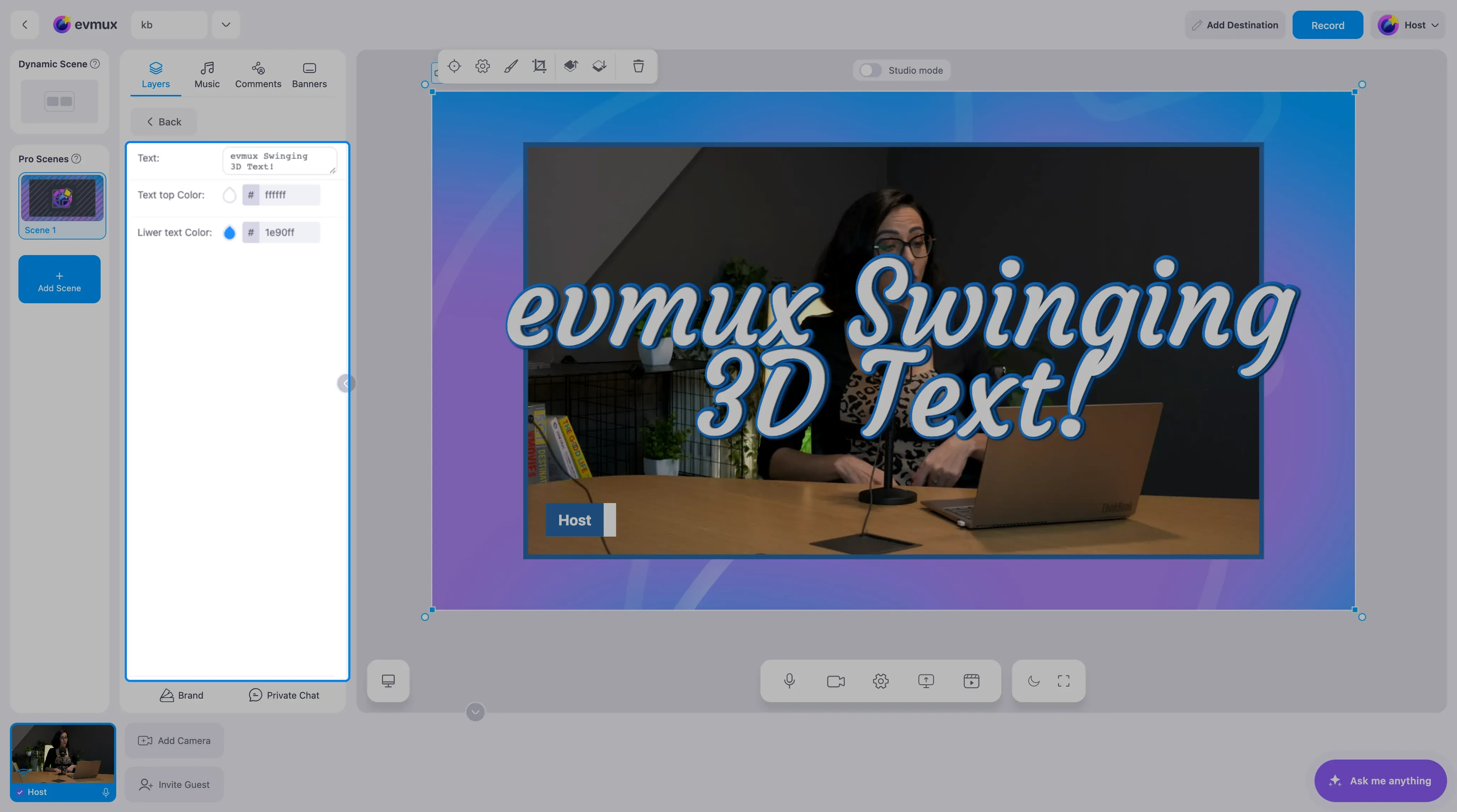
| Setting | What it does |
|---|---|
| Text | Several lines are fine |
| Text top Color | The face of the letters |
| Lower text Color | The 3D side of the letters |
Ants Text
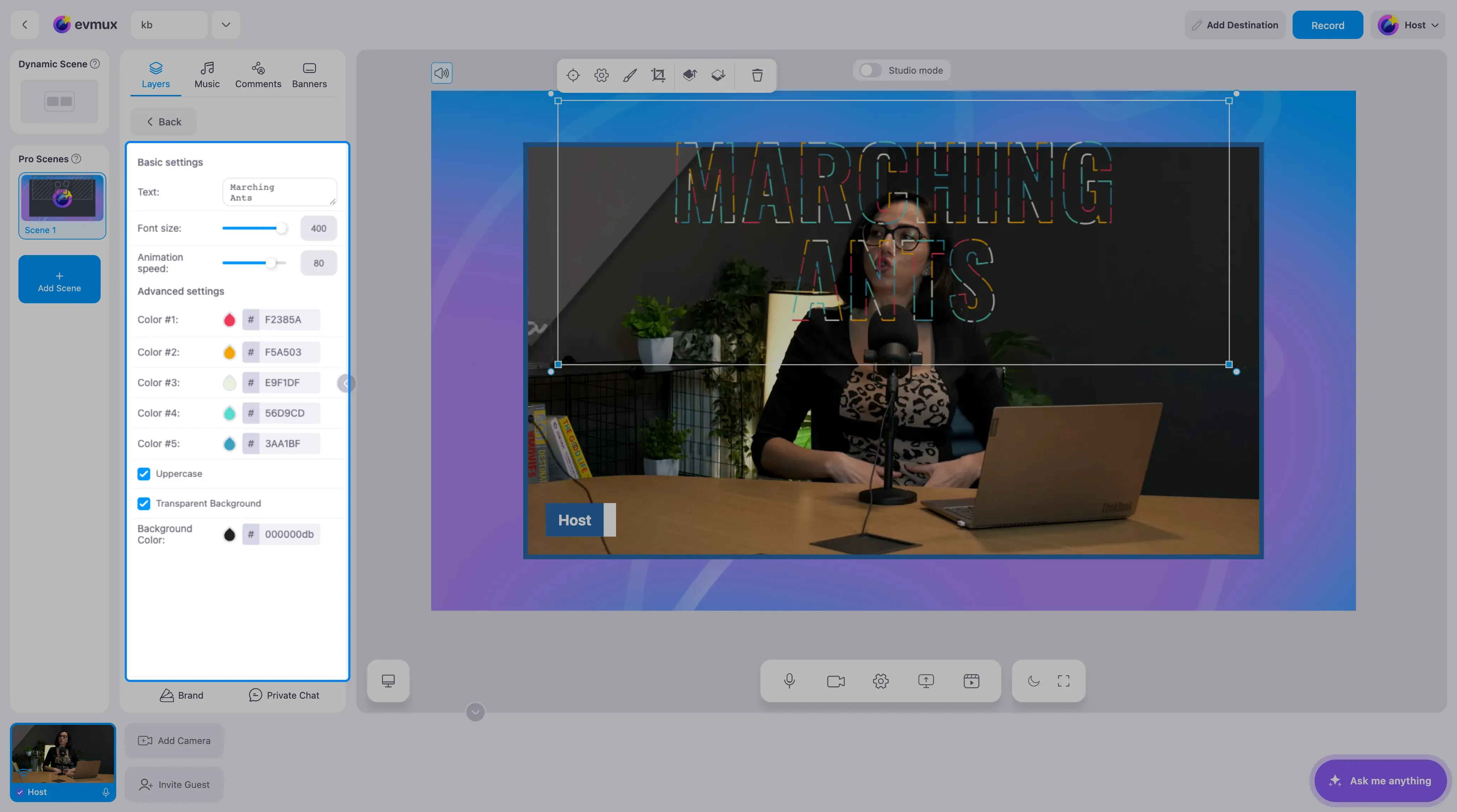
| Setting | What it does |
|---|---|
| Text, Font size, Animation speed | The basics |
| Color #1 to Color #5 | The five colors of the marching dashes |
| Uppercase | Forces capitals |
| Transparent Background and Background Color | The box behind the text |
luminance Text
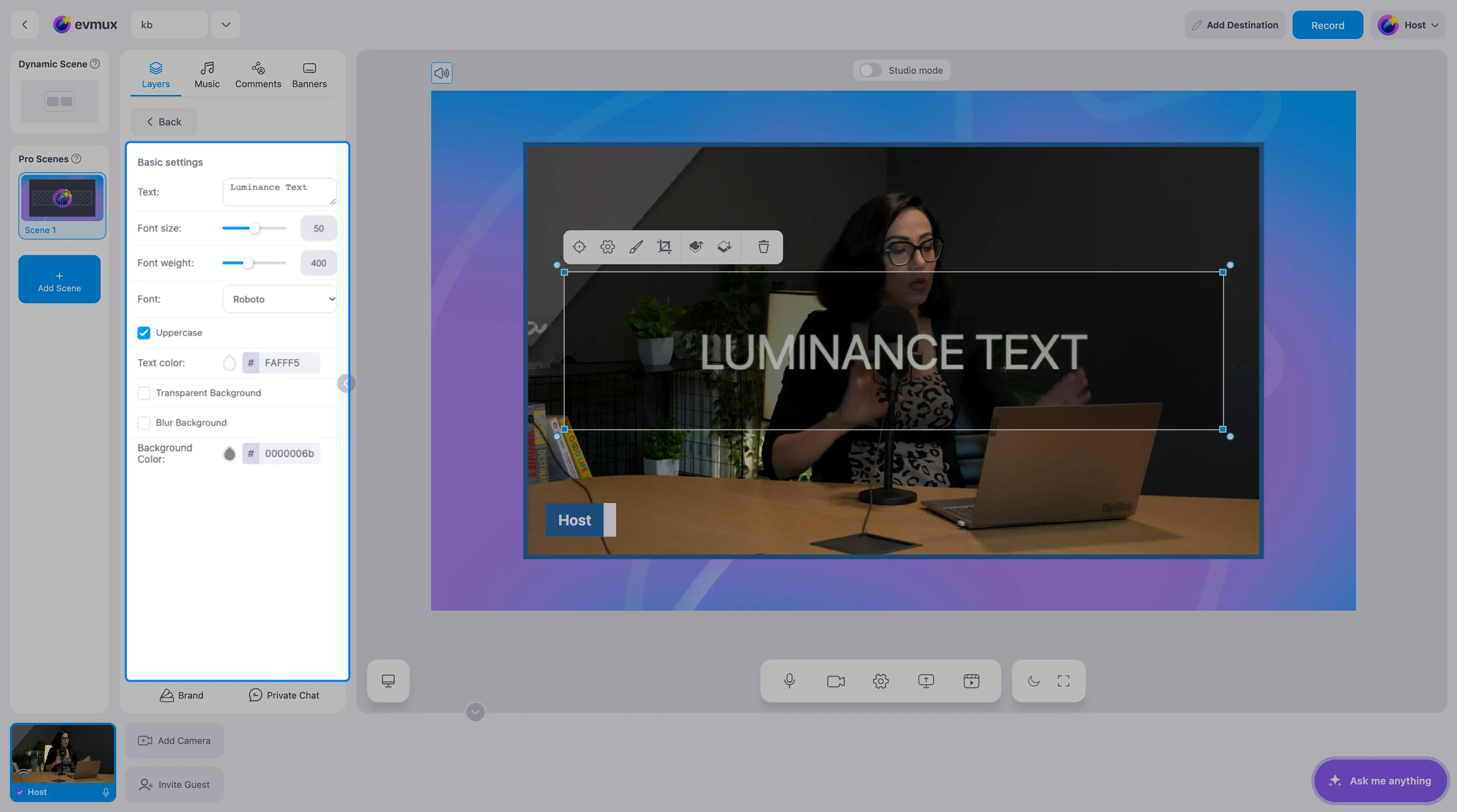
| Setting | What it does |
|---|---|
| Text | Up to 200 characters |
| Font Size, Font Weight, Font Family | Roboto, Source Sans 3, Tilt Neon or Caveat |
| Text Transform | Uppercase on or off |
| Text Color and Background Color | Both with transparency |
| Transparent Background and Blur Background | Remove the box, or blur what is behind it |
Tips
- Use one effect per scene. Two animated headlines compete for attention.
- Keep the text short. These are titles and hooks, not paragraphs.
- Match the colors to your brand from the Brand tab’s primary color so the effect fits the rest of your graphics.
- For text you need to change while live, use the Live Text widget instead.