

How to Configure Hotkeys
This guide shows you how to customize keyboard shortcuts for faster control during broadcasts.
Quick Steps
- Open Settings (gear icon)
- Navigate to Hotkeys section
- Click on any shortcut field to edit
- Press your desired key combination
- Click Save
Accessing Hotkey Settings
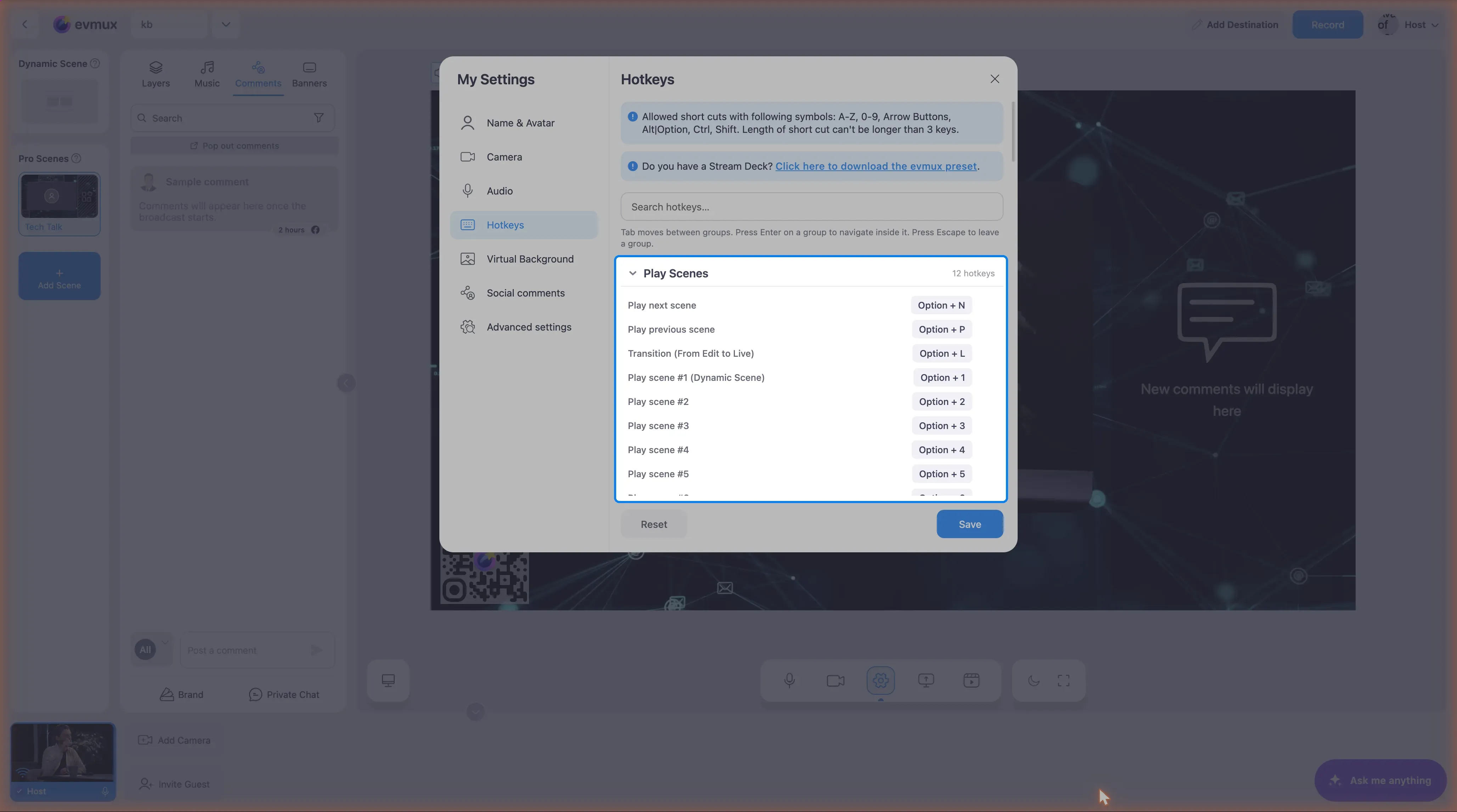
- Click the Settings gear in the toolbar under the scene preview
- Select Hotkeys in the left sidebar of the settings dialog
- The hotkeys panel opens, grouped by area, with a search box at the top
Hotkey Rules
As stated in the interface:
“Allowed short cuts with following symbols: A-Z, 0-9, Arrow Buttons, Alt|Option, Ctrl, Shift. Length of short cut can’t be longer than 3 keys.”
| Allowed Keys | Examples |
|---|---|
| Letters | A, B, C… Z |
| Numbers | 0, 1, 2… 9 |
| Arrows | ↑, ↓, ←, → |
| Modifiers | Alt, Option, Ctrl, Shift |
Limits:
- Maximum 3 keys per shortcut
- No duplicate shortcuts allowed
- Each function needs a unique combination
Editing a Hotkey
Step 1: Find the Hotkey
Hotkeys are organized by groups:
- Navigate to the relevant group
- Find the function you want to modify
Step 2: Edit the Shortcut
- Click on the shortcut input field
- Press your desired key combination
- The new shortcut appears in the field
Step 3: Handle Conflicts
If the shortcut is already used:
- Error message appears: “This shortcut already used for [function name]”
- Choose a different combination
- The field shows the conflict
Step 4: Save or Reset
Save:
- Click Save to apply all changes
- Shows loading spinner while saving
- Settings are stored on the server
Reset:
- Click Reset to restore default shortcuts
- Returns all hotkeys to original values
- Does not auto-save (must click Save)
Stream Deck Integration
The settings panel includes a tip:
“Do you have a Stream Deck? Click here to download the evmux preset.”
- Download the preset file for Stream Deck integration
- Pre-configured buttons for common Evmux actions
- Works with Elgato Stream Deck devices
Common Hotkey Categories
Hotkeys are typically grouped by function:
- Scenes - Scene switching shortcuts
- Audio - Mute/unmute controls
- Recording - Start/stop recording
- Broadcast - Go live controls
- Navigation - UI navigation
Tips
Efficient Shortcuts
- Use single keys for frequent actions
- Add modifiers for less common functions
- Group related actions with similar patterns
Avoiding Conflicts
- Check for browser shortcuts that might interfere
- Avoid system-level shortcuts (Cmd+Q, Alt+F4)
- Test shortcuts before going live
Muscle Memory
- Keep shortcuts consistent across sessions
- Practice before important broadcasts
- Document your custom shortcuts
Error Messages
| Error | Meaning |
|---|---|
| “This shortcut already used for…” | Duplicate shortcut detected |
Troubleshooting
Shortcut not working?
- Ensure you clicked Save after editing
- Check for browser extension conflicts
- Verify the shortcut isn’t blocked by OS
Can’t remember shortcuts?
- Return to Settings → Hotkeys to review
- Consider using Stream Deck for visual reference
- Click Reset to restore defaults if needed
Save button not working?
- Check internet connection
- Wait for any pending saves to complete
- Try refreshing and making changes again