

How to Use the Live Text Widget
Live Text is a text box that your viewers see and that you can edit while the show is on air. Double-click it, type, format with the toolbar, and highlight words as you discuss them. Use it for lists you fill in live, talking points, a scoreboard you update by hand or anything else that changes during the show.
A plain text layer is better for a title that never changes. Notes that only you should see belong in the Notes widget.
When to Use
- Collecting viewer suggestions or questions in a list as they come in
- Walking through an agenda and highlighting the current item
- A hand-updated score or tally
Steps
Step 1: Add the Live Text Widget
- Open the Layers tab. Apps work on both scene types:
- Dynamic Scene: expand Apps & Widgets -> Add from marketplace
- Pro scene: click Add New Layer -> Apps & Widgets
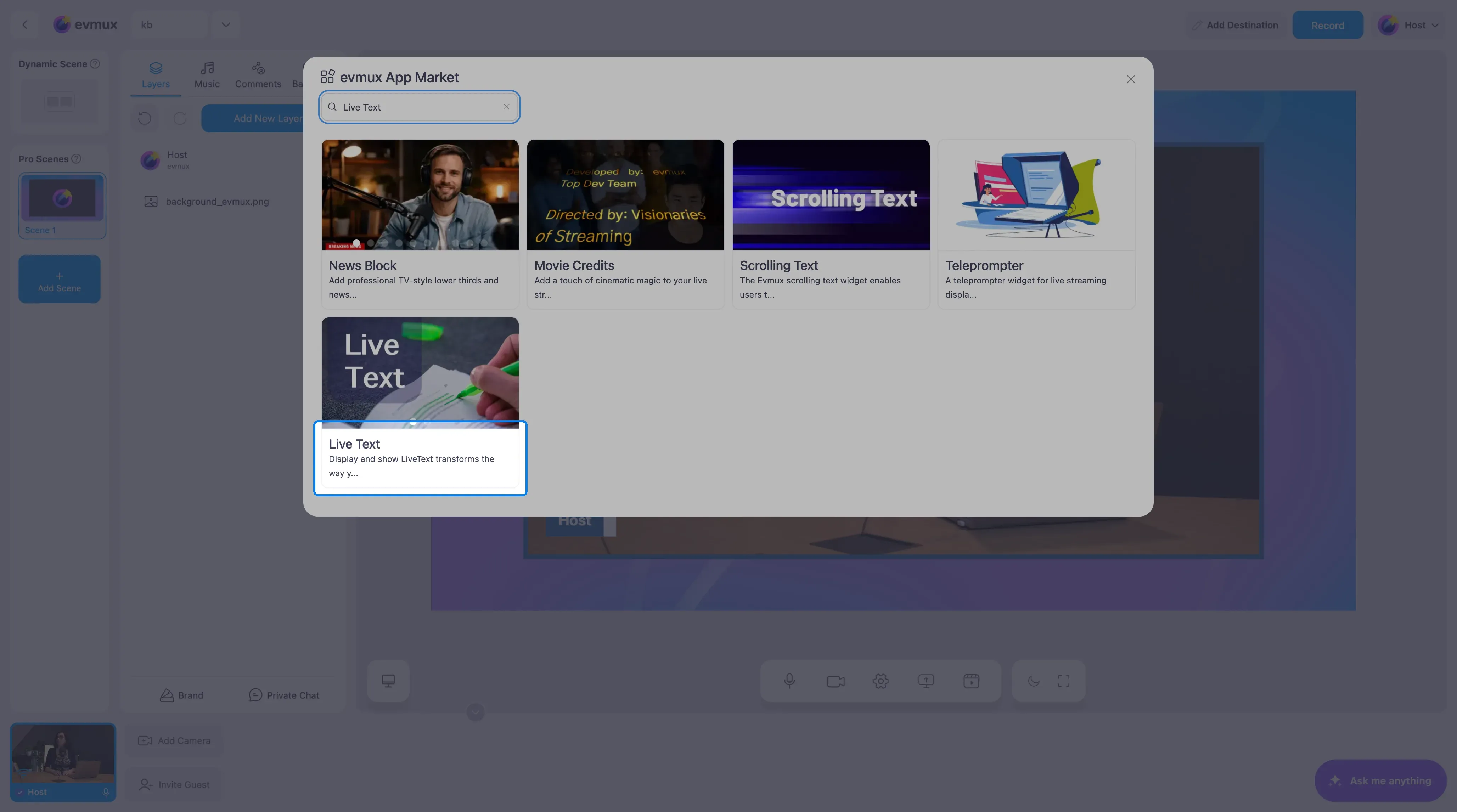
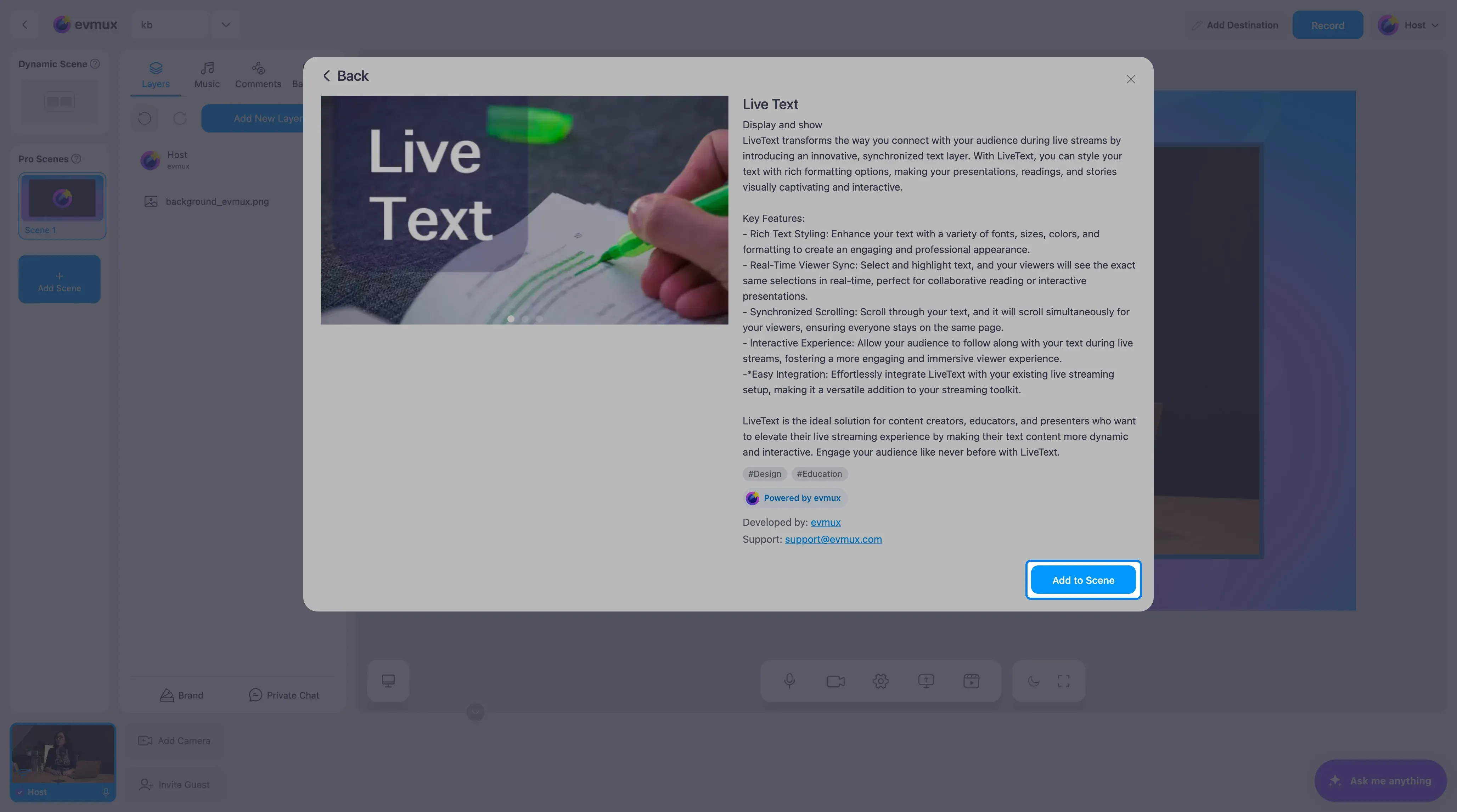
- Search for Live Text and click the card, then click Add to Scene
Step 2: Edit the Text
The widget lands on the scene with a sample story and a formatting toolbar along its top.
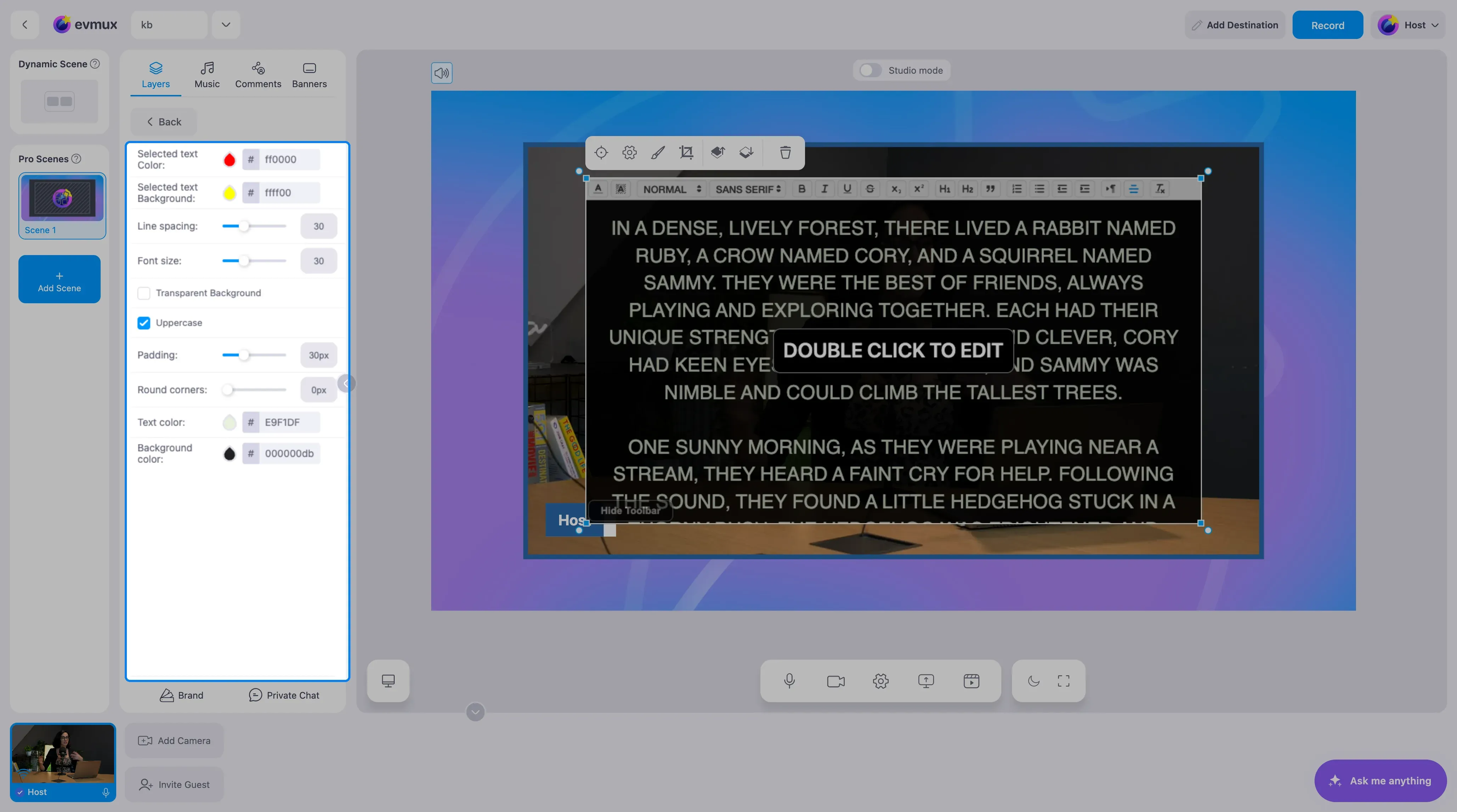
- Double-click the box to start editing, then select all and type your own text.
- Use the toolbar for headings, bold, italic, underline, lists, alignment and text direction. Hide Toolbar at the bottom of the box hides it once you are done.
- Select a word or a line while live to highlight it. The highlight uses the colors set in the panel.
Step 3: Set the Look
The settings panel on the left controls the styling of the whole box:
| Setting | What it does |
|---|---|
| Selected text Color and Background | The colors of highlighted text (red on yellow by default) |
| Line spacing and Font size | Readability of the text |
| Transparent Background | Removes the dark box behind the text |
| Uppercase | Shows everything in capitals |
| Padding and Round corners | Space inside the box and its corner radius |
| Text color and Background color | The base colors of the box |
Step 4: Place It
Resize and move the widget layer to where the text should sit. A tall box on one side of the speaker works well for lists.
Tips
- Keep the font size large. Viewers on phones cannot read small text.
- Turn off Uppercase for long text; capitals are harder to read in paragraphs.
- The text is saved with the scene, so a list you started in one show is still there in the next.