

Test Your Microphone Before Going Live
The audio settings page includes a built-in microphone test panel so you can verify your mic is working, hear how you sound to others, and check your volume — all before joining a session or going live. The panel has two complementary controls: Hear yourself (live loopback) and Record & Listen (5-second recording with playback).
Prerequisites
- A microphone connected and selected in Settings → Audio.
- (Optional but recommended) Headphones, especially when using “Hear yourself” — otherwise speaker output may loop back into the mic.
Where to find it
- Open Settings with the gear icon in the toolbar under the scene preview.
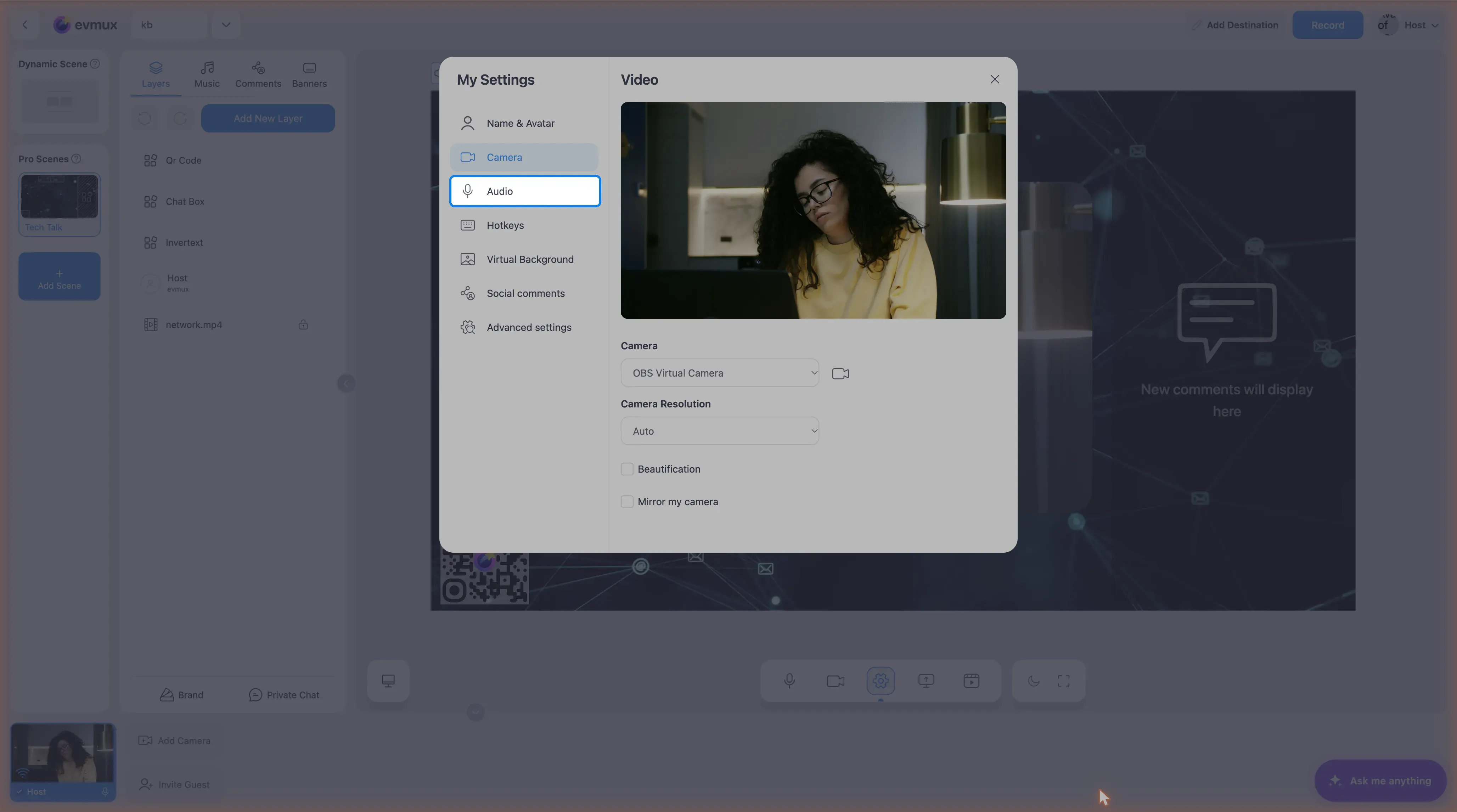
- Click Audio in the left sidebar of the settings dialog.
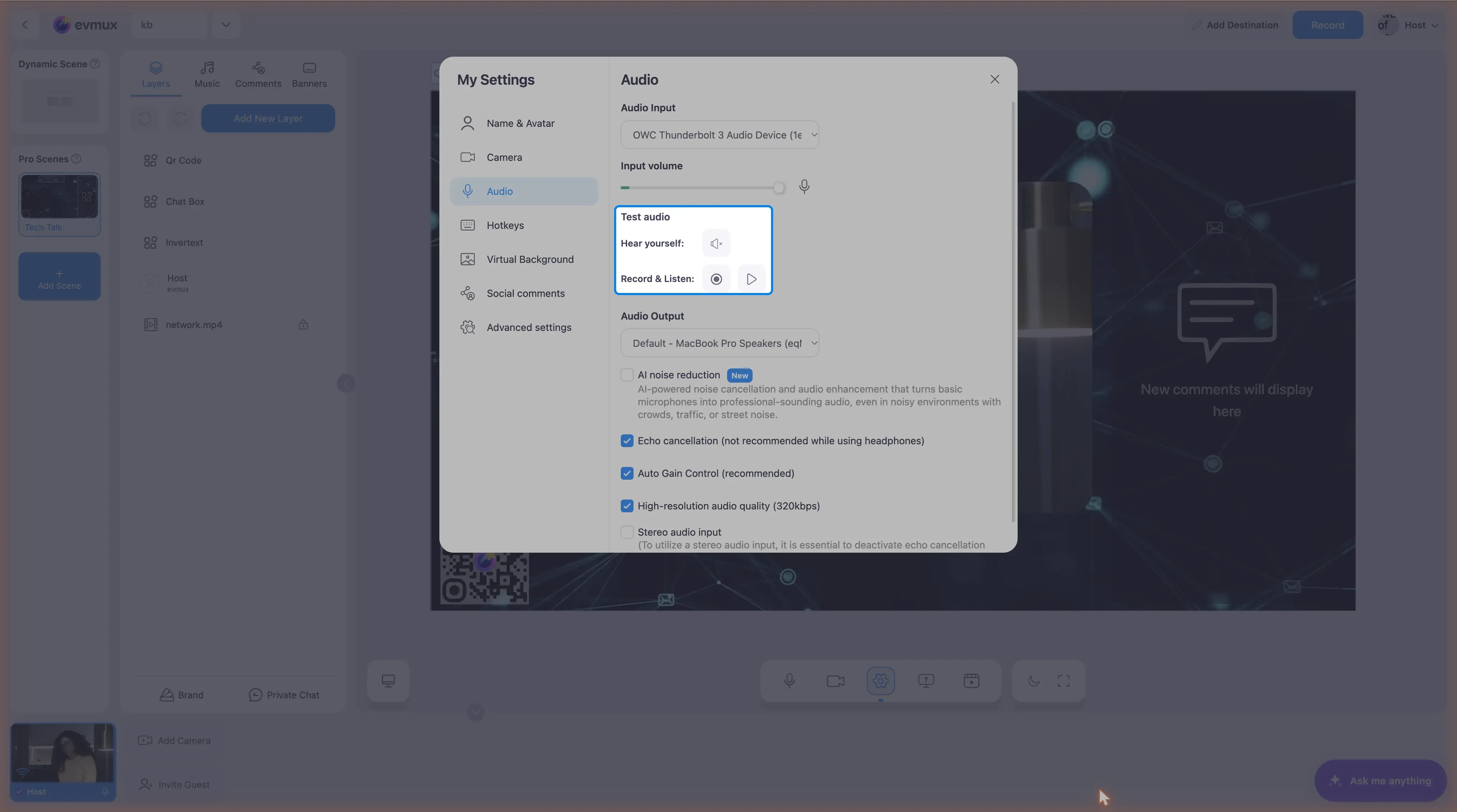
- The Test audio section sits right under the audio input selector and the volume slider. It has two rows: Hear yourself with a speaker button, and Record & Listen with a record button and a play button.
Hear yourself (live loopback)
This is the fastest way to confirm “is my mic on and routed to the right output?”
Step 1: Start the loopback
Click the speaker button next to Hear yourself. It turns into a Stop button while the loopback is active.
If your mic was muted, the editor unmutes it automatically when you start loopback.
Step 2: Speak and listen
You should hear your own voice played back through the audio output device selected in Audio settings. The playback respects the volume slider — adjust if it’s too loud or too quiet.
Step 3: Stop
Click the same button again to end the loopback.
Result: You’ve confirmed your mic captures audio and your output device works. Use this when troubleshooting “can you hear me?” issues — if you don’t hear yourself, the problem is upstream of joining a session.
Record & Listen (delayed playback)
Useful when “Hear yourself” isn’t practical (e.g. you’re not wearing headphones and don’t want a feedback loop), or when you want to evaluate how you’ll sound to participants without your voice being processed by your own speakers in real time.
Step 1: Record
Click the record button next to Record & Listen. Recording starts and a radial progress fill shows the elapsed time.
Step 2: Speak for up to 5 seconds
Recording stops by itself after 5 seconds. You can also click the button again to stop early.
The current volume slider value is “baked in” to the recording — if you change volume mid-recording, the gain change is captured. This makes the playback an honest reflection of what listeners will hear at the selected level.
Step 3: Listen
Click the play button to hear the recording. A second radial fill shows playback progress. Click it again to stop before it finishes.
The recording stays in memory until you record again or close the settings panel — feel free to play it back multiple times to compare with different settings.
Result: You’ve heard exactly what your audio sounds like at the chosen volume and processing settings.
Using the test panel to verify other settings
The test panel is also useful when you change another audio setting and want to evaluate the effect:
- Toggle AI noise reduction off and on, then record a 5-second clip in each state to compare. (Recommend recording in a noisy environment to make the effect obvious.)
- Adjust the volume slider between recordings to find the right input level.
- Switch microphones and re-test to confirm the new device is working.
- Check the AI conflict warnings — if you enable Stereo or Echo cancellation alongside AI noise reduction, yellow warnings appear in the panel. Use the test to confirm whether the processing is doing what you expect.
Troubleshooting
| Symptom | Likely cause |
|---|---|
| Hear yourself plays nothing | Wrong audio output selected; check Settings → Audio → Audio Output |
| Hear yourself is much louder or quieter than expected | Volume slider is set high/low; the loopback respects the slider |
| Recording is silent | Microphone not selected, browser permission denied, or device is muted at OS level |
| Echo / feedback loop | You’re using speakers, not headphones. Switch to headphones for Hear yourself |
| Playback sounds processed when AI noise is off | The bypass is genuine — if it still sounds processed, check that Auto Gain Control or Echo Cancellation isn’t doing something. See audio-management |
| Recording cuts off after 5 seconds | This is by design — the panel is for a quick check, not extended audition |