

How to Share Your Screen
This guide shows you how to share your screen, a window, or a browser tab during your broadcast.
Quick Steps
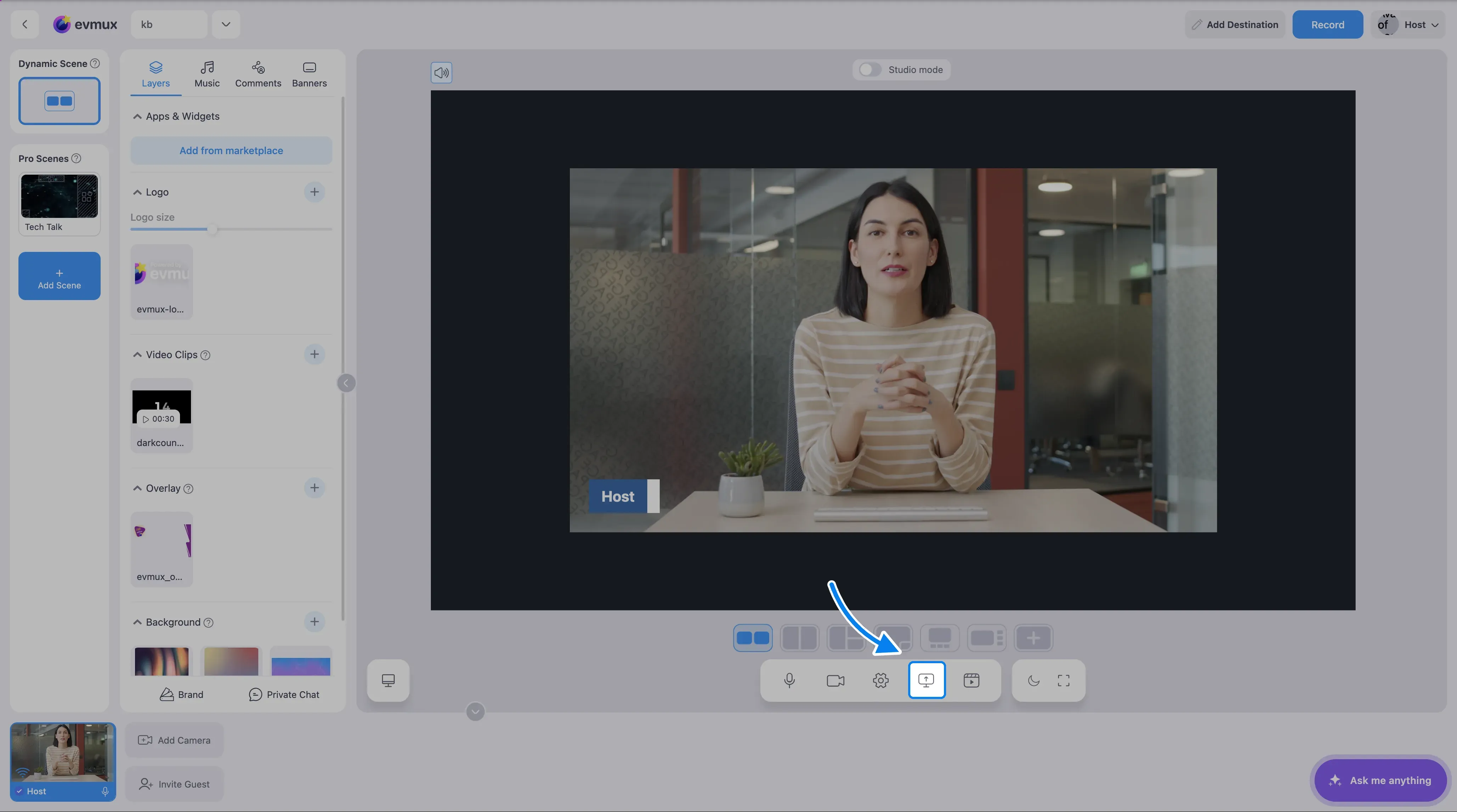
- Click the Share Screen button in the bottom toolbar (screenshare icon)
- Choose what to share: Entire Screen, Window, or Browser Tab
- Click Share
- Your screen is now being shared
Detailed Steps
Step 1: Start Screen Share
Option A: Share Your Own Screen (From Bottom Toolbar)
- Look for the screenshare icon in the bottom toolbar
- Hover shows tooltip: “Share Screen”
- Click it to open the browser’s screen share dialog
Option B: Add Someone Else’s Screen Share as a Layer
- Click Add New Layer in the Layers panel
- Select Screenshare from the menu
- The Screenshare chooser opens with filters for:
- Speakers - Screenshares from speakers
- Editors - Screenshares from editors
- Guests - Screenshares from guests
- Click on a participant’s screenshare to add it as a layer
Step 2: Choose What to Share
Your browser will show a sharing dialog with three tabs:
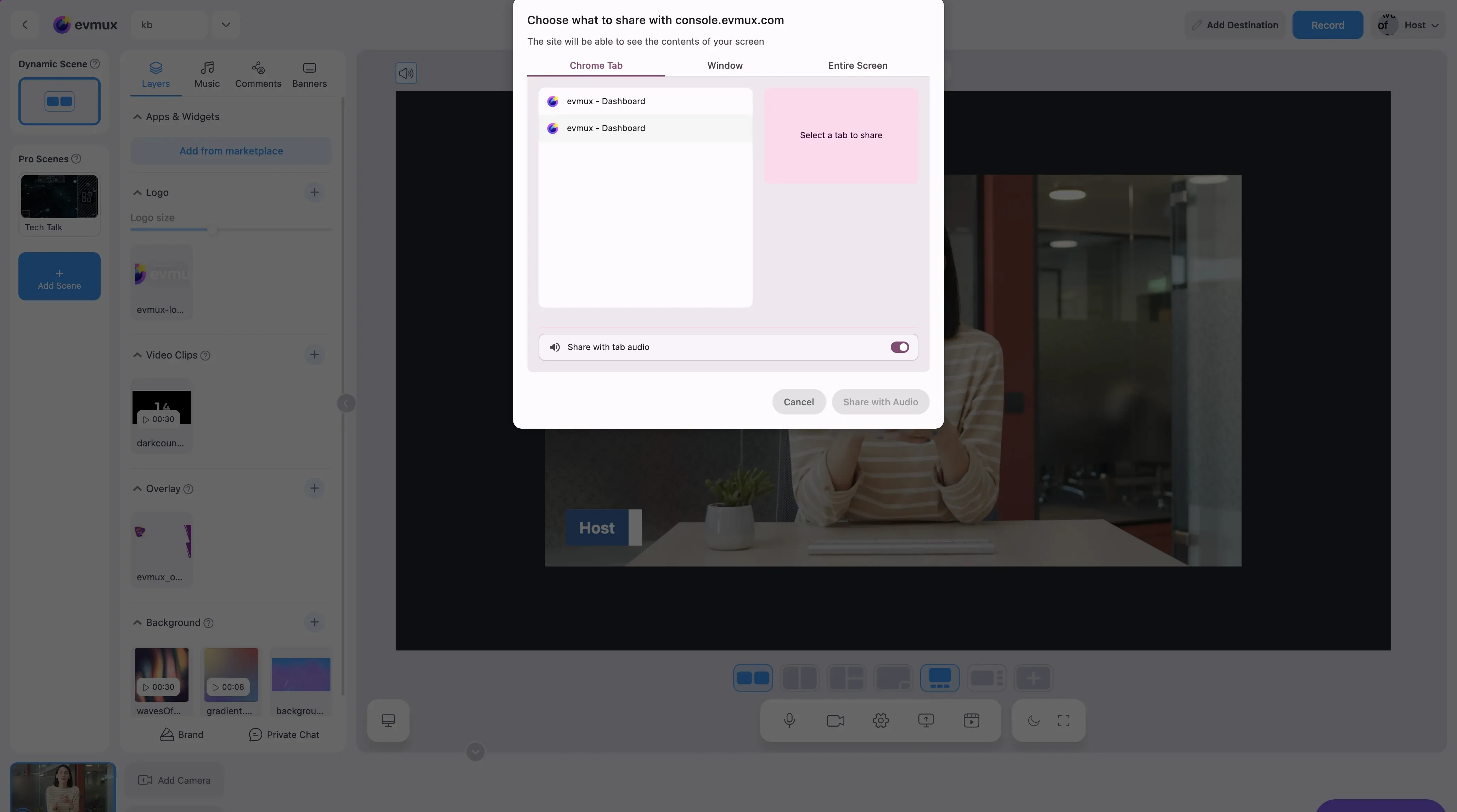
| Tab | Use For |
|---|---|
| Entire Screen | Share everything on your display |
| Window | Share a specific application window |
| Browser Tab | Share a single browser tab (with audio) |
Tips:
- For presentations: Choose Window and select PowerPoint/Keynote
- For videos with sound: Choose Browser Tab and check “Share audio”
- For demos: Choose Entire Screen
Step 3: Confirm Sharing
- Select the screen/window/tab you want to share
- Click the Share button
- Your screen share will appear in the scene
Step 4: Position Your Screen Share
Once sharing:
- Drag the layer to reposition it
- Resize using corner handles
- Use the layer toolbar to crop or adjust
Stop Screen Sharing
To stop sharing your screen:
Method 1: Click the Share Screen button again in the bottom toolbar
- When sharing, tooltip shows “Stop Screen Share”
- The button shows an X indicator when actively sharing
Method 2: Click the Stop Sharing button in your browser’s sharing bar (appears at top or bottom of screen)
Method 3: For layer-based screen shares, remove the layer from the Layers panel
Screen Share with Chromakey
If you have a green screen behind your shared content:
- Share your screen normally
- Select the screen share layer
- In the layer toolbar, click Chromakey
- Enable chromakey and adjust settings
Troubleshooting
Screen share not appearing?
- Make sure you granted permission in the browser dialog
- Try refreshing the page and sharing again
- Check if another application is blocking screen capture
Audio not sharing?
- Audio only works with Browser Tab sharing
- Make sure to check “Share audio” in the dialog
- System audio sharing depends on your operating system
Screen share is blurry?
- Share at higher resolution by choosing Entire Screen
- Reduce the number of other video sources
- Check your upload bandwidth
Keyboard Shortcut
Alt + S - Toggle screen share (if configured in hotkeys)