

How to Use an Avatar (VTuber Character) Instead of Your Camera
An avatar is a 3D character that takes the place of your camera picture. It watches you through your webcam and copies you live: head turns and nods, blinks, smiles, mouth and eyebrows, where you look, and your shoulders, arms, hands and fingers. Your viewers, your guests and your recordings only see the character, never your real camera.
There are more than 300 free characters to choose from, from anime and chibi figures to realistic people, and you can also bring your own.
Quick Steps
- Click the Settings gear in the bottom toolbar
- Choose Avatar / VTuber in the list on the left
- Click a character: it replaces your camera straight away
- To go back to your camera, click No avatar
Step 1: Open the Avatar settings
- Click the Settings gear in the bottom toolbar.
- Click Avatar / VTuber in the list on the left (it carries a blue New label).
- Under Character you see a row of featured characters. Click one to turn it on.
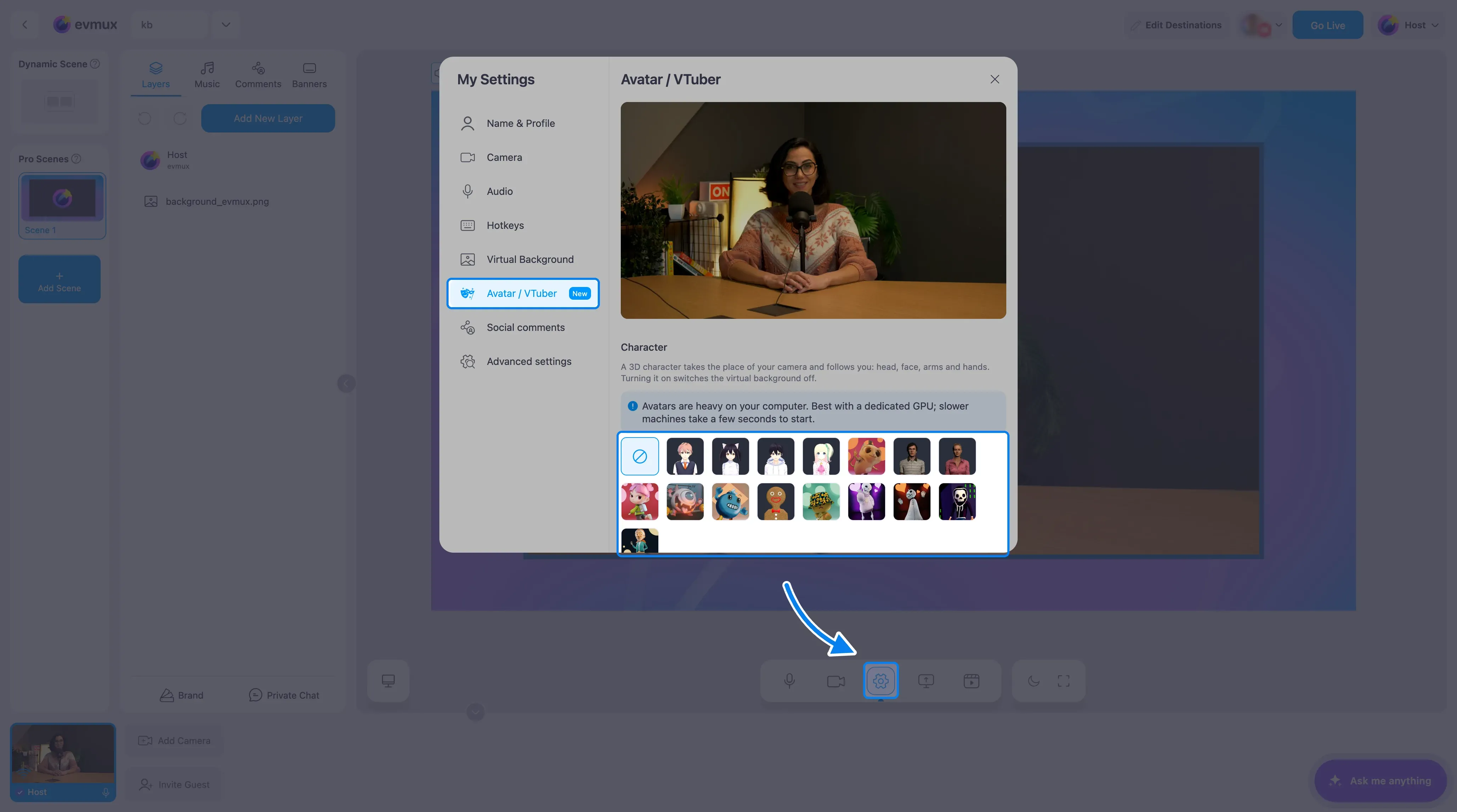
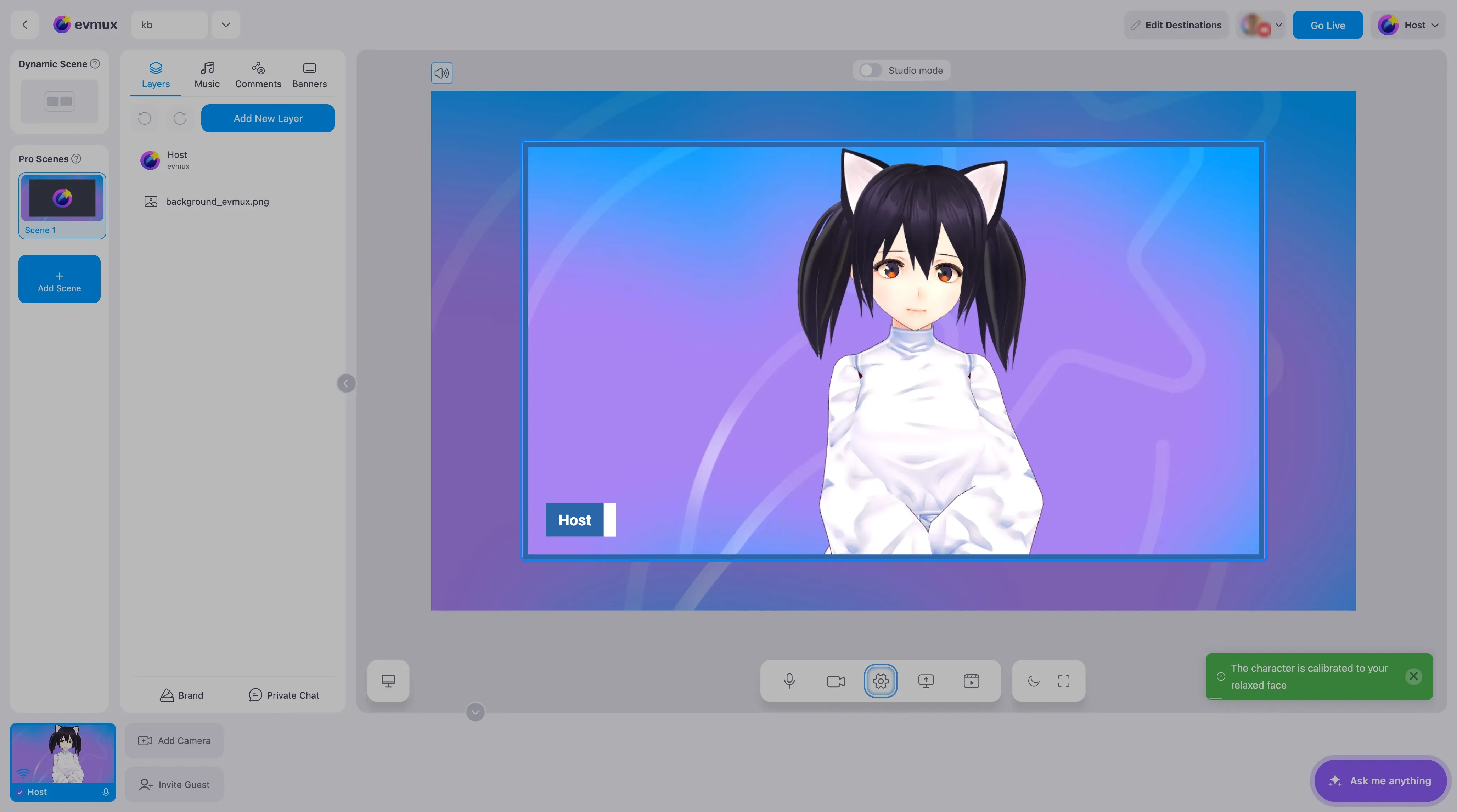
The first start takes a few seconds while the character loads. Look straight at the camera with a relaxed face for a moment: the character calibrates itself to your neutral expression, and a message confirms The character is calibrated to your relaxed face.
Step 2: Check the tracking and framing
Once a character is on, the top of the panel shows a live preview of what your audience sees.
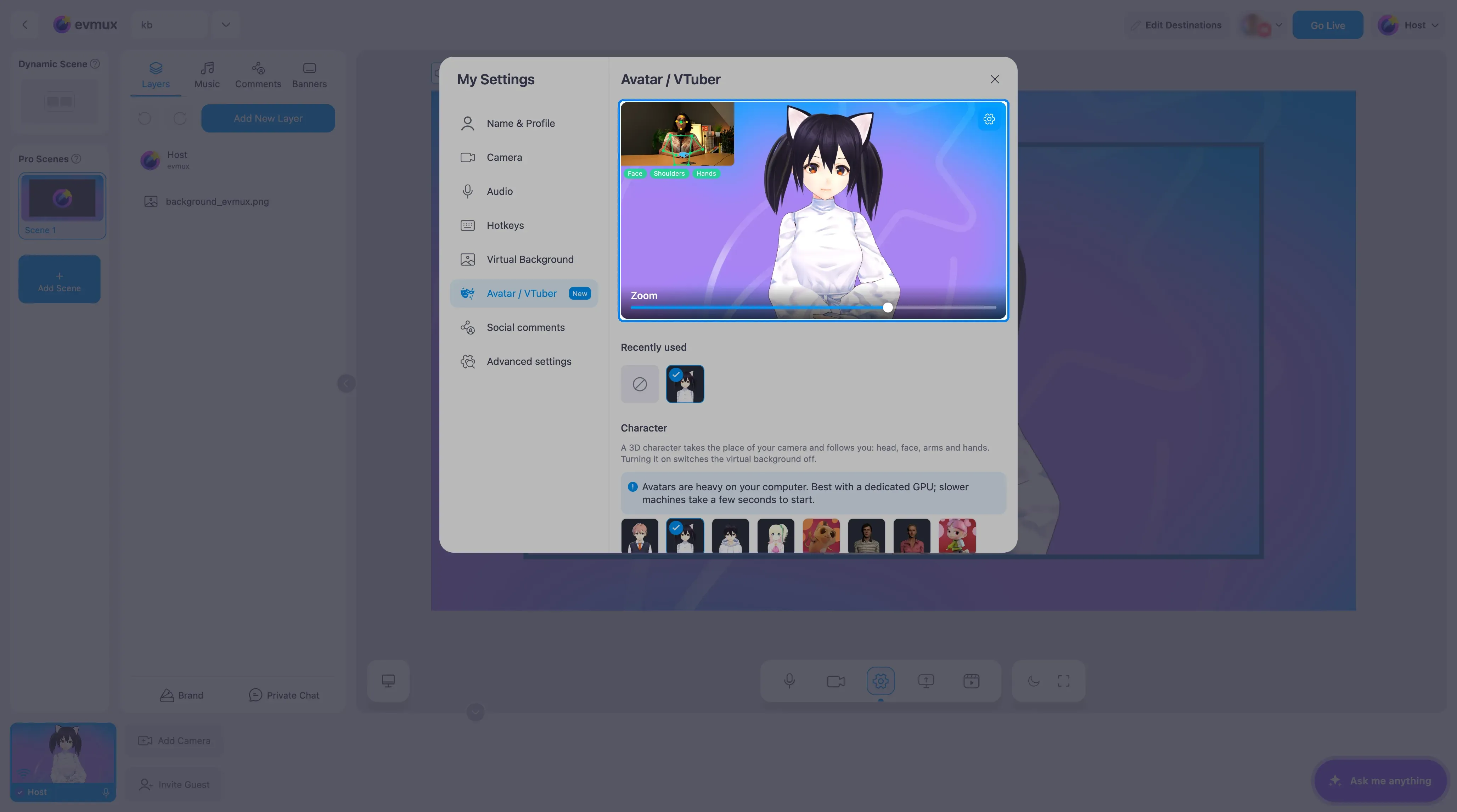
- The small picture in the corner is what the tracker sees. The labels Face, Shoulders and Hands light up when each one is found.
- Use the Zoom slider to frame the character: drag left to show the whole body, right for a close head shot. The default is a chest-up framing.
- The gear on the preview shows or hides the tracking view and the slider.
For the best tracking:
- Keep your face in the picture, facing the camera.
- Sit back far enough that both shoulders are in the picture, or the arms are not tracked. If your arms are out of the picture, the character simply keeps them down.
Characters you used before appear under Recently used, so you can switch back quickly.
Step 3: Find more characters or use your own
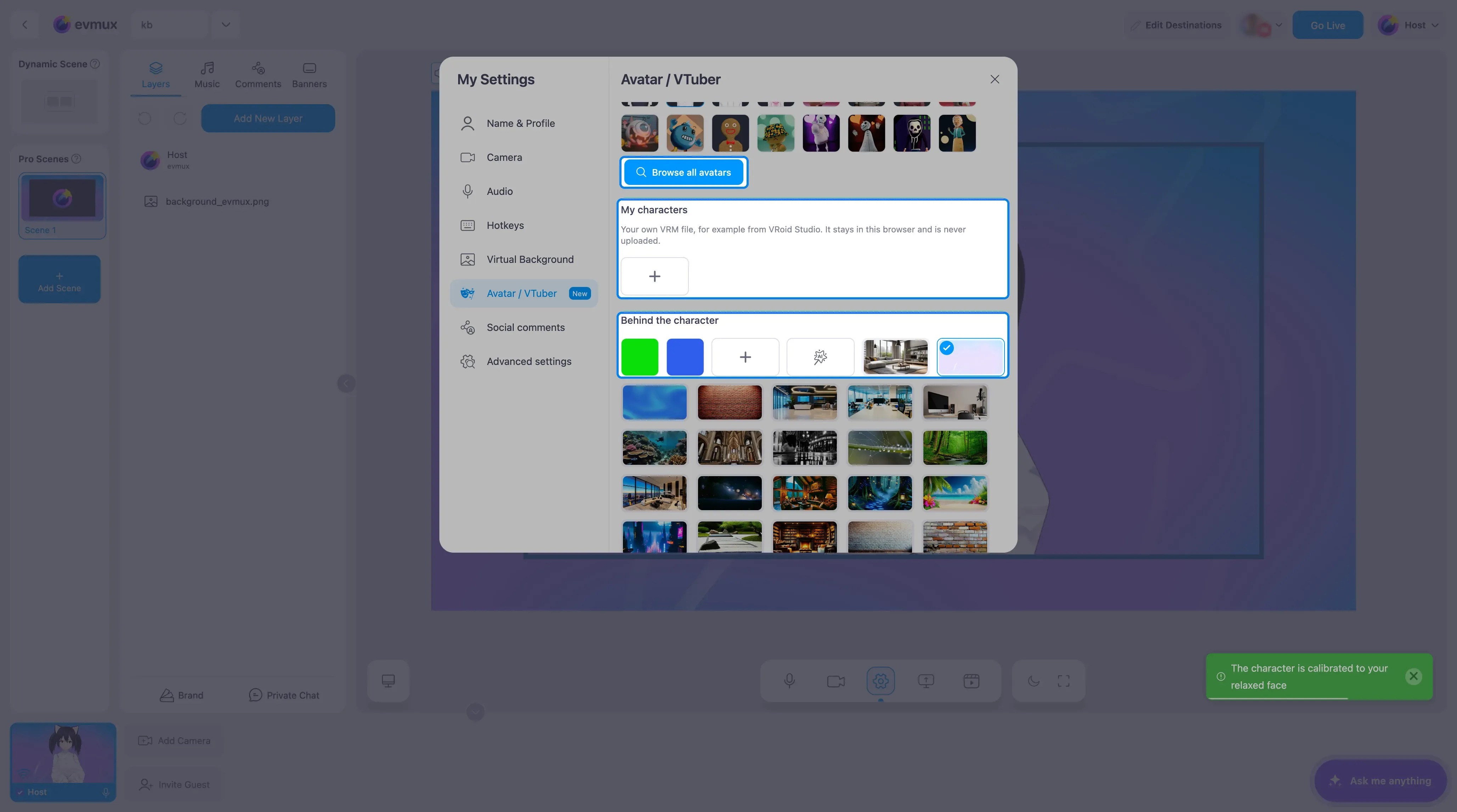
- Browse all avatars opens the full collection.
- My characters: click + to add your own character file in the VRM format, for example one made in the free VRoid Studio app. Files up to 100MB are accepted. The file stays in your browser and is never uploaded, so it is only available on that computer and browser.
- Behind the character sets what is shown behind the avatar. It never shows your real room. Choose a solid green or blue, a picture from the library, Upload from your computer, or generate a new image with AI.
The full collection has a search box (Search by name or tag), a chip for each collection and tags to narrow it down. Click a character to use it.
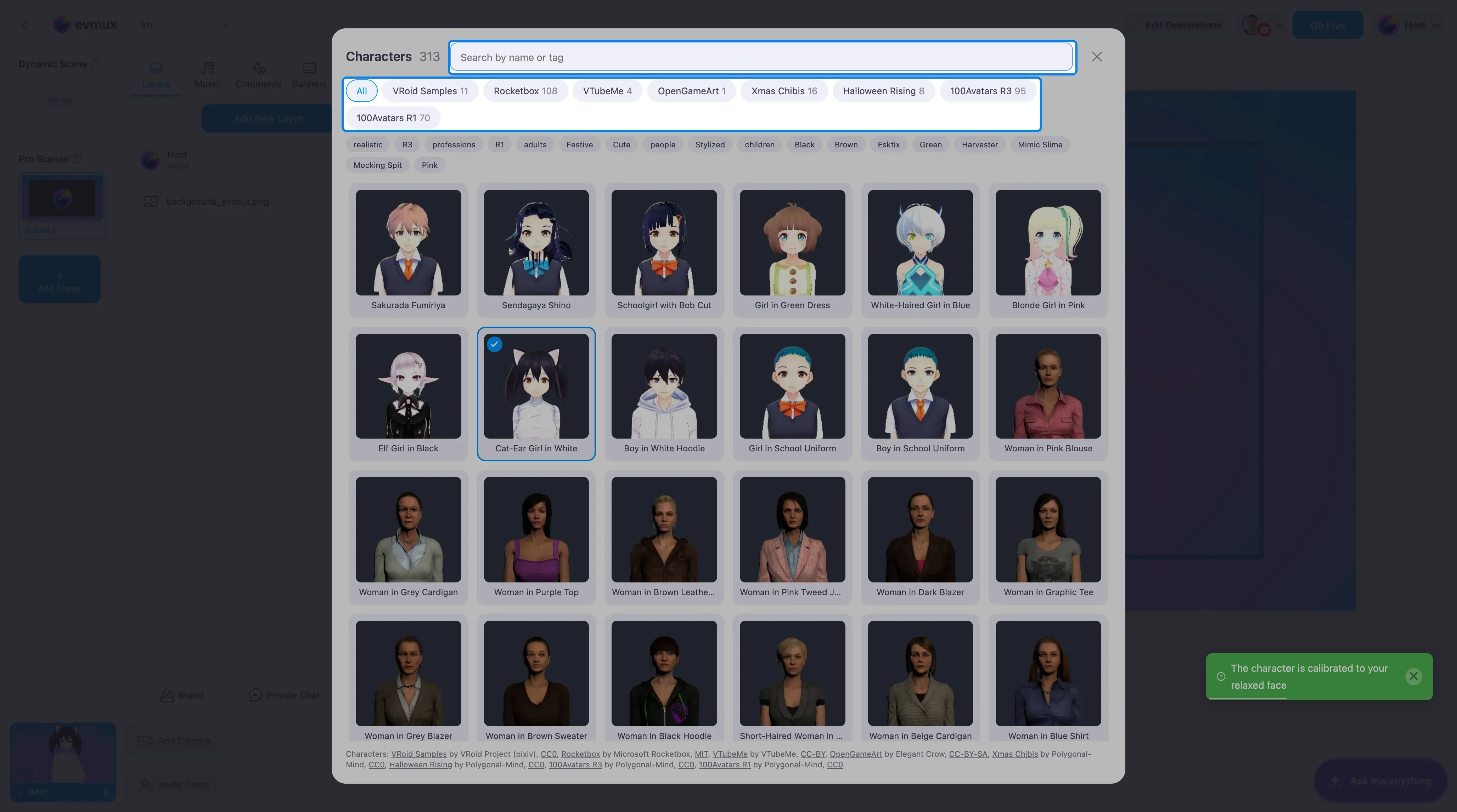
The characters come from free collections such as VRoid Samples, Rocketbox and 100Avatars. Their authors and licenses are listed at the bottom of the panel.
What your audience sees
As long as the avatar is on, the character is your camera everywhere: on the stage, in the live stream and in recordings. Your real camera picture is never sent, even for a moment.
Float the character over your scene (green screen)
Pick the solid green (or blue) background behind the character, then turn on Chroma key in the same colour on your camera layer. The background disappears and the character floats over the scene. When you add your camera to a Pro scene from the bottom toolbar with a green or blue background chosen, chroma key is turned on for you. See How to Use Chroma Key (Green Screen).
What changes while the avatar is on
- Virtual background: the avatar and a virtual background cannot be on together. Turning the avatar on switches the virtual background off, and picking a virtual background turns the avatar off.
- Mirror is switched on while the avatar runs, and Beautification is switched off. Your earlier settings come back when you turn the avatar off.
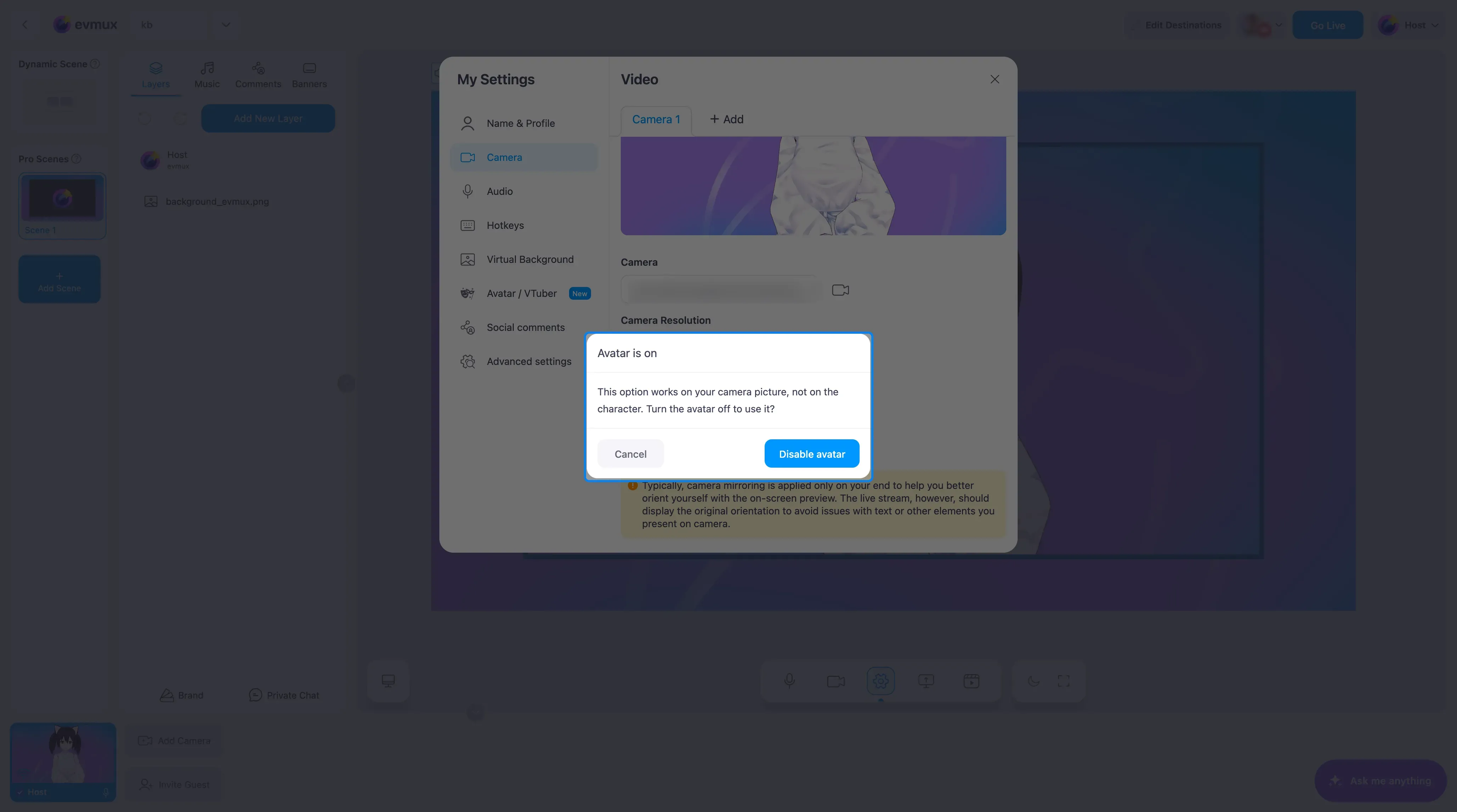
- In the Camera tab these options are greyed out. Clicking one asks whether to turn the avatar off: Disable avatar turns it off and applies the option, Cancel keeps the avatar.
You can change your camera or microphone while the avatar is on; the character keeps running.
Turn the avatar off
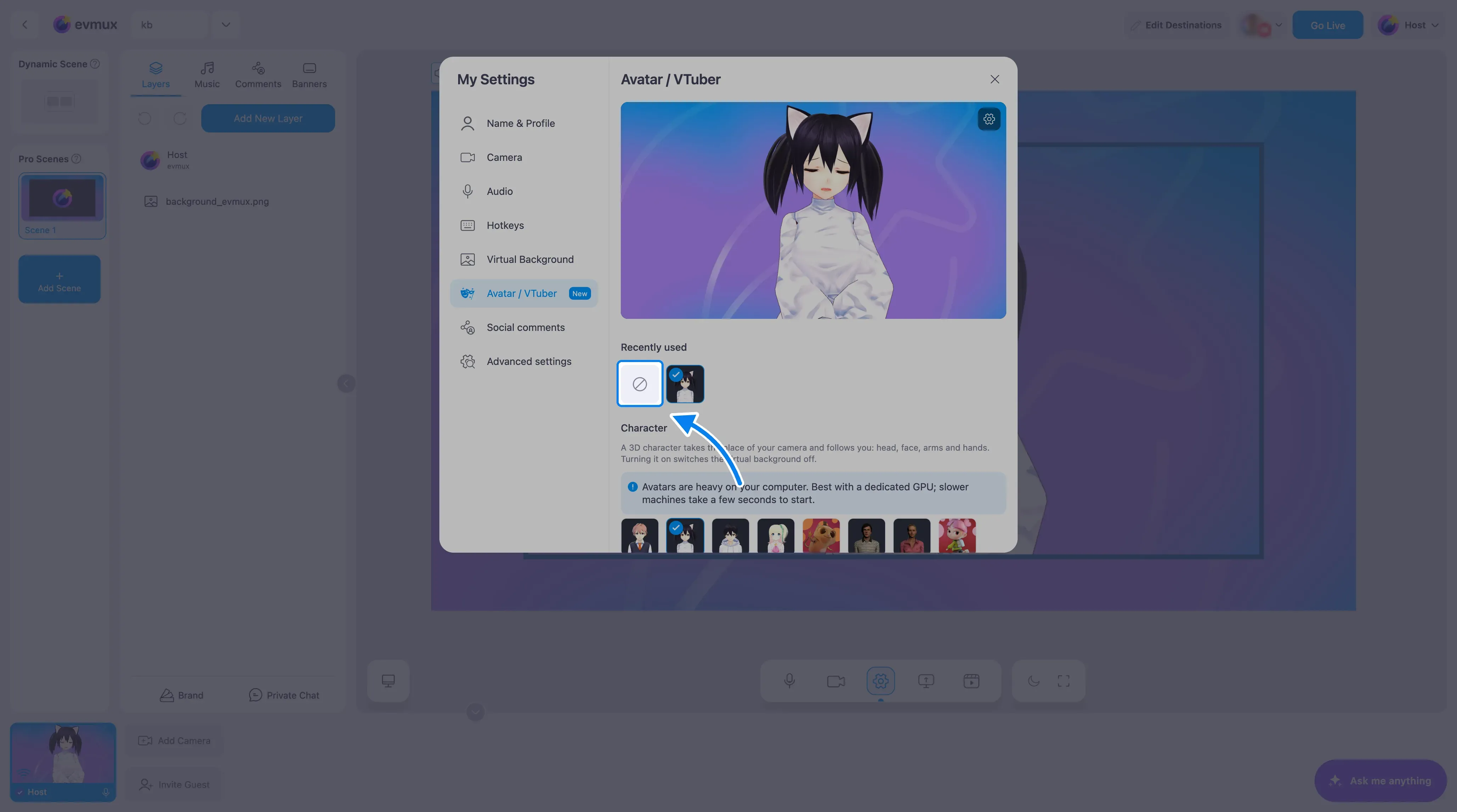
Open Settings > Avatar / VTuber and click No avatar, the first tile in the row (it shows a crossed-out circle). Your real camera comes back straight away.
Who can use it
- Every plan, with no limits, including your own uploaded characters.
- Hosts and guests alike: guests find the same Avatar / VTuber tab in their settings.
- Desktop computers only. The tab is not offered on phones and tablets.
Requirements
Avatars are heavy work for your computer. They run best on a computer with a dedicated graphics card, and slower computers take a few seconds to start.
- The browser must have graphics acceleration turned on, and the computer needs at least 4 CPU cores. If it does not qualify, the panel explains why instead of offering the characters.
- The first time, the browser downloads the avatar engine (about 30MB). After that it starts faster.
Troubleshooting
“The character cannot run on this computer”
The panel shows the reason: the browser has no graphics support, the browser draws graphics in software without the graphics card, or the computer has fewer than 4 CPU cores. Turn on Use graphics acceleration when available in your browser’s system settings and restart it, or use a more powerful computer.
The arms and hands stopped moving
If your computer cannot keep up, evmux switches to a lighter mode for the rest of the session: the character follows your face only and the arms and hands rest. A message tells you when this happens. Closing other heavy apps and tabs helps next time.
The character does not move
If face tracking cannot start, a message says Face tracking could not start on this computer: the character stays still. Your camera is still not streamed. Check that your camera works in the Camera tab, and try again after restarting the browser.
“Avatar failed”
The character could not be started. Your camera stays hidden while the avatar is on, so turn the avatar off with No avatar to stream your camera again.
An uploaded character has a frozen face
Its file has no facial expressions built in, so only the head and body can move. Characters made in VRoid Studio include them.