

How to Change Your Virtual Background
This guide shows you how to replace your background with an image, video, blur effect, or remove it entirely using AI or green screen.
Quick Steps
- Click the gear icon in the bottom toolbar
- Choose Virtual Background in the list on the left
- Pick a background — the change applies immediately
Detailed Steps
Step 1: Open Virtual Background settings
- Click the Settings gear in the bottom toolbar (it is not in the header).
- Click Virtual Background in the section list.
This is the only way in. There is no background button on the camera preview and none in the toolbar. It is a desktop Chrome/Edge feature: on phones and tablets the section is not offered at all — and since the only Safari that can open the studio is an iPhone or iPad (a Mac’s Safari is blocked outright), “not available in Safari” means exactly that mobile case.
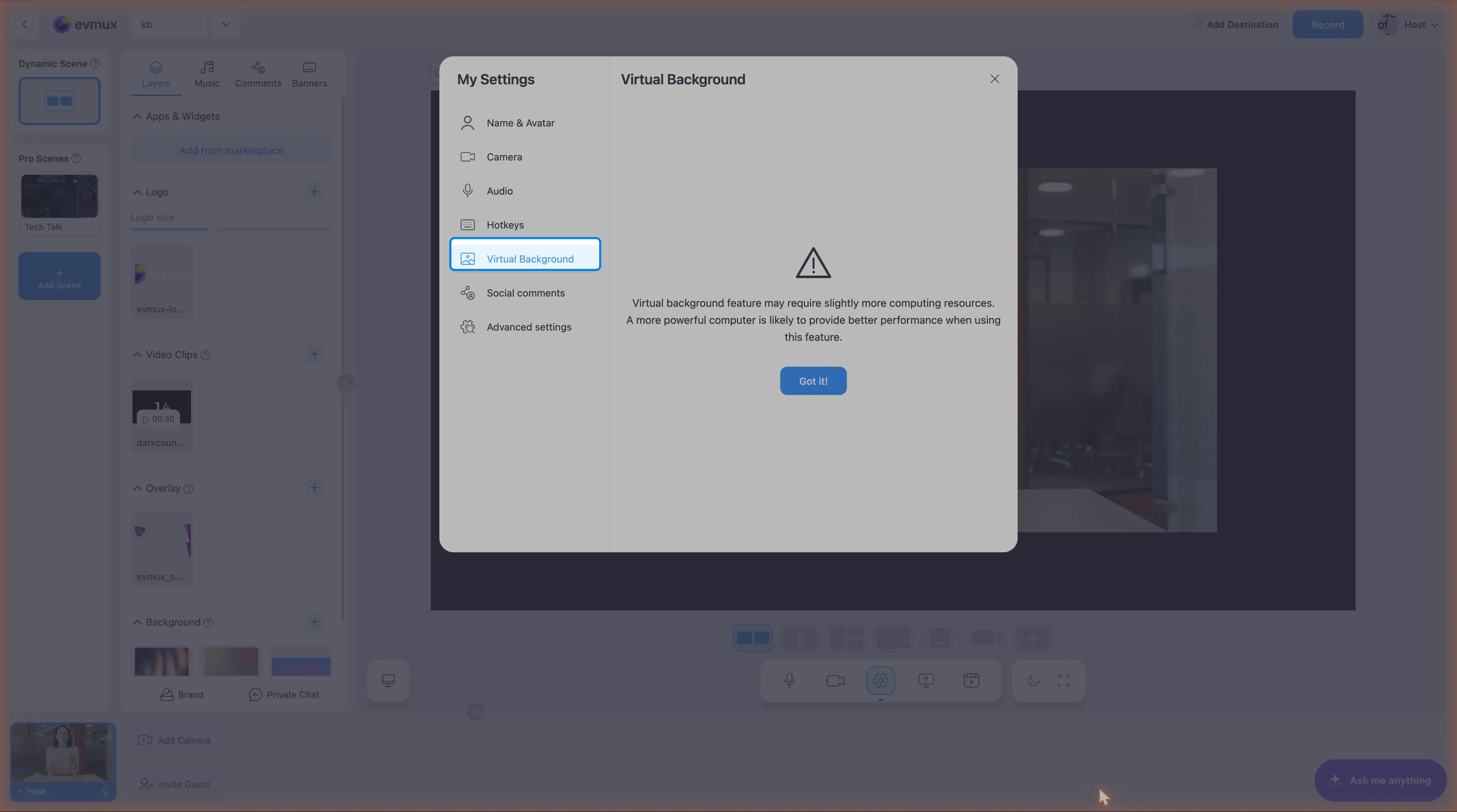
The first time you open the section, a notice warns that the feature needs extra computing power. Click Got it! to continue.
Step 2: Choose what goes behind you
The panel offers, in order:
- Blur Background — with a Subtle blur and a Strong blur option.
- Virtual backgrounds — a row of ready-made images plus anything you have added. Click one to use it; Upload from your computer adds your own, and an AI button generates a new image from a text prompt.
- Screenshare as background — puts a shared screen behind you instead of an image.
- No virtual background — turns the effect off and shows your real room.
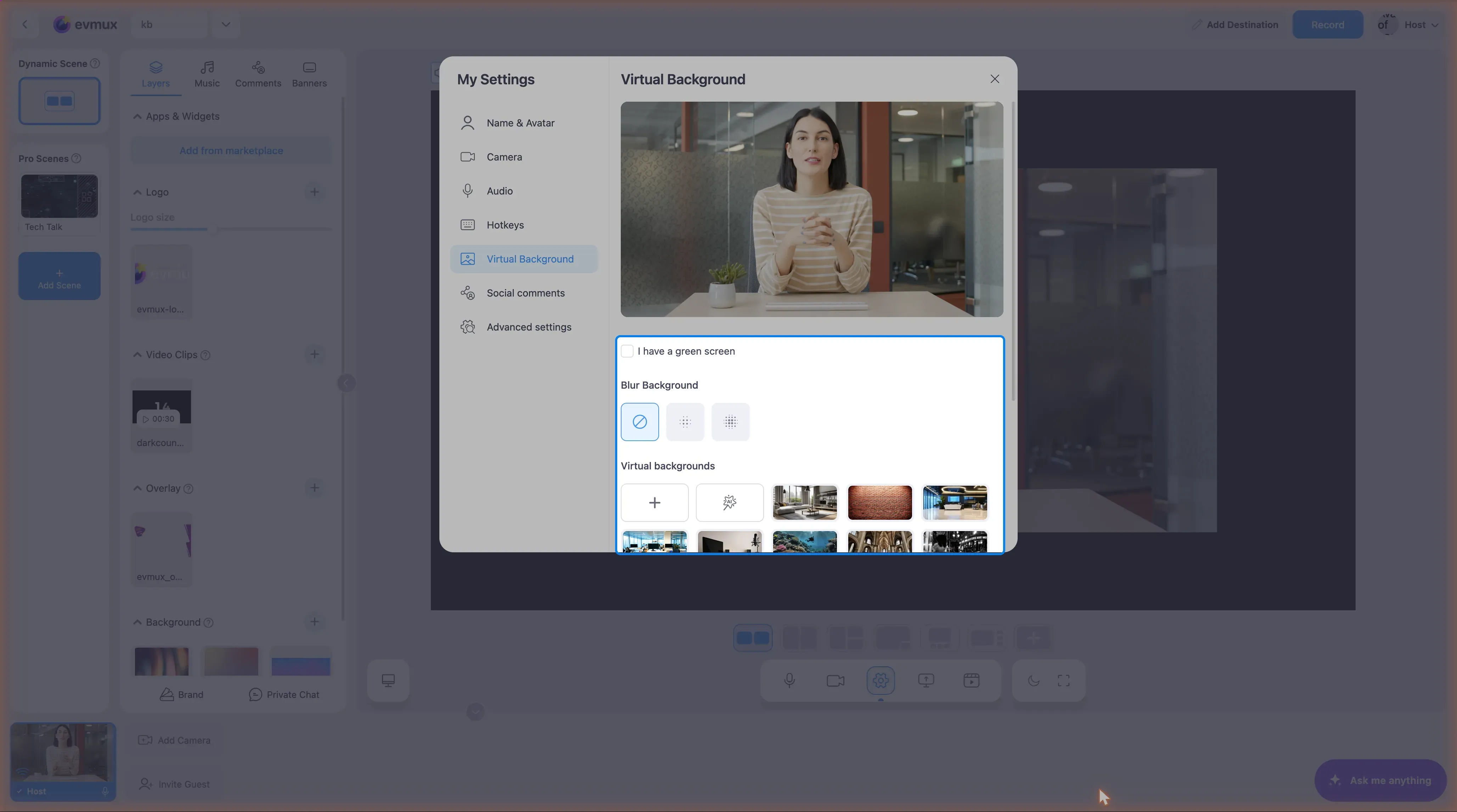
Selecting an item applies it straight away; there is no Apply button. Uploaded images can be removed from the list again.
Step 3: Green screen (physical backdrop)
If you actually have a green or blue cloth behind you, use the green-screen block:
- Turn the green-screen option on.
- Pick the Backdrop color — Green or Blue. Those are the only two choices; there is no custom colour picker.
- Adjust Intensity — how much of that colour is treated as background.
- Adjust Edge Softness — how hard or soft the cut-out edge is. On some accounts this slider only appears once the newer chroma-key engine is enabled.
There are no sliders named “Range”, “Edge Detection” or “Softness”.
Best Practices
For AI Background Removal
- Use good, even lighting
- Avoid wearing green/blue if removing those colors
- Keep background relatively simple
- Face the camera directly
For Image Backgrounds
- Use high-resolution images (1920x1080)
- Avoid busy patterns that distract
- Match lighting tone with your actual lighting
- Professional or branded backgrounds work well
For Video Backgrounds
- Keep videos subtle (gentle motion)
- Loop seamlessly
- Avoid distracting animations
- File size: Under 10MB recommended
Troubleshooting
Background looks glitchy?
- Improve your lighting (even, front-facing light)
- Move away from your actual background
- Try the blur option instead
- Reduce video call quality if CPU is overloaded
Hair/edges look bad?
- Adjust Edge Softness
- Use better lighting
- Consider a physical green screen
- Sit further from your background
Virtual background not available?
- Check browser compatibility (Chrome/Edge recommended)
- Ensure your GPU supports it
- Update your browser
- The section is desktop-only: use Chrome or Edge on a computer. On an iPhone or iPad (any browser there is Safari underneath) the feature does not exist
Performance issues?
- Virtual backgrounds use CPU/GPU
- Close unnecessary applications
- Use blur (less intensive) instead of images
- Use an actual green screen (most efficient)
Recommended Background Types by Use Case
| Use Case | Recommended |
|---|---|
| Professional meeting | Blur or office image |
| Branded stream | Custom image with logo |
| Casual stream | Fun image or video |
| Privacy needed | Strong blur |
| Best quality | Physical green screen |