

How to Show a Post from X (Twitter) on Your Stream
TweetX shows a single post from X (formerly Twitter) on your scene, with the author, the text, any image and the date, exactly as X renders it. Paste the link to a post, and it appears in the widget for you and your guests to discuss. Swap the link whenever you move on to the next post.
When to Use
- Commentary shows that react to posts from public figures, brands or news accounts
- Reading a viewer’s post on air
- Showing your own announcement so viewers can find it
Steps
Step 1: Add the TweetX Widget
- Open the Layers tab. Apps work on both scene types:
- Dynamic Scene: expand Apps & Widgets -> Add from marketplace
- Pro scene: click Add New Layer -> Apps & Widgets
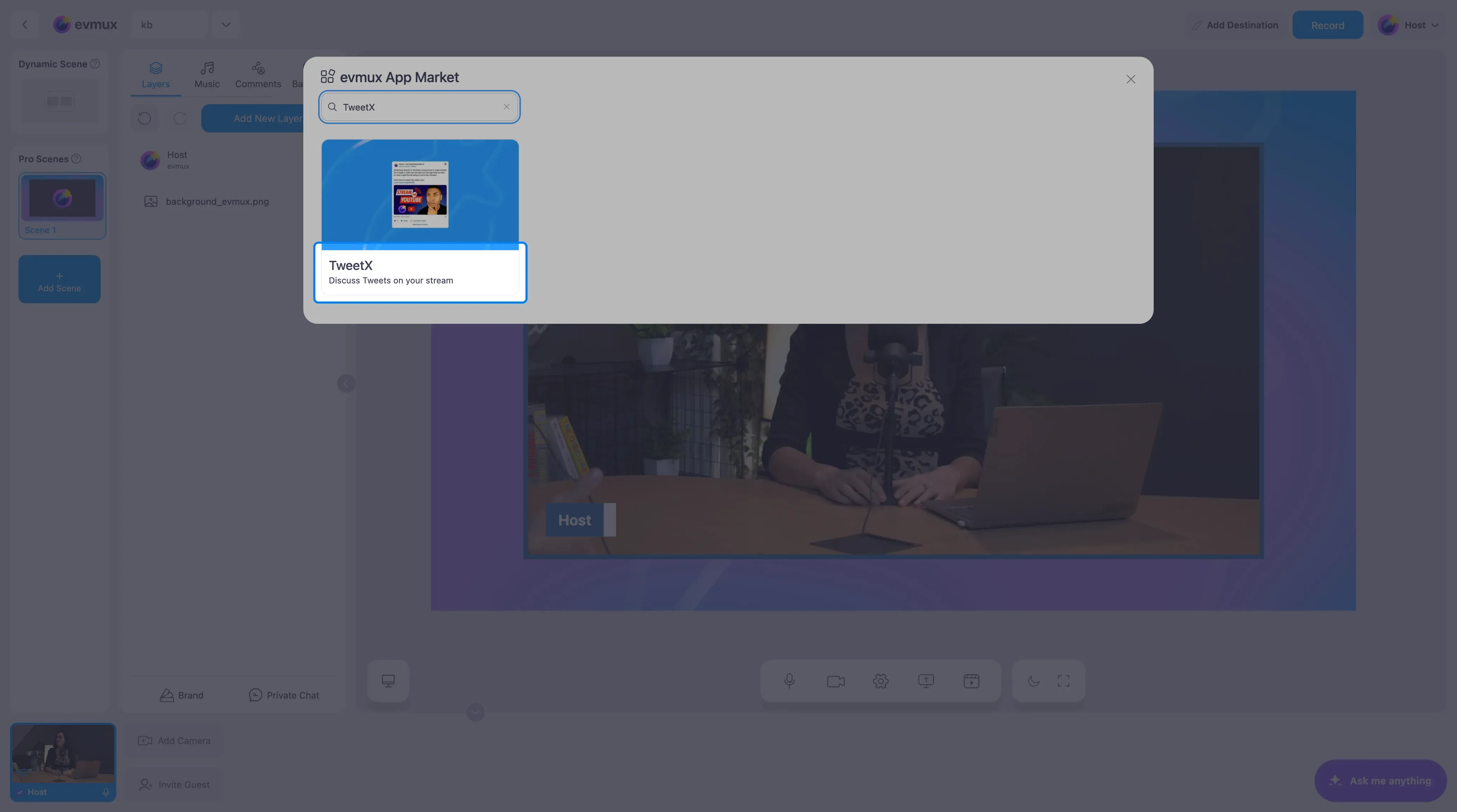
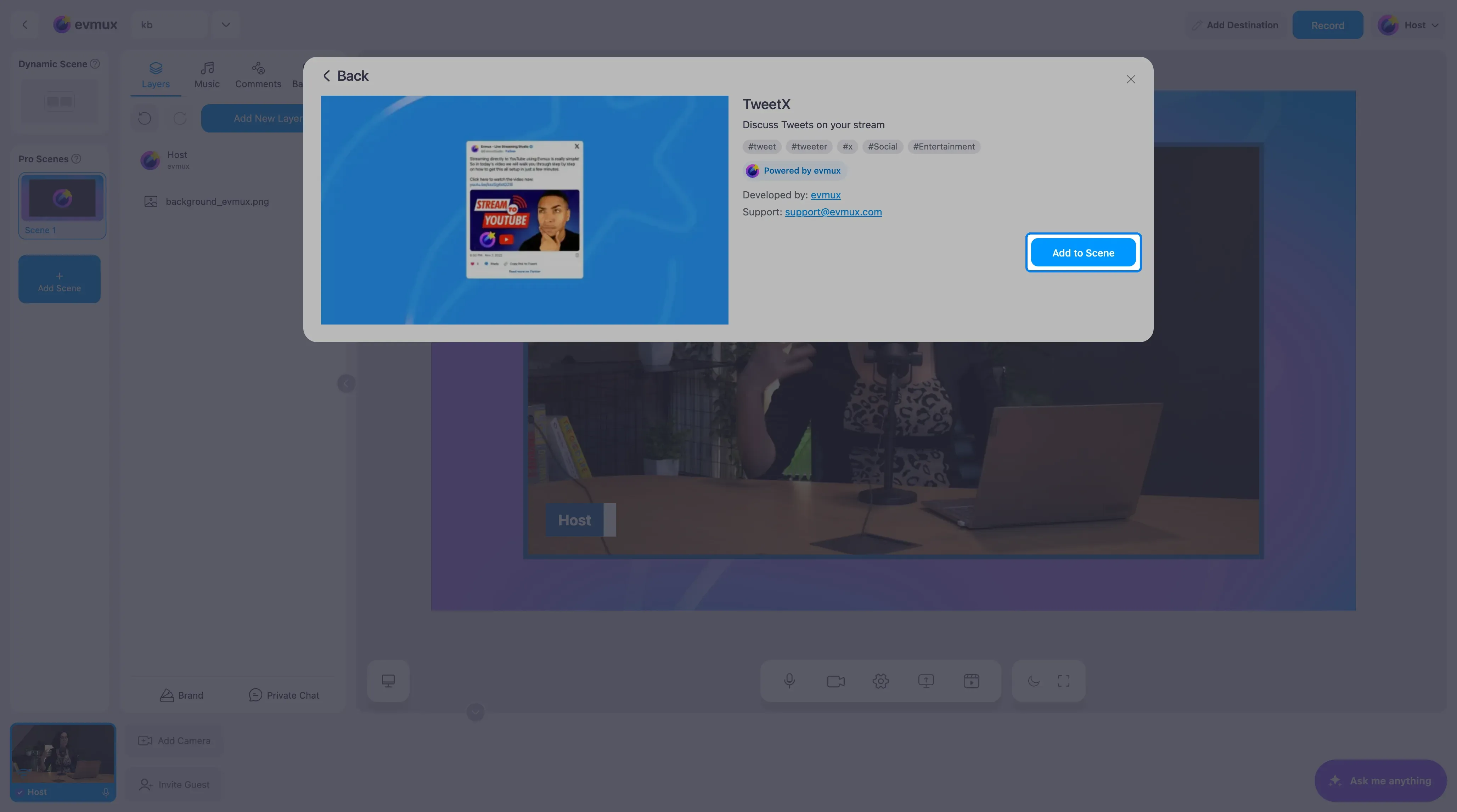
- Search for TweetX and click the card, then click Add to Scene
Step 2: Paste the Post Link
The widget appears in the middle of the scene showing a sample post from the evmux account, and the settings panel opens on the left.
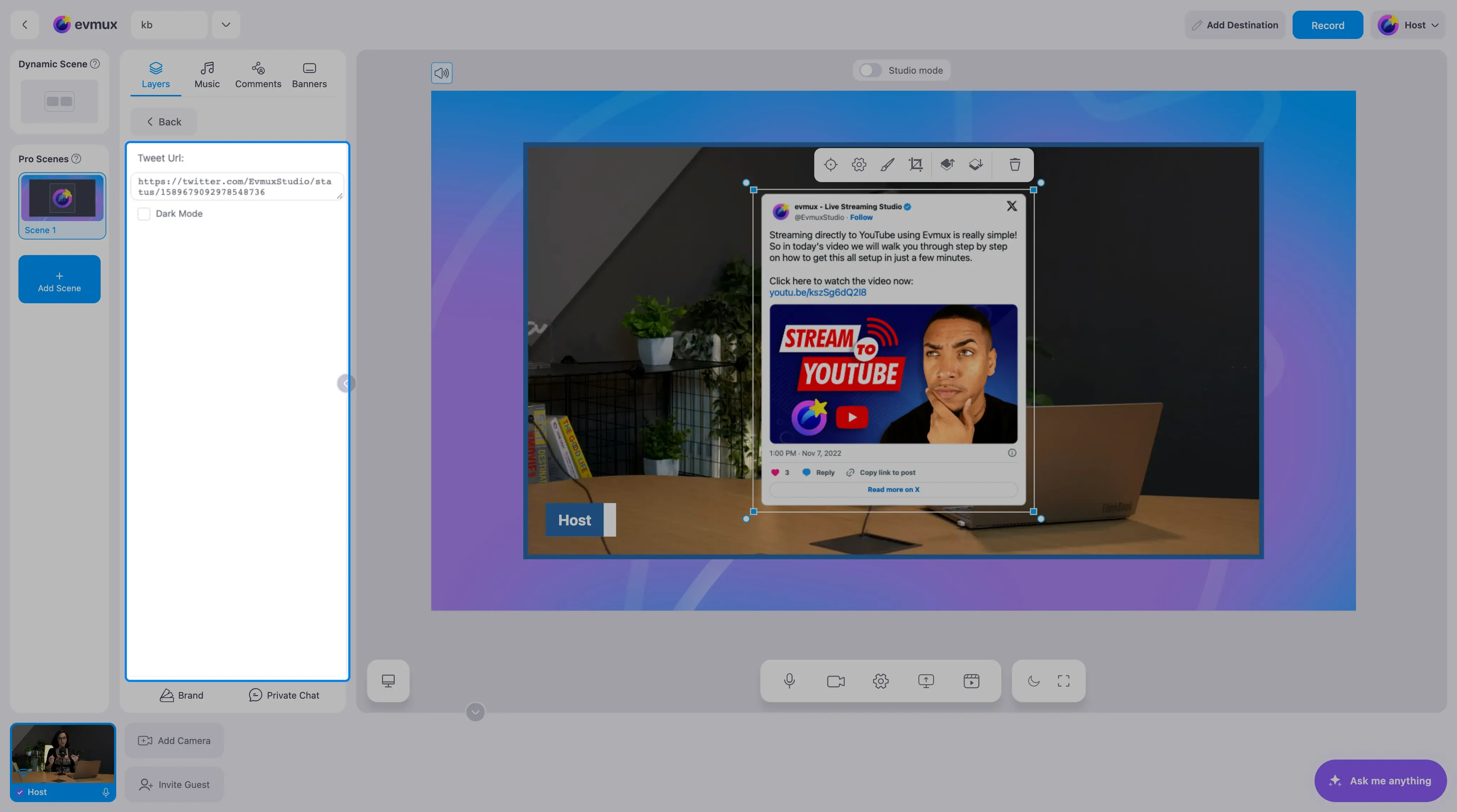
- On X, open the post and copy its address from the browser (it looks like
https://x.com/name/status/123...; the oldertwitter.comform works too). - Paste it into the Tweet Url field. The widget loads that post.
- Tick Dark Mode if your scene is dark.
Only public posts can be shown. A post from a private account, or one that was deleted, leaves the widget empty.
Step 3: Place It
Resize and move the layer so the post sits beside you rather than over your face. Long posts and posts with images make the widget taller, so leave room below it.
Tips
- Prepare the links before the show in a note, then paste them one by one while live.
- Read the post out loud. Viewers on phones may not be able to read the text.
- To show what viewers are saying on X during the broadcast rather than one specific post, connect X as a destination and use the Comments panel.