

How to Resize and Move Layers
Layers are arranged on the scene inside a Pro scene. The Dynamic Scene positions everything by itself and has nothing to drag.
Quick Steps
- Click a layer to select it
- Drag it to move; drag a corner to resize
- Hold Shift while resizing to keep its proportions
- Use the arrow keys for fine adjustments, or the dimensions dropper for exact numbers
Selecting
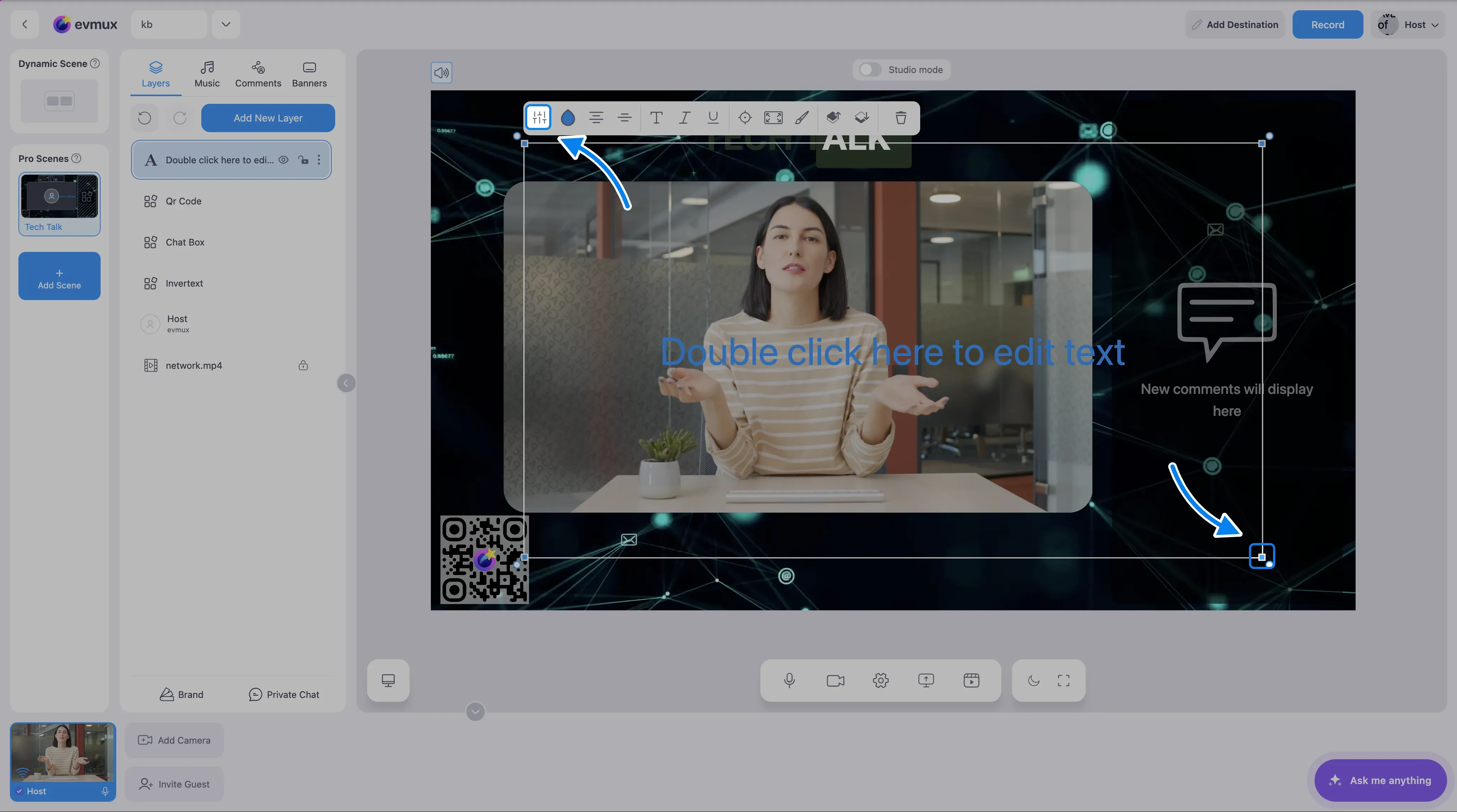
Click the layer on the scene. A selection frame appears with a handle at each of the four corners, and the layer toolbar opens above the layer.
A layer that is locked cannot be moved or resized — unlock it first (the padlock in the layer toolbar, or the lock icon on its row in the Layers tab).
Moving
- Drag the layer body.
- Or use the arrow keys: one press = 1 unit, Shift + arrow = 10 units, Ctrl/Cmd + arrow = 100 units. Holding an arrow key repeats the movement.
- Alignment guides appear by themselves while dragging.
Resizing
Drag one of the four corner handles. There are no edge-midpoint handles.
- Hold Shift while dragging to keep the aspect ratio.
- A layer can also have its aspect ratio locked permanently, in which case it always resizes proportionally.
- The layer toolbar has buttons to stretch to the scene and to switch between fitting (letterbox) and filling (crop) for camera and video content.
Rotating
Drag just outside a corner — each corner has a rotation zone around it. There is no rotation circle beneath the layer.
Exact position and size
Open the dimensions dropper in the layer toolbar (the position icon). It has X, Y, Width and Height fields, each with up/down steppers; hold a stepper to run the value continuously. This is the reliable way to place something precisely — for example, centring a 960-wide layer on a 1920-wide scene by setting X to 480.
Double-clicking a layer does not open a properties panel: it starts that layer type’s own editing (text editing, web-source settings, the slideshow manager, and so on).
Portrait and landscape are separate
Each layer keeps its own position and size for each orientation. Arranging a scene in landscape does not move anything in portrait — switch the streaming mode and arrange it again.