

How to Show Ko-Fi Alerts on Your Stream
The Ko-Fi widget connects your Ko-fi page to the stream. Donations, memberships and shop orders trigger an alert on the scene, and a small Support me at Ko-fi.com/yourname badge stays on screen. A QR code can be added so viewers support you straight from their phone.
Before You Start
You need a Ko-fi account. In Ko-fi, open Stream Alerts and copy your personal
overlay URL. It starts with https://ko-fi.com/streamalerts/overlay/ and identifies
your account, so keep it private.
Steps
Step 1: Add the Widget
- Open the Layers tab. Apps work on both scene types:
- Dynamic Scene: expand Apps & Widgets -> Add from marketplace
- Pro scene: click Add New Layer -> Apps & Widgets
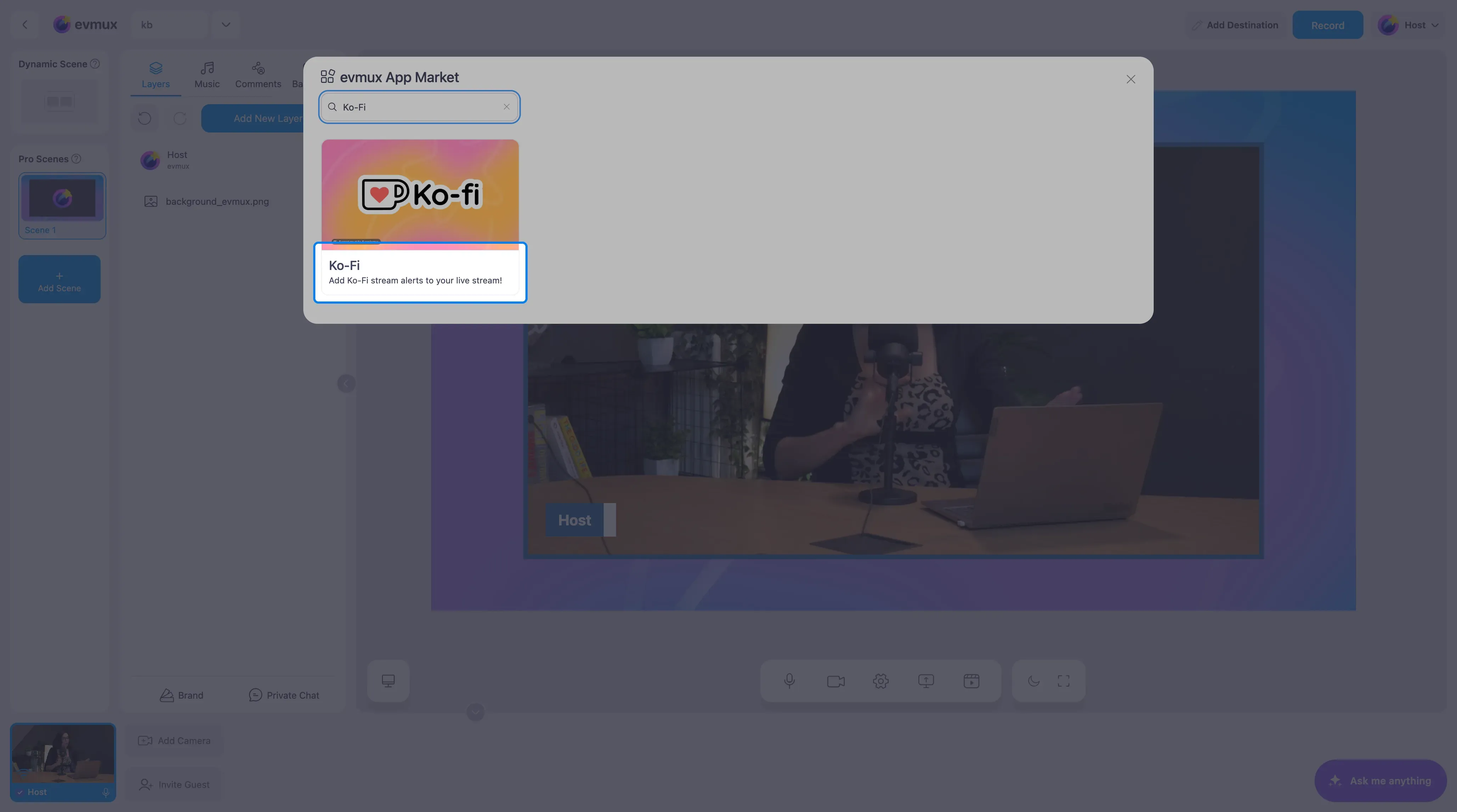
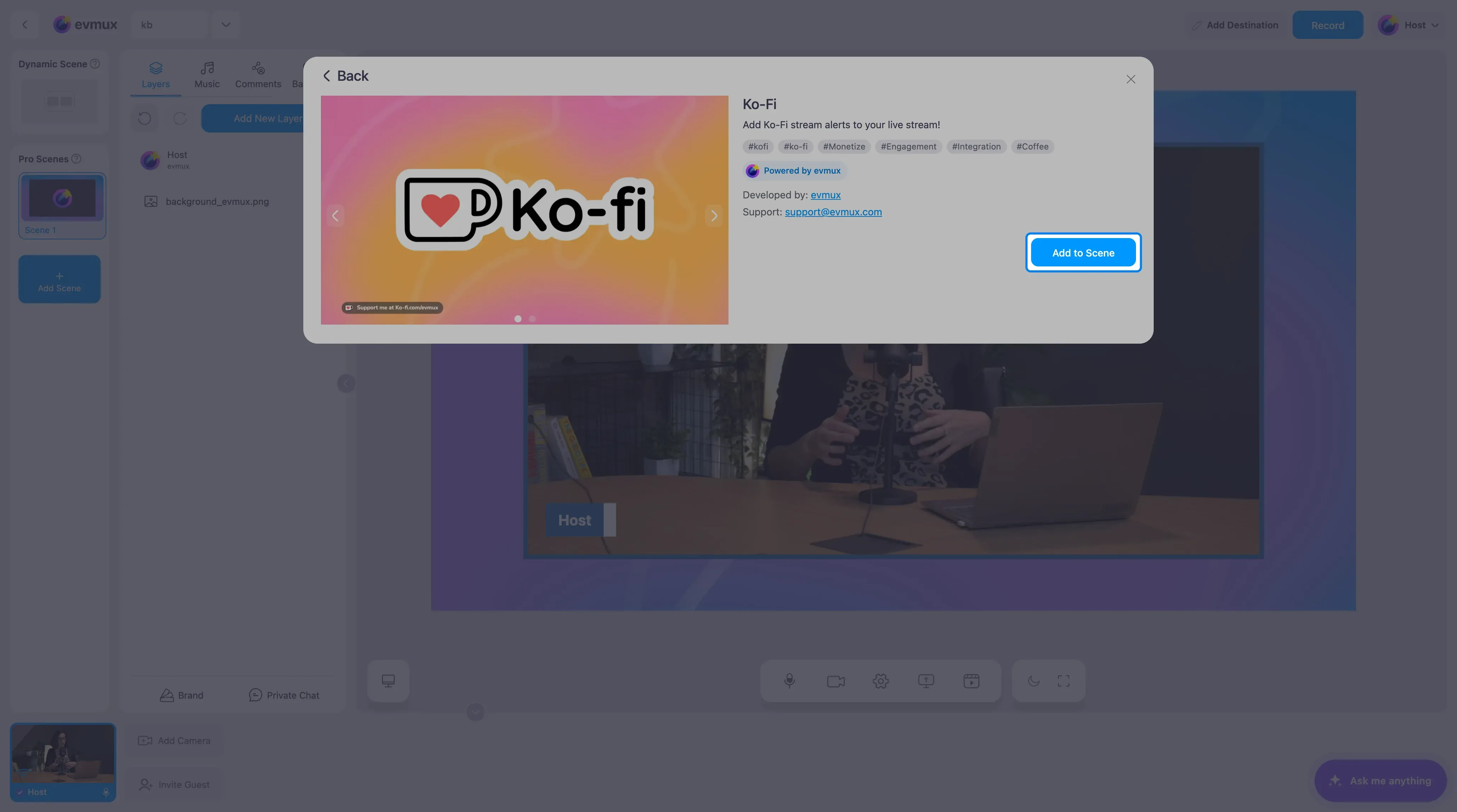
- Search for Ko-Fi and click the card, then click Add to Scene
Step 2: Paste Your Overlay URL
The widget covers the scene as a transparent layer and shows the support badge at the bottom. Its settings open on the left.
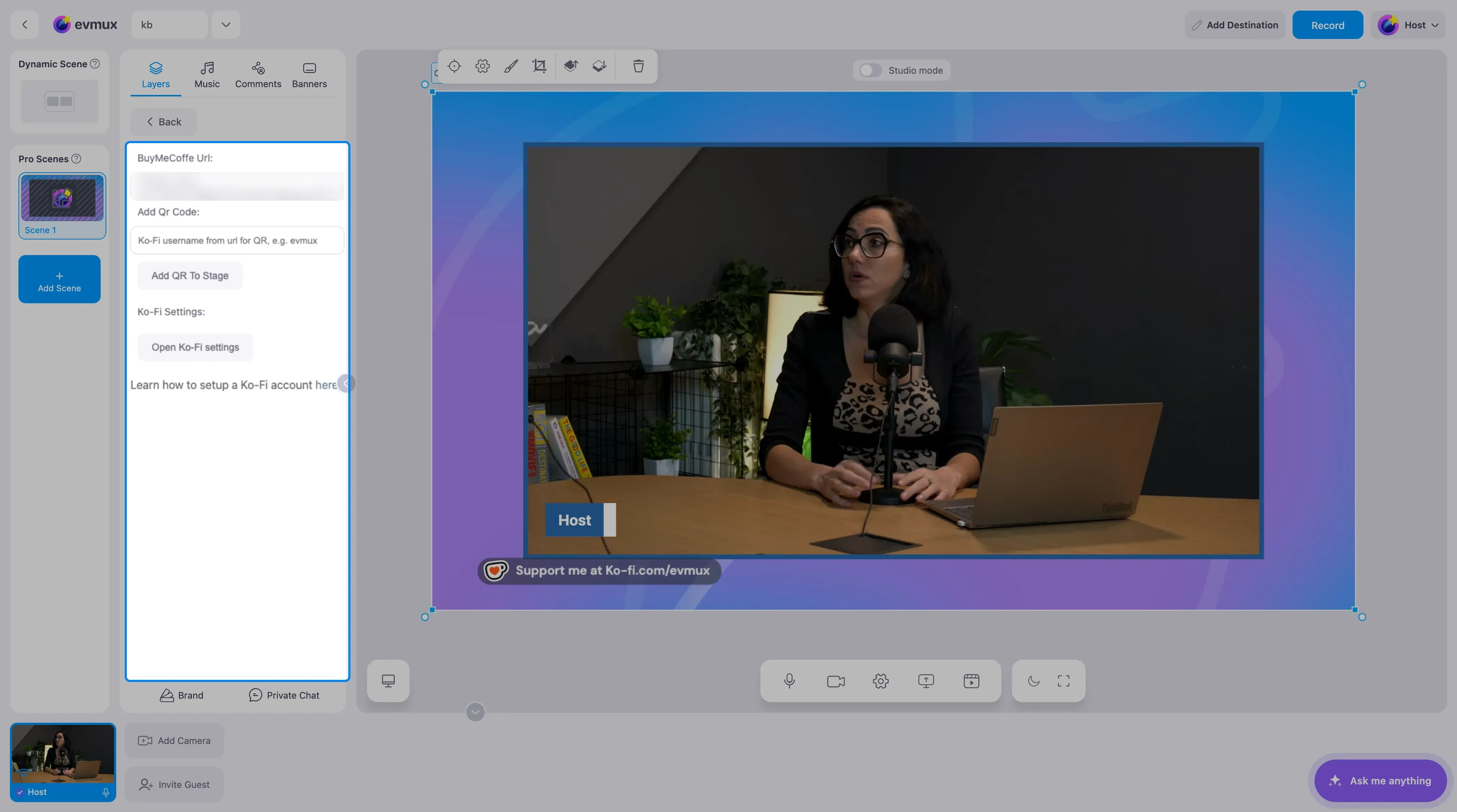
- Paste your overlay URL into the URL field at the top of the panel.
- Alerts from your supporters now appear on the scene as they happen.
Step 3: Add a QR Code (Optional)
- Type your Ko-fi username, the part after
ko-fi.com/in your page address, into the Add Qr Code field. - Click Add QR To Stage. A QR code layer linking to your page is added to the scene. Move and resize it, and keep it large enough to scan.
Step 4: Fine-Tune on Ko-fi
Open Ko-Fi settings opens your Ko-fi stream alert settings in a new tab, where you set the alert’s look, sound and duration. The widget shows the alert the way you set it there. The here link leads to Ko-fi’s setup guide.
Tips
- Send yourself a test alert from Ko-fi’s stream alert page before going live.
- Combine the badge with a short verbal call to action. A QR code alone rarely gets scanned.
- If you use both Ko-fi and Buy Me a Coffee, keep one of them per scene to avoid two badges fighting for the same corner.