

How to Bring a Low-Latency Source into evmux with WHIP Ingest
WHIP Ingest lets another encoder send video into your scene over WebRTC. Compared with RTMP Ingest, which plays the incoming stream through HLS and adds several seconds of delay, WHIP arrives almost in real time. Use it when you need to react to the incoming picture live, for example a remote camera operated by someone else, a game capture from a second PC, or a feed from another studio.
Steps
Step 1: Add the WHIP Ingest Widget
- Open the Layers tab. Apps work on both scene types:
- Dynamic Scene: expand Apps & Widgets -> Add from marketplace
- Pro scene: click Add New Layer -> Apps & Widgets
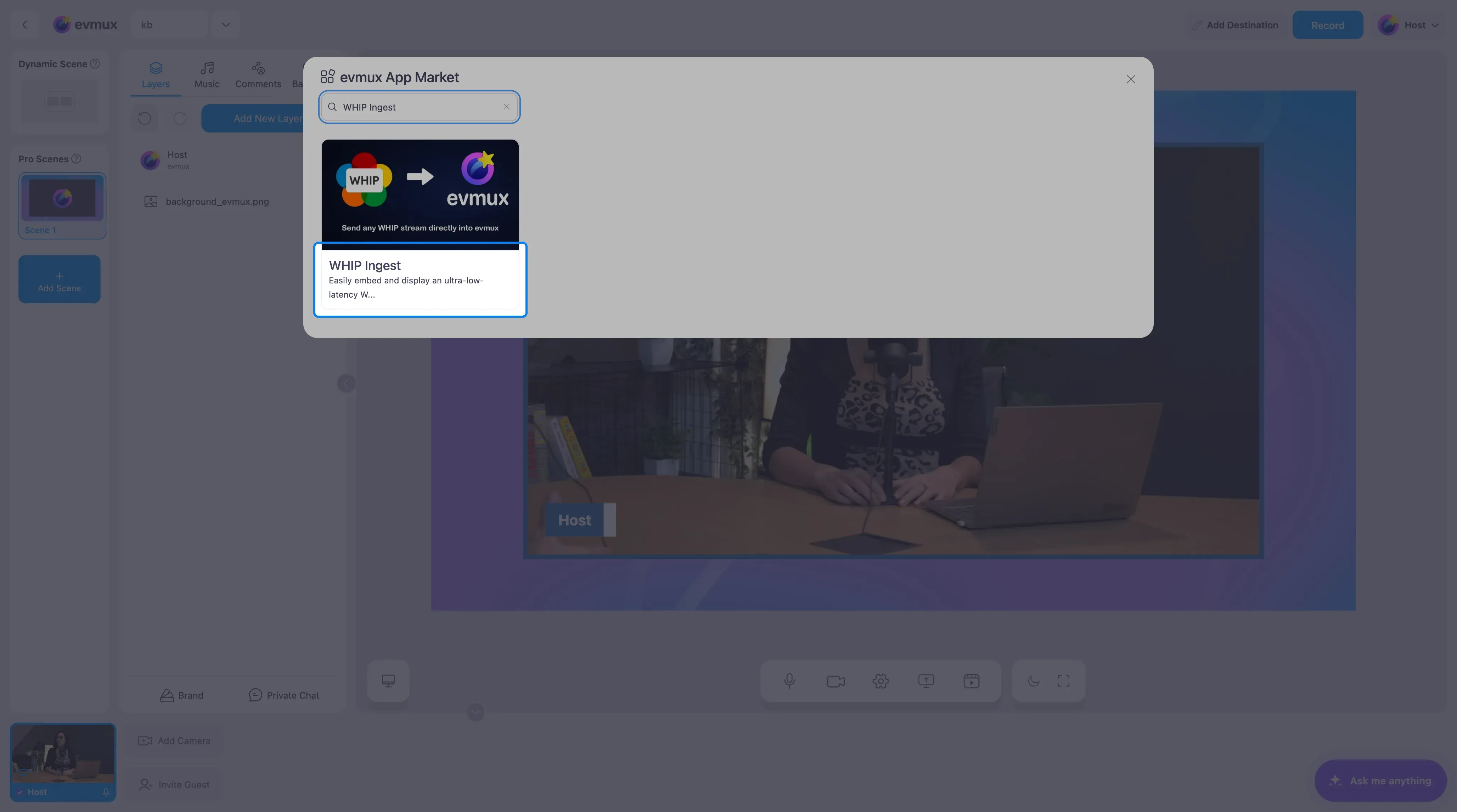
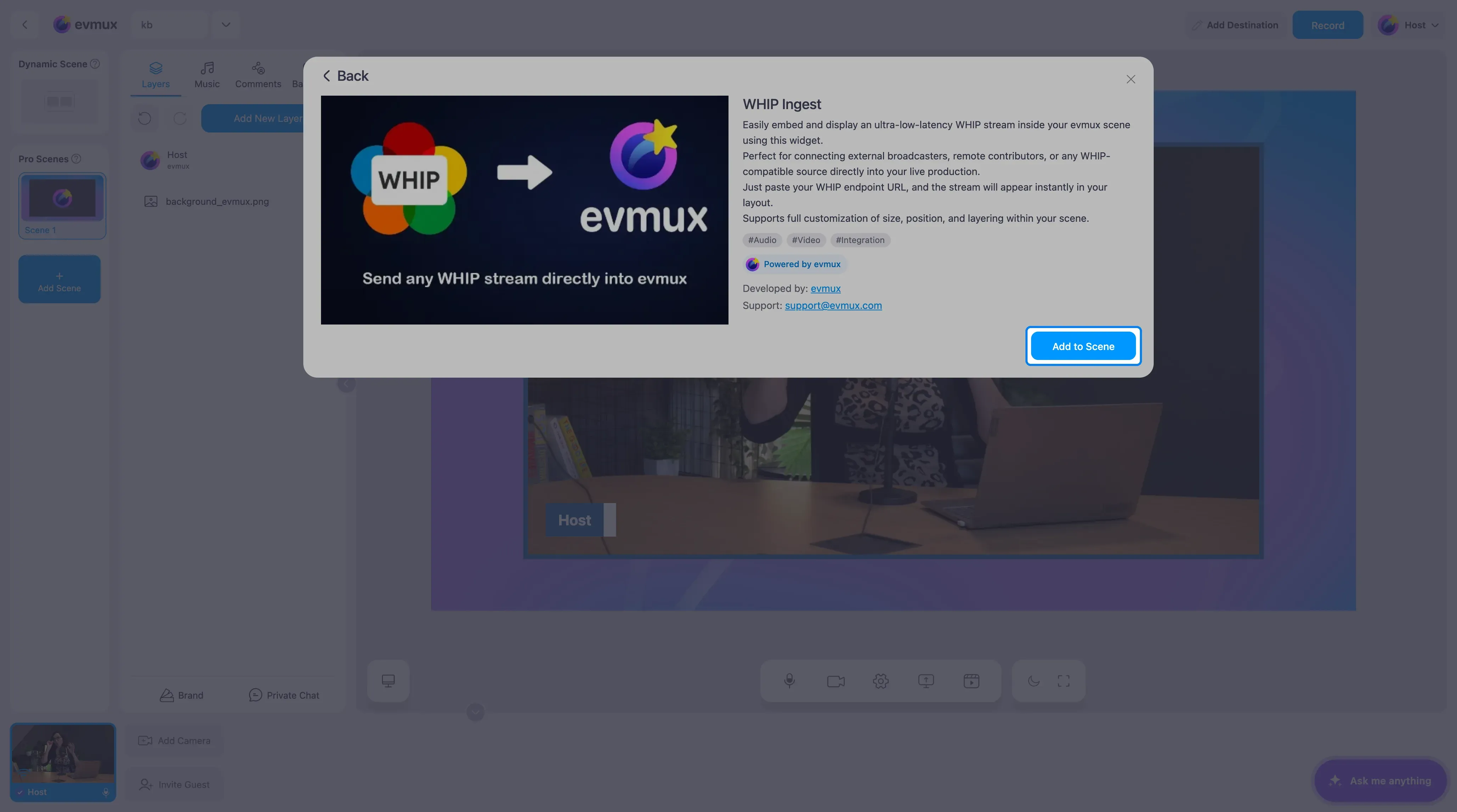
- Search for WHIP Ingest and click the card, then click Add to Scene
Step 2: Copy the WHIP URL
The widget appears on the scene as a black box that says Loading until a stream arrives. Its settings open on the left.
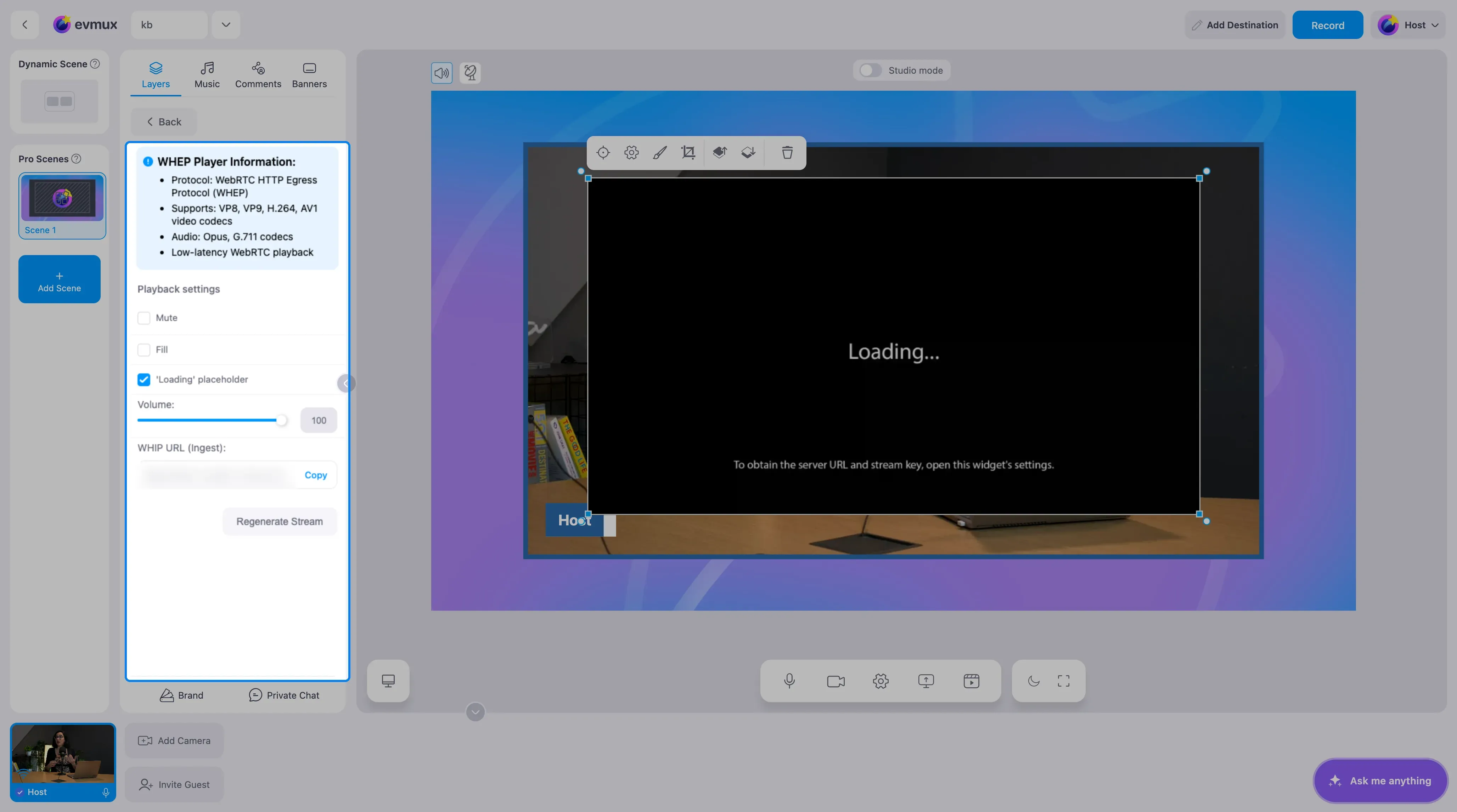
Click Copy next to WHIP URL (Ingest). This address is unique to this widget and contains its key, so treat it like a stream key and share it only with the person sending the feed.
Step 3: Send to It
In the sending software, choose WHIP as the service and paste the URL. In OBS Studio:
- Open Settings > Stream
- Set Service to WHIP
- Paste the URL into Server, leave Bearer Token empty
- Click Start Streaming
The box in your scene switches from Loading to the live picture within a second or two.
Step 4: Playback Settings
| Setting | What it does |
|---|---|
| Mute | Silences the incoming audio in the broadcast |
| Fill | Stretches the video to cover the layer instead of fitting inside it |
| ‘Loading’ placeholder | Shows the Loading text while nothing is arriving. Untick it for a plain transparent layer |
| Volume | The level of the incoming audio, 0 to 100 |
Regenerate Stream creates a new WHIP URL and stops the old one working. Use it if the URL leaked or a previous sender should not be able to reconnect.
The player accepts VP8, VP9, H.264 and AV1 video with Opus or G.711 audio, so any current WHIP encoder works.
Tips
- Resize and position the widget like any layer. A remote camera usually goes in a corner or side by side with your own camera.
- If the sender’s connection drops, the widget reconnects on its own when the stream returns.
- For a source that does not support WHIP, or when a few seconds of delay is fine, use RTMP Ingest instead.