

How to Add a Web Source
This guide shows you how to add web pages, widgets, and browser-based content as layers in your broadcast.
Quick Steps
- Click Add New Layer in the Layers panel
- Select Web Source from the menu
- Enter the URL of the web page
- Resize and position as needed
Understanding Web Sources
A web source displays a live web page within your broadcast. It’s like embedding a browser window into your stream.
| Use Case | Example |
|---|---|
| Widgets | Chat overlays, alerts, goals |
| Social feeds | Twitter/X timeline |
| Live data | Stock tickers, sports scores |
| Animations | HTML5 animations |
| Custom overlays | Browser-based graphics |
Method 1: Add from Layers Panel
Step 1: Add New Layer
- In the Layers panel (left side), click Add New Layer
- Select Web Source from the available layer types
- A web source layer is added to the scene
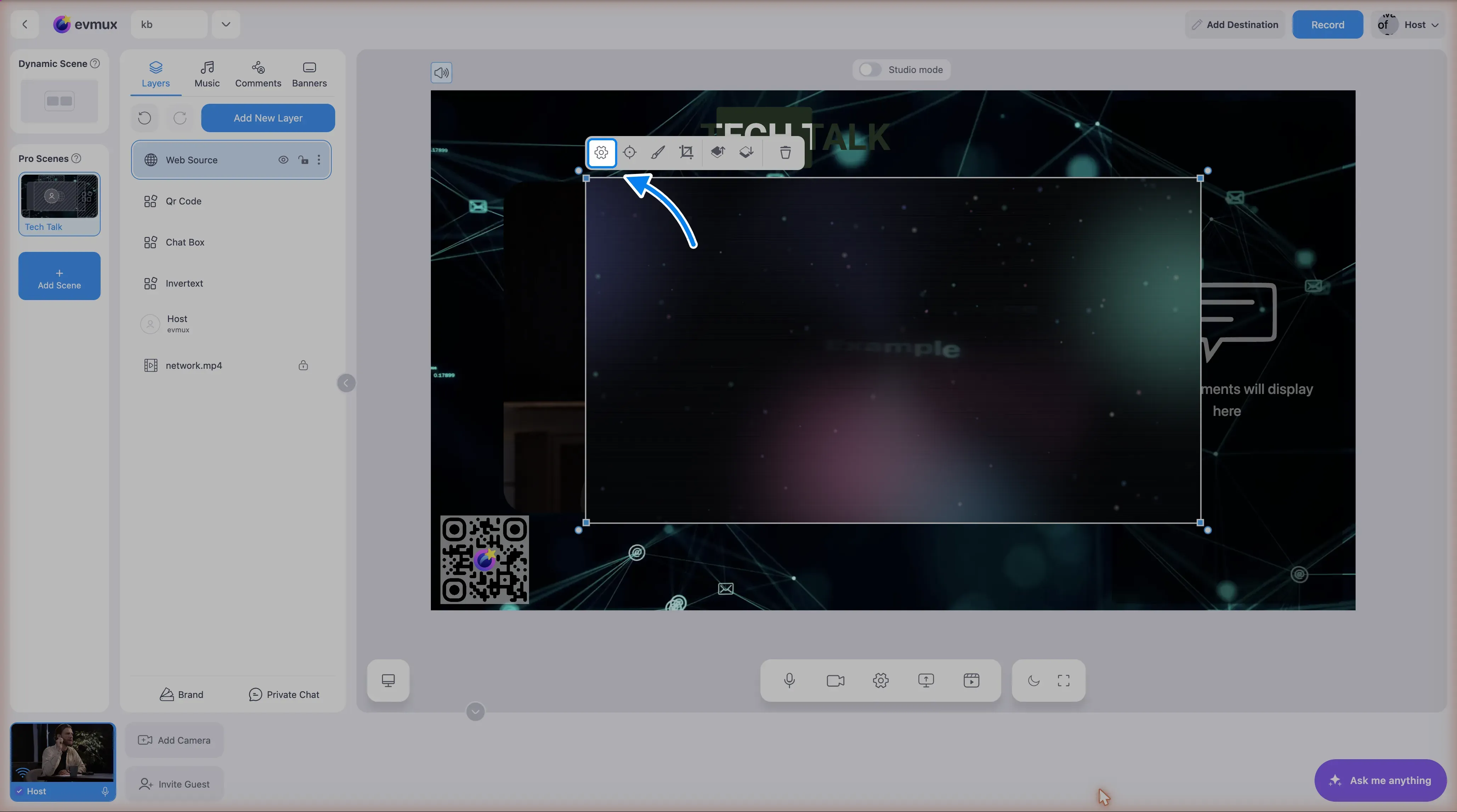
Step 2: Enter URL
- Click the settings icon (gear) in the layer toolbar above the layer
- Keep Use link selected, or switch to Use HTML code to paste markup instead
- Enter the complete URL (including https://)
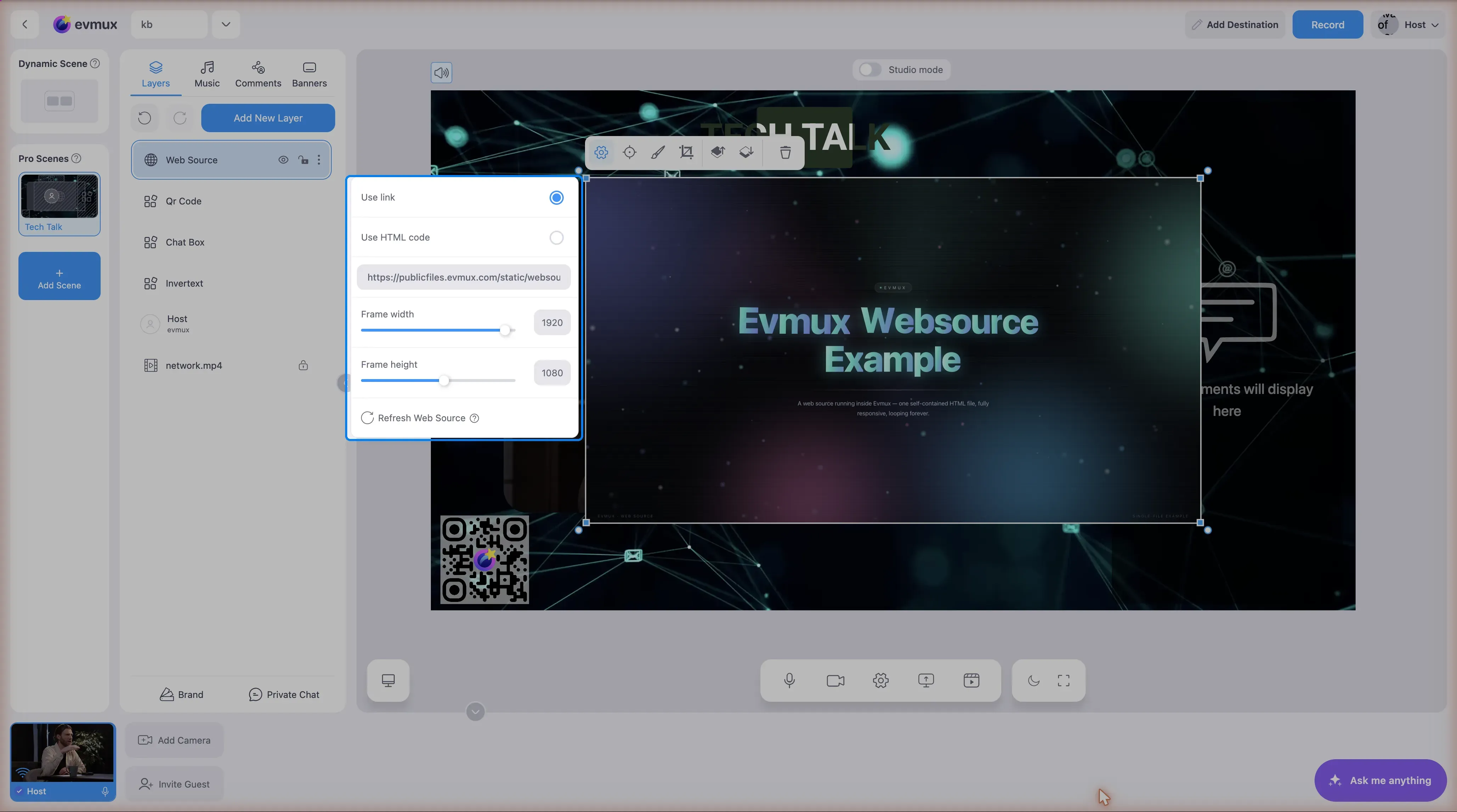
Step 3: Configure Size
- Set Frame width and Frame height in the same dropper
- Common sizes: 1920x1080, 800x600, 400x200
- Match the widget’s designed size if applicable
Step 4: Position the Layer
- Drag to position on the scene
- Or set exact X, Y coordinates
- Bring to front if needed for visibility
Common Web Source Uses
Stream Alerts (Streamlabs, StreamElements)
URL: Your widget URL from the platformSize: Usually 800x600 or customPosition: Top or center of screenChat Overlay
URL: Chat widget URL from your platformSize: 400x800 (vertical)Position: Side of screenSocial Media Feed
URL: Social embed URLSize: Varies by platformPosition: Corner or dedicated areaCountdown Timer
URL: Online countdown timer URLSize: 400x200Position: Where visible to viewersWeb Source Settings
Basic Settings
| Setting | Description |
|---|---|
| URL | Web address to display |
| Width | Display width in pixels |
| Height | Display height in pixels |
| Refresh Rate | How often to reload (if applicable) |
Advanced Settings
| Setting | Description |
|---|---|
| Custom CSS | Inject CSS to style the page |
| Shutdown when hidden | Stop loading when layer is hidden |
| Control audio | Enable/disable web page audio |
Tips for Web Sources
Performance
- Web sources use resources
- Don’t add too many simultaneously
- Simpler pages load faster
Transparency
- Many widgets are designed with transparent backgrounds
- Works automatically if the page supports it
- Check widget settings for “transparent” option
Sizing
- Set web source size to match the widget’s designed size
- Scaling up may look blurry
- Scaling down wastes resources
Audio from Web Sources
- Web pages can play audio
- Control via web source audio settings
- Or set that layer’s own volume to zero
Creating Custom Web Sources
You can create your own HTML pages:
Simple Custom Overlay
Create an HTML file with your content:
<!DOCTYPE html><html><head> <style> body { background: transparent; } .text { color: white; font-size: 48px; } </style></head><body> <div class="text">Your Text Here</div></body></html>Host it online and use the URL.
Dynamic Content
- Use JavaScript to update content
- Connect to APIs for live data
- Animate with CSS or JavaScript
Popular Widget Services
Streamlabs
- Get widget URL from Streamlabs dashboard
- Copy the unique URL
- Add as web source
- Alerts, goals, chat, etc.
StreamElements
- Get overlay URL from StreamElements
- Copy the widget URL
- Add as web source
Other Services
- OWN3D
- Muxy
- Stream Avatars
- Custom widgets
Troubleshooting
Web page not loading?
- Check URL is correct and complete
- Verify the URL works in a regular browser
- Check if the site allows embedding (X-Frame-Options)
- Some sites block iframe embedding
Content looks wrong size?
- Match web source dimensions to content
- Check if widget has recommended size
- Don’t scale beyond original size
Web source is blank?
- Page may not allow embedding
- Try a different URL
- Check browser console for errors
Audio from web source is playing?
- Check web source audio settings
- Set the layer’s volume to zero
- Disable audio in web source properties
Updates not showing?
- Page may be cached
- Try refresh/reload option
- Clear web source cache if available
Transparent background not working?
- Verify the web page supports transparency
- Check widget settings
- Some pages have solid backgrounds by default
Security Considerations
- Only use trusted URLs
- Don’t add web sources with login credentials visible
- Be careful with pages that show personal information
- Widget URLs are often private - don’t share them
Best Practices
- Test before going live - Verify web source displays correctly
- Match sizes - Use designed dimensions
- Limit quantity - Each web source uses resources
- Use HTTPS - Secure URLs preferred
- Have backups - External services can go down