

How to Use the AI Production Assistant
The AI Production Assistant is a help desk inside the studio. Ask it how something works or where a control is, and it answers in plain language and can highlight the exact button for you. It does not change your studio: it never adds layers, switches scenes or touches your settings. If you want an AI to operate the studio for you, connect your own AI client through MCP instead. See Connect your own AI to the studio.
Step 1: Open the assistant
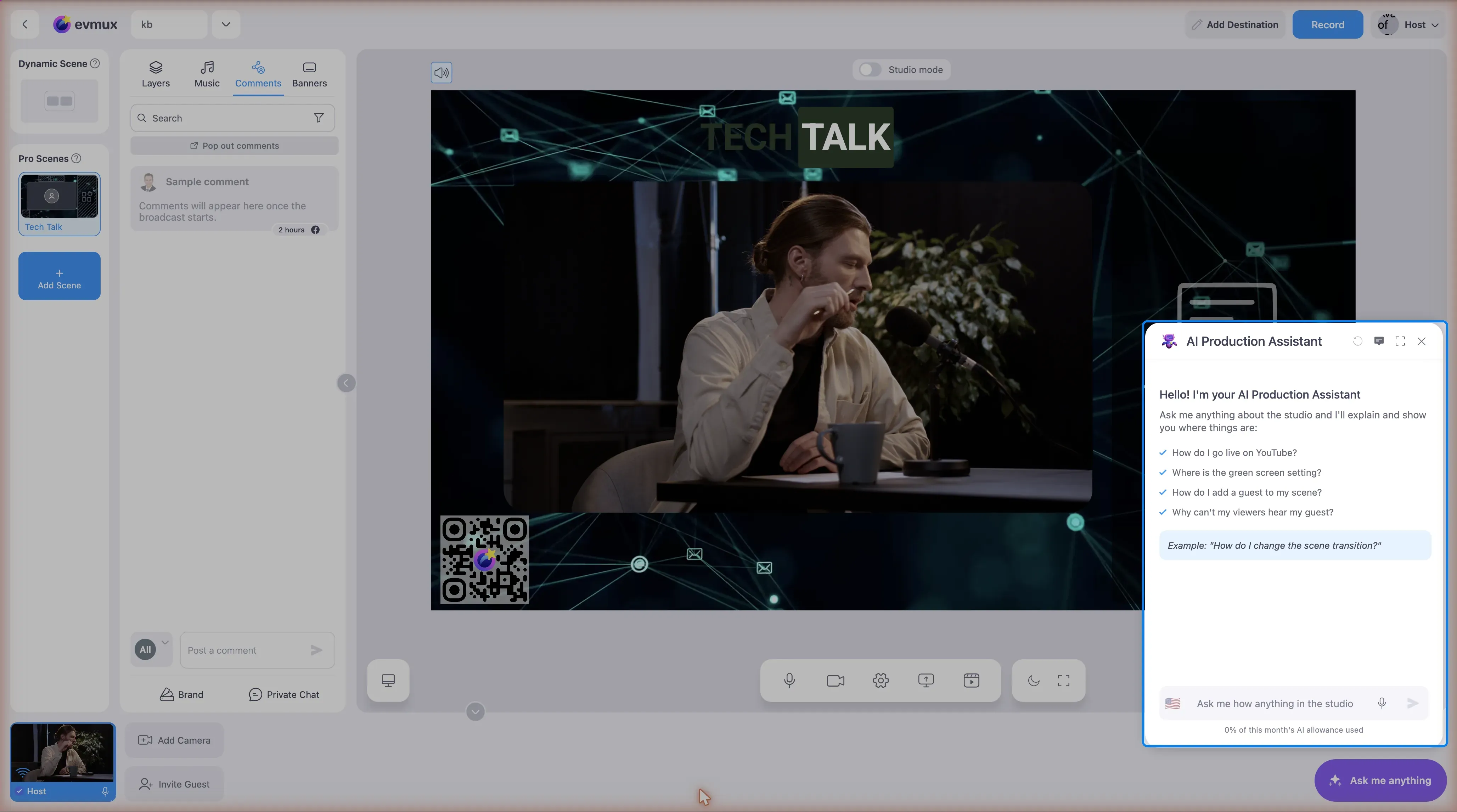
Click Ask me anything at the bottom right of the studio. The panel opens with a few example questions.
Step 2: Ask your question
Type in the box at the bottom and press Enter, or click the microphone icon and say it. Plain language works: “How do I go live on YouTube?”, “Where is the green screen setting?”, “Why can’t my viewers hear my guest?”.
Step 3: Use Show me
Many answers come with a Show me button. Click it and the studio highlights the control in question and walks you through the steps, one control at a time, so you see where the thing actually is instead of reading a description.
What it is good for
- Finding things: where a setting lives, what a button does, which tab to open.
- How-to questions: the steps for a task, in the order to do them.
- Troubleshooting: describe the symptom, such as “my guest sounds robotic”, and it suggests what to check. Some answers include a troubleshooting guide.
- Plan and limit questions: what your plan allows, how long you can stream, and so on.
What it does not do
- It does not perform actions. Asking it to “add John to the scene” gets you instructions for doing that yourself.
- It does not see your live audio or video, so it cannot judge how your stream looks or sounds.
- It answers about evmux. Questions unrelated to the studio are declined.
Allowance
Each plan includes a monthly AI allowance, shown as a percentage under the message box. Higher plans get more. When it runs out, the assistant switches to shorter answers from its knowledge base until the allowance resets.
Want an AI that actually does the work?
Connect Claude, ChatGPT, Cursor or any MCP-capable client to your studio. Those can read your scenes and layers, add and arrange content, and switch scenes on your instruction, using your own AI subscription. See Connect your own AI to the studio (MCP).