
Create an app
Create an app in the Developer Center, upload and test a version, set its default position and size, and submit it for review.
Plan your app
Taking the time now to plan out your evmux app will save you significant time in development later.
Create a new app
- Open the Developer Center in the evmux dashboard.
- Create a new app by giving it a name and clicking Create.
- On the app page, fill in the following information:
| Field | Where it is used |
|---|---|
| App name | Shown in the App Market and on the layer. |
| Description | Shown on the app’s page in the App Market. |
| Short description | Shown in the App Market gallery. |
| App permissions | The permissions your app requires. |
| Store gallery | Up to six images or videos that demonstrate the app. |
| Developer name and email | A way to contact the owner of the app. |
| Terms of use | A link to your terms of use document. |
Write the code
First, write your app code. You can use the sample app for reference.
Upload and test a version
- Open the App versions section of your app.
- Two versions are shown there:
- Production version: the version that has already been approved.
- Dev version: the latest version you uploaded.
- Zip your project into a zip file, with the files at the top level and not inside a folder, and upload it as a new version.
- Click Test latest. evmux opens the last session you worked on, with the new version of the app in the App Market. To see the new version in action, add the app to the scene again.
You can see the development version of your app in any studio by adding the query string
?devApps={yourAppId}to the studio URL.
Set the default position and size
In the Widget settings section of your app you can set the default position and size, by clicking Edit default position & size.
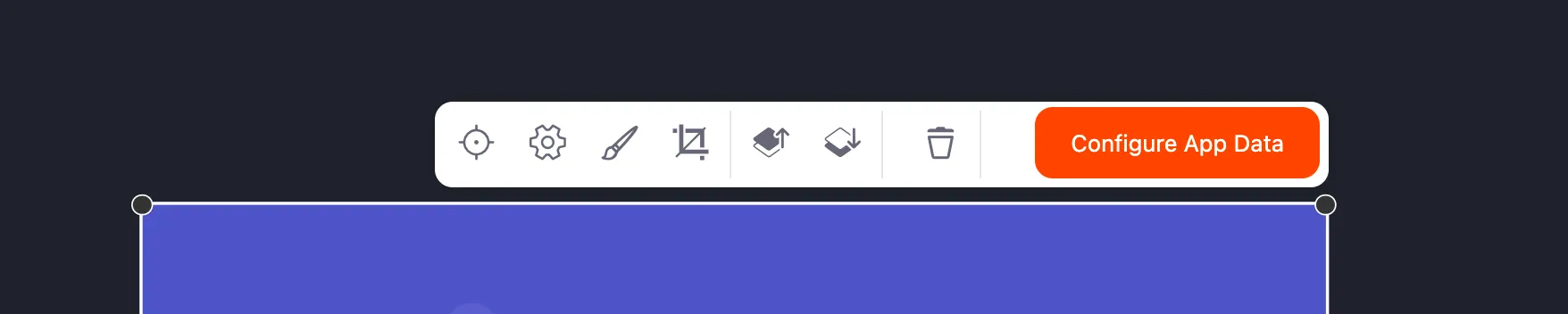
Set the position for both landscape and portrait mode:
- Default x and y coordinates
- Default width and height
- Lock aspect ratio by default
- Default rotation
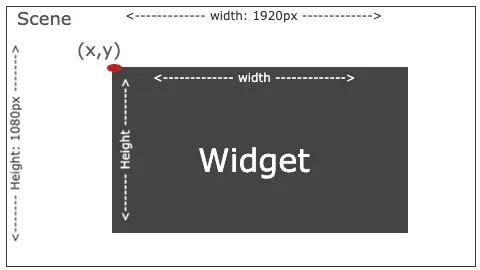
Coordinates and sizes are measured on the scene, which is 1920 by 1080 pixels in landscape:
Choose how the widget resizes
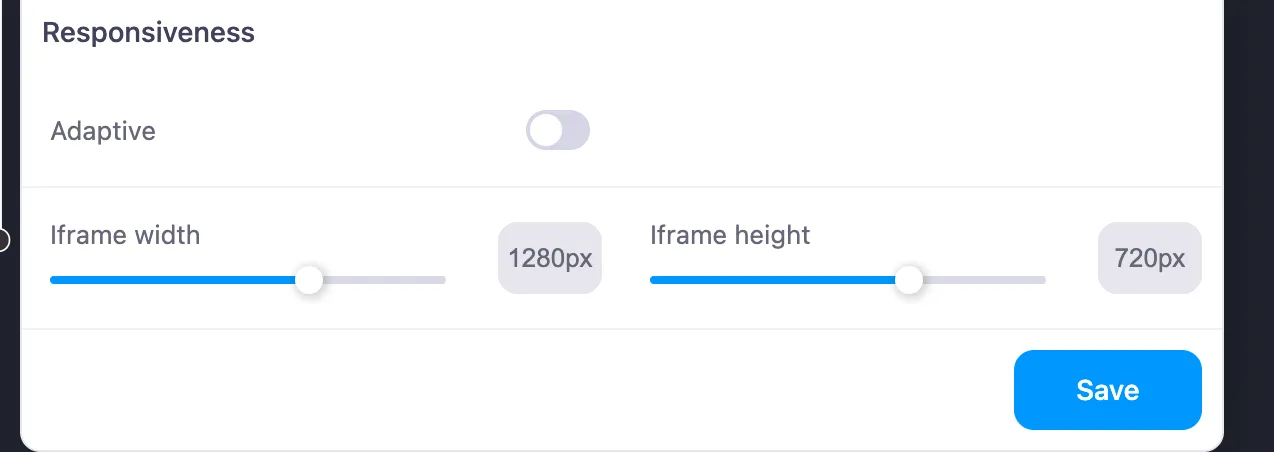
You have to say whether your app is responsive to any size, or should have a fixed size and zoom when users enlarge it.
Control this with the Adaptive switch:
- Adaptive on: your app is responsive to any size. Make sure the widget renders properly at any size.
- Adaptive off: the widget has a fixed size, the iframe width and height you set, and zooms when users enlarge it.
Submit the version for review
When your app is ready, submit it for review. In general, app review takes up to 7 days.
Stuck, or found a mistake in these docs? Tell us.