Interactive quiz experience for your evmux live streams
1. Overview
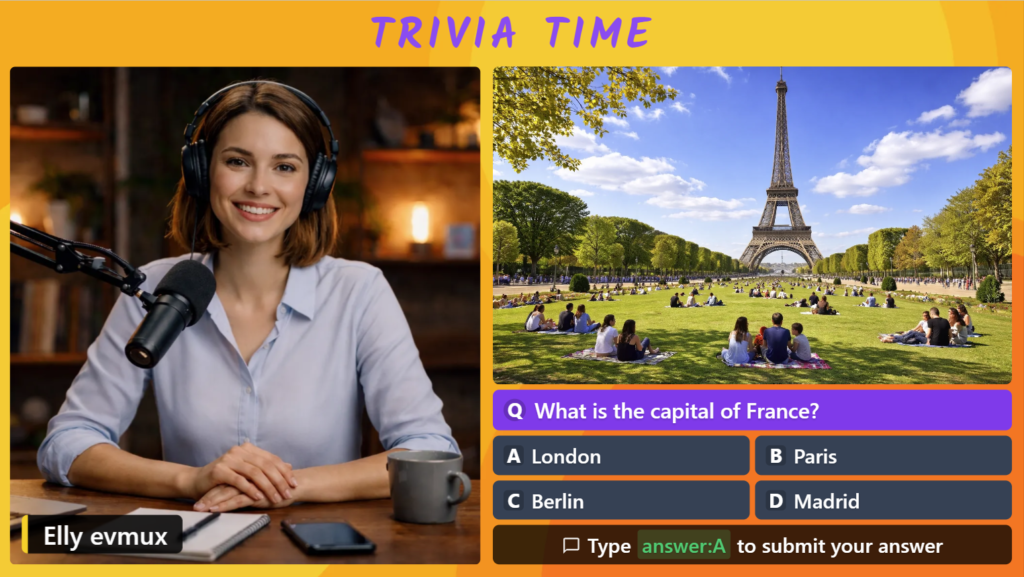
The Trivia App transforms your Evmux live streams into interactive quiz experiences. Here’s what you can do:
Interactive Questions
Display beautifully styled questions with multiple choice answers on your stream.
Multiple Participation Modes
Allow studio guests, editors, and chat viewers to participate in your trivia.
Live Leaderboard
Track scores and display winners in real-time during your broadcast.
Customizable Styling
Match the trivia appearance to your brand with custom colors and templates.
2. Getting Started
Adding the Trivia App to Your Scene
- Open your evmux studio and navigate to the scene where you want to add trivia.
- Click Add New Layer button in the panel from the left.
- Click the Apps & Widgets button in the toolbar to open the apps panel.
- Find “Trivia App” in the available apps list and click to add it to your scene.
- Position and resize the app layer as needed within your scene layout.
Accessing Settings
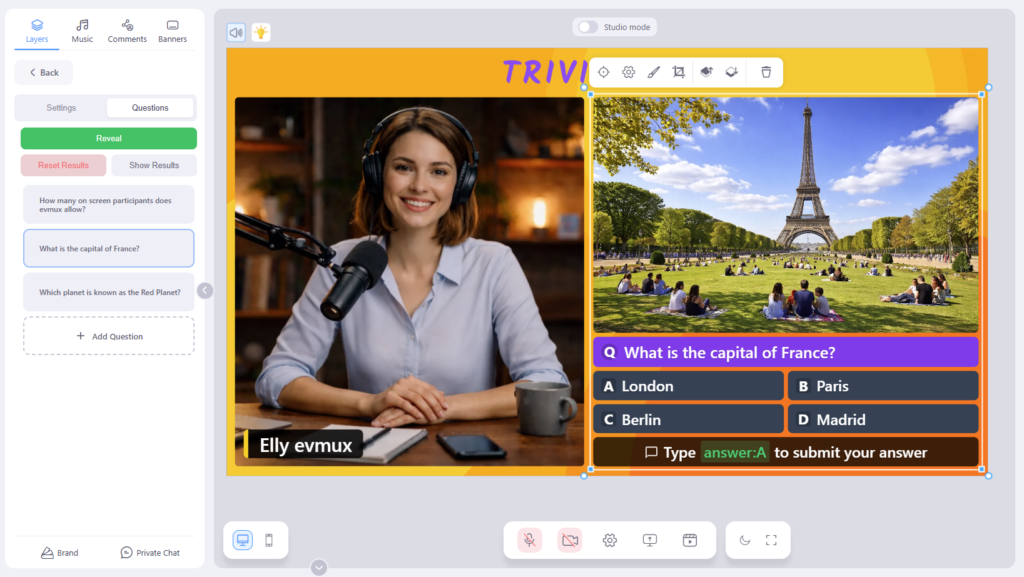
Double Click on the Trivia App layer in your scene to open the settings panel on the left side. This is where you’ll configure all aspects of your trivia game.
3. Creating Questions
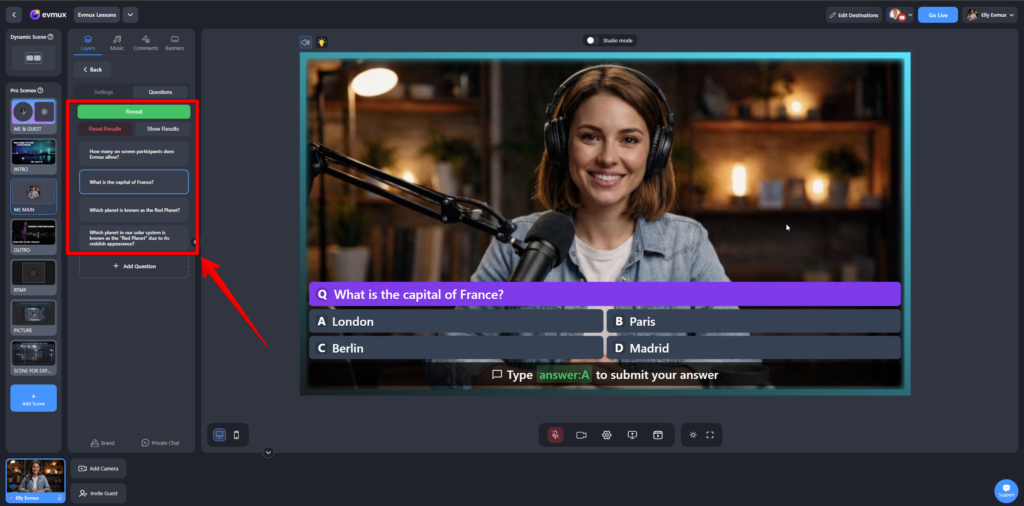
Questions are managed in the Questions List section of the settings panel. The app comes with sample questions that you can edit or delete.
Adding a New Question
- Click the “+ Add Question” button at the bottom of the questions list.
- Enter your question text in the question field.
- Optionally add an image from studio by selecting the image in gallery (image need to be uploaded into the studio).
- Add answer options (2-9 answers supported). Click “+ Add Answer” for more options.
- Mark the correct answer by selecting relevant answer in select box below the answers list.
Managing Questions
- Reorder questions: Drag using the handle on the left side of each question.
- Edit a question: Click the settings (gear) icon or right-click on the question.
- Delete a question: Open the question editor and click the delete button.
💡 Tip: Keep questions concise for better readability on stream. Aim for questions that fit on 1-2 lines.
4. Styling Options
Customize the appearance of your trivia to match your stream’s branding in the Styling section of settings.
Display Templates
| Template | Description |
|---|---|
| Default | Clean rectangular cards with rounded corners. Modern and versatile. |
| Rounded | Pill-shaped answer options with softer appearance. |
| Millionaire | Classic hexagonal style inspired by “Who Wants to Be a Millionaire”. |
Color Customization
- Question Background: The color behind your question text.
- Answer Background: Default color for answer options.
- Correct Answer Color: Highlight color when revealing the correct answer.
- Text Color: Color for all text and borders.
Text Size
Adjust the text size slider (20-60px) based on your layout. Larger sizes work better for full-screen trivia.
Answer Mark Style
Choose how answers are labeled:
- Alphabet: A, B, C, D…
- Numbers: 1, 2, 3, 4…
5. Participation Modes
Control who can participate in your trivia game through the Behavior section of settings.
Available Modes
| Mode | Who Can Participate |
|---|---|
| Selected Participants | Only specific studio guests/editors you select from a list. |
| All Participants | All connected studio guests and editors. |
| Chat Commenters | Only viewers typing answers in chat (YouTube, Facebook, etc.). |
| Selected + Chat | Specific studio participants plus chat viewers. |
| All + Chat | Everyone in studio plus all chat viewers. |
Chat Participation Settings
When chat participation is enabled, additional options appear:
- Direct Answer Mode: When enabled, chat viewers can type just the letter or number (e.g., “A” or “1”). When disabled, they must use a prefix.
- Answer Prefix: The text viewers type before their answer (default:
answer:). Example:answer:B - Max Chat Players on Leaderboard: Limit how many chat participants appear on the results screen (5-50).
💡 Tip: Using a prefix like answer: helps prevent accidental answers when viewers are chatting normally. Direct mode works best for dedicated trivia streams.
6. Running a Trivia Game
Showing a Question
- Click on a question in the questions list to display it on stream.
- Wait for participants to submit their answers via fast action buttons or chat.
- Reveal the correct answer using the “Reveal Answer” button or fast action.
- Move to the next question or show results when ready.
Answer Reveal Modes
Control how answers appear after showing a question:
| Mode | Behavior |
|---|---|
| All at Once | Question and all answers appear together immediately. |
| Question Then Answers | Question appears first, then all answers fade in after a brief delay. |
| One by One | Question first, then answers reveal sequentially with animation. |
| Manual (All) | Question first; click to reveal all answers at once. |
| Manual (One by One) | Question first; click to reveal each answer individually. |
Autoplay Mode
Enable Autoplay in settings to automatically advance to the next question after a set duration. A progress bar shows the remaining time on each question.
- Set duration between 10-180 seconds per question.
- The answer is automatically revealed when time expires.
- Game advances to the next question, then shows results after the last question.
⚠️ Note: Autoplay mode is great for fast-paced games but gives participants limited time to answer. Adjust the duration based on question difficulty.
7. Fast Action Buttons
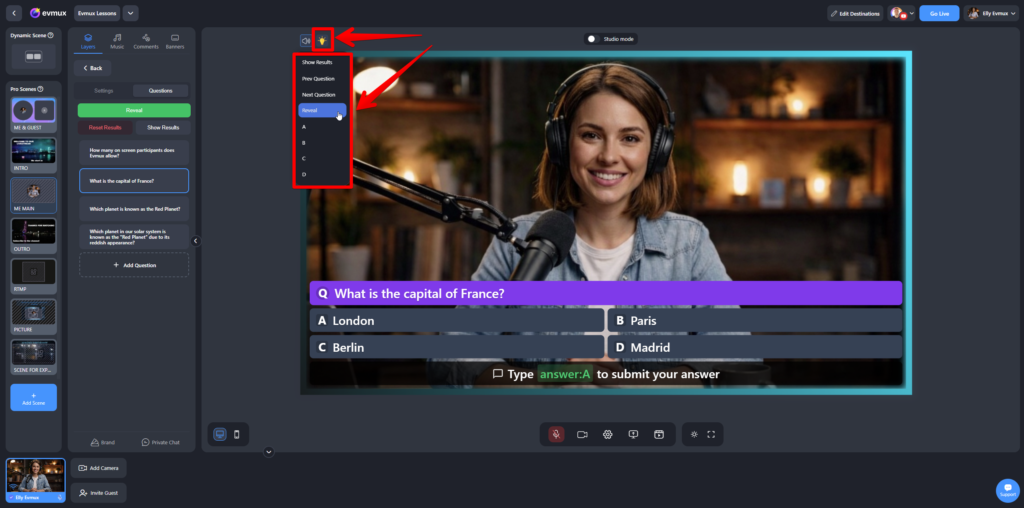
Fast action buttons provide quick controls for hosts and allow studio participants to submit their answers without leaving the main studio view.
For Hosts (Editors)
- Previous/Next Question: Navigate through your questions list.
- Reveal Answer: Show the correct answer (appears after showing question).
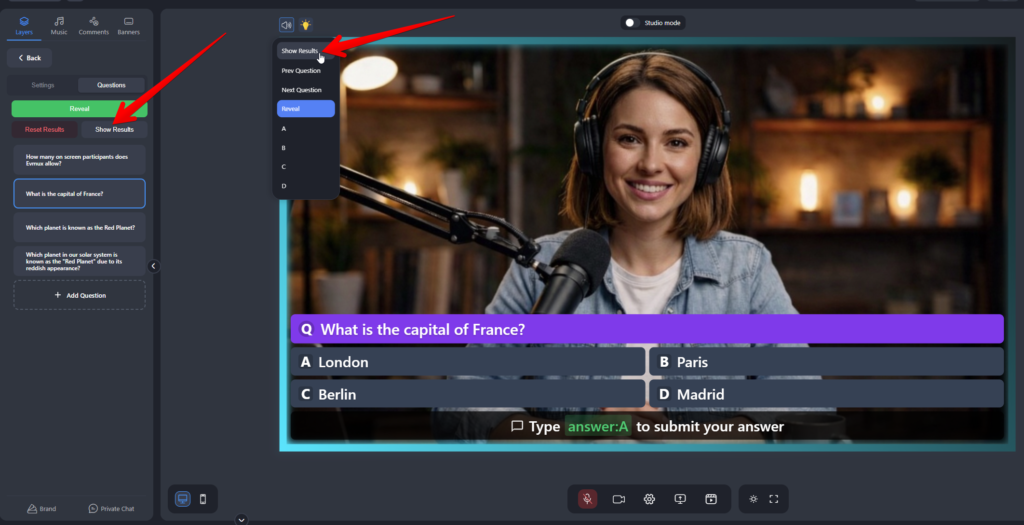
- Show/Hide Results: Toggle the leaderboard display.
- Answer buttons (A, B, C…): Submit your own answer as a participant.
For Participants (Speakers/Guests)
Studio participants see simplified fast actions with just the answer buttons (A, B, C, D or 1, 2, 3, 4) to submit their response to the current question.
💡 Tip: Participants can only answer while a question is displayed and before the correct answer is revealed. Their last answer counts if they change their mind.
8. Leaderboard & Results
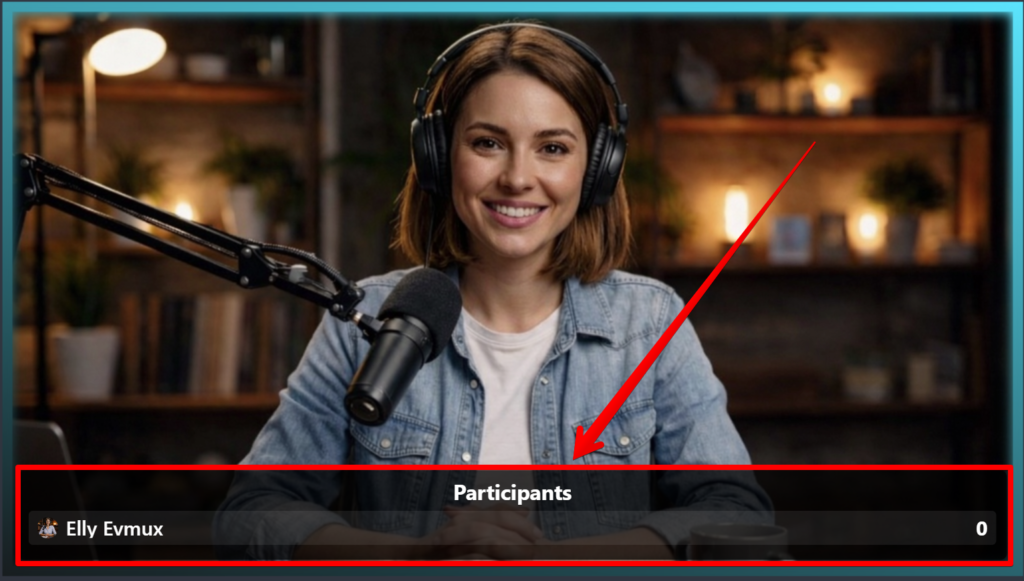
The leaderboard shows participant scores and can be displayed between questions or at the end of your trivia game.
Leaderboard Layout
- Players with the same score are ranked by who answered fastest.
- Studio participants appear at the top with their profile picture, name, rank, and score.
- Chat participants appear below (when enabled) with their social network icon, profile picture, username, and score.
- Winners (rank #1) are highlighted with a special background color.
Showing Results
- Click “Show Results” in settings or use the fast action button.
- The leaderboard will display instead of the question area.
- Click “Hide Results” to return to showing questions.
Resetting Results
Click the “Reset Results” button in settings to clear all scores and start fresh. This will:
- Clear all participant answers and scores.
- Remove all chat participant data.
- Return to the first question.
⚠️ Warning: Resetting results cannot be undone. Make sure you’re ready to start a new game before clicking reset.
9. Tips & Best Practices
Before Your Stream
- Prepare questions in advance: Create and organize all your questions before going live to ensure smooth gameplay.
- Test your settings: Preview how questions look with your chosen colors and template.
- Brief your participants: Let studio guests know how to use the fast action buttons to submit answers.
- Inform chat viewers: If chat participation is enabled, tell viewers how to format their answers (e.g., “Type answer:A to participate!”).
During Your Stream
- Give enough time: Allow participants a reasonable amount of time to read and answer each question.
- Build suspense: Use the manual reveal modes to create dramatic pauses before showing the correct answer.
- Engage with results: Comment on the leaderboard standings and congratulate leaders to keep viewers engaged.
- Mix difficulty: Include easy, medium, and hard questions to keep all skill levels engaged.
Troubleshooting
| Issue | Solution |
|---|---|
| Participant answers not recording | Ensure the question is visible and the answer hasn’t been revealed yet. Check that the participant is included in your participation mode. |
| Chat answers not working | Verify chat participation is enabled. Check that viewers are using the correct format (prefix or direct mode). |
| Scores not showing | Click “Show Results” to display the leaderboard. Ensure participants have answered at least one question. |
| App not visible on stream | Check that the app layer is visible in your scene. Ensure “Show Question” or “Show Results” is active. |
✨ Pro Tip: Run a practice round before your main trivia segment. This helps participants get familiar with the controls and lets you verify everything works correctly.
Trivia App for Evmux — User Guide